Configure CompuTec KSeF Incoming Document Categories
Configure incoming document categories to define how CompuTec KSeF downloads, matches, and processes documents retrieved from KSeF.
Use category settings to control download filters, Business Partner matching, draft creation, document and item determination, base document matching, and field mappings.
Configure these categories only if your company uses CompuTec KSeF to process incoming documents.
Before you start
Before you configure incoming document categories:
- Configure incoming document retrieval in the CompuTec KSeF Core plugin.
- Enable the required incoming-document background processing jobs.
- Make sure you have authorization to maintain KSeF categories in SAP Business One.
Open an incoming document category
-
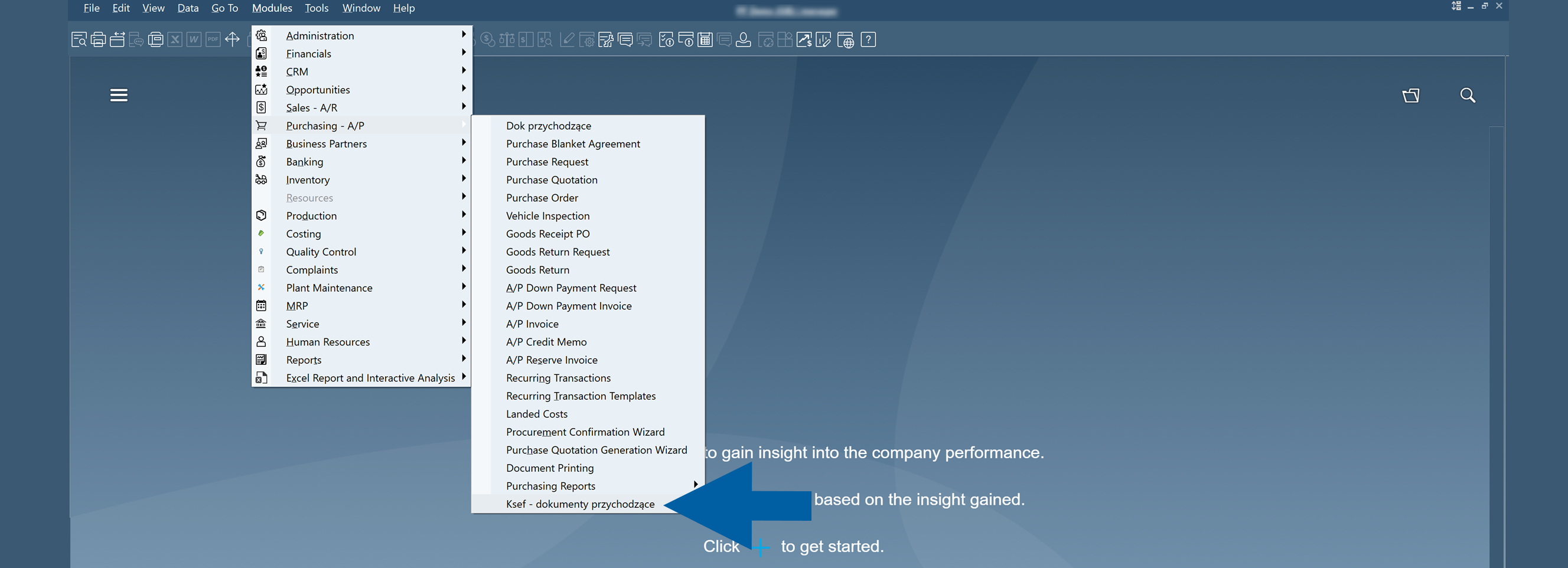
In SAP Business One, go to Purchasing A/P > KSeF – Incoming Documents.
-
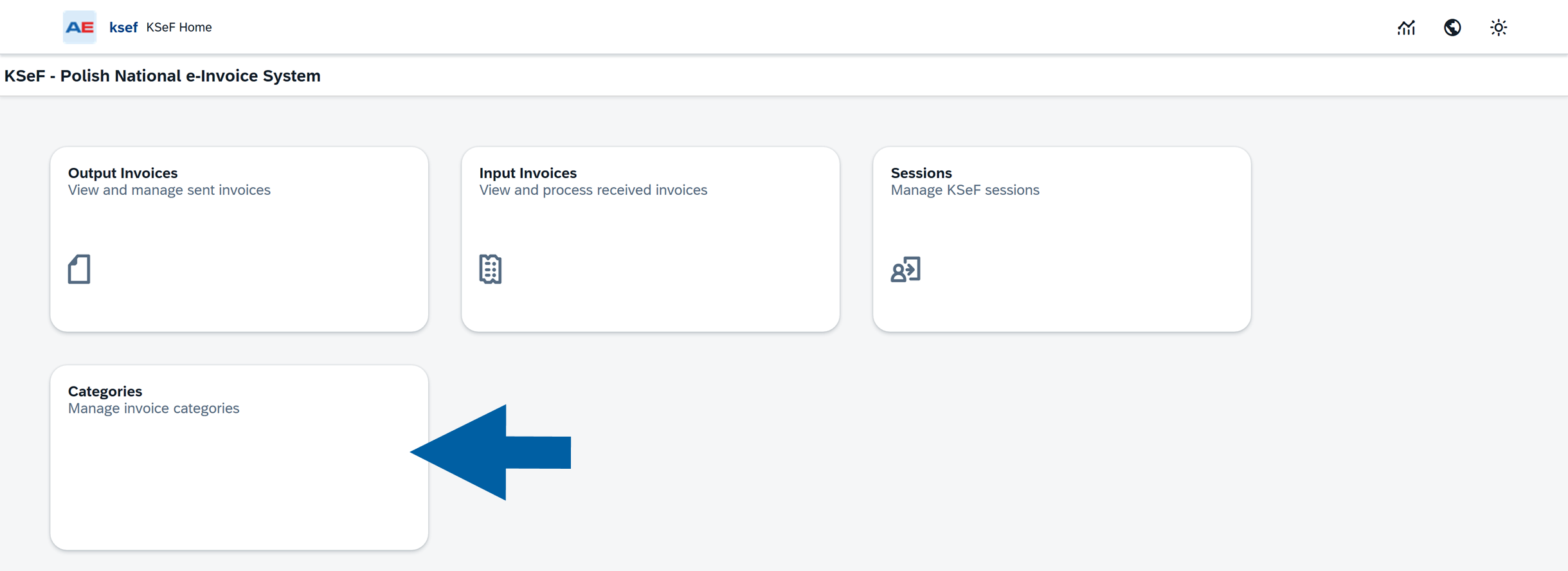
Open Categories.
-
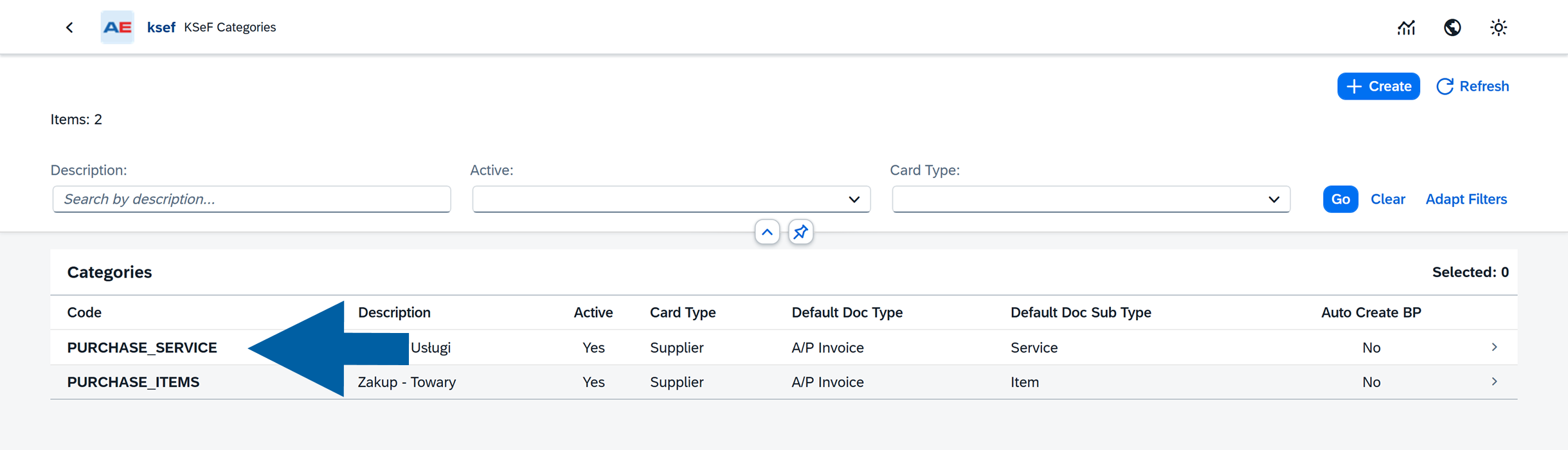
Click the category you want to configure.
-
Click Edit.

Configure basic information
Use Basic Information to define the general processing settings for the category.
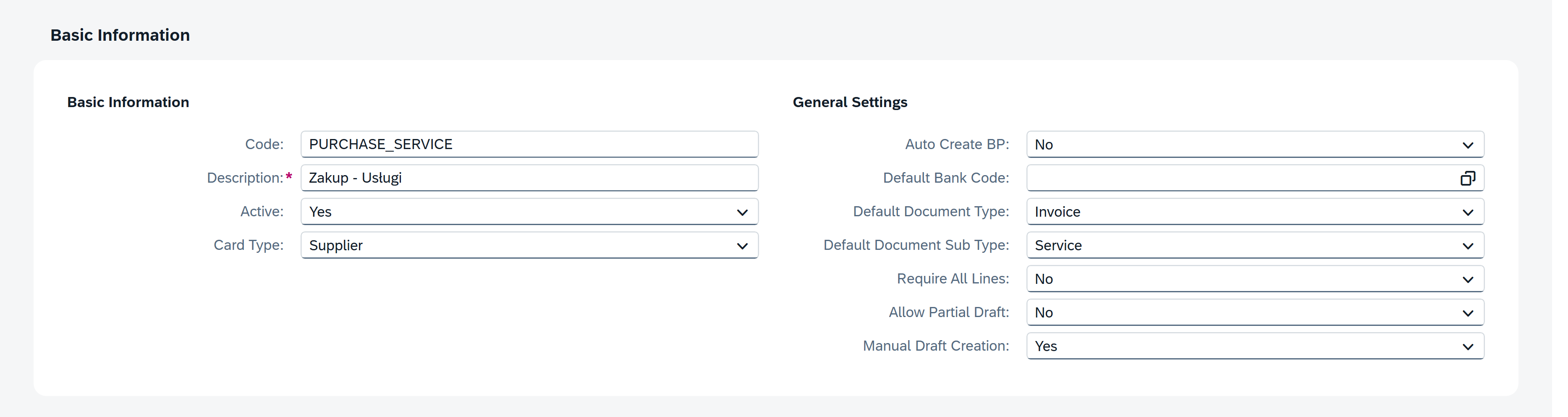
Code
Displays the unique category code.
Example: PURCHASE_SERVICE.
Description
Enter a description that helps users identify the category.
Active
Select Yes to enable the category.
Card Type
Select the SAP Business One Business Partner type used for documents in this category.
For purchase invoices, select Supplier.
Auto Create BP
Choose whether CompuTec KSeF should automatically create a Business Partner when it cannot match an incoming KSeF document to an existing Business Partner.
We recommend No so that users can review new Business Partners before creating them.
Default Bank Code
Enter the default bank code used when processing documents in this category.
Default Document Type
Select the default SAP Business One document type.
For PURCHASE_SERVICE, select Invoice.
Default Document Sub Type
Select the default document subtype.
For PURCHASE_SERVICE, select Service.
Require All Lines
Choose whether all lines of the incoming KSeF document must be successfully matched before CompuTec KSeF can process the document.
The default value is No.
Allow Partial Draft
Choose whether CompuTec KSeF can create a draft when only part of the incoming document can be processed.
Use No when the SAP Business One document should reflect the complete KSeF invoice.
Manual Draft Creation
Select Yes if users should review an incoming document before manually creating its SAP Business One draft.
This prevents CompuTec KSeF from creating the draft automatically before the incoming document is reviewed.
Configure the incoming download filter
Use Incoming Download Filter to define which documents CompuTec KSeF retrieves from KSeF and how it determines the download range.
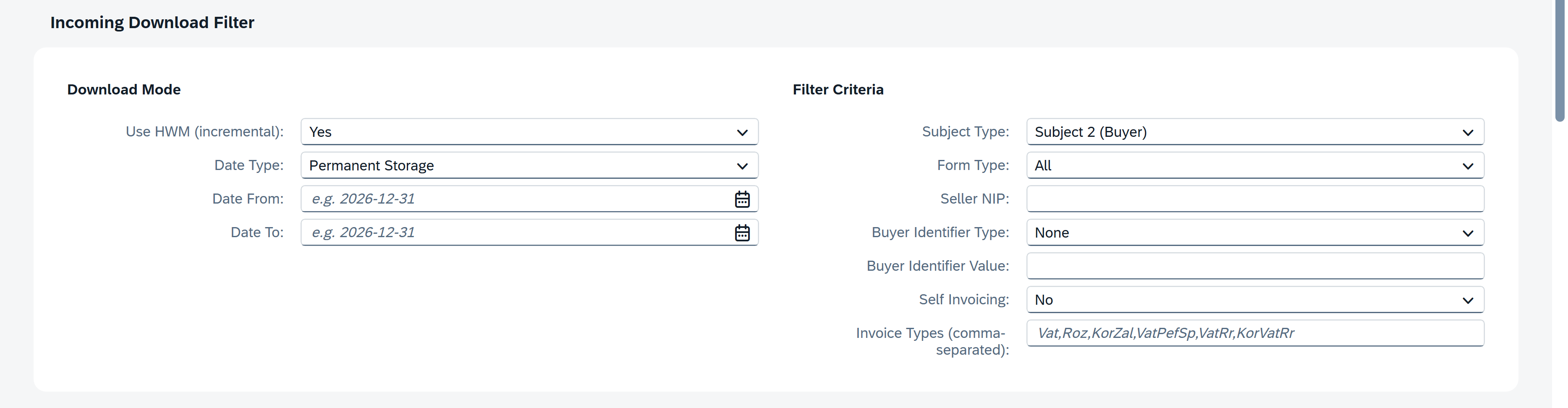
Use HWM (incremental)
Select Yes to use incremental downloading.
CompuTec KSeF keeps track of the last processed point and retrieves documents that have not yet been downloaded.
We recommend this setting for regular KSeF processing.
Date Type
Select the KSeF date that CompuTec KSeF should use to filter documents.
For regular processing, we recommend Permanent Storage.
Date From
Enter the beginning of the download period.
Use this field, for example, when older KSeF documents have already been processed manually and should not be retrieved again.
If you leave the field empty, the current date is used by default.
Date To
Enter the end of the download period.
For ongoing processing, leave this field empty.
Filter Criteria
Use Filter Criteria to further restrict which KSeF documents CompuTec KSeF retrieves.
Available criteria include:
- Subject Type.
- Form Type.
- Seller NIP.
- Buyer identification.
- Self Invoicing.
- Invoice Types.
For purchase invoices where your company is the buyer, set Subject Type to Subject 2 (Buyer).
Apply additional filter criteria only when you need to restrict which KSeF documents are retrieved. Otherwise, keep the default values.
Configure processing settings
Use Processing Settings to define how CompuTec KSeF groups, matches, and converts downloaded documents into SAP Business One drafts.
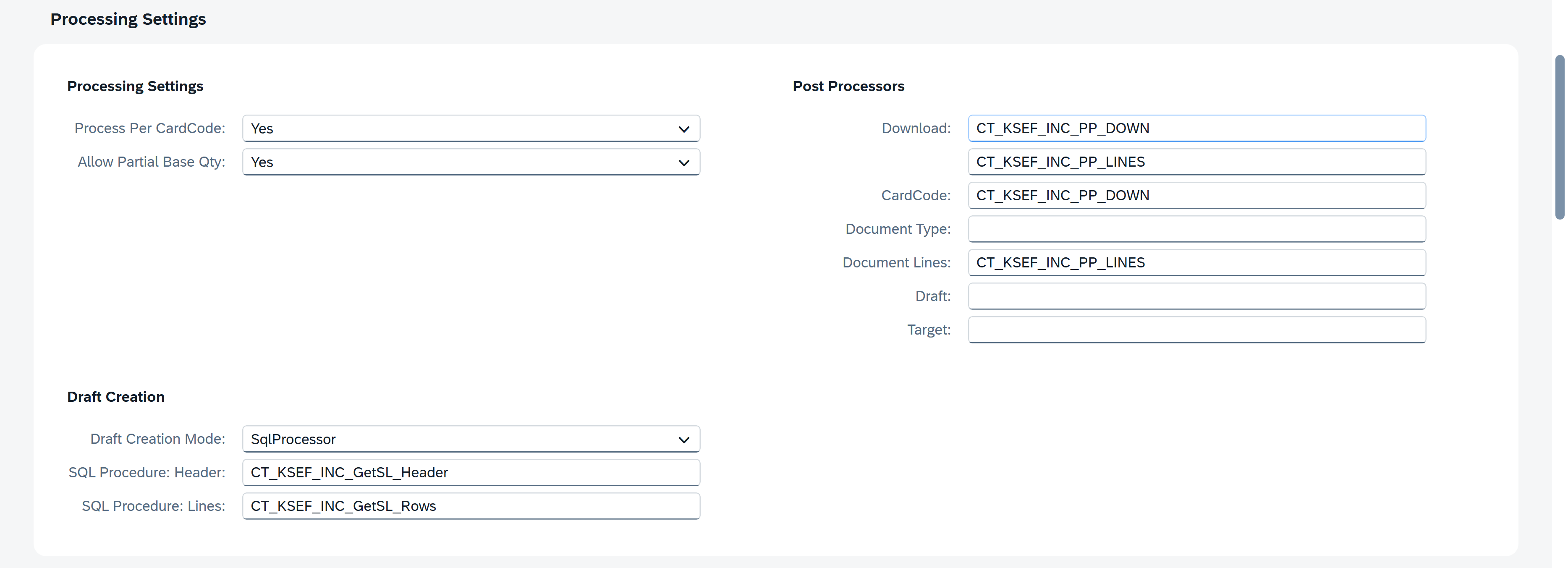
Process Per CardCode
Select Yes to process downloaded documents separately for each matched Business Partner.
Allow Partial Base Qty
Choose whether CompuTec KSeF can process a document when the quantity on the incoming invoice differs from the quantity available on the matched base document.
For example, if the base document contains a quantity of 100 and the incoming invoice contains 50, select Yes to allow the partial quantity to be processed.
Draft Creation Mode
Select how CompuTec KSeF creates SAP Business One drafts.
In the example configuration, SqlProcessor is used. This allows SQL procedures to prepare the document data required to create the draft.
SQL Procedure: Header
Select the SQL procedure that prepares draft header data.
SQL Procedure: Lines
Select the SQL procedure that prepares draft line data.
Post Processors
Use the configured post-processors to perform additional processing at different stages, such as after document download, Business Partner matching, and document-line processing.
Keep the default SQL procedures and post-processors unless your implementation requires custom processing.
If you need to customize a standard procedure, create a copy with a unique name and use that procedure in the configuration.
Do not modify standard procedures directly. Plugin updates may overwrite your changes.
Configure Business Partner determination
Use CardCode Determination Rules to define how CompuTec KSeF matches an incoming document to an existing SAP Business One Business Partner.
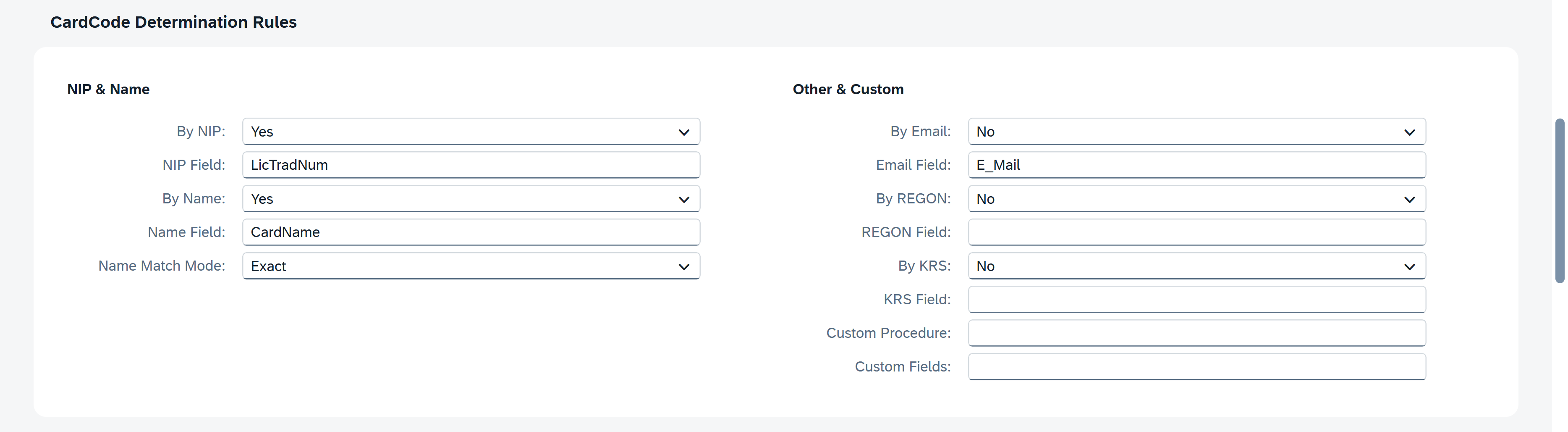
You can enable matching based on:
- NIP – Matches the supplier's NIP to the SAP Business One field configured in NIP Field. The example uses
LicTradNum. - Name – Matches the supplier name to the configured SAP Business One field. The example uses
CardName. - Email – Matches the Business Partner by email address.
- REGON – Matches by REGON.
- KRS – Matches by KRS.
- Custom Procedure – Uses custom Business Partner determination logic.
- Custom Fields – Uses custom fields for matching.
In the example configuration, matching by NIP and Name is enabled.
Configure document type determination
Use Document Type Determination Rules to define which SAP Business One document type and subtype CompuTec KSeF should use for an incoming document.

A rule can include:
- Source field.
- Operator.
- Value.
- Resulting document type.
- Resulting document subtype.
- Optional custom procedure.
- Evaluation order.
CompuTec KSeF evaluates the rules according to their Order.
Enable only the rules required for your document processing scenario.
Configure item code determination
Use Item Code Determination Rules to define how CompuTec KSeF matches incoming invoice lines to SAP Business One item codes.

You can use different matching methods, such as EAN, and configure a fallback item code when required.
Configure document and item determination rules according to your SAP Business One data and business process.
Configure base document matching
Use Base Document Configuration to define how CompuTec KSeF matches incoming invoices to existing SAP Business One base documents.

For each rule, you can define:
- Target document type.
- Base document type.
- Matching method.
- Allowed date range.
- Quantity requirements.
- Priority.
- Whether the rule is active.
For example, Match By: Document Number instructs CompuTec KSeF to use the document number when searching for a corresponding base document.
Configure field mappings
Use Field Mappings when CompuTec KSeF needs to transfer data from an incoming KSeF document to specific SAP Business One fields.

A mapping can define:
- Source.
- Target table.
- Target field.
- Transformation.
- Default value.
- Condition.
Base document rules and field mappings are implementation-specific. Add or change them only when required by your document processing scenario.
Save the category
- Review the category settings.
- Click Save.

Result
The incoming document category is configured.
CompuTec KSeF can use the category settings to retrieve and process incoming documents, including Business Partner matching, draft creation, document and item determination, and base document matching.
Additional Information
Use the default configuration whenever it meets your business requirements.
Introduce custom SQL procedures, matching logic, or field mappings only when your implementation requires them.
Next steps
After configuring incoming document categories, configure the required SAP Business One authorizations for CompuTec KSeF users.
Assign access according to each user's responsibilities, such as working with incoming invoices, outgoing invoices, or administrative configuration.
See Configure SAP Business One Authorizations for CompuTec KSeF.