Outgoing Invoice Scenarios
This article describes specific scenarios for preparing outgoing SAP Business One documents for KSeF.
For the standard process of creating and sending outgoing invoices, see Send Outgoing Invoices to KSeF.
Create a correction invoice for multiple invoices
When you create a correction invoice that applies to multiple invoices, provide the numbers of the corrected invoices in the KSEF-Upust za okres-numery fa.koryg. user-defined field (UDF).
-
In SAP Business One, create the correction invoice and enter its details.
-
Display the UDF Fields panel.
NoteIf the panel is not visible, select View > UDF Fields.

-
In UDF Fileds on th right, find KSEF-Upust za okres-numery fa.koryg. and use it to enter the numbers of the invoices that the correction applies to.
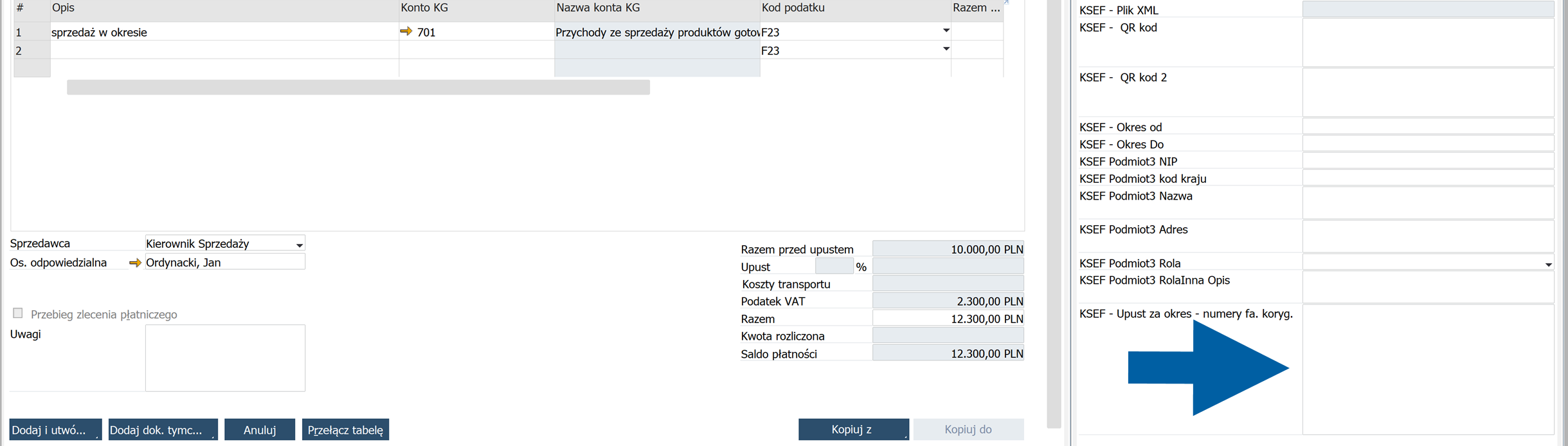 note
noteIf you want to enter multiple invoice numbers, separate them with commas or enter each invoice number on a new line.

-
Complete the remaining document information and add the document.
CompuTec KSeF uses the provided invoice numbers when preparing the correction invoice for KSeF.
Next steps
See Send Outgoing Invoices to KSeF to learn how to send the document and monitor its KSeF processing.