Premium Extension Installation
CompuTec Premium is a lightweight deployment extension for SAP Business One that enhances system functionality. This guide provides step-by-step instructions for downloading, installing, and configuring the add-on, including firewall settings to ensure seamless operation.
You can download installation files from here.
Extension Installation in SAP Business One
Since CompuTec Premium is a lightweight deployment extension, it must be added and assigned to a specific company or database via the System Landscape Directory (SLD). Follow these steps for installation:
-
Access Add-On Administration
-
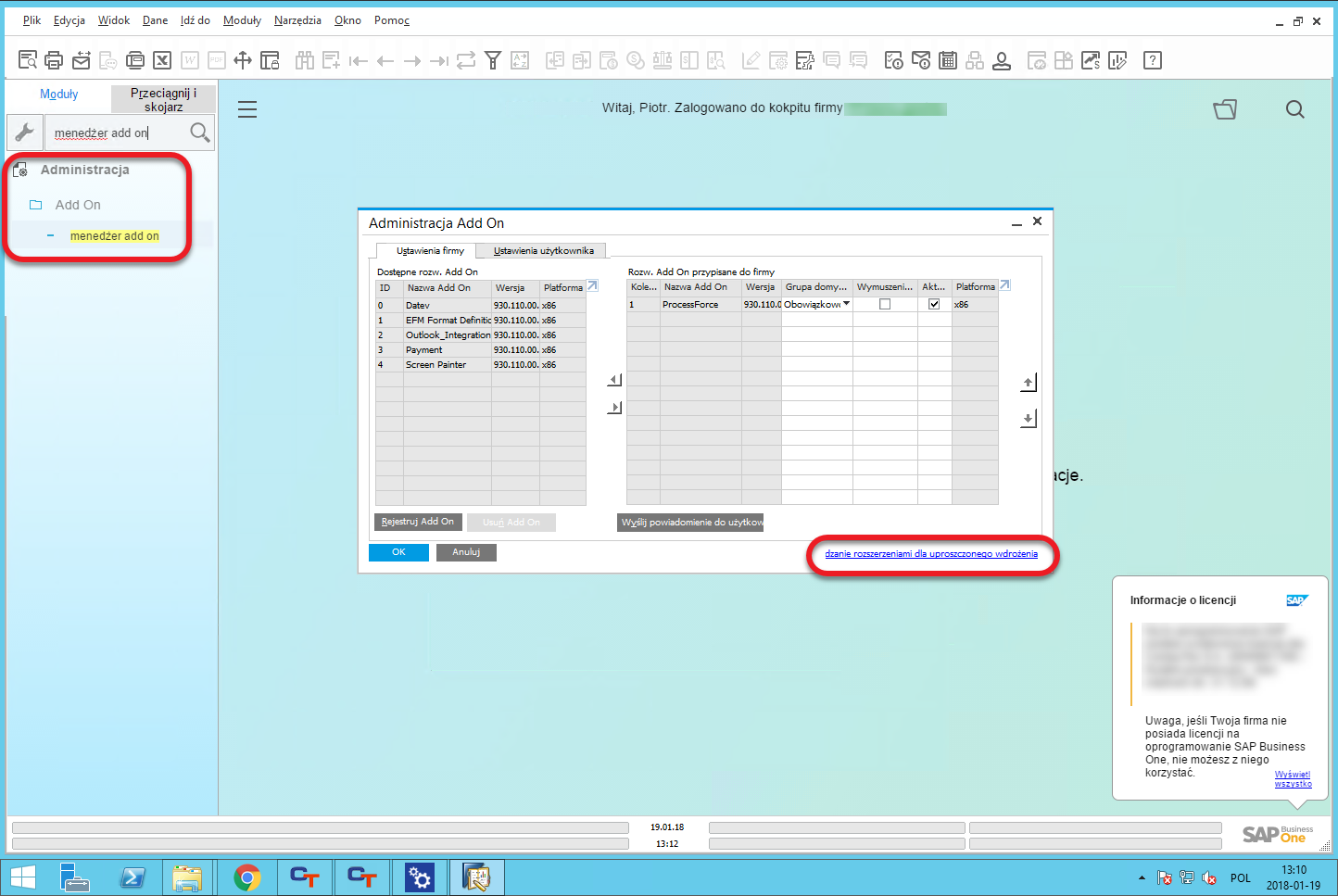
In SAP Business One, navigate to Main Menu → Administration → Add-Ons → Add-On Administration.
-
Click Manage Extensions for Lightweight Deployment at the bottom of the Add-On Administration window.
-
-
Log in to the System Landscape Directory (SLD)
-
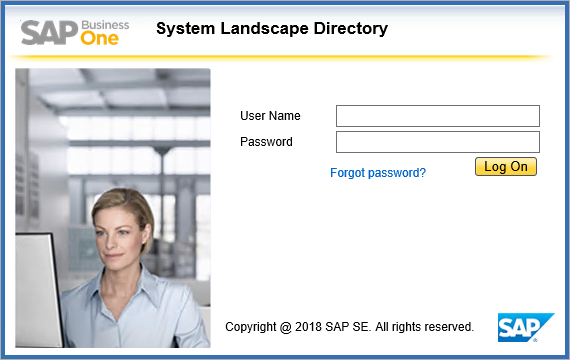
Open the System Landscape Directory and log in.
-
-
Import the Installation Files
-
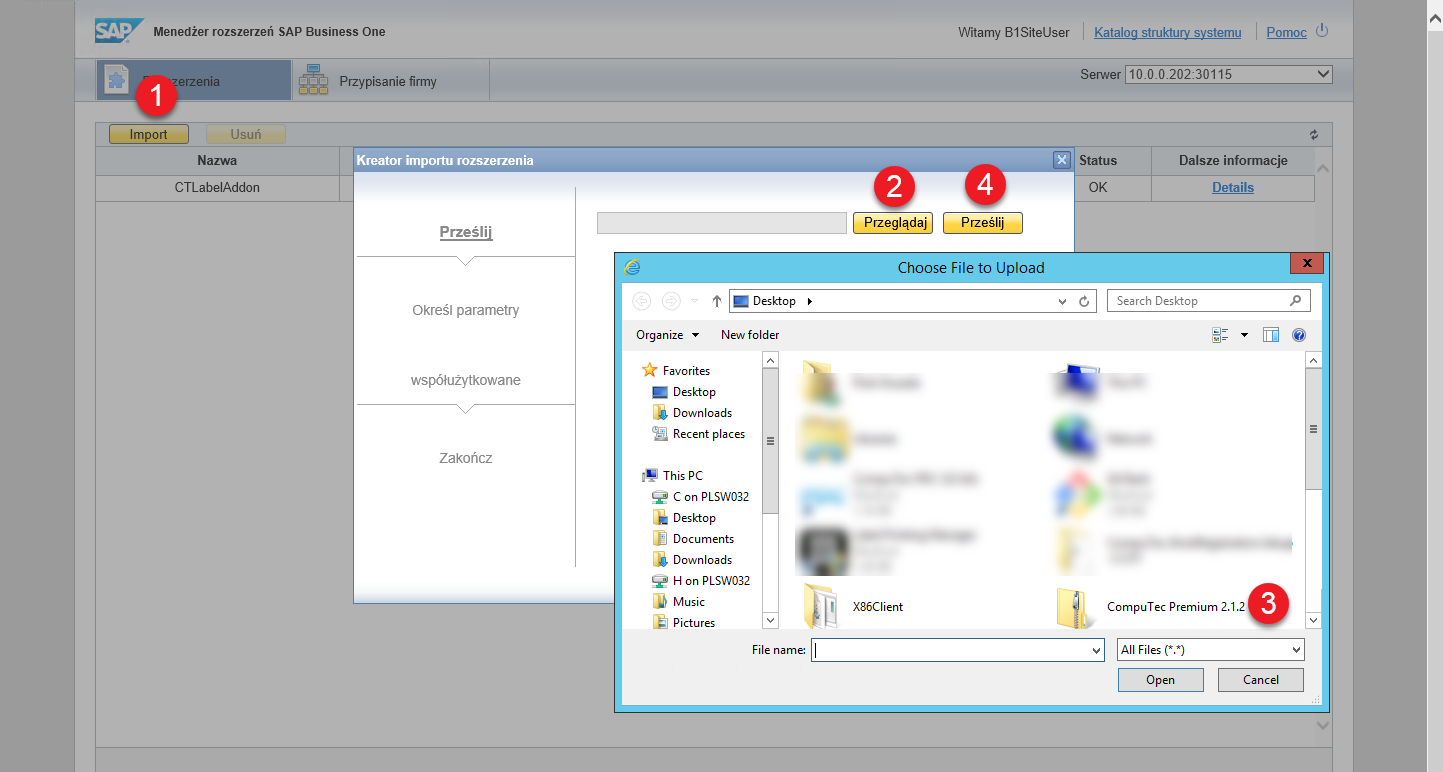
Select Import, then click Browse to locate the installation package.
-
Click Upload to begin the installation.
-
-
Configure Installation Parameters
- Set additional parameters if needed, or click Next twice and then Save.
- The CompuTec Premium extension will now appear in the main window.
-
Assign the Extension to a Company
-
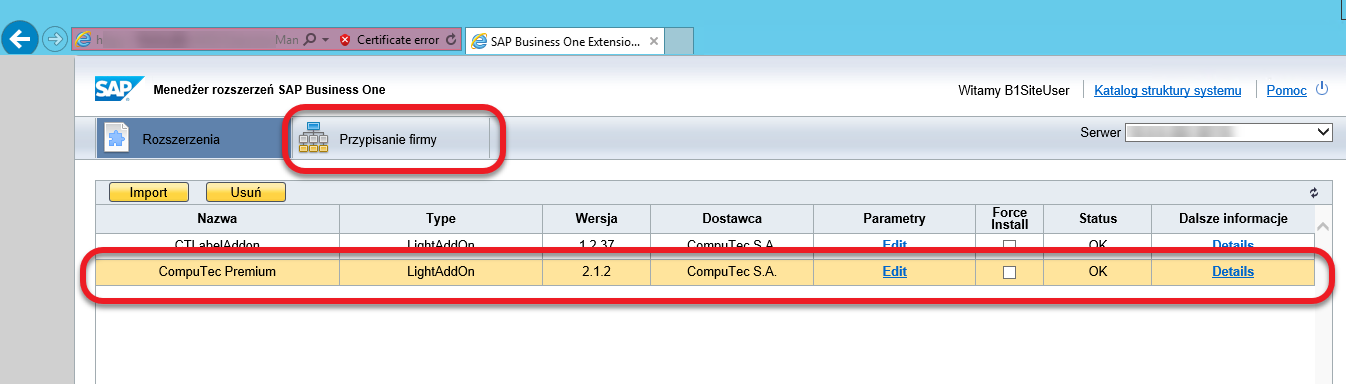
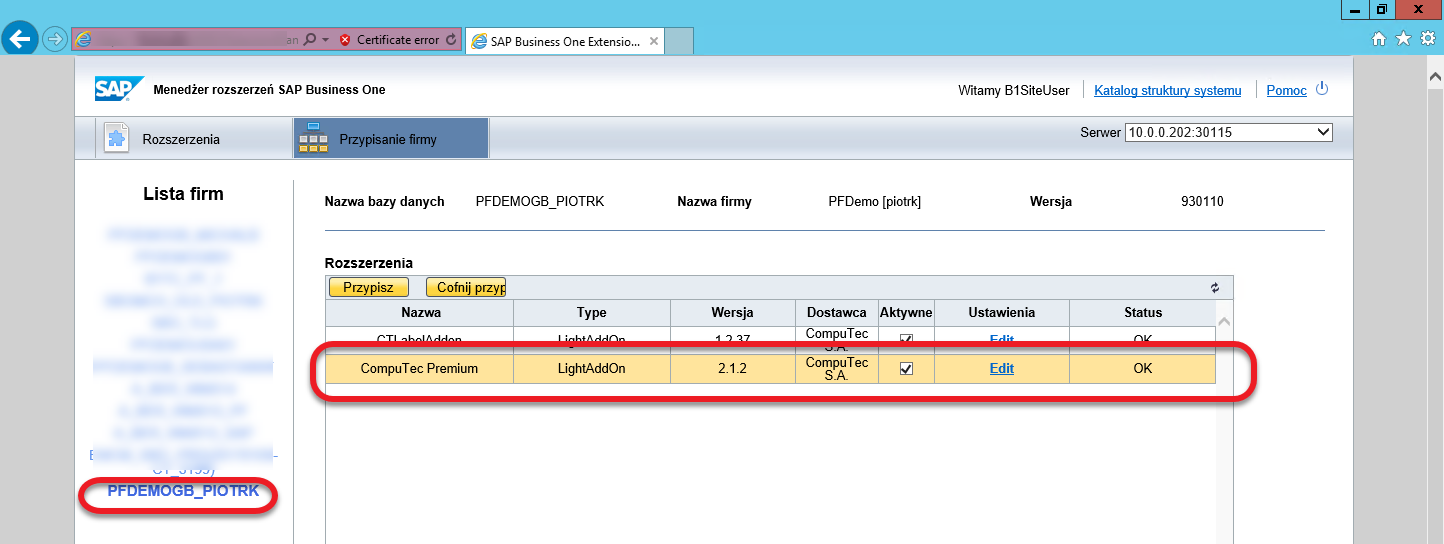
Select the CompuTec Premium extension and go to the Company Assignment tab.
-
Choose the required company and click Assign.
-
-
Finalizing the Setup
-
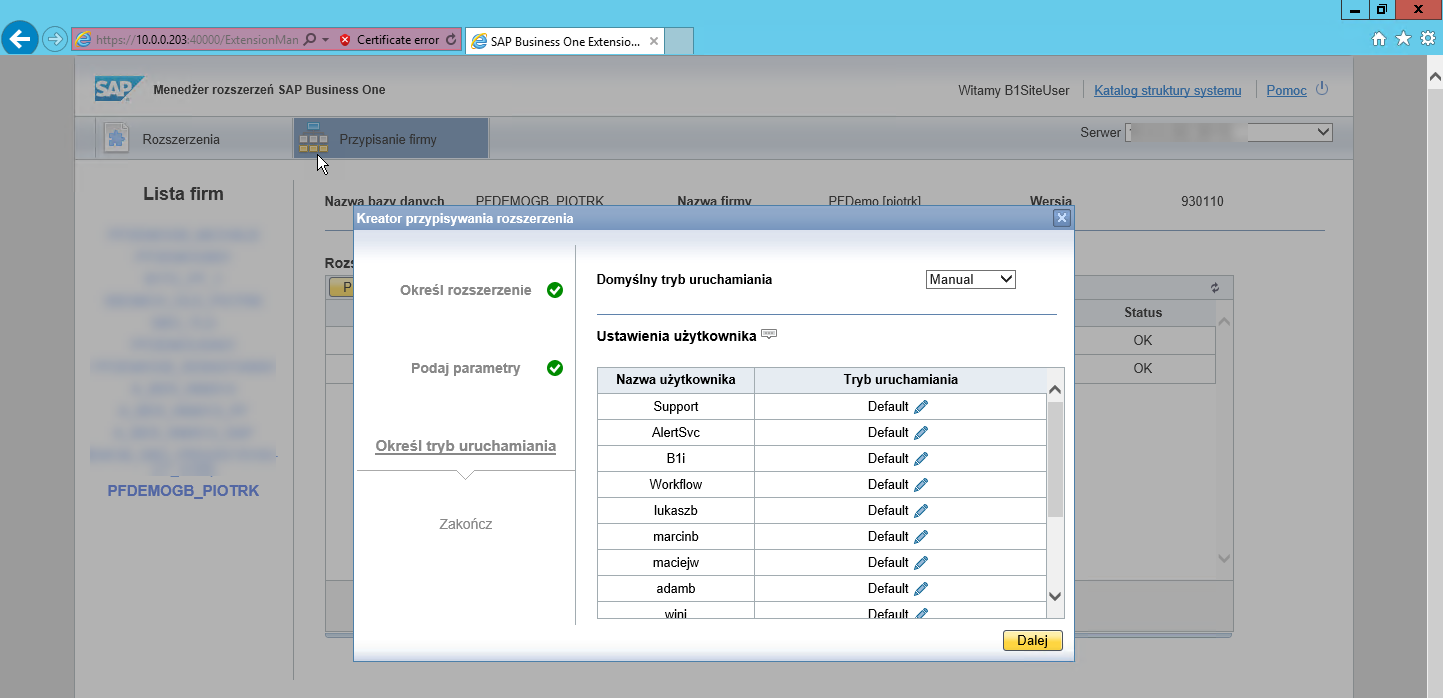
Check the field in the first column and click Next.
-
Set up the necessary parameters and proceed by clicking Next again.
-
Choose the starting method, which is automatically assigned to all users. This default setting can be adjusted per customer requirements.
-
Click Finish, log out of the System Landscape Directory, and re-log into the assigned company.
-
-
Running the Extension
-
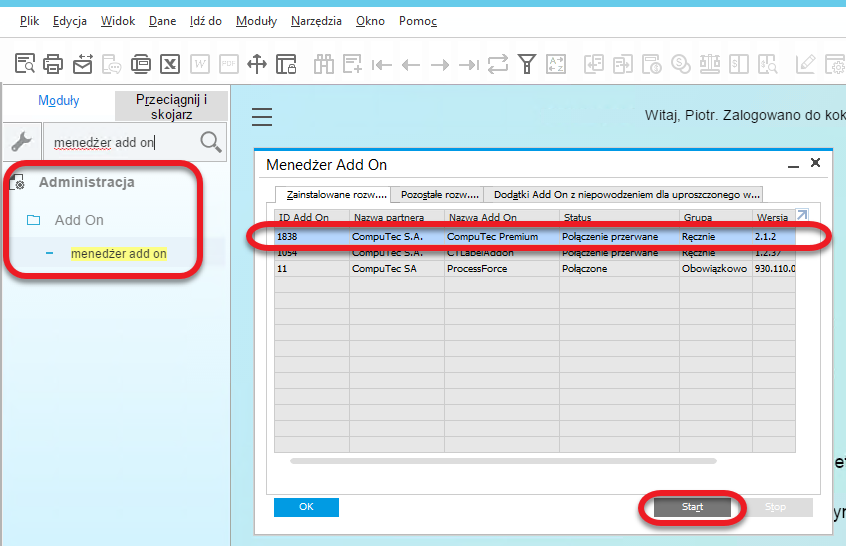
If the starting method was set to manual, you must manually launch the extension.
-
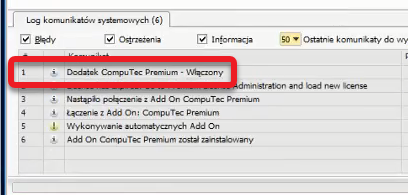
Once the system displays the message "Dodatek CompuTec Premium - Włączony", the extension is successfully installed and ready for use.
-
Firewall Configuration
CompuTec Premium relies on external services for certain functionalities. Ensure your firewall settings allow access to the following services from end-user devices:
| Service | Port | Purpose |
|---|---|---|
| service.computec.pl | 443/tcp (HTTPS) | Fetching Business Partner information from the public GUS listing |
| sprawdzenie-status-vat.mf.gov.pl | 443/tcp (HTTPS) | Checking VAT taxpayer status in Poland |
| ec.europa.eu/taxation_customs/vies/services/checkVatService | 443/tcp (HTTPS) | Verifying VAT taxpayer status within the European Union |
| wl-api.mf.gov.pl | 443/tcp (HTTPS) | Validating a supplier’s bank account number on the white list |
By following these steps, you can successfully install and configure CompuTec Premium, ensuring smooth integration with SAP Business One.