You are currently viewing documentation for CompuTec AppEngine 3.0 (.NET 8).
If you are working with older environments, you may need the documentation for CompuTec AppEngine 2.0 based on .NET Framework: https://learn.computec.one/docs/appengine/2.0/.
Please note that CompuTec AppEngine 2.0 will be supported only until December 31, 2026. After this date, the product will no longer receive regular support or maintenance updates. Read more
As CompuTec AppEngine 3.0 introduces a new architecture, all CompuTec components must be updated together to ensure full compatibility.
Please review the CompuTec AppEngine 3.0 documentation before starting your installation or upgrade process.
Permissions
By default, newly created Analytics variants are set to Private, which means they are visible only to the user who created them. If you set the variant to Public during creation, it becomes visible to all users.
If you want to make a variant available only to selected users or groups, you must configure permissions manually.
To manage permissions, you must have Superuser authorization in SAP Business One.
The process consists of two steps:
- Configure permissions in CompuTec AppEngine Analytics.
- Assign permissions to users or groups in SAP Business One.
Add a permission to an Analytics variant
If a variant doesn’t have manual permissions configured, and it’s Public, it is available to all users. To restrict access to specific users or groups, you must configure permissions manually.
To add permissions to an existing Analytics variant, follow these steps:
-
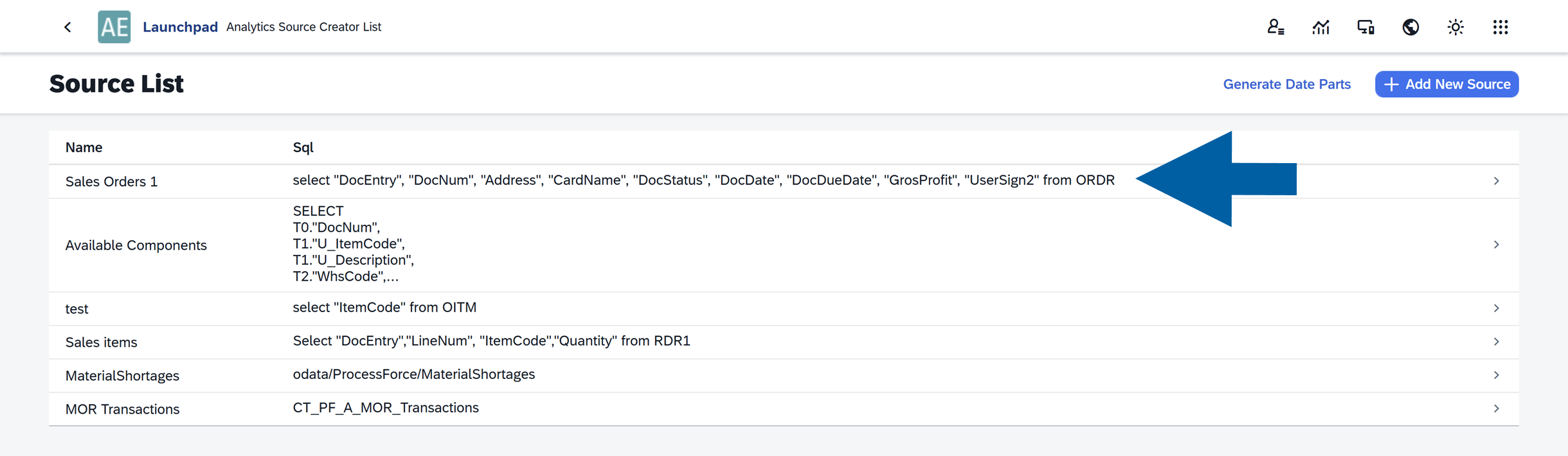
In the Source Manager, select the Source that contains the variant.
-
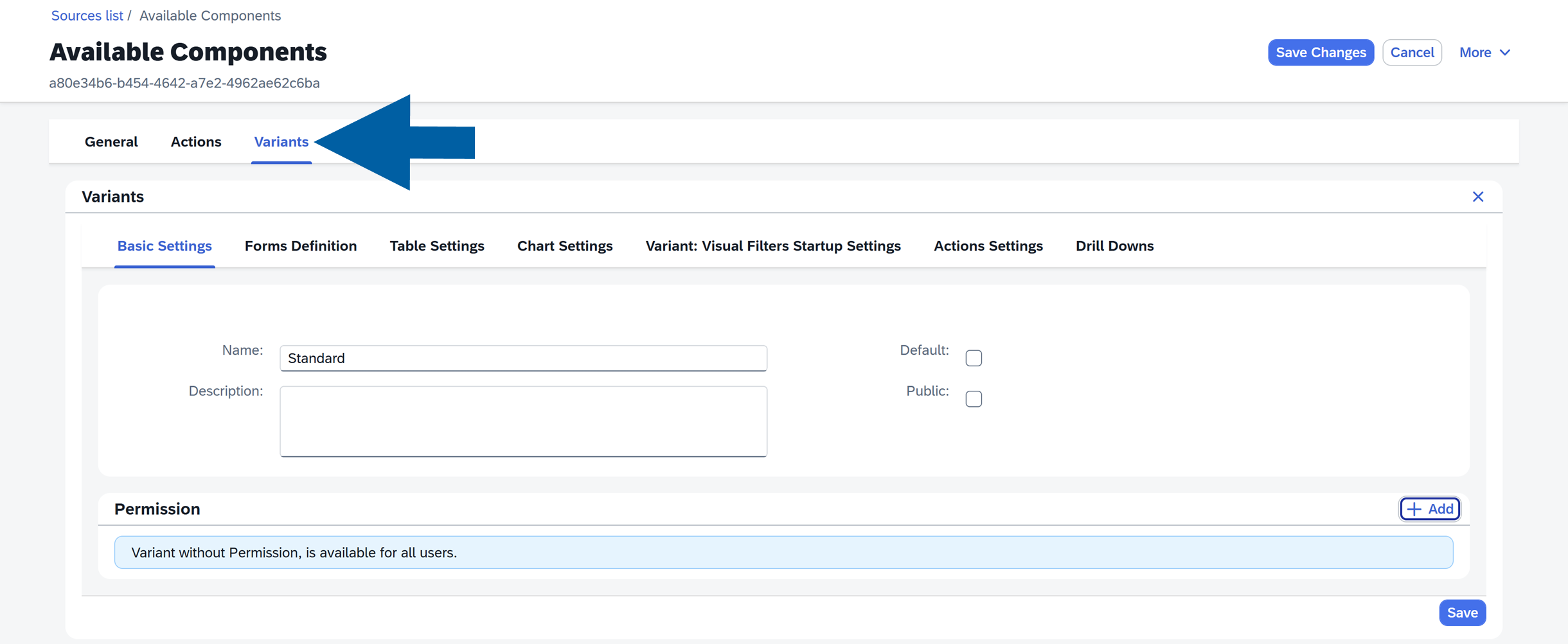
Navigate to the Variants tab.
-
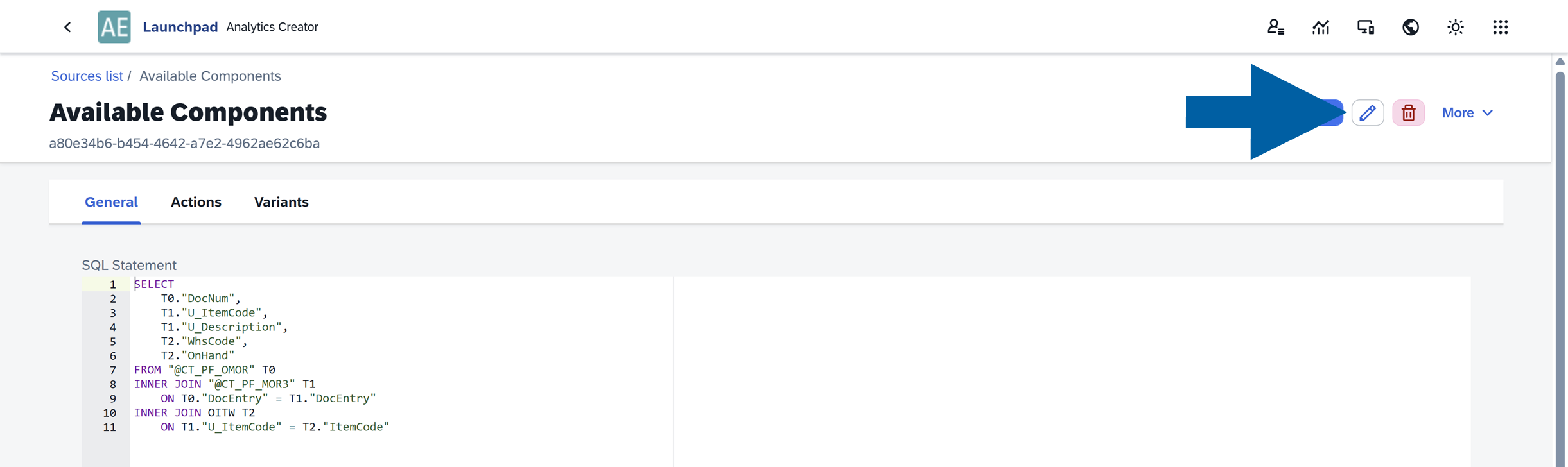
Enter the edit mode by clicking the Edit icon.
-
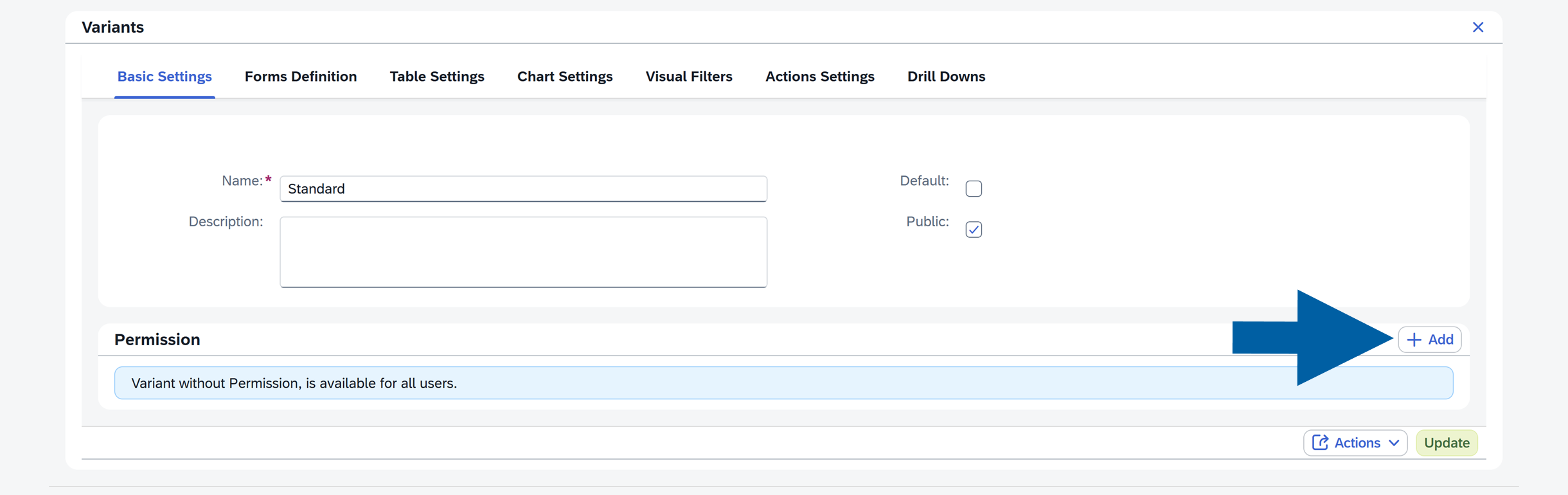
In the Basic Settings tab, locate the Permissions section.
-
Click +Add.
-
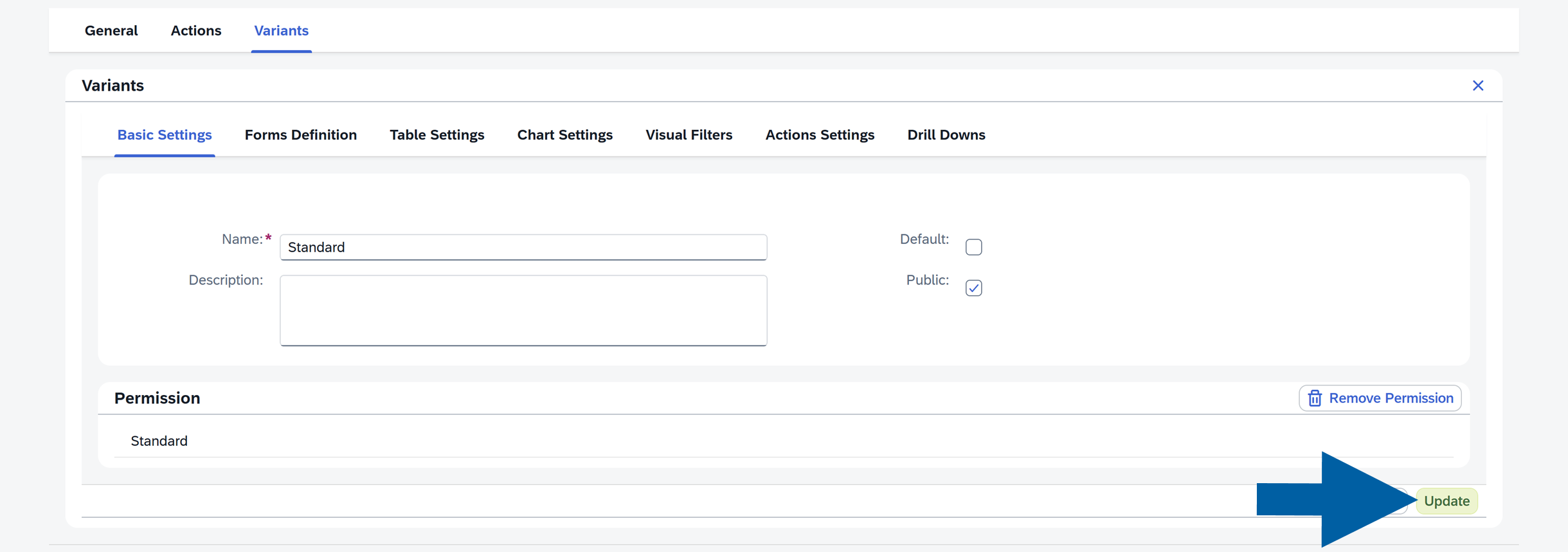
Click Update to save the added permission.
-
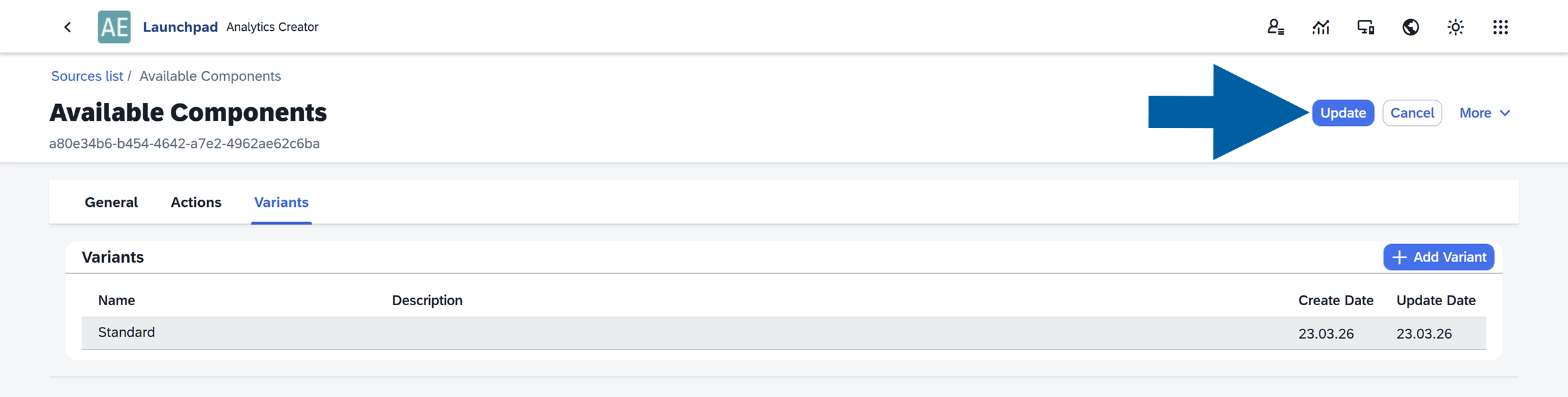
Click Update to save changes in the source.
-
The variant is now visible only to
Superusersand the user who created it.
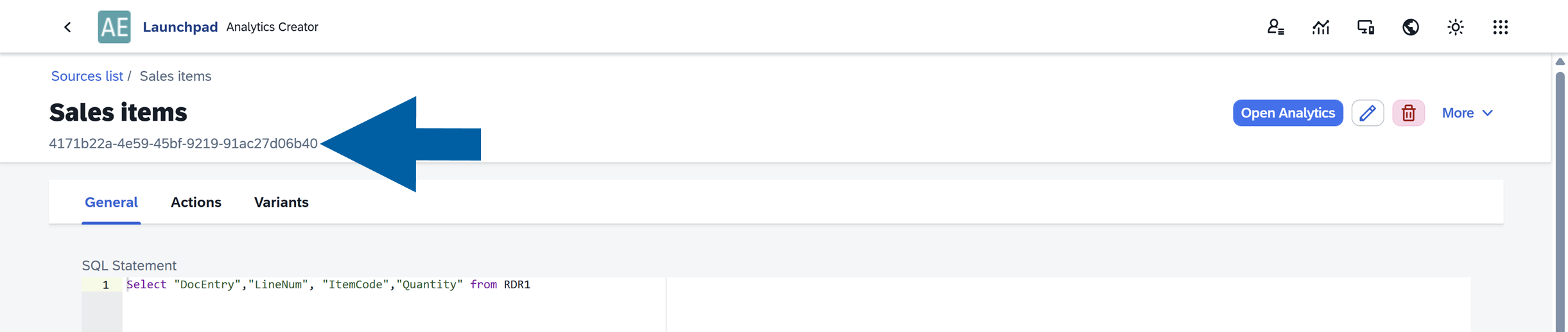
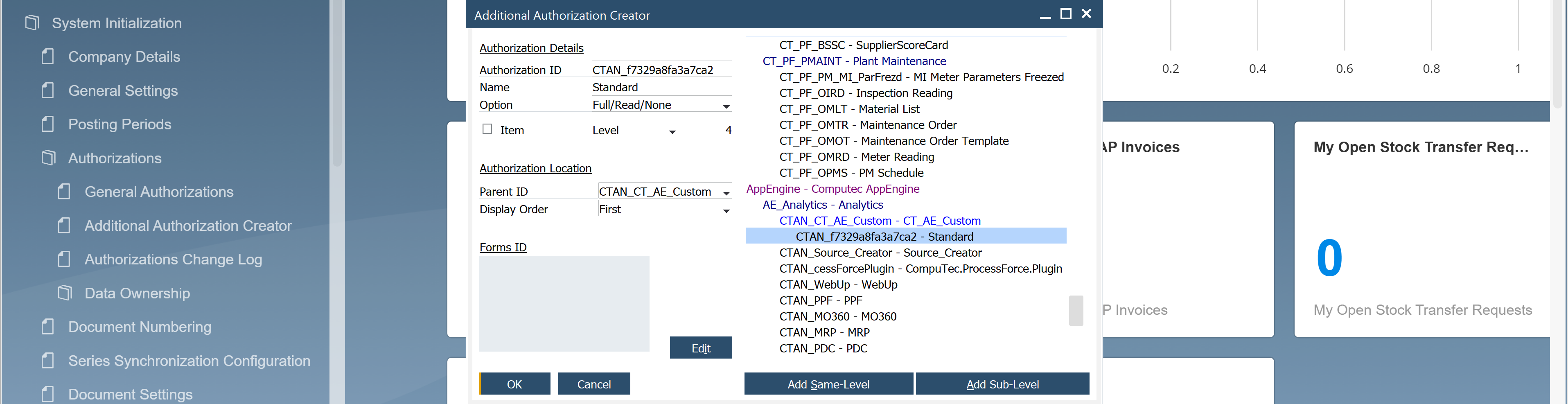
Before configuring permissions in SAP Business One, note the variant GUID, which is displayed below the variant name. You will need this identifier in the next step.
Set the permissions in SAP Business One
To assign permissions to specific users or groups in SAP Business One, follow these steps:
-
Log in to SAP Business One.
-
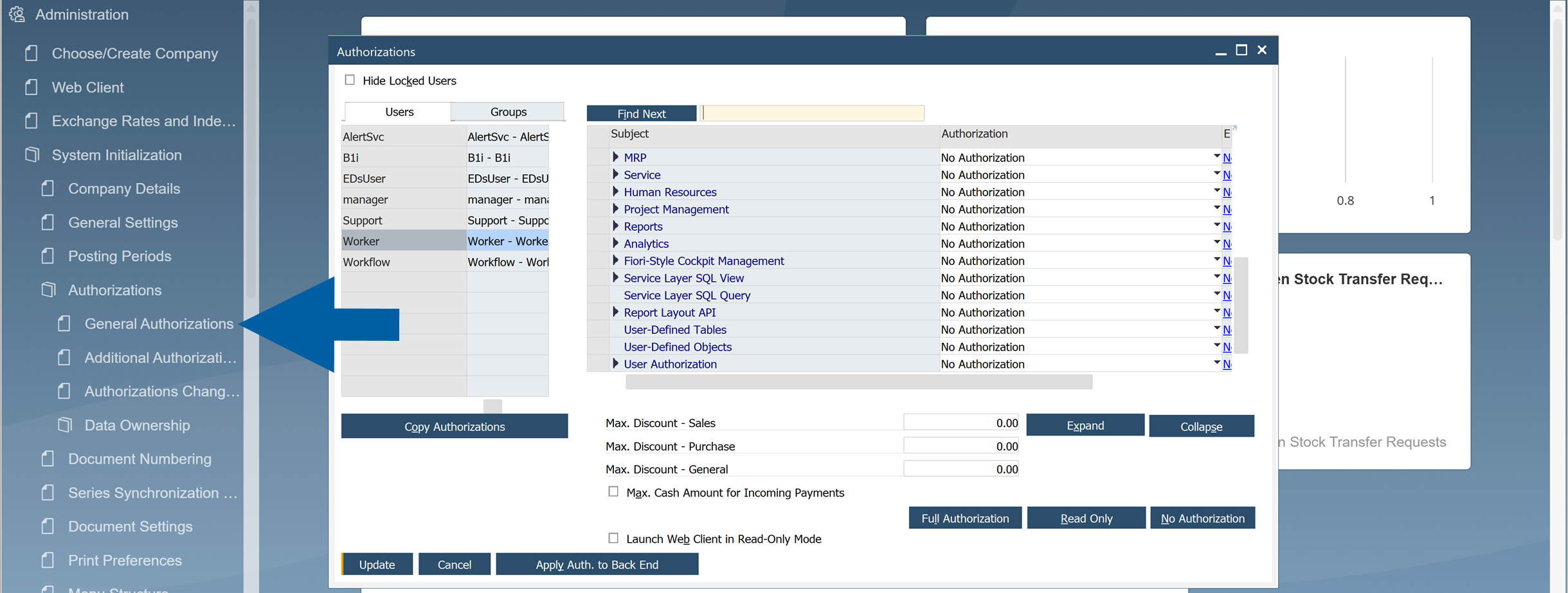
Go to Menu > Administration > System Initialization > Authorizations > General Authorizations.
-
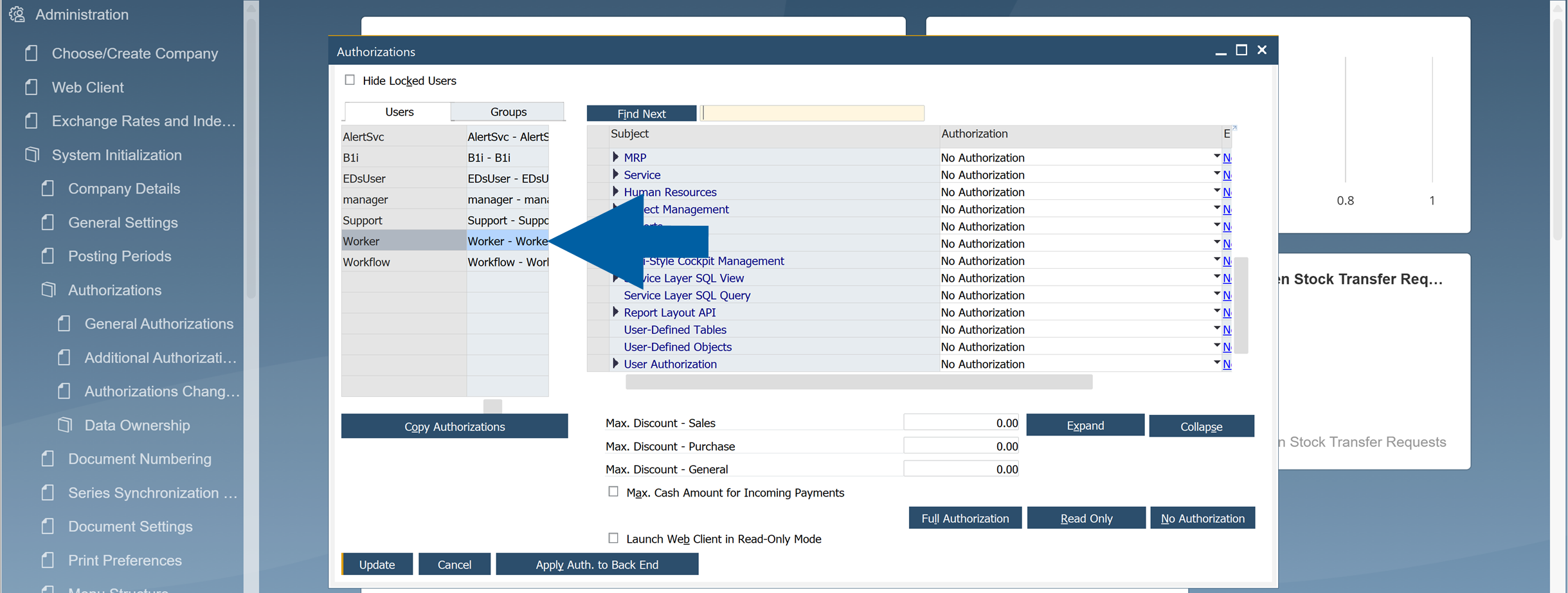
Select Users or Groups you want to configure permissions for. If the user is not listed, add the user first. Read more
-
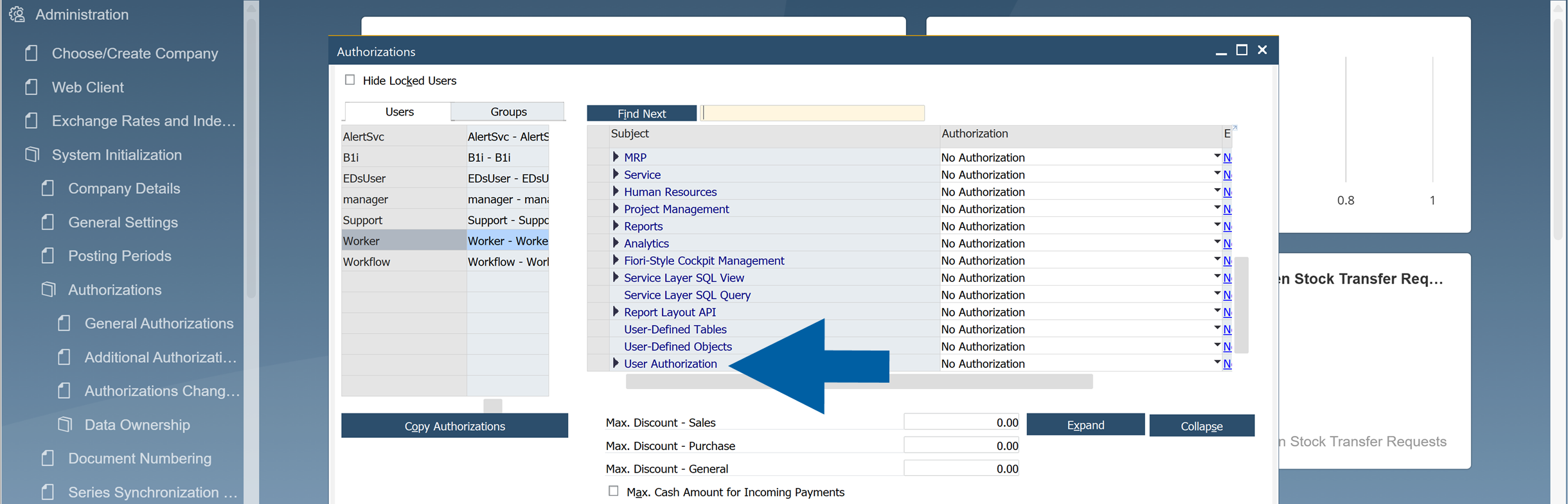
In the authorization tree, scroll to the User Authorization section.
-
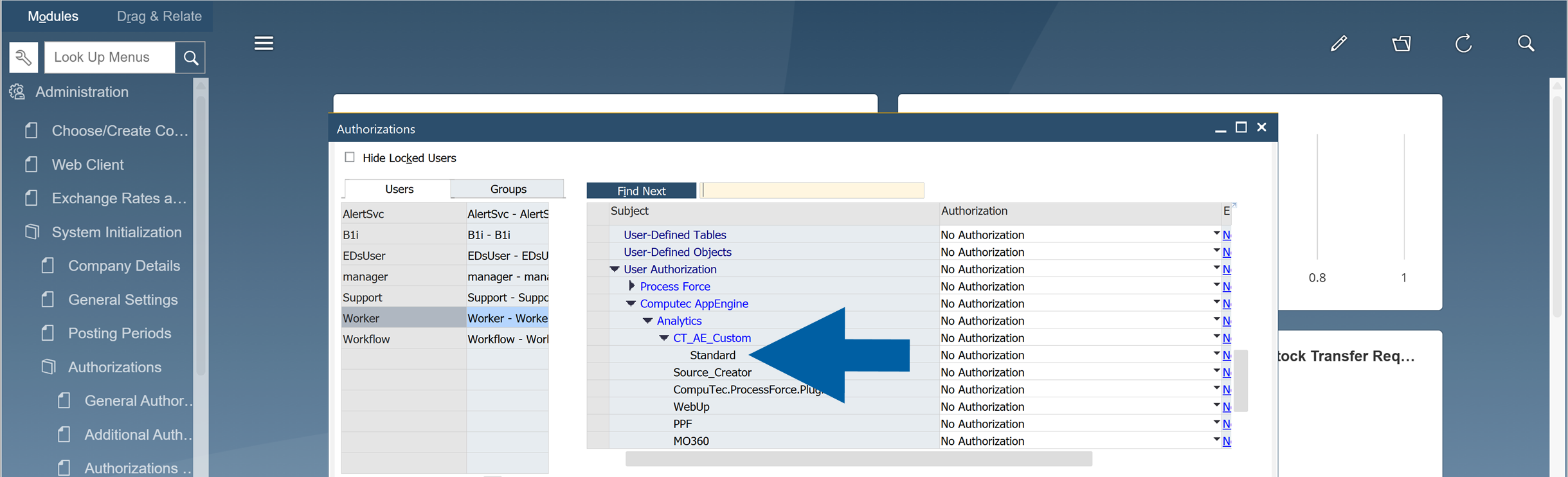
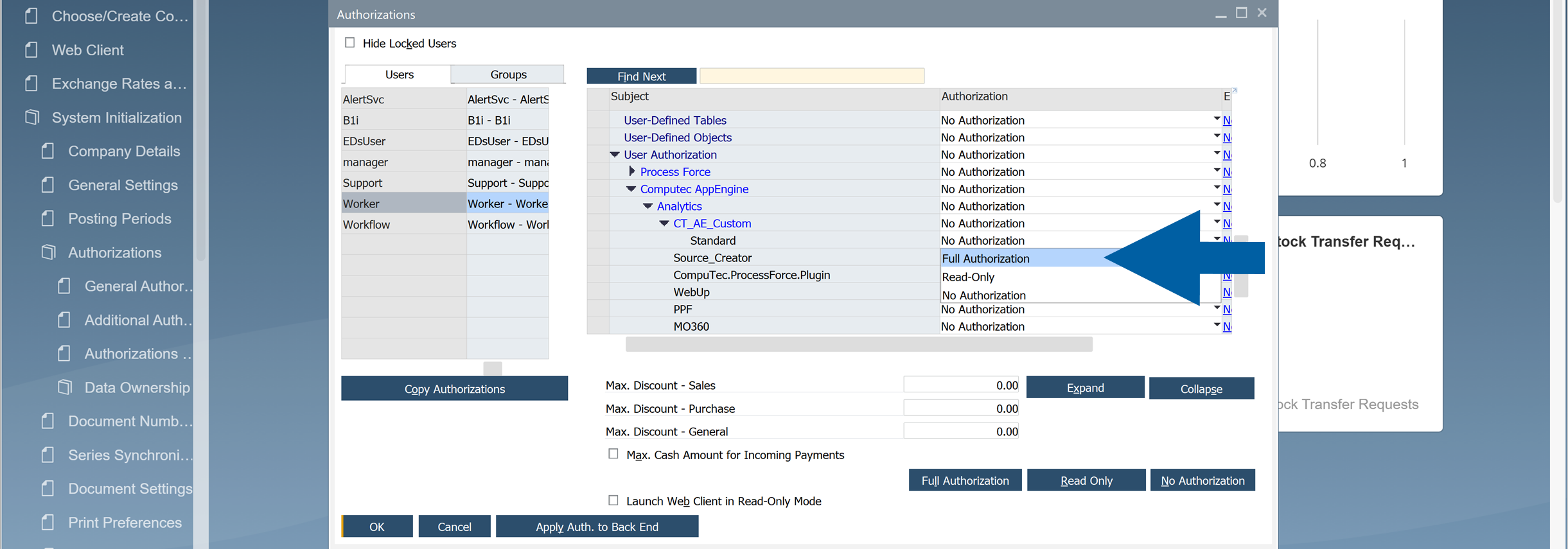
Navigate to CompuTec AppEngine > Analytics > CT_AE_Custom.
-
Find your variant name on the list.
-
Click the arrow next to
No Authorizationlabel.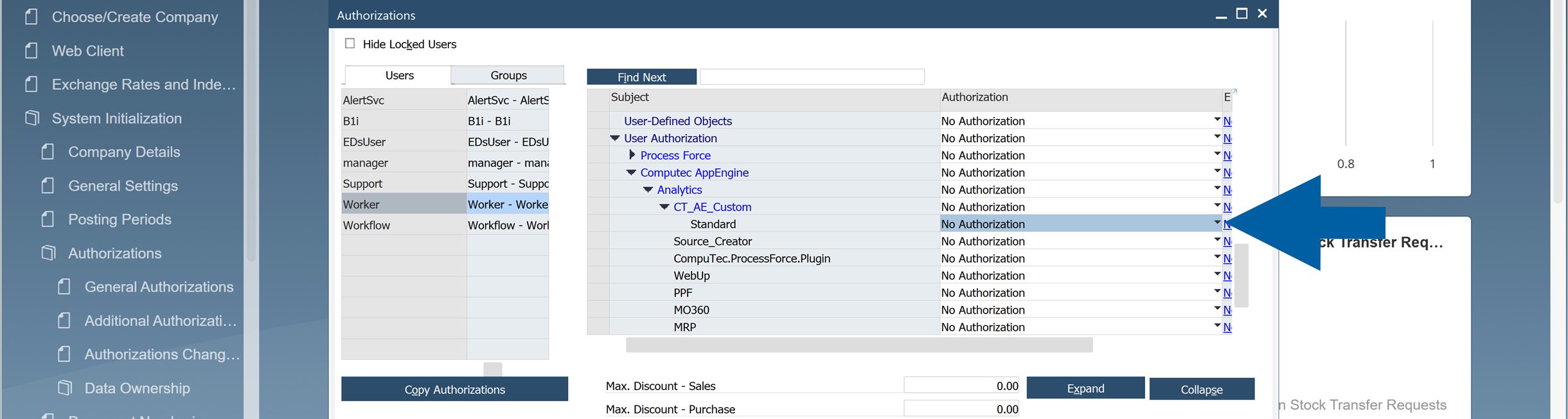
-
Select the permission level:
Full AuthorizationRead-OnlyNo Authorization
-
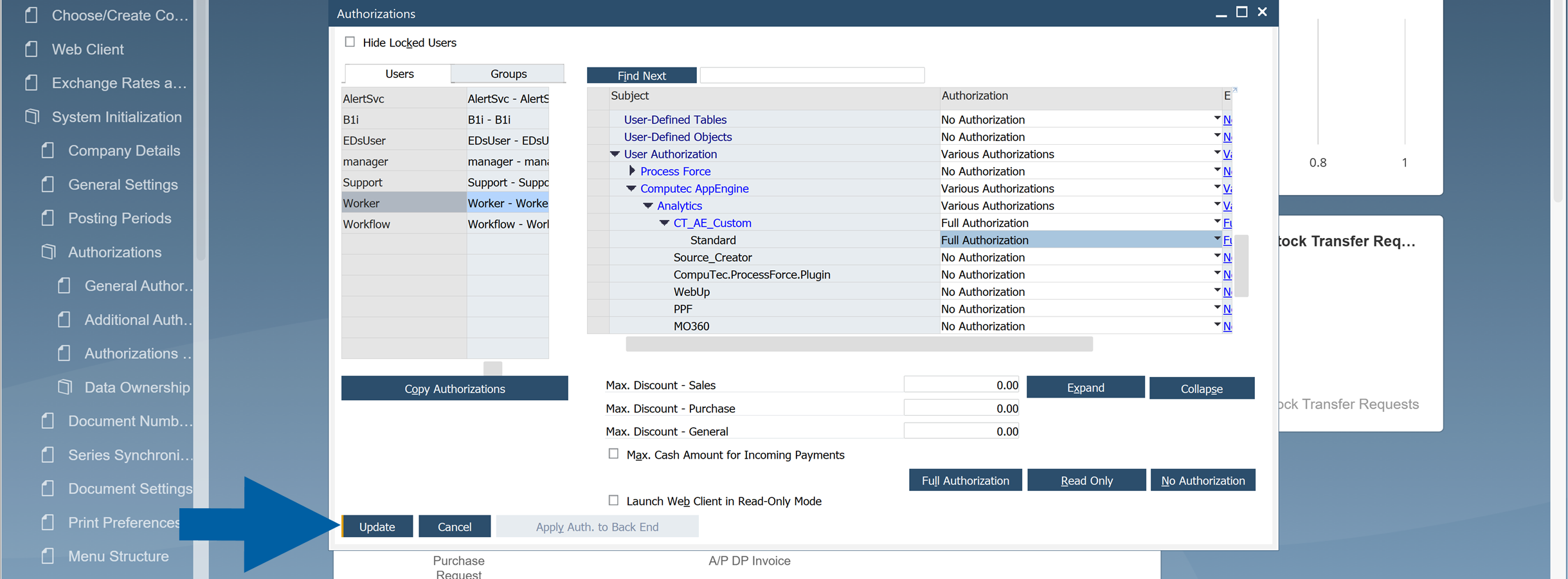
Click Update.
-
The permissions are now applied.
Review Variant Permissions in SAP Additional Authorization Creator
To review the variant permissions in SAP Business One Additional Authorization Creator, follow these steps:
-
Log in to SAP Business One.
-
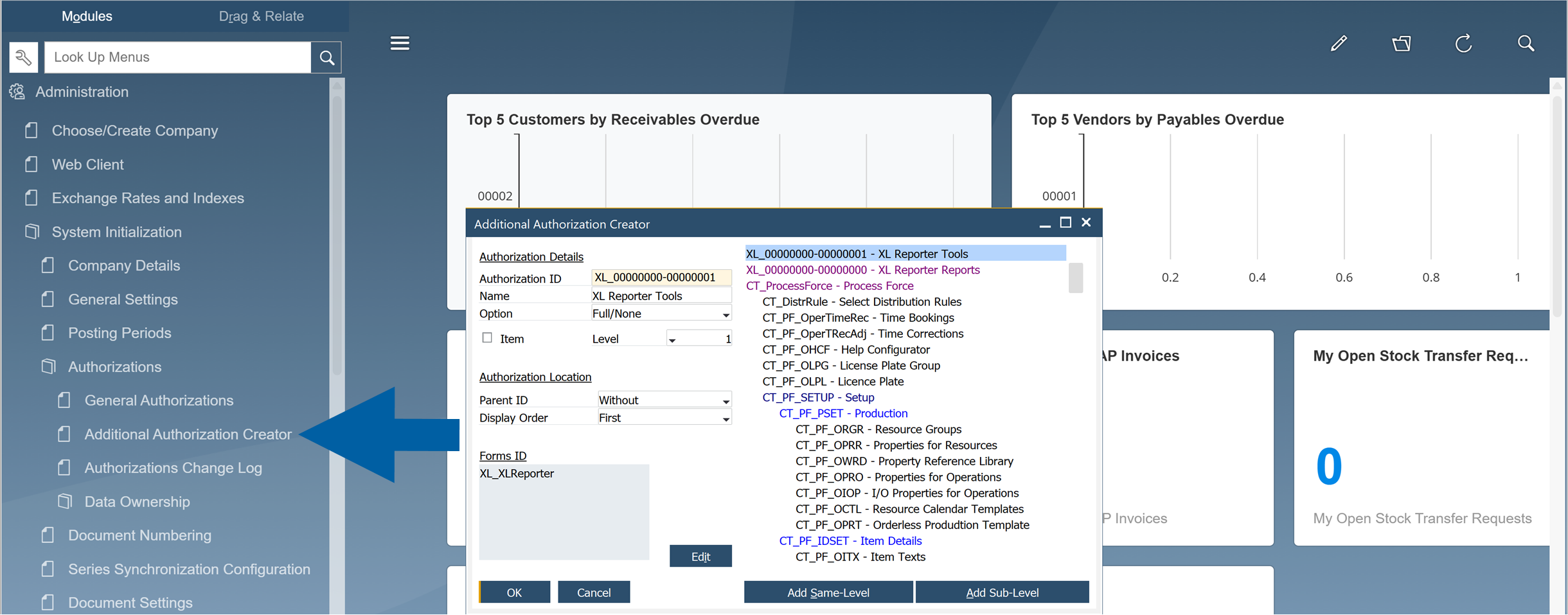
Navigate to Menu > Administration > System Initialization > Authorizations > Additional Authorization Creator.
-
In this window, a superuser can view all created additional authorizations related to Analytics variants. Use the previously noted GUID to find your variant in the list.
If you have any questions, contact us using CompuTec Support Portal.