You are currently viewing documentation for CompuTec ProcessForce 2.0, which will be supported only until December 31, 2026. After this date, the product will no longer receive regular support or maintenance updates.
We recommend upgrading to CompuTec ProcessForce 3.0, which is a plugin installed and managed through CompuTec AppEngine 3.0, built on .NET 8.
However, please note that CompuTec AppEngine 3.0 has a different architecture, and all CompuTec components, including the CompuTec ProcessForce 3.0 plugin, need to be updated together to ensure full compatibility.
Before starting your installation or upgrade process, we strongly recommend reviewing the CompuTec AppEngine 3.0 and CompuTec ProcessForce 3.0 documentation.
Performance Issues
On this page, you can check the most common performance problems while working with CompuTec ProcessForce and ways of resolving these issues.
Snapshot Isolation in SAP Business One (SQL Server)
Applies to: SAP Business One on Microsoft SQL Server only. Not applicable to SAP Business One, version for SAP HANA.
Available from: ProcessForce version 10.0 RL39 HF2.
Snapshot Isolation is a Microsoft SQL Server isolation level that prevents read and write operations from blocking each other. Instead of waiting for locks to be released, SQL Server reads a consistent snapshot of the data stored in tempdb.
When Snapshot Isolation is enabled at the database level, core database ADO connections automatically use Snapshot scope. No additional connection string changes are required.
The main consideration is a moderate increase in tempdb usage, because MS SQL Server stores row versions there. After enabling Snapshot Isolation, monitor tempdb size and growth regularly.
You can read more about Snapshot Isolation, in the SAP Knowledge Base Article.
Symptoms
Consider enabling Snapshot Isolation if users report any of the following issues:
- Frequent blocking between users
- Slow document posting during busy periods
- Deadlocks during high transaction volume
- Reports or queries hanging while documents are being added or updated
- Reduced system performance when many users are connected at the same time
Benefits
Enabling Snapshot Isolation can provide the following benefits:
- Read operations no longer wait for write locks
- Users running reports or browsing data are less likely to be blocked by users posting transactions
- Deadlock frequency is significantly reduced
- Concurrent user capacity improves on busy systems
- ADO database connections automatically use Snapshot scope
- No per-connection configuration changes are required
Activate Snaphot Isolation
To enable Snapshot Isolation, follow these steps:
-
Run the following SQL statements for each SAP Business One company database:
ALTER DATABASE YourCompanyDB SET ALLOW_SNAPSHOT_ISOLATION ON;-- One-time setup for tempdb and model to stay persistent across restartsALTER DATABASE model SET ALLOW_SNAPSHOT_ISOLATION ON;ALTER DATABASE tempdb SET ALLOW_SNAPSHOT_ISOLATION ON;Database DescriptionsYourCompanyDB- The SAP Business One company database where Snapshot Isolation will be enabledtempdb- SQL Server stores row versions here while Snapshot Isolation is activemodel- SQL Server recreatestempdbfrom the model database every time the SQL Server service restarts
Replace the
YourCompanyDBplaceholder value in the script with your actual SAP Business One database name.Enabling Snapshot Isolation on
modelensures thattempdbautomatically inherits the setting after every SQL Server restart. This prevents administrators from having to manually reapply the setting after a reboot. -
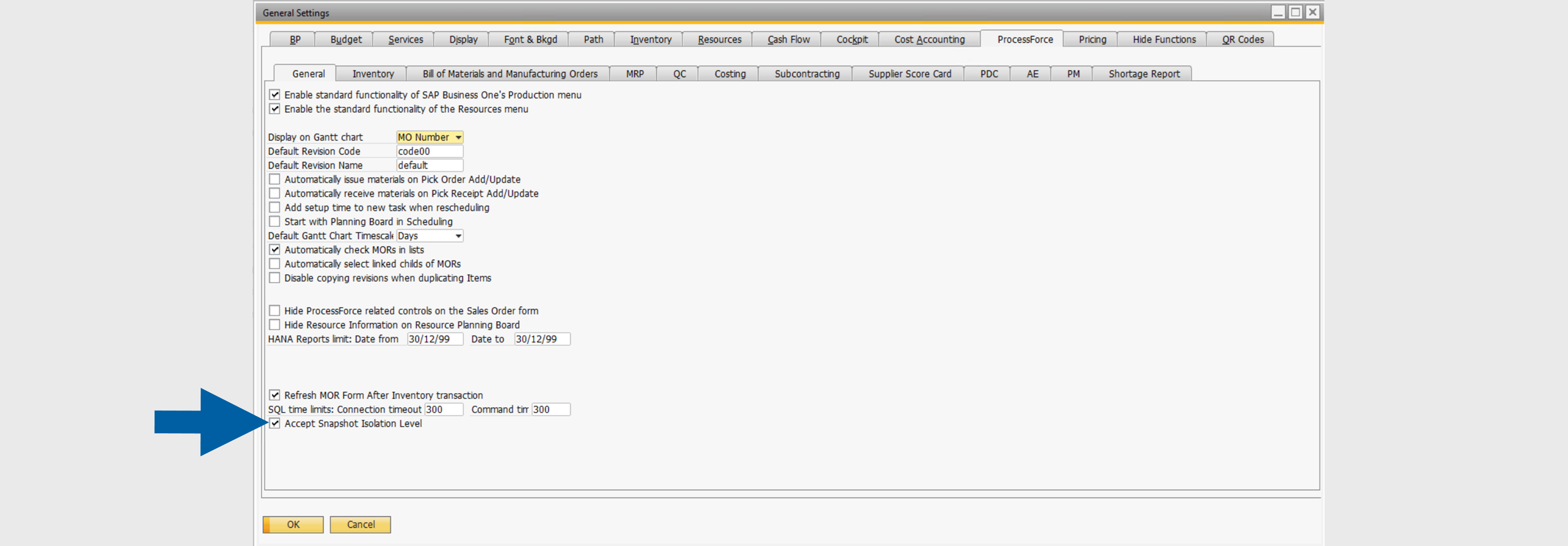
In SAP Business One, go to: Administration > System Initialization > General Settings > ProcessForce > General.

-
Enable the following checkbox: Accept Snapshot Isolation Level.
-
Click OK to save the changes.

-
Restart the SAP Business One Client to ensure the new database session settings are applied.
-
Done! The Snapshot Isolation Level is enabled.
Long delay in opening and browsing CompuTec ProcessForce forms on SAP Business One for SAP HANA
In some cases, users can experience a long delay in opening some documents or switching to another one when operating CompuTec ProcessForce on SAP Business One, a version of SAP HANA. Usually, the issue affects the Bill of Materials, Manufacturing Order, Item, or Business Partner Master Data, among others.
If you experience the described issue, please collect the following data, and raise a support ticket on support.computec.pl with the collected data.
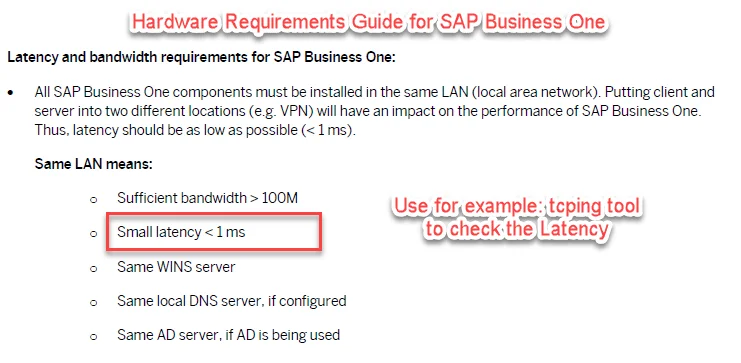
Network bandwidth and Latency
Download: tcping
Command: tcping -t IP port
-
Do network latency tests using the
tcping -tcommand and take a screenshot with the results. -
Obligatory do a complete set of tests and do separate tests for the cases:
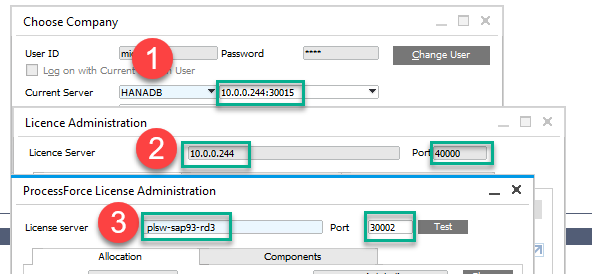
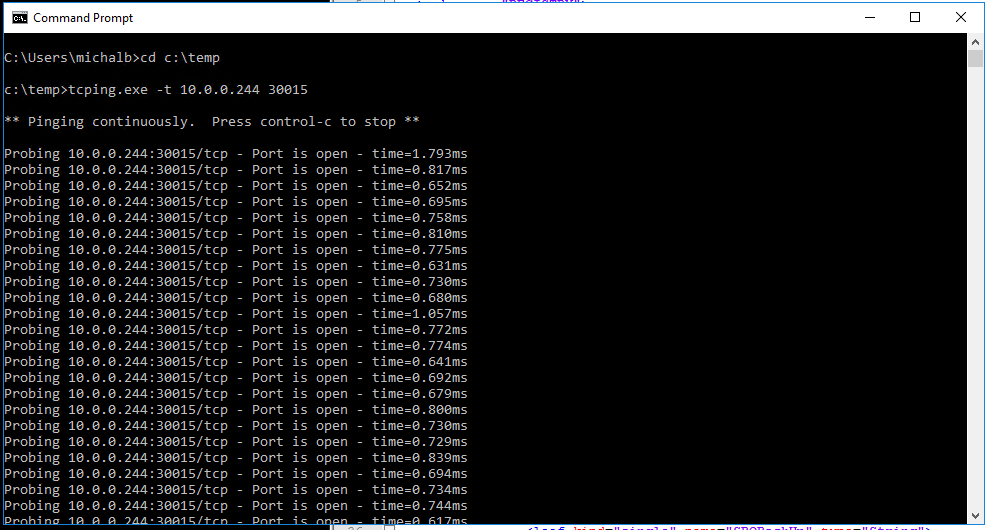
- from the workstations/server to the SAP HANA database (default port: 30015),
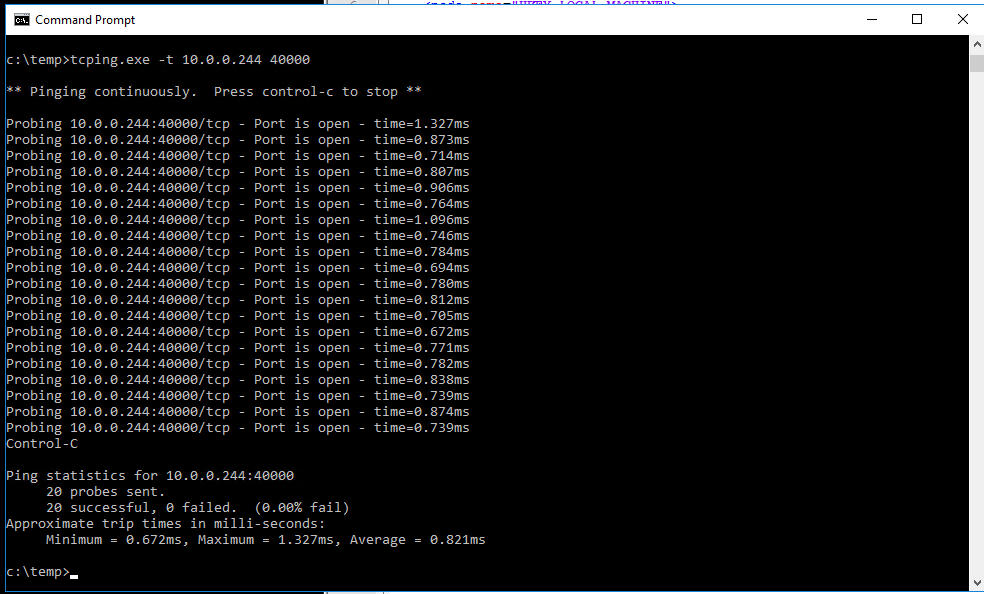
- from the workstations/server to SAP License Server (default port: 40000),
- from the workstations/server to CompuTec License Server (default port: 30002),
- use proper settings IP / Server name, which is currently configured in SAP Business One Client.
-
use proper settings IP / Server name, which is currently configured in SAP Business One Client
-
Example
Save TCPing in location *C:\Temp\Tcping* Run Windows CMD In the CMD window, paste the command: C:\Temp\Tcping\tcping64.exe -t 10.0.0.202 40000 or C:\Temp\Tcping\tcping64.exe -t 10.0.0.202 30002
CTRL+C will terminate the testing process
-
Results
-
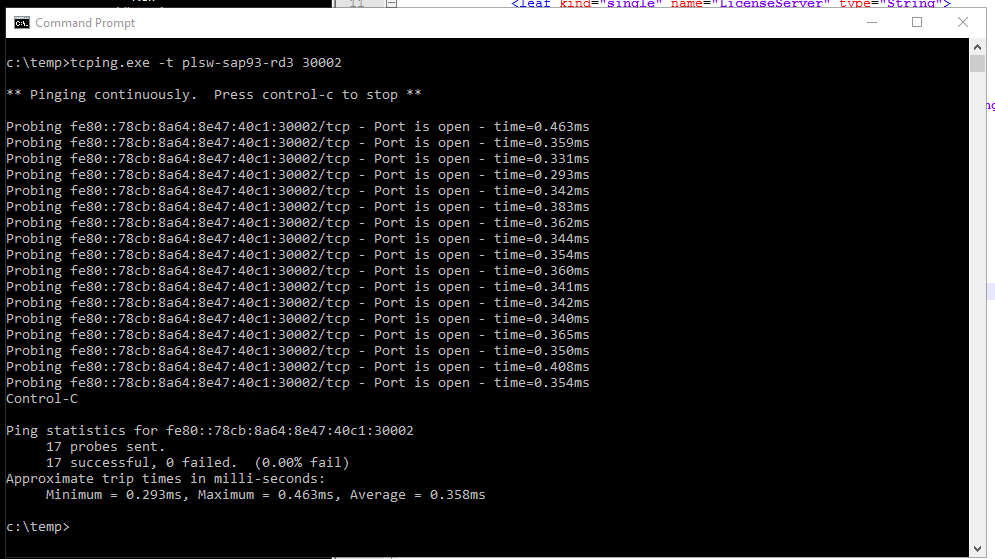
correct results corresponding to SAP Hardware requirements should be similar to or better than those below on the screens
-
TCPing results should be on a stable level.
-
We observed problems with performance and unexpected errors in CompuTec ProcessForce when responses were above 1 ms.
-
- Go to SAP HANA Studio and take a screenshot of the NDB > Overview form.
- Check if CompuTec License Server is configured correctly. If you have an older version, please update it (you can check the latest version here).
- Check Linux Kernel. If you have an older version, please update it.
- Run the following query:
select C.* from CDPM C, OCMN O, RDOC R where C."Hidden" = 'Y' and O."Type" = 'C' and C."Name" = O."Name" and R."DocName" = O."Name" and R."Status" = 'I'
Search for the report with the name that is returned by the query. Change the report to active and save, Then change back to inactive and save again, Run the query again, there should be no result returned now. 5. Please check the following SAP NOTE: 2113913 - DI API Log Files Slow Down the Connection Time - https://launchpad.support.sap.com/#/notes/2113913.
Long delay in opening CompuTec ProcessForce forms, but browsing is fast
Symptoms:
- Around 20-30 seconds delay on opening CompuTec ProcessForce add-on forms/windows – each time
- SAP Business One forms/windows open fast
- CompuTec ProcessForce add-on starts normally
- After opening the CompuTec ProcessForce add-on form/window browsing data / moving to the next record takes an average time (2-3s)
- Updating CompuTec ProcessForce license for users takes much more time.
Reason:
-
It might be caused by incorrect configuration in b1-local-machine.xml files located in:
PathC:\Program Files\SAP\SAP Business One DI API\Conf\b1-local-machine.xml
C:\Program Files\SAP\SAP Business One\Conf\b1-local-machine.xmll
Solution:
-
correct files
-
or reinstall the SAP Business One client and SAP Business One DI API (you can check how to do this here)
-
common mistake is using localhost in SLDAddress, especially on workstations and terminals for CompuTec PDC

-
bear in mind that both files should be the same:
PathSAP Business One\Conf\b1-local-machine.xmll
SAP\SAP Business One DI API\Conf\b1-local-machine.xml