View Actions
View Actions in CompuTec WebUp Manager let you define logic that runs when specific document events occur in the SAP Business One Web Client, such as when a document is added or updated.
A View Action can run before or after the document event and is processed by CompuTec AppEngine. This makes View Actions useful for document-level processes, such as validation or automation.
For example, you can use a View Action to check whether required information is provided before a user updates a Sales Order.
With View Actions, key users and administrators can extend standard SAP Business One Web Client behavior without modifying SAP core objects or source code.
View Actions respond to document events, such as adding or updating a document. Smart Actions respond to interactions with UI controls, such as changing a field or clicking a button. Read more
You can access each CompuTec WebUp function from the CompuTec WebUp Side Panel inside the SAP Business One Web Client. Features open only if the current SAP Business One screen supports extensibility.
Main sections of CompuTec WebUp View Actions
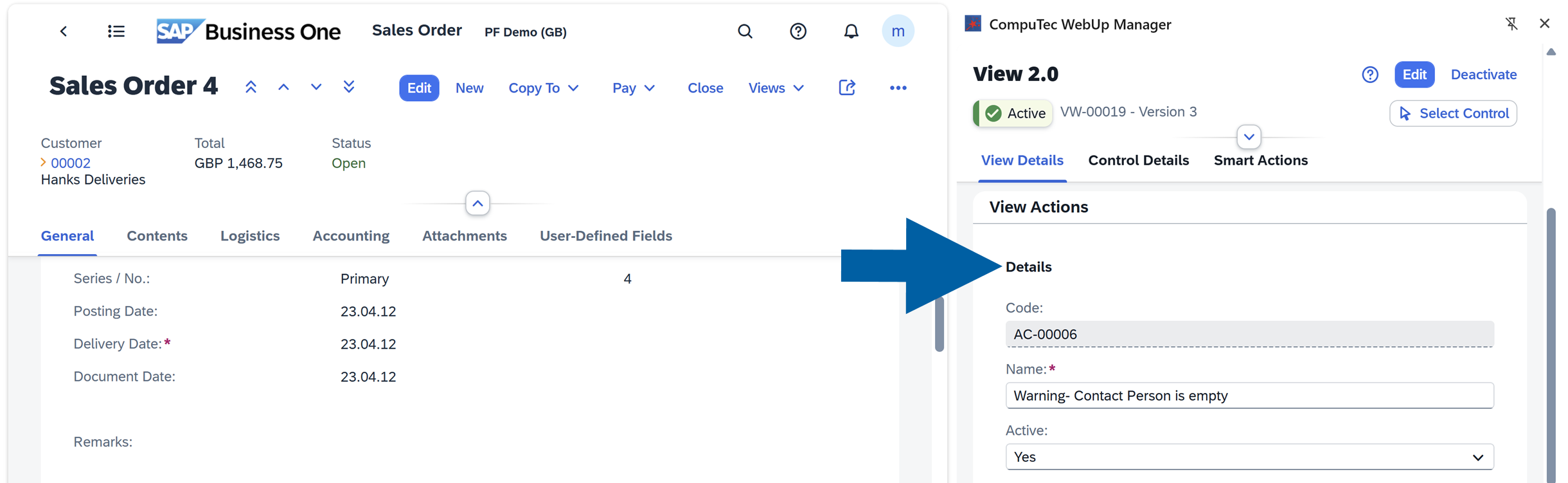
The View Actions interface in CompuTec WebUp Manager has three main sections:
-
Details: Here you’ll find the unique code of your action and a place to type its name. Here you can also make your action active or deactivate it.
-
Triggers: You can choose to activate your action
BeforeorAfterfollowing triggers:On Update,On Add,On CancelorOn Close.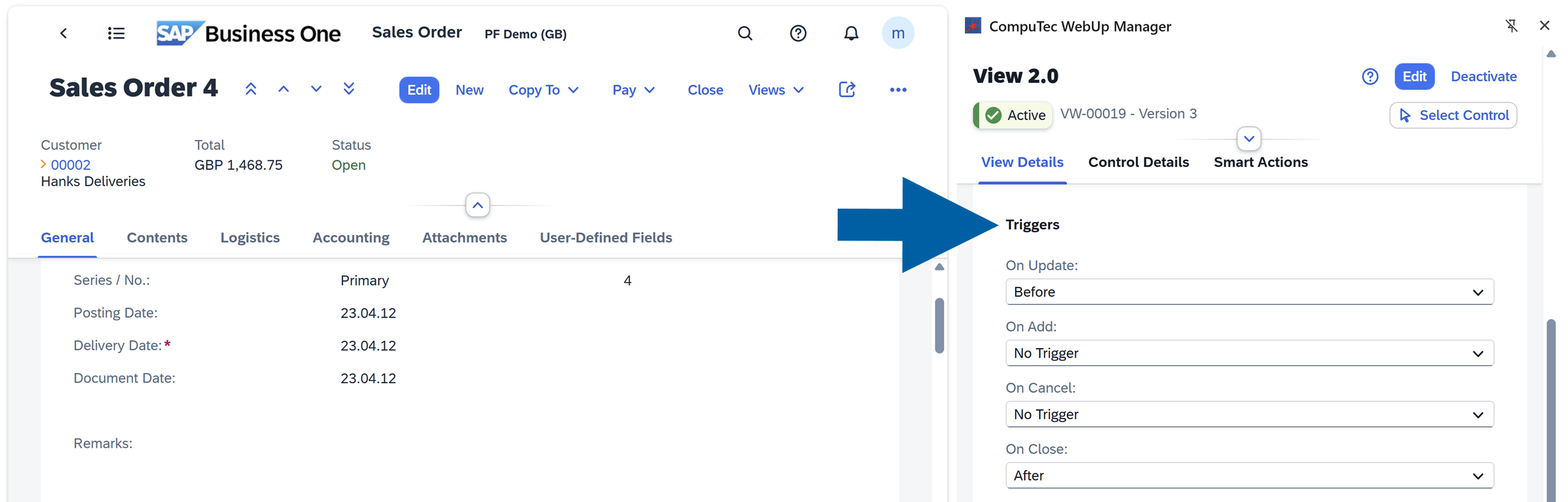
-
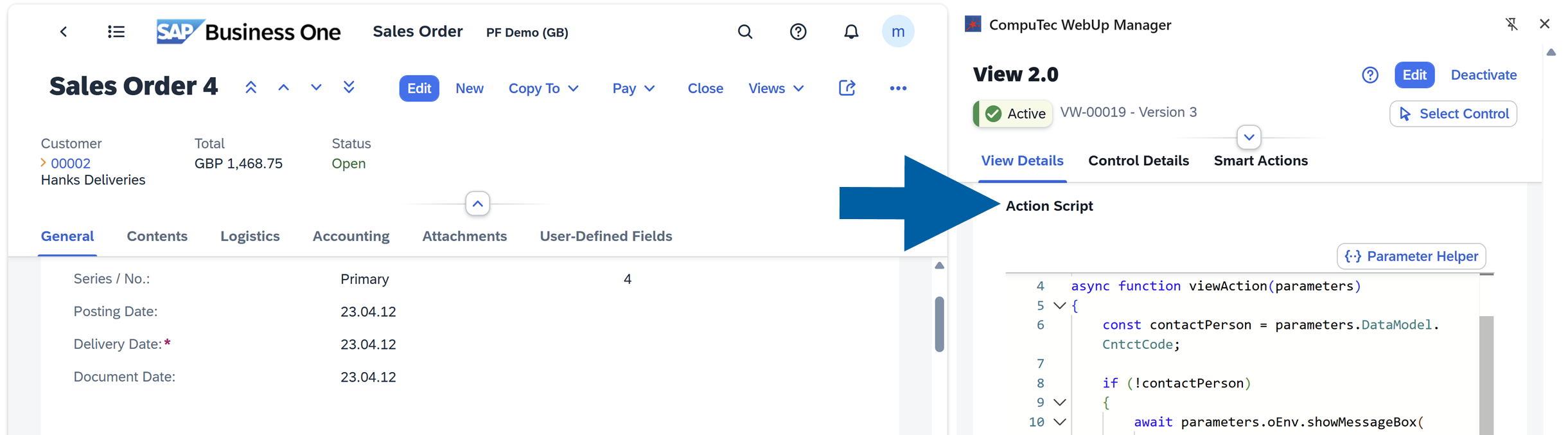
Action Script: Use this area to enter or paste JavaScript code that defines the action logic. The Parameter Helper provides information about the parameters available for the action, helping you use data from the current SAP Business One context in your script.
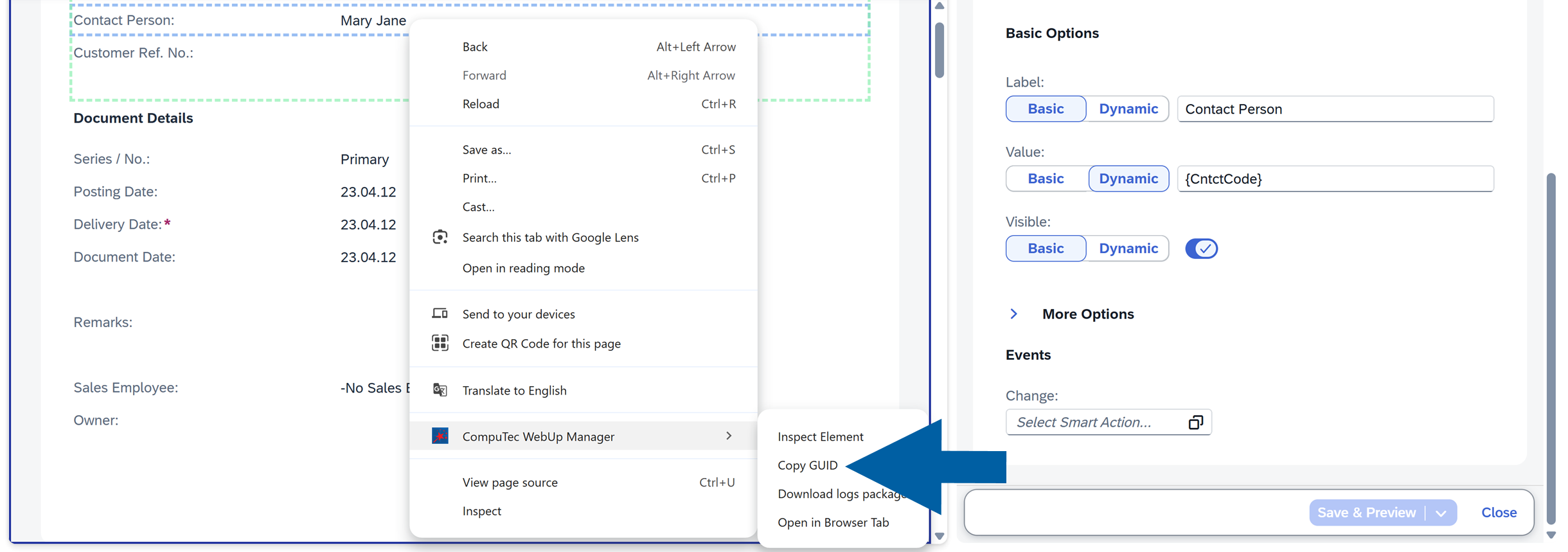
Each control in SAP Business One Web Client has its Global Unique Identifier (GUID). You can copy it and use it in the script during the View Actions creation to precisely reference a control in your SAP Business One interface.
To reference controls precisely when building actions, you can use the Select Control tool, the right-click Inspect Element or Copy GUID options.
Key features of CompuTec WebUp View Actions
Validations
You can create validations that are triggered Before or After a user updates, adds, cancels or closes a document, field or control.
The validations can include a custom popup message box if you want to ask for confirmation, warn the user, or guide them before the action continues.
▶ Watch: CompuTec WebUp - Validation - Creating a Warning Prompt
Validations use case
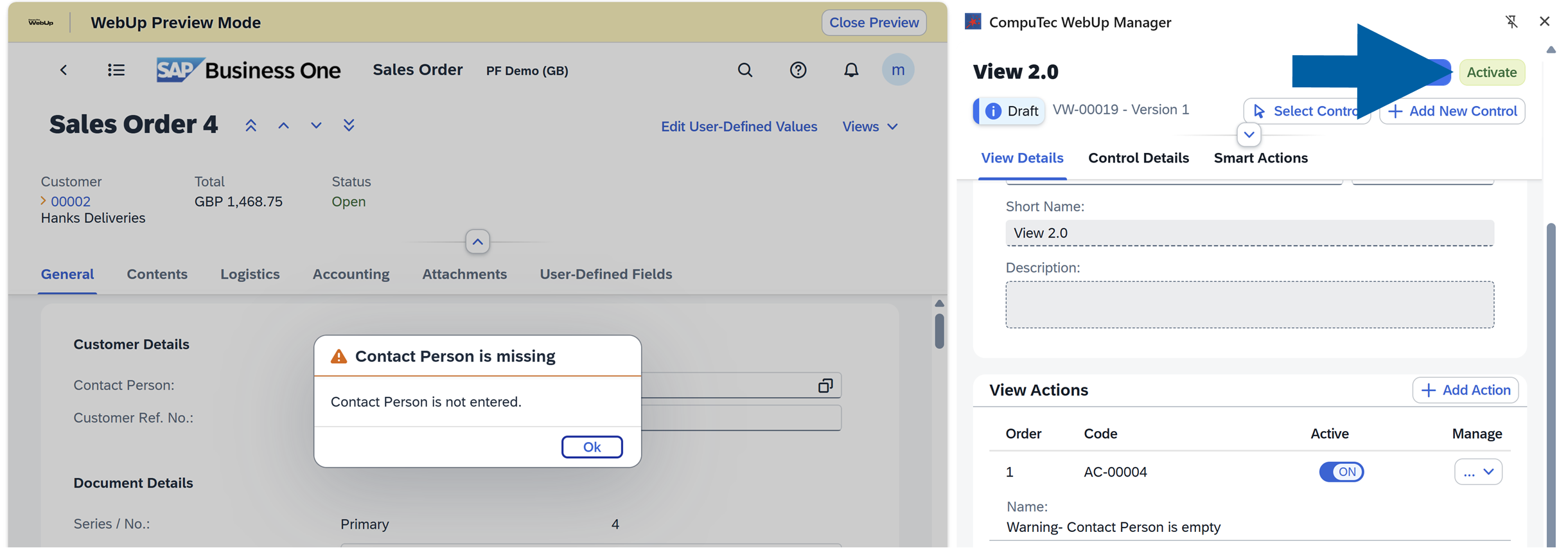
You can create a warning prompt when a user doesn’t add a project name when updating the sales order. Here’s how to do this step by step:
-
Log in to your SAP Business One Web Client account.
-
Enter the document you want to work with. In our example it’s
Sales Oder. -
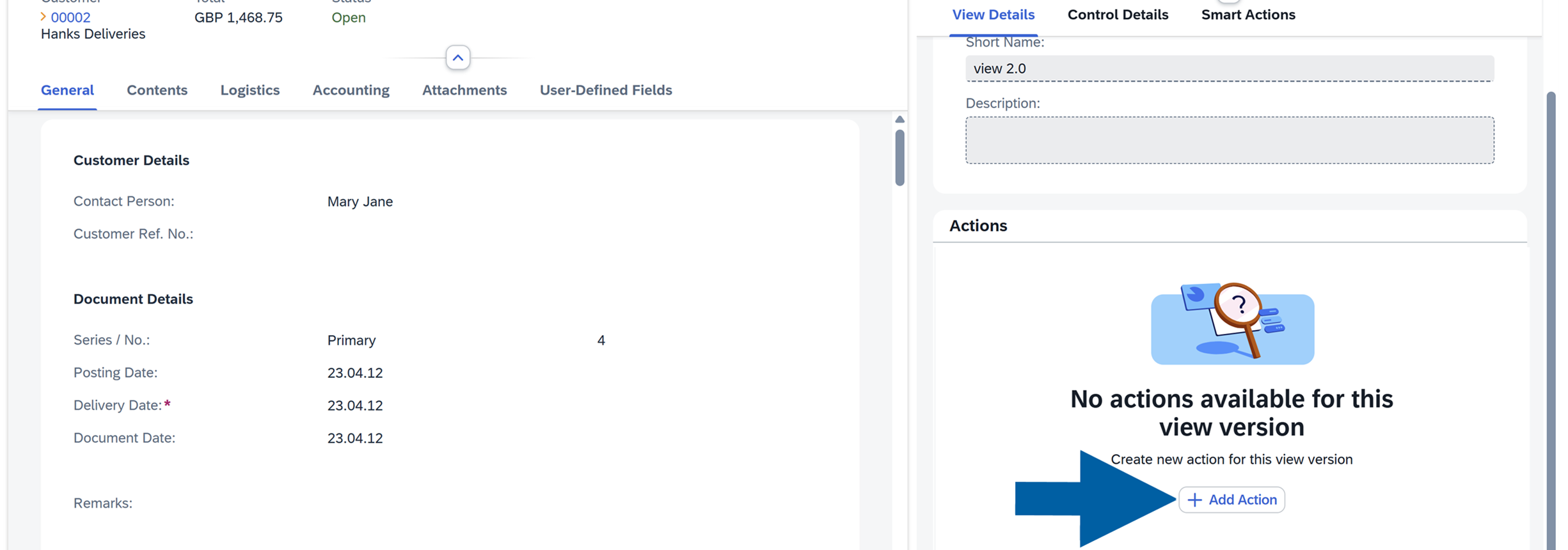
In CompuTec WebUp Manager extension panel, navigate to View Details.
noteYou must be logged in to your CompuTec AppEngine account to access the CompuTec WebUp browser extension.
-
Click Add Action.
-
Enter the action details.

-
Choose the trigger for your action. In our case, we choose
Beforein the On Update trigger field, because we want to make sure the user won’t save the document without the contact person.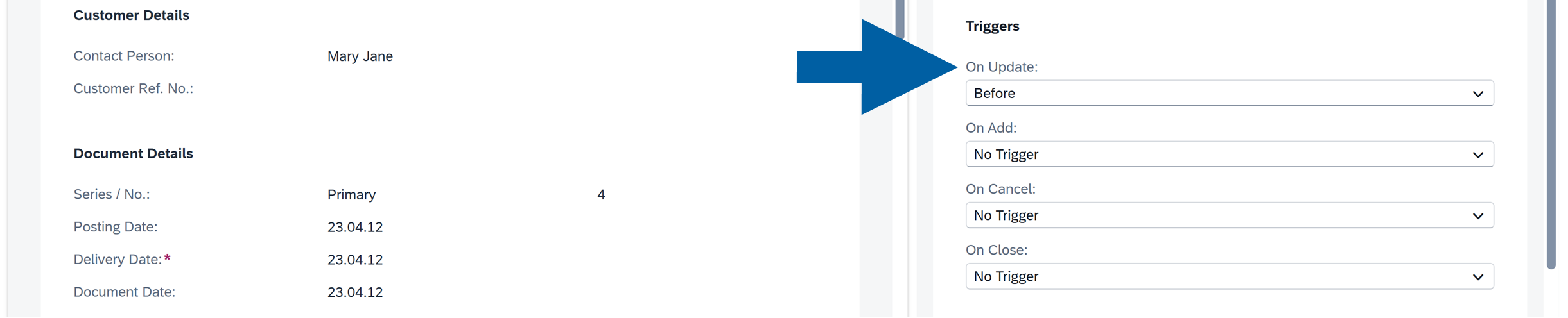
-
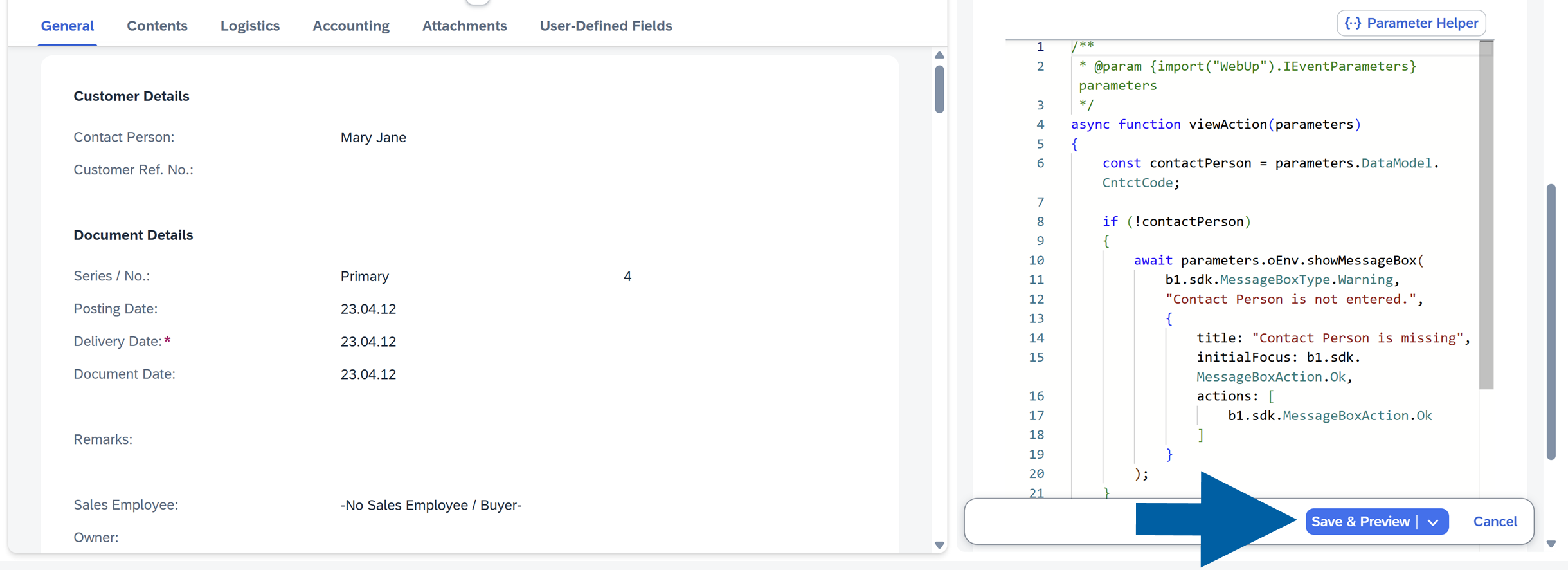
Now, it’s time to add our script to the Action Script field. In our example, we have a script showing a warning message if a
Contact Personfield is empty.
-
Click Save & Preview to confirm.
-
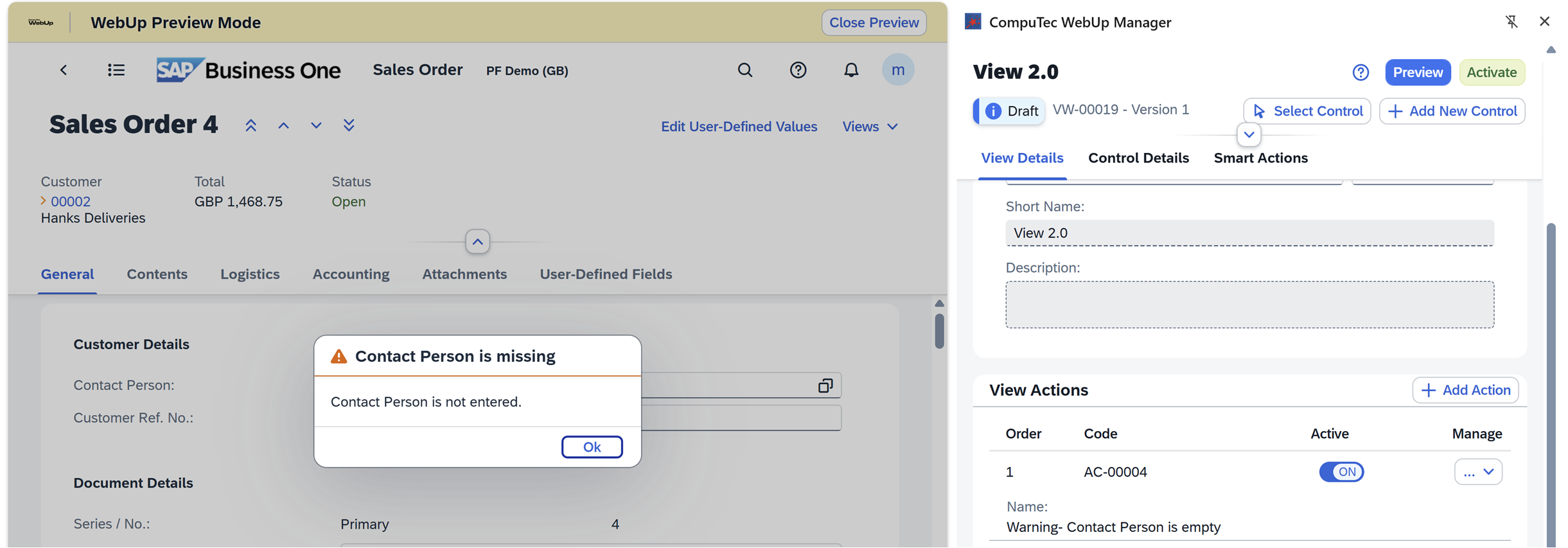
Now you can test your action in the preview mode.
-
If you like how it works, Activate the action.
Automations
You can build JavaScript-based automations that run when specific View events occur.
The automations can perform tasks such as creating documents through the Service Layer, updating field values, or reacting dynamically to changes on the screen.
▶ Watch: CompuTec WebUp - Automation - Creating Activities and Actions