Log Files
Use log files to investigate issues with CompuTec Labels and provide diagnostic information to CompuTec Support.
Service, manager, and installation logs
These log files are stored in the following folder:
C:\ProgramData\CompuTec\CT Label Printing\Logs

The file names identify the component:
| File name prefix | Component |
|---|---|
CTLP | Service |
CTLPM | Manager |
WixSetup | Installation |
The ProgramData folder is hidden by default. You can open it by pasting the path into the File Explorer address bar or the Run dialog (Win+R).
Detailed logging for the CompuTec Labels UI Plugin
The CompuTec Labels UI Plugin (Label.Plugin.UI) runs in the SAP Business One desktop client through CompuTec.Start.
By default, CompuTec.Start logs only errors. Enable detailed logging to record plugin activity when troubleshooting an issue.
The following procedure applies to the current Windows user. It does not require administrator rights or changes to installed files.
Enable detailed logging
Step 1: Create the configuration file
-
Create a folder for the logging configuration, for example
C:\CompuTec\Logging. -
Create a file named
ct_debug_logging.jsonin this folder.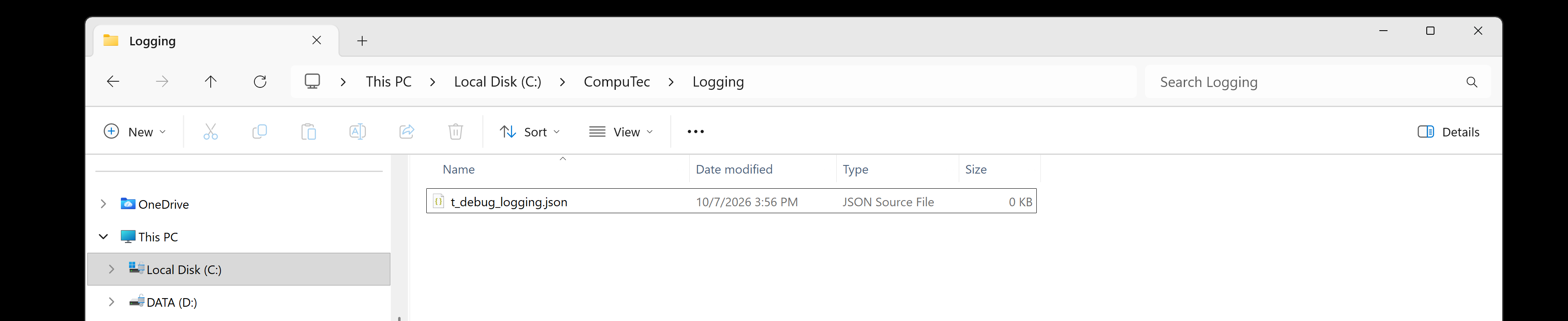
-
Add the following content to the file:
{"Logging": {"LogLevel": {"Default": "Information","Label.Plugin.UI": "Trace","Microsoft": "Warning","System.Net.Http": "Warning"},"NLog": {"IncludeScopes": true,"RemoveLoggerFactoryFilter": false}},"NLog": {"targets": {"file": {"type": "File","fileName": "${specialfolder:folder=CommonApplicationData:cached=true}\\CompuTec\\CompuTec.Start\\${environment-user}-${shortdate}.log"}},"Rules": [{"logger": "*","minLevel": "Trace","writeTo": "file"}]}} -
Save the file.
Keep the file in this location while detailed logging is enabled.
Step 2: Set the environment variable
-
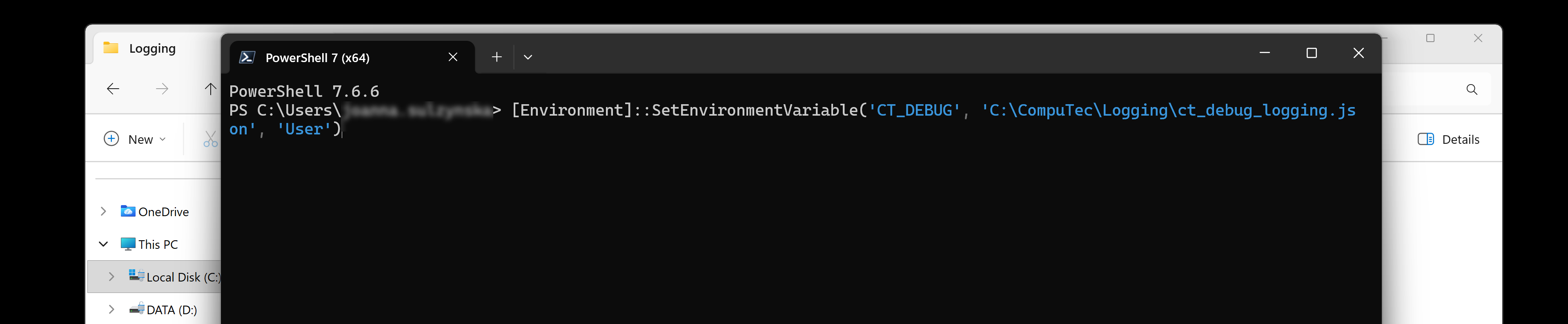
Open Windows PowerShell.
-
Run the following command:
[Environment]::SetEnvironmentVariable('CT_DEBUG', 'C:\CompuTec\Logging\ct_debug_logging.json', 'User')If you saved the file in a different location, replace the path in the command with its full path.
The command creates a persistent CT_DEBUG environment variable for the current Windows user.
Alternatively, you can create the variable in Windows Settings:
- Search for Edit environment variables for your account in Windows Settings.
- Open the matching result.
- Under User variables, click New.
- Enter
CT_DEBUGin Variable name. - Enter the full path to
ct_debug_logging.jsonin Variable value. - Click OK to save the variable.
- Click OK to close the environment variables window.
Step 3: Restart SAP Business One
- Close the SAP Business One client completely.
- Start SAP Business One again.
Restarting only the add-on is not enough. CompuTec.Start inherits environment variables from the SAP Business One client, so you must restart the entire client to apply the change.
Reproduce the issue and collect the log
-
Perform the actions that cause the issue, such as opening a document and printing a label.
-
Open File Explorer.
-
Go to the following folder:
C:\ProgramData\CompuTec\CompuTec.StartinformacjaThe
ProgramDatafolder is hidden by default. You can open it by pasting the path into the File Explorer address bar or the Run dialog (Win+R). -
Find the log file for the Windows user and the date when you reproduced the issue. The file name uses the following format:
<WindowsUserName>-<YYYY-MM-DD>.log -
Send the file to CompuTec Support Portal with a description of the actions you performed.
Check that detailed logging is enabled
After reproducing the issue, check the log for entries marked INFO or DEBUG with logger names beginning with Label.Plugin.UI.
For example:
2026-10-02 12:56:36.7820|DEBUG|Label.Plugin.UI.Events.Custom.PrintPreviewEventHandler.PrintPreviewEventHandler|Printed [1] items
If the log still contains only ERROR entries:
- Check that
CT_DEBUGpoints to the correct file. - Check that the configuration file exists at that location and contains the JSON shown above.
- Close the SAP Business One client completely and start it again.
- Ask your CompuTec AppEngine administrator whether an assigned CompuTec.Start profile overrides the local logging configuration.
Disable detailed logging
Detailed logging can generate large files. Disable it when troubleshooting is complete.
-
Open Windows PowerShell.
-
Run the following command to remove the user environment variable:
[Environment]::SetEnvironmentVariable('CT_DEBUG', $null, 'User') -
Close the SAP Business One client completely.
-
Start SAP Business One again.
If logging was enabled through a CompuTec.Start profile, ask your CompuTec AppEngine administrator to disable it in the profile.
Configure logging centrally
Administrators can enable detailed logging for the CompuTec Labels UI Plugin through a telemetry profile in the CompuTec AppEngine Administration Panel. It does not require users to create a local configuration file or set the CT_DEBUG environment variable.
This option is useful when logging is needed on multiple workstations or when a user cannot change their environment variables.
Create a telemetry profile
-
Open the CompuTec AppEngine Administration Panel.
-
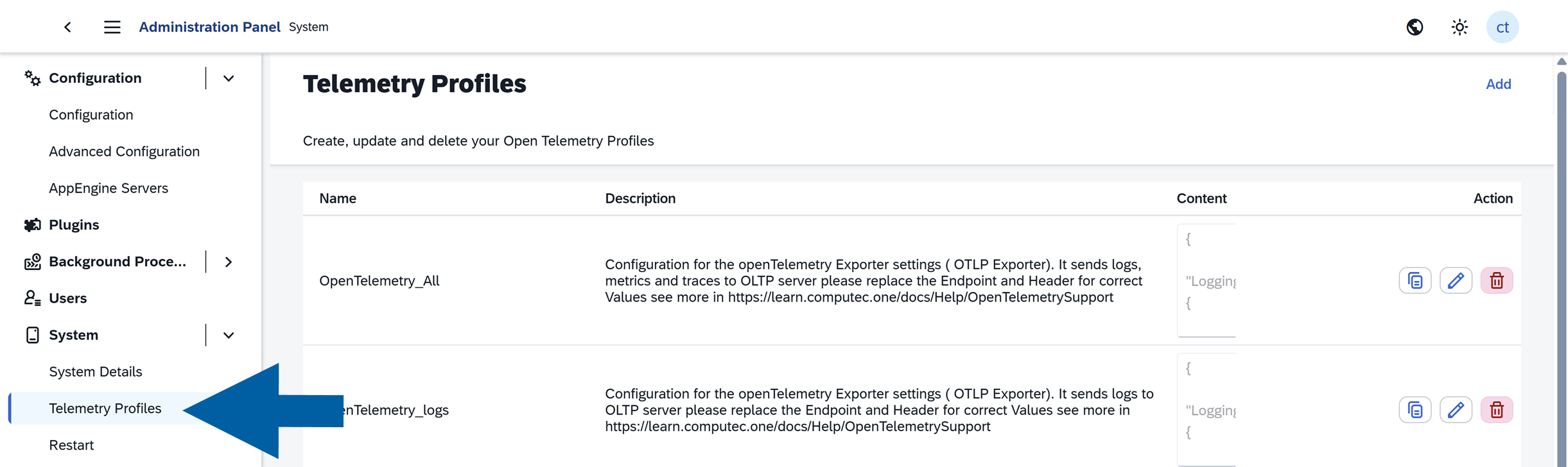
Go to System > Telemetry Profiles.
-
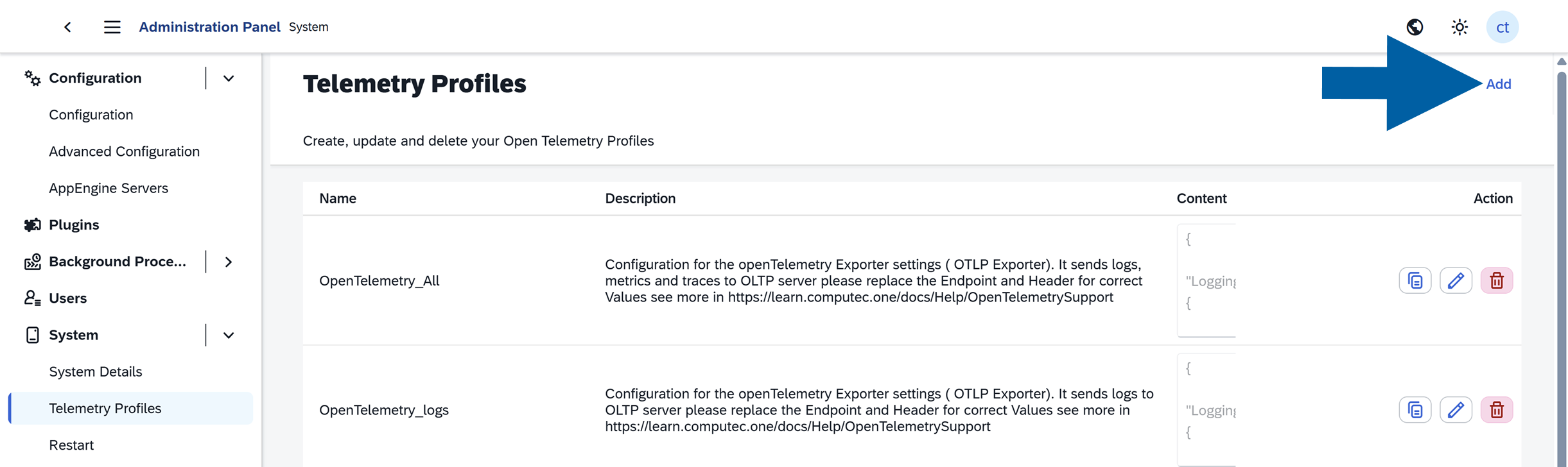
Click Add.
-
Enter a name and description that identify the profile as a detailed logging configuration for the CompuTec Labels UI Plugin.
-
Paste the JSON configuration from Create the configuration file into the profile content.

-
Click Add to save the profile.
Assign the profile to a user
-
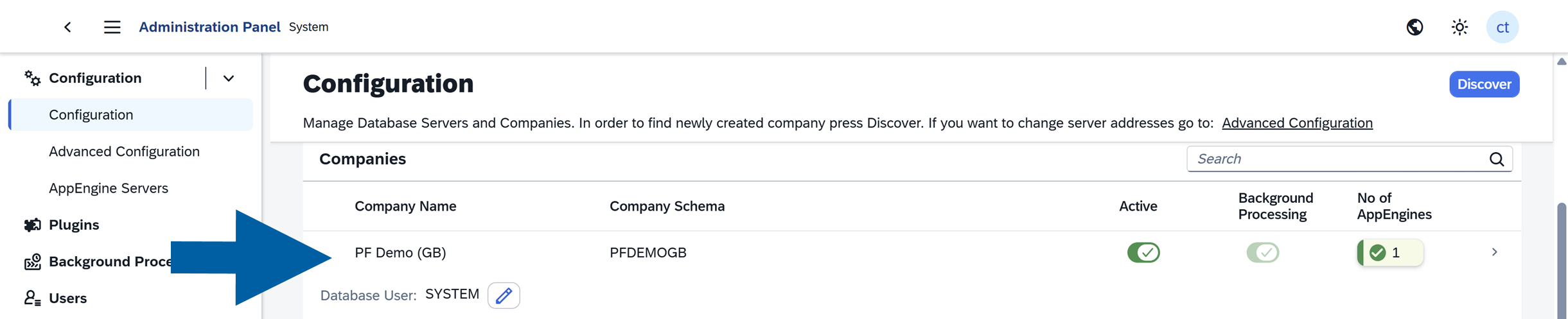
Go to Configuration.
-
Open the company for which you want to enable logging.
-
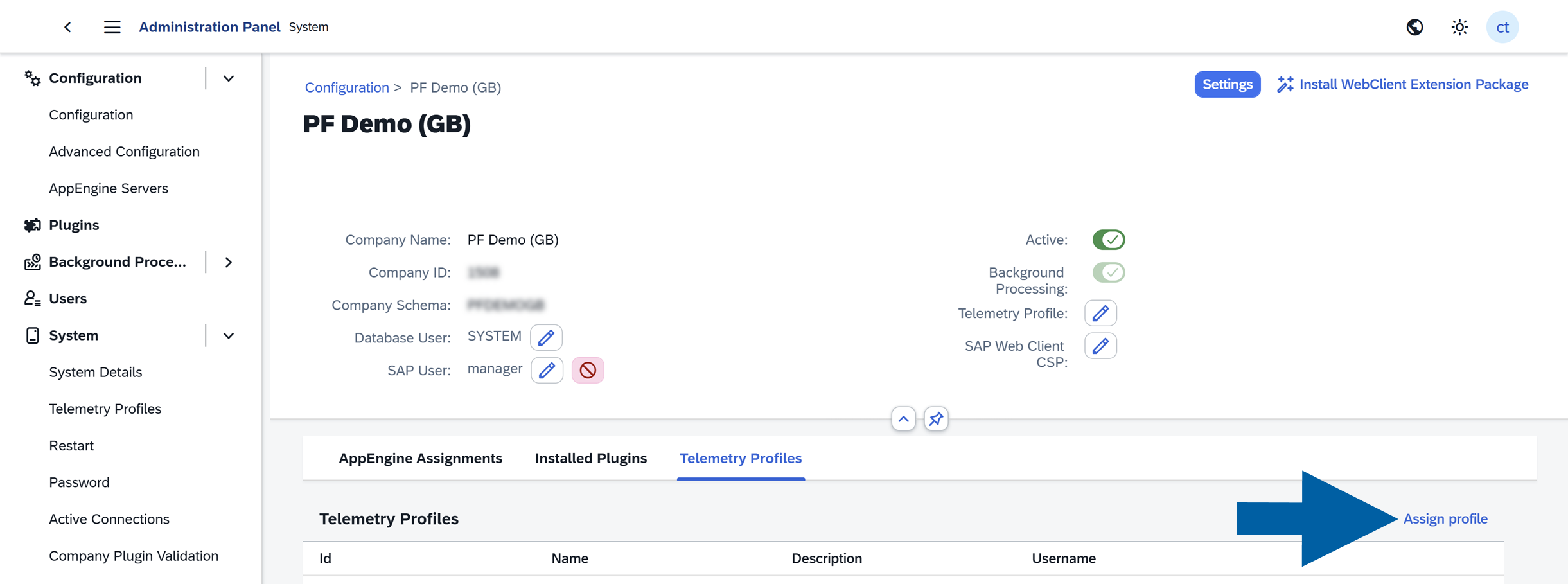
Open the Telemetry Profiles tab.
-
Click Assign profile.
-
Enter the user's name in Username.
-
Click the edit icon under Telemetry Profile.

-
Select the profile you created.
-
Click Create Assignment.
Apply the configuration
- Close the SAP Business One desktop client completely.
- Start SAP Business One again.
- Reproduce the issue.
- Collect the log file as described in Reproduce the issue and collect the log.
CompuTec.Start downloads the assigned profile each time it starts. Settings in this profile override matching settings in the local configuration, including the file referenced by CT_DEBUG.
Detailed logging can generate large files. Disable it in the assigned profile when troubleshooting is complete, then restart the SAP Business One client.
Configuration priority
CompuTec.Start loads configuration sources in the following order. Settings in a later source override matching settings in earlier sources.
| Order | Configuration source | Description |
|---|---|---|
| 1 | appsettings.json in the same folder as start.exe | Installed default configuration. The default log level is Error. |
| 2 | <ASPNETCORE_ENVIRONMENT>.appsettings.json in the same folder as start.exe | Optional environment-specific configuration used by developers. |
| 3 | File referenced by the CT_DEBUG environment variable | User configuration described in this section. |
| 4 | CompuTec.Start profile downloaded from CompuTec AppEngine | Centrally managed configuration assigned to a user or company. |