You are currently viewing documentation for CompuTec ProcessForce 3.0, which is a plugin installed and managed through CompuTec AppEngine 3.0, built on .NET 8. If you are working with older environments, you may need the documentation for CompuTec ProcessForce 2.0: https://learn.computec.one/docs/processforce/2.0/.
Please note that CompuTec ProcessForce 2.0 will be supported only until December 31, 2026. After this date, the product will no longer receive regular support or maintenance updates. Read more
CompuTec AppEngine 3.0 introduces a new architecture, and all CompuTec components, including the CompuTec ProcessForce 3.0 plugin, must be updated together to ensure full compatibility.
Before starting your installation or upgrade process, we strongly recommend reviewing the CompuTec AppEngine 3.0 and CompuTec ProcessForce 3.0 documentation.
Install CompuTec ProcessForce Data Model
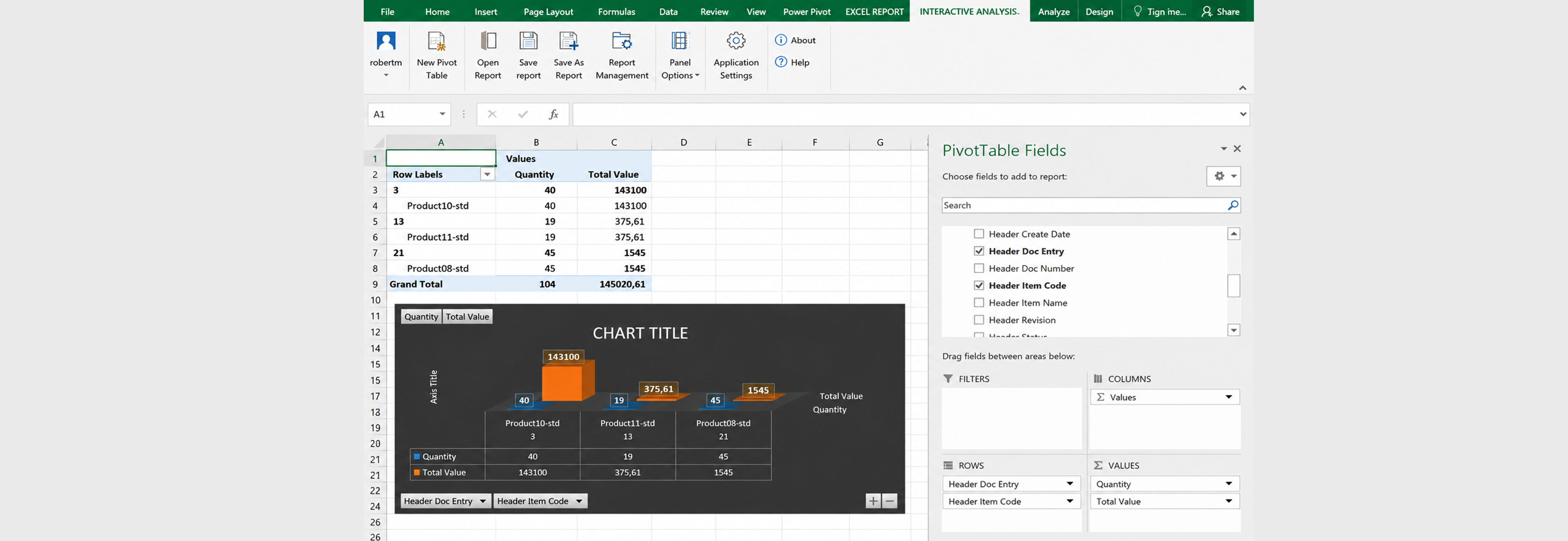
The CompuTec ProcessForce Data Model provides a set of calculation views that can be used for reporting, analytics, and business intelligence scenarios.
The data model includes:
- 40 calculation views in total
- 10 views designed as direct data sources for reporting and analytics tools
- Additional supporting views used as indirect data sources
You can use these views with:
- Microsoft Excel
- SAP Analytics Cloud
- Dashboards and KPIs
- Custom analytics solutions
- SQL queries
Before you start
Before installing the data model, make sure the following requirements are met.
Step 1: Enable Analytics for the Company Database
Analytics must be initialized for the SAP Business One company database.
To verify this:
-
Open the following URL in a web browser:
https://<ServerAddress>:<Port>/Enablement. -
Replace
<ServerAddress>and<Port>with the values used in your environment.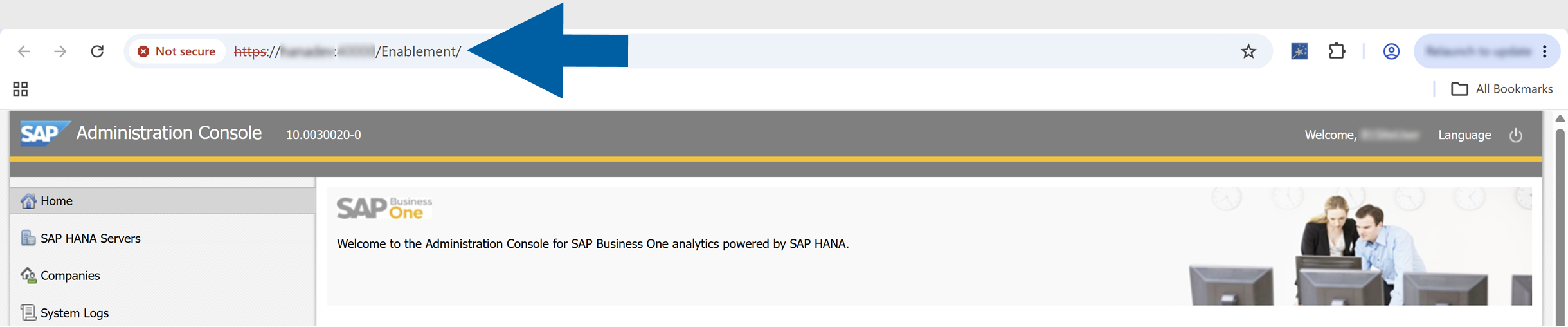 note
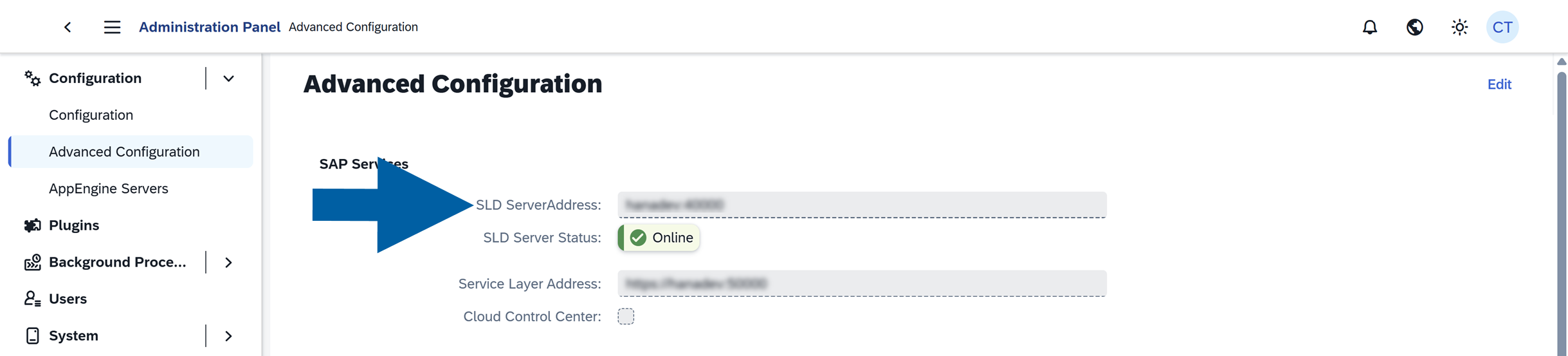
noteIf you don't know your Server Address, foolow these steps:
-
Log in to the CompuTec AppEngine Administration Panel.
-
Go to Configuration > Advanced Configuration.
-
The server address is displayed in the SLD Server Address field.
-
-
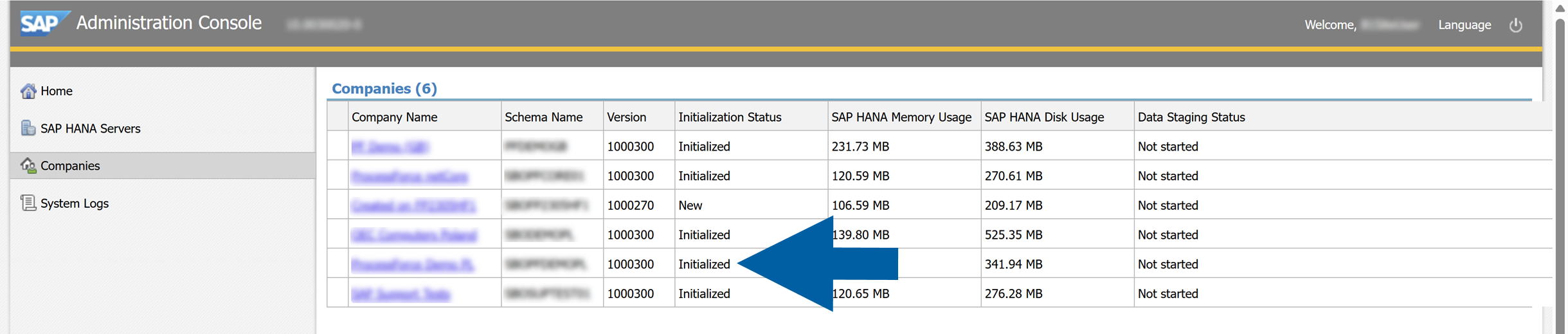
In SAP Administration Console, navigate to Companies.
-
Verify that analytics have been initialized for the company database.
 info
infoFor more information, see the SAP Business One Administrator's Guide for SAP HANA:
- 7.3 Initializing and Maintaining Company Schemas for Analytical Features
- 7.3.1 Starting the Administration Console
- 7.3.2 Initializing and Updating Company Schemas
Step 2: Install the Required Microsoft Excel Components
To create reports based on the calculation views, install:
- Microsoft Excel
- Excel Report and Interactive
- SAP Analysis for Microsoft Office
For installation requirements, see the SAP Business One Administrator's Guide for SAP HANA, Chapters 1. Introduction and 3.4 Installing Client Components.
For information about using these features, see the SAP Business One How-to Guide.
Step 3: Verify the time dimension table
Some calculation views use the DocumentDate time dictionary view, which depends on the _SYS_BI."M_TIME_DIMENSION SAP HANA table.
To verify that the table contains data, follow these steps:
-
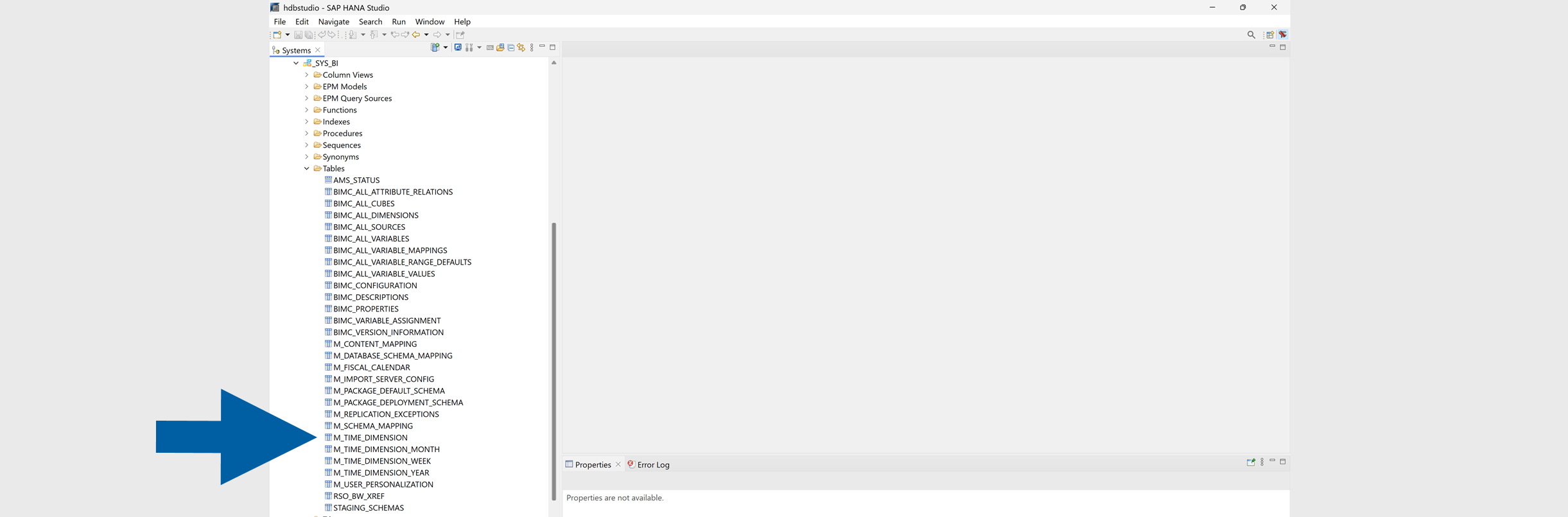
Open SAP HANA Studio.
-
Expand the _SYS_BI schema.
-
Locate the M_TIME_DIMENSION table.
-
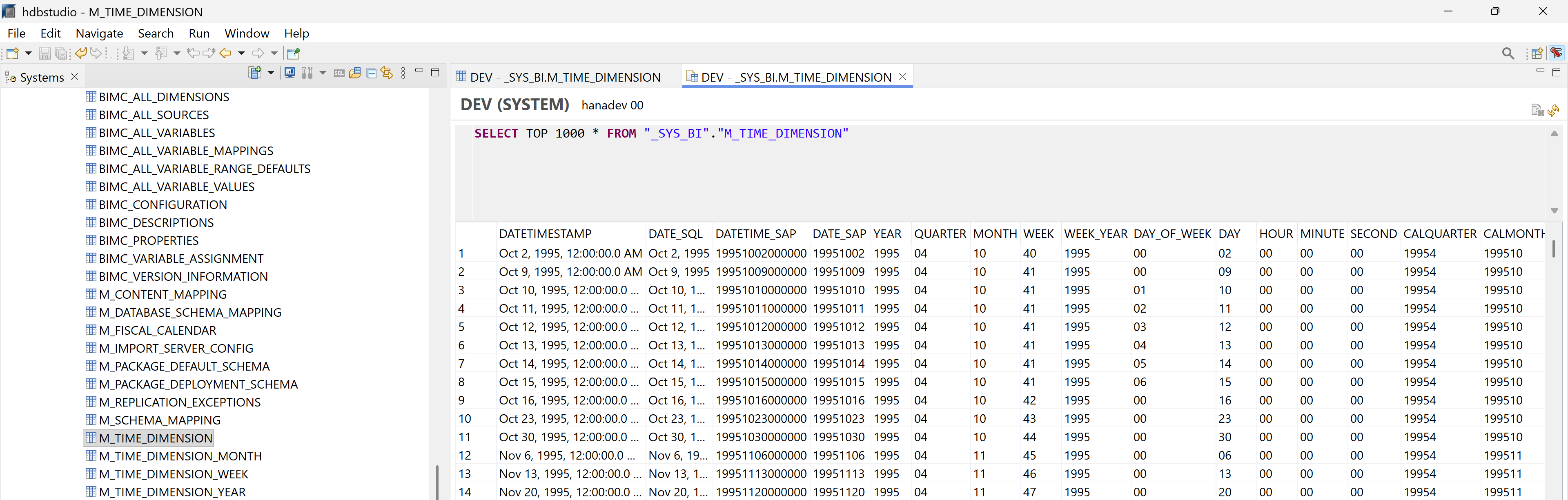
Right-click M_TIME_DIMENSION and select Open Content.
-
Verify that the table contains records.
-
To initialize the table:
-
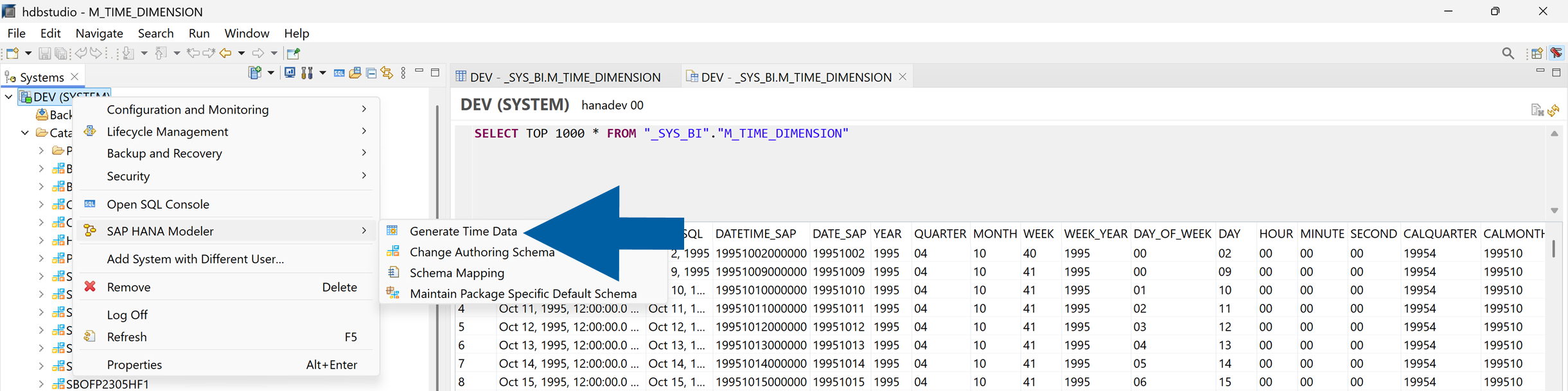
Right-click the SYSTEM folder.
-
Select SAP HANA Modeler > Generate Time Data.
-
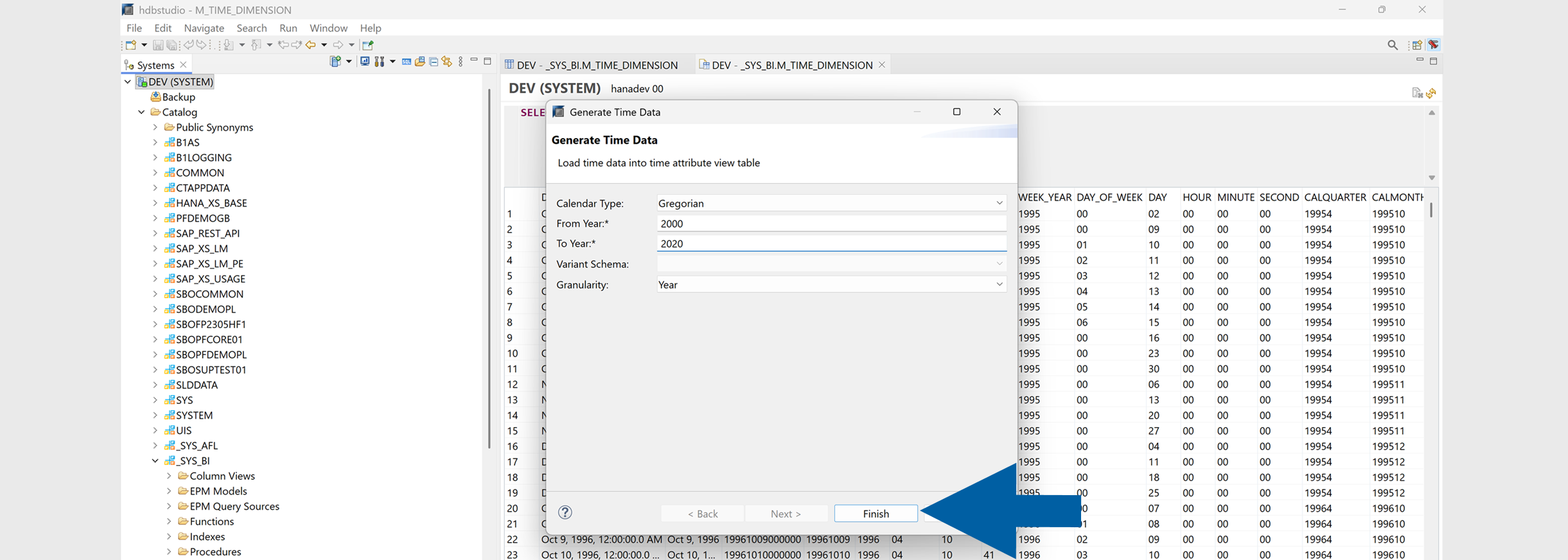
Specify the required date range and granularity.
-
Click Finish to generate the records in the _SYS_BI.M_TIME_DIMENSION table.
-
-
Alternatively, you can verify whether the table contains data by running the following SQL query:
SELECT * FROM _SYS_BI."M_TIME_DIMENSION" -
If no records are returned, initialize the table before installing the data model.
For detailed instructions on generating and maintaining the M_TIME_DIMENSION table, see the SAP HANA Modeling for SAP Business One – Time Dimensions guide.
Install the Data Model
To install the CompuTec ProcessForce Data Model, follow these steps:
-
Download the CompuTec ProcessForce Data Model installation file.
-
Log in to SAP Business One.
-
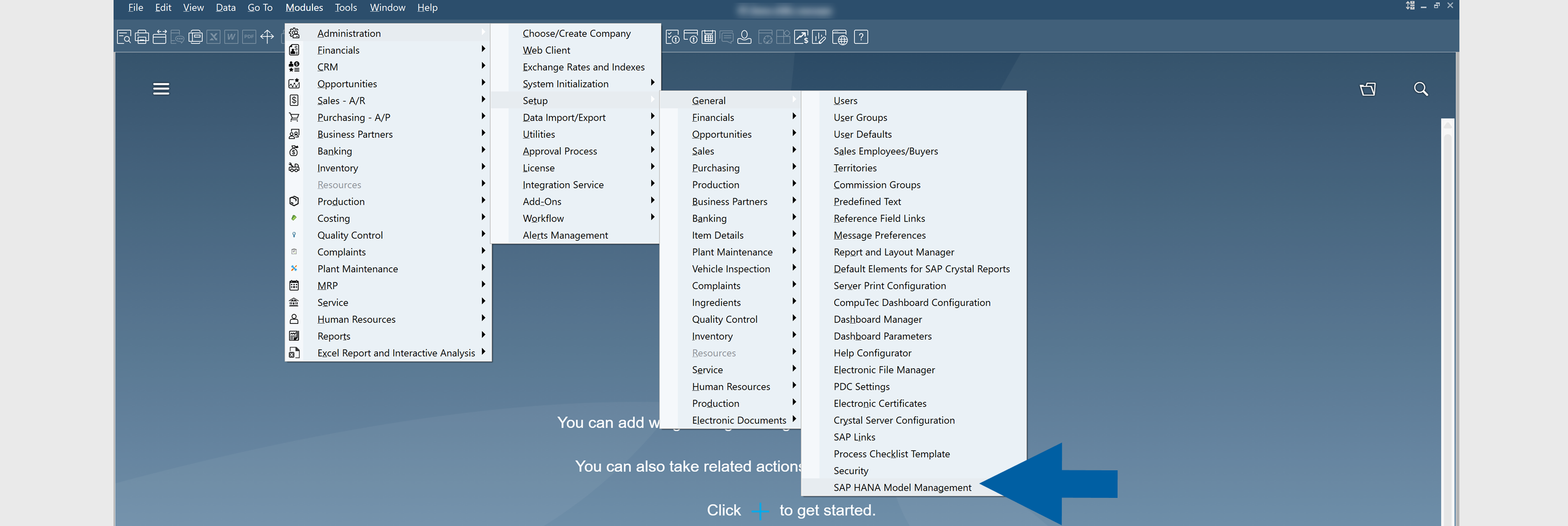
Go to Administration > Setup > General > SAP HANA Model Management.
-
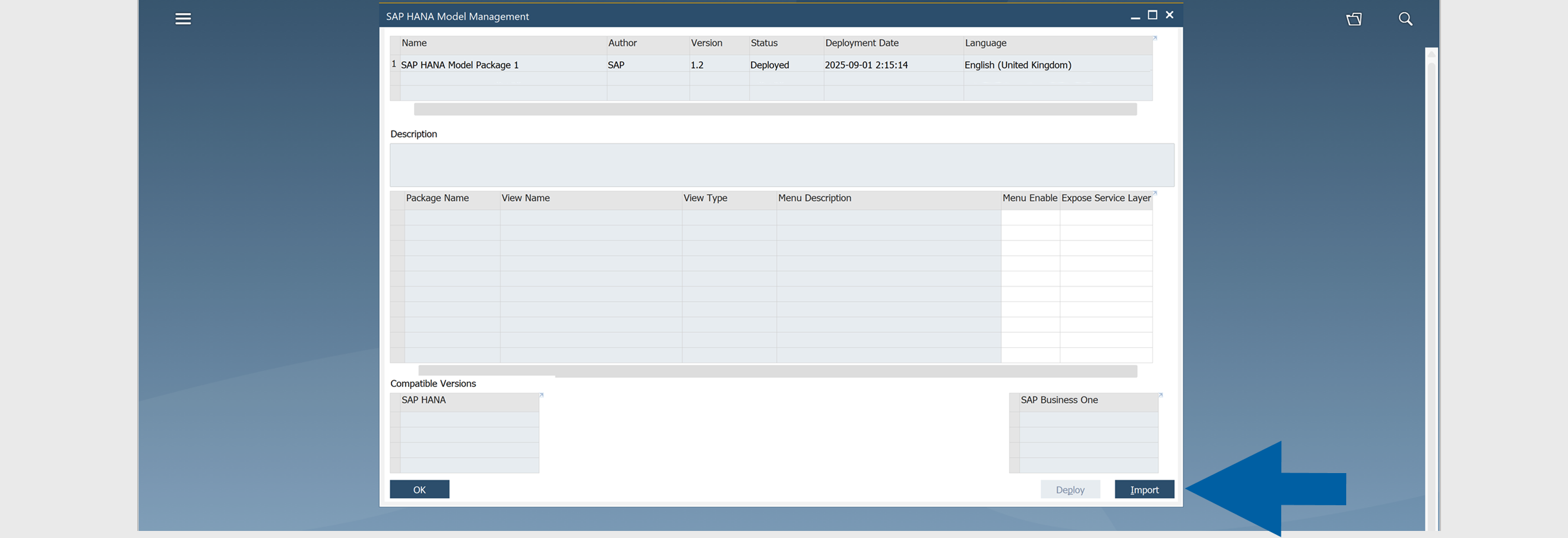
Click Import.
-
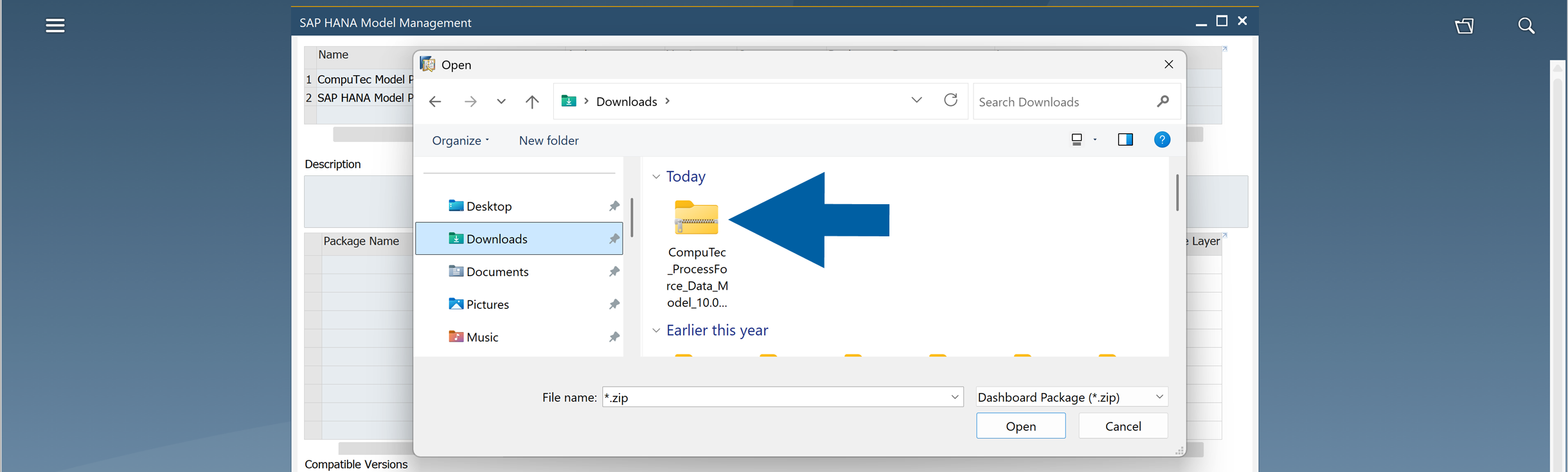
Select the downloaded model.zip package.
-
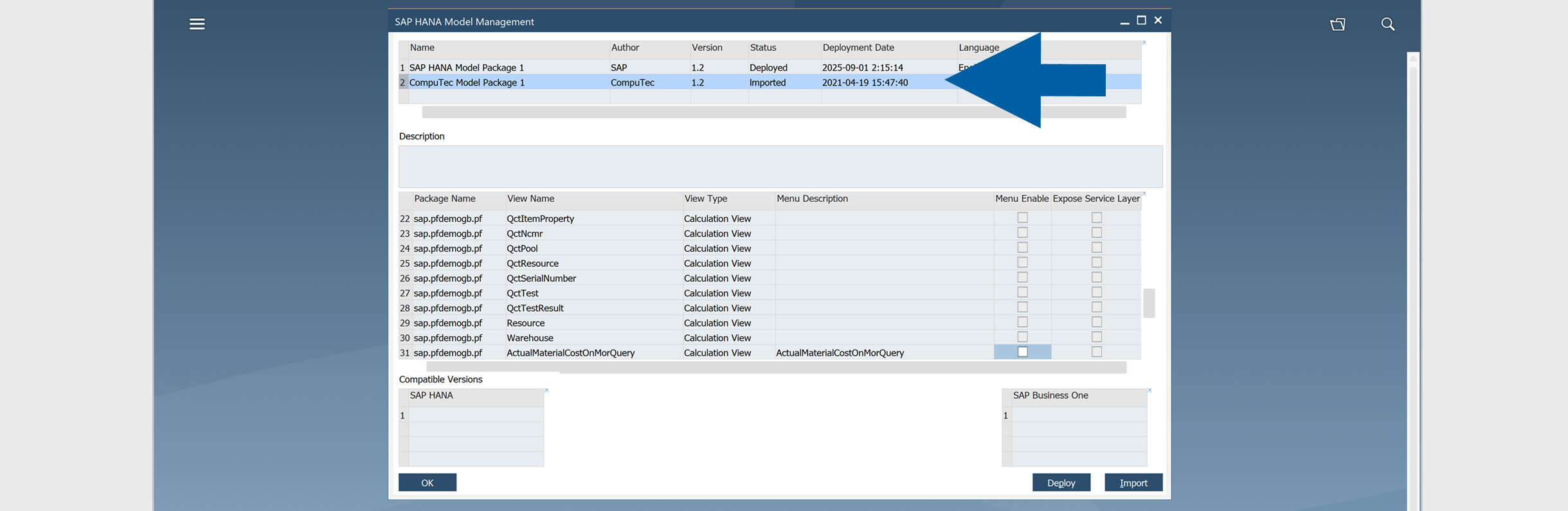
Seletct the imported data model, and click Deploy.
 info
infoFor more information about importing model packages and available deployment options, see Chapter 4 – Importing and Deploying Model Packages in SAP Business One.
-
Done! After the deployment is complete, you can access the calculation views from the SAP Business One menu.
Results
Access the calculation views from SAP Business One
To access the calculation views from the SAP Business One menu, follow these steps:
-
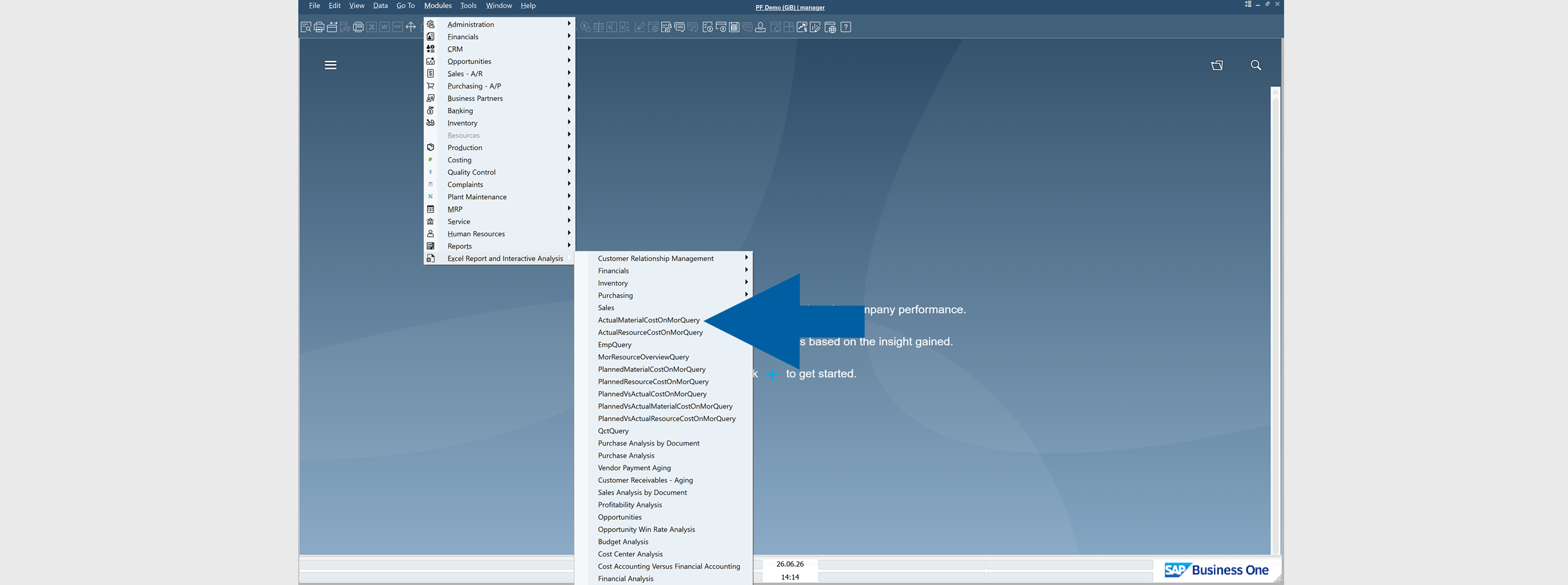
In SAP Business One, go to Modules.
-
Click Excel Report and Interactive Analysis.
-
Verify that the imported CompuTec ProcessForce calculation views are available.
Access the calculation views from Microsoft Excel
To use the calculation views in Microsoft Excel, follow these steps:
-
Open Microsoft Excel.
-
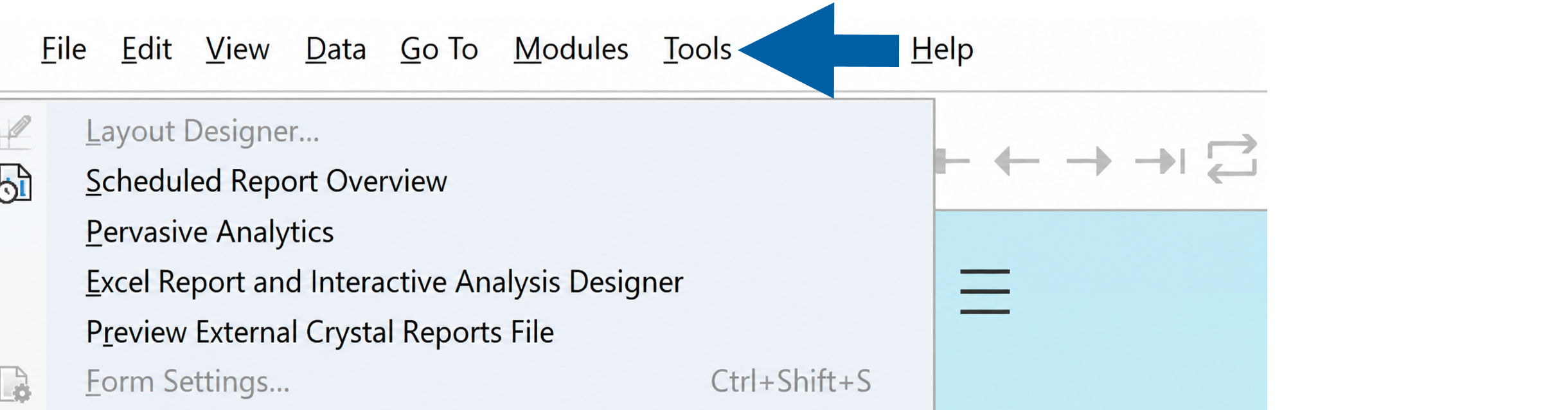
Navigate to Tools.
-
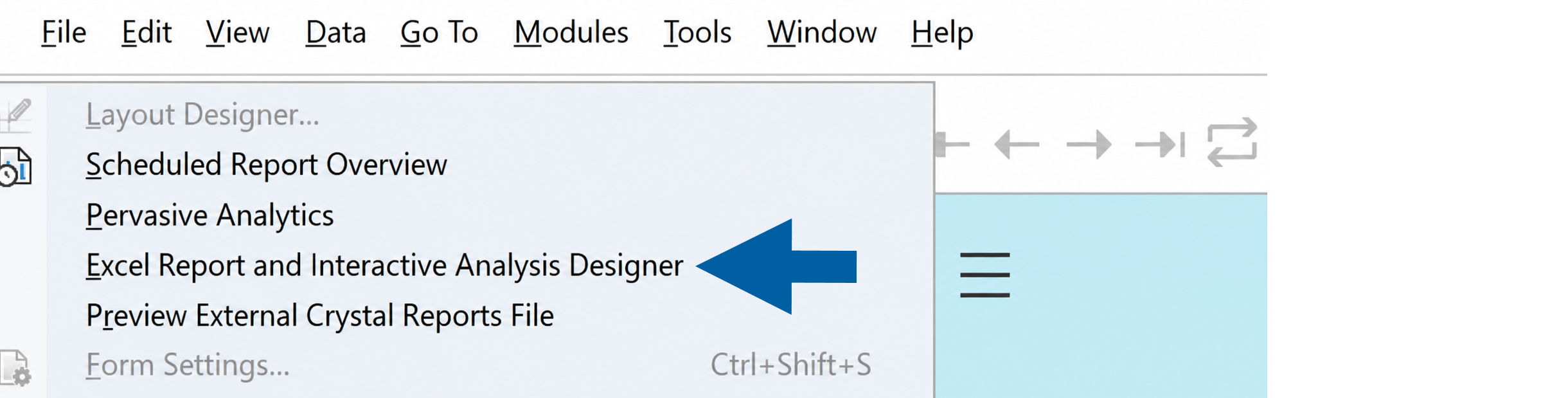
Select the Excel Report and Interactive Analysis Designer tab.
-
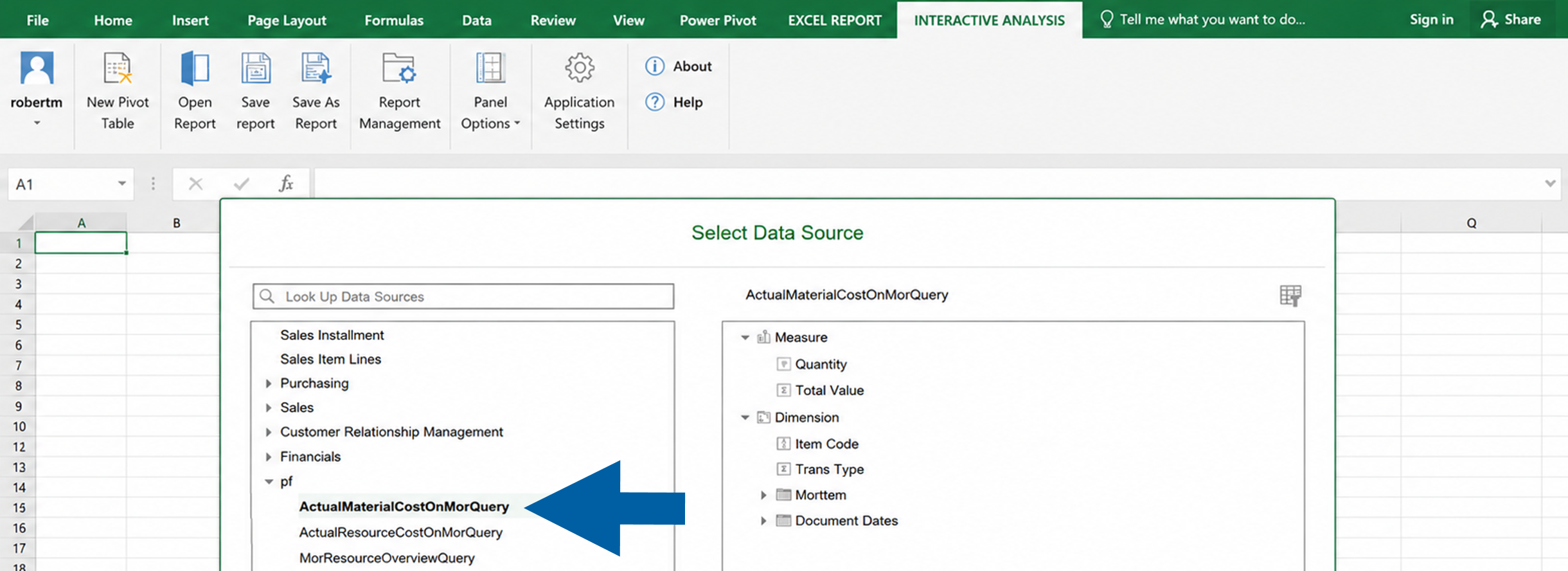
Navigate to Interactive Analysis.

-
Click New Pivot Table.

-
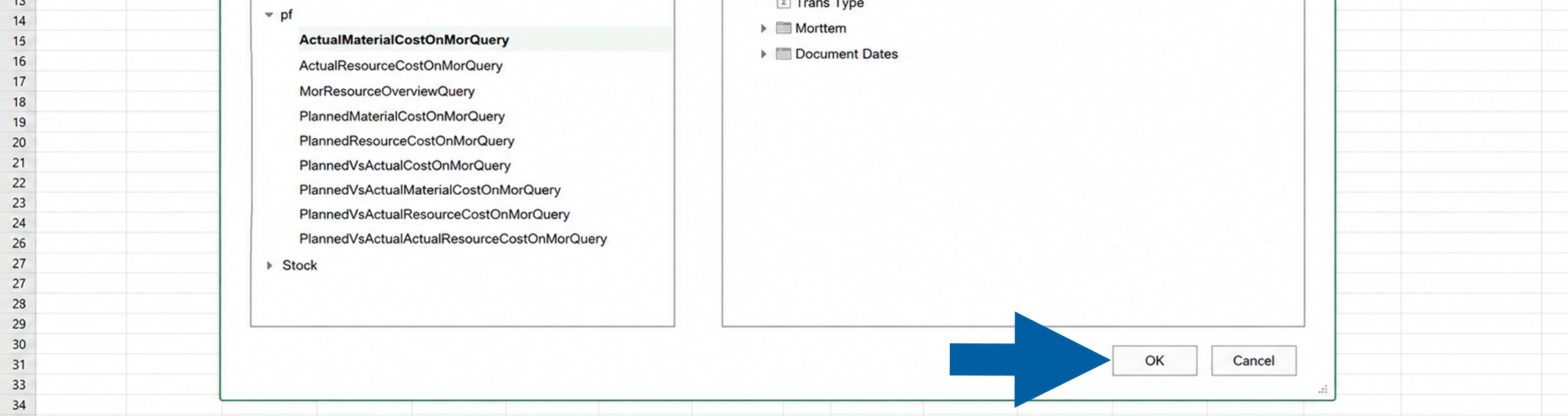
Select one of the CompuTec ProcessForce calculation views.
-
Click OK.
-
Done! Now you can see your calculation view.