Manual Installation of the CompuTec WebUp Extensions
You can install two extensions:
- CompuTec WebUp Manager – a browser extension used to create, edit, and test CompuTec WebUp configurations.
- CompuTec WebUp Client – a browser extension that extends the SAP Business One Web Client where the standard extensibility framework is limited.
The CompuTec WebUp browser extensions are available in the Chrome Web Store.
For Google Chrome and other Chromium-based browsers, such as Microsoft Edge, we recommend installing the extensions directly from the Chrome Web Store. This is the recommended installation method and does not require enabling Developer mode or loading the extensions manually. Read more
If access to the Chrome Web Store is not available, you can install the extensions manually using the CompuTec installation packages.
This method may be required in environments with:
- Restricted or offline network access
- Corporate security policies that block access to public extension stores
- Other browser or environment restrictions
Install CompuTec WebUp browser extensions manually
Select your browser to see the installation steps:
- Google Chrome
- Microsoft Edge
- Mozilla Firefox
Step 1: Download the CompuTec WebUp extensions for Google Chrome
-
Click this link to download the CompuTec WebUp Client extension.
-
Click this link to download the CompuTec WebUp Manager extension.
-
Extract both downloaded files.
Step 2: Install the extensions for Google Chrome
-
Open the Google Chrome browser.
-
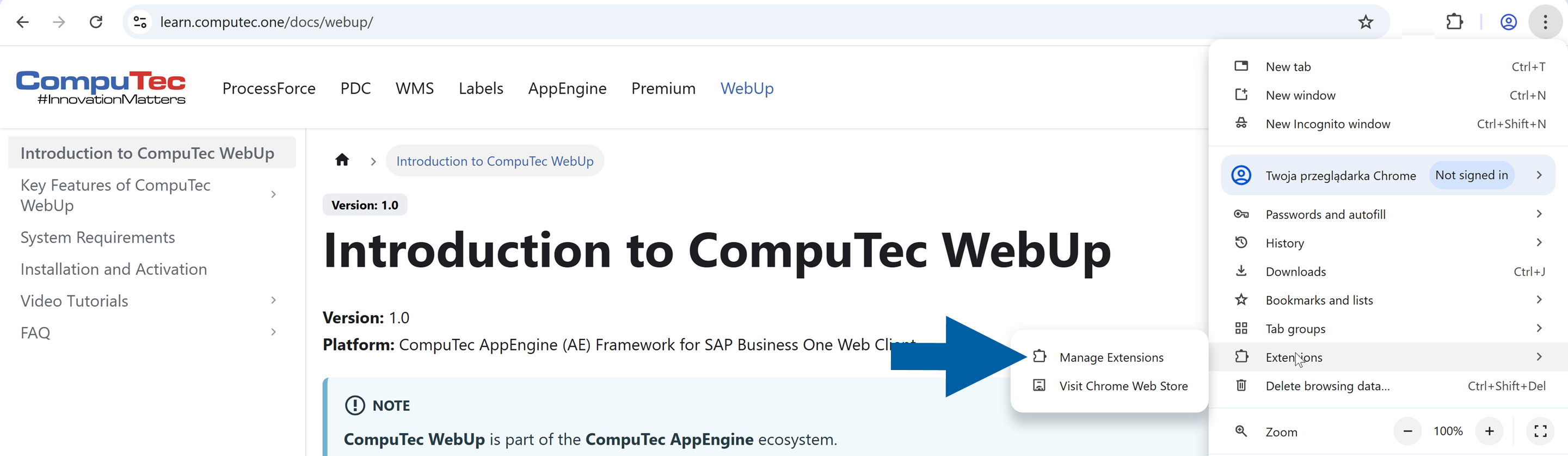
Click the menu icon and choose Extensions > Manage Extensions.
-
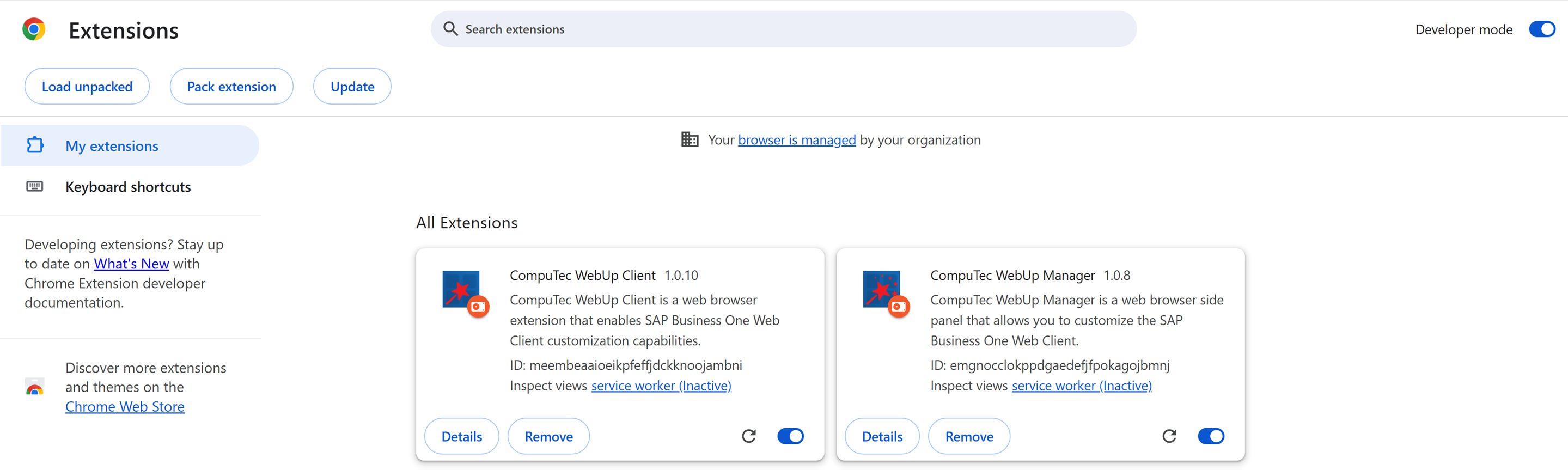
Turn on the Developer mode toggle.

-
Click Load unpacked.

-
Select your extracted CompuTec WebUp Client folder and click Select Folder.
-
Select your extracted CompuTec WebUp Manager folder and click Select Folder.
-
Done! Now you can see both CompuTec WebUp Client and CompuTec WebUp Manager extensions on the All Extensions list of your Google Chrome browser.
Step 1: Download the CompuTec WebUp extensions for Microsoft Edge
-
Click this link to download the CompuTec WebUp Client extension.
-
Click this link to download the CompuTec WebUp Manager extension.
-
Extract both downloaded files.
Step 2: Install the extensions for Microsoft Edge
-
Open the Microsoft Edge browser.
-
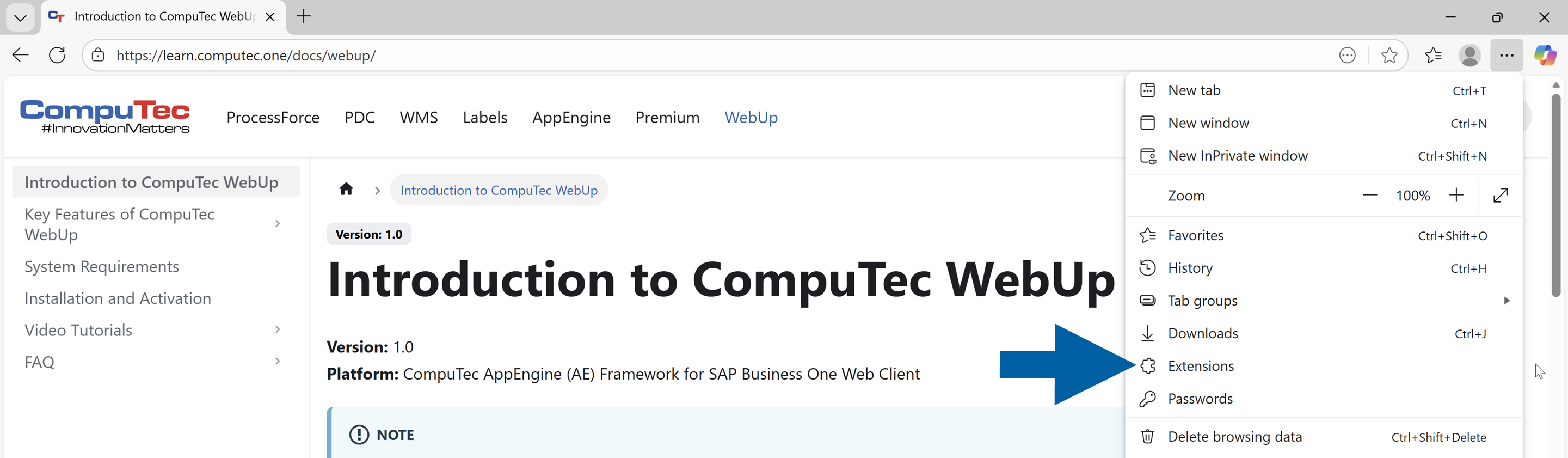
Click the menu icon and choose Extensions.
-
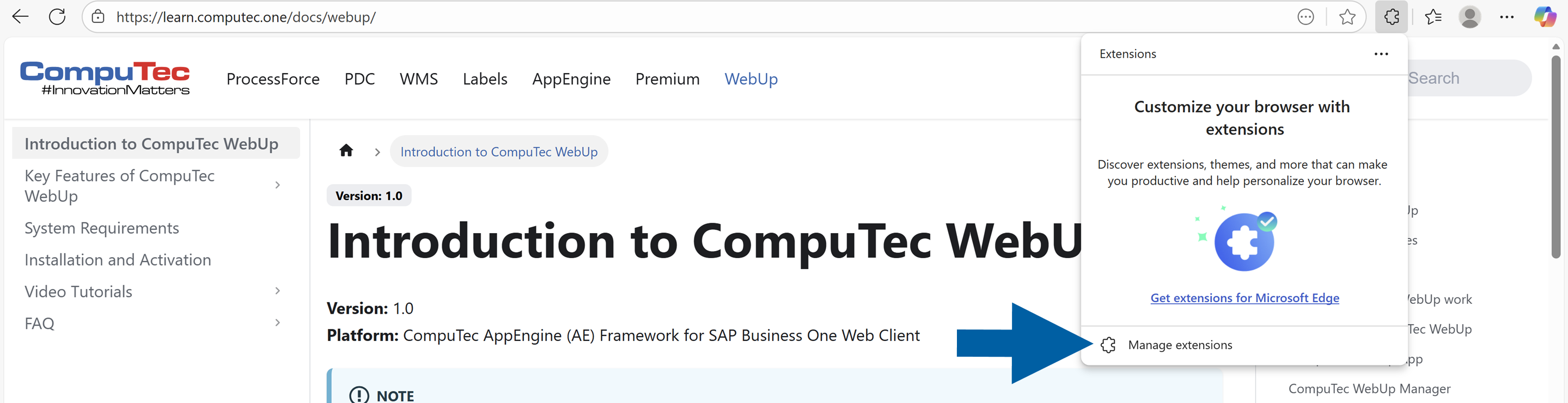
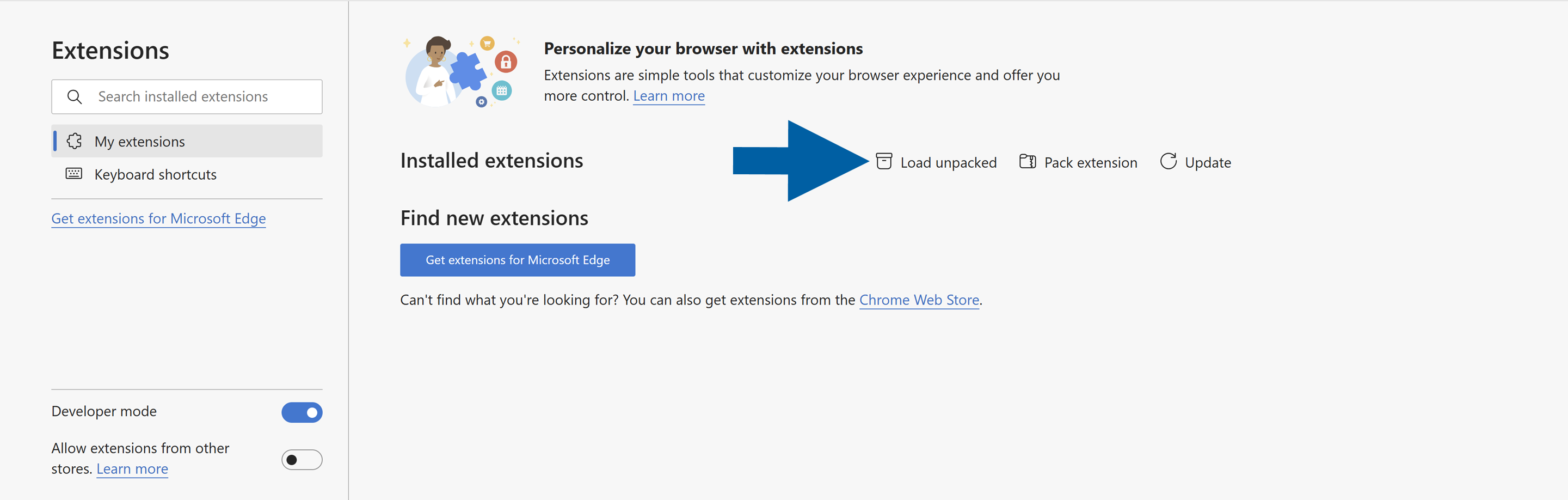
Click Manage extensions.
-
Turn on the Developer mode toggle.
-
Click Load unpacked.
-
Select your extracted CompuTec WebUp Client folder and click Select Folder.
-
Select your extracted CompuTec WebUp Manager folder and click Select Folder.
-
Done! Now you can see both CompuTec WebUp Client and CompuTec WebUp Manager extensions on the Installed extensions list of your Microsoft Edge browser.
Step 1: Download the extension for Mozilla Firefox
-
Click this link to download the CompuTec WebUp Client extension.
noteThe CompuTec WebUp Manager extension is not available for Mozilla Firefox. If you need consultant or key-user functionality, use Google Chrome or Microsoft Edge.
-
Extract the downloaded file.
Step 2: Install the extension for Mozilla Firefox
-
Open the Mozilla Firefox browser.
-
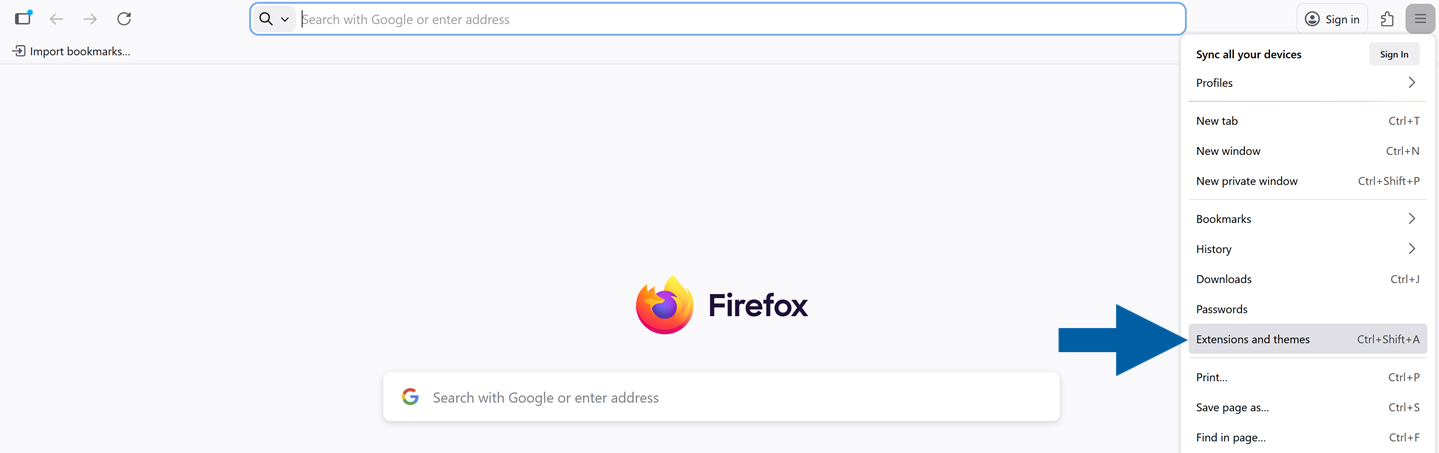
Click the menu icon and choose Extensions and themes.
-
Navigate to Extensions.

-
Click the gear icon and select Debug Add-ons.

-
Click Load Temporary Add-on.

-
Select your extracted folder and click Open.
-
Done! Now you can see the CompuTec WebUp Client on the extension list of your Mozilla Firefox browser.
 note
noteFirefox only supports temporary loading of unpacked extensions.
The extension must be reloaded each time you restart Firefox.