You are currently viewing documentation for CompuTec AppEngine 3.0 (.NET 8).
If you are working with older environments, you may need the documentation for CompuTec AppEngine 2.0 based on .NET Framework: https://learn.computec.one/docs/appengine/2.0/.
Please note that CompuTec AppEngine 2.0 will be supported only until December 31, 2026. After this date, the product will no longer receive regular support or maintenance updates. Read more
As CompuTec AppEngine 3.0 introduces a new architecture, all CompuTec components must be updated together to ensure full compatibility.
Please review the CompuTec AppEngine 3.0 documentation before starting your installation or upgrade process.
FAQs
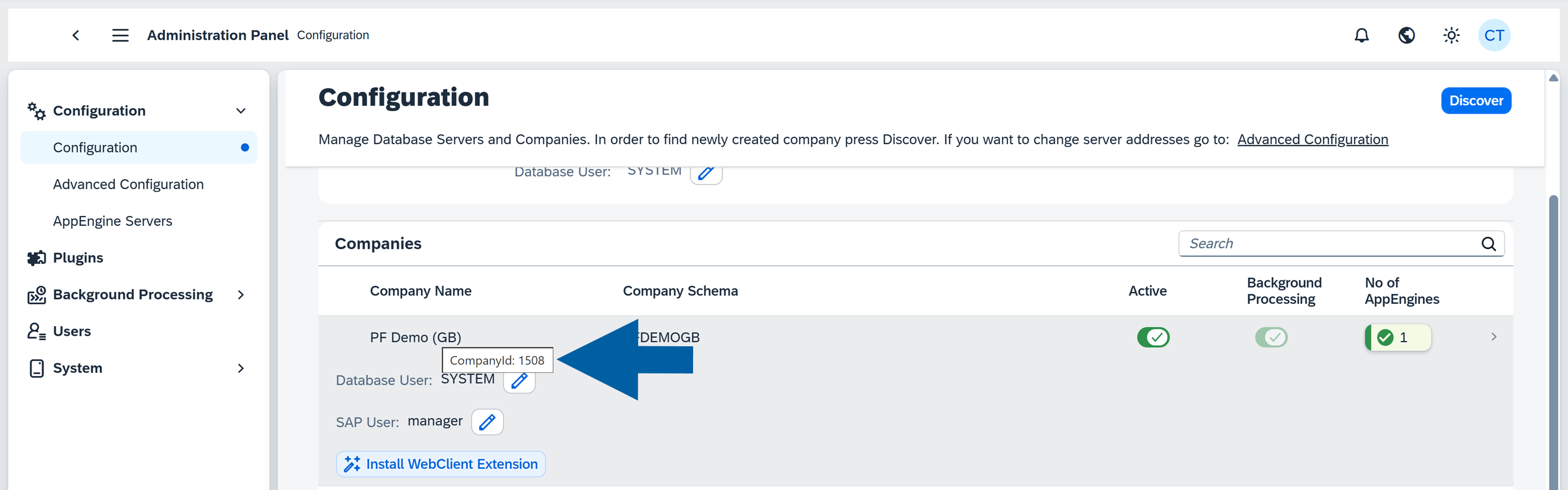
How to find the Company ID
Follow the steps below to obtain the CompanyId in CompuTec AppEngine:
-
Open the Administration Panel.
-
Navigate to Configuration.
-
In the Companies section, find your company and hover over its name.
-
The Company ID is displayed in the tooltip.
How to configure CORS in the SAP Web Client manually
Sometimes, when activating your company in CompuTec AppEngine, you may want to set up CORS (Cross-Origin Resource Sharing) for the SAP Business One Web Client manually:
-
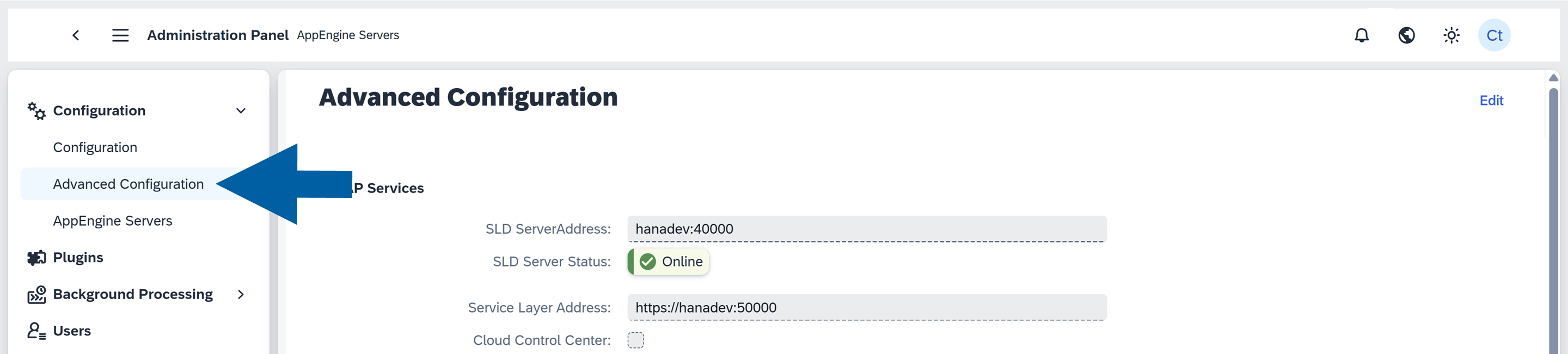
In the CompuTec AppEngine Administration Panel, go to Configuration > Advanced Configuration.
-
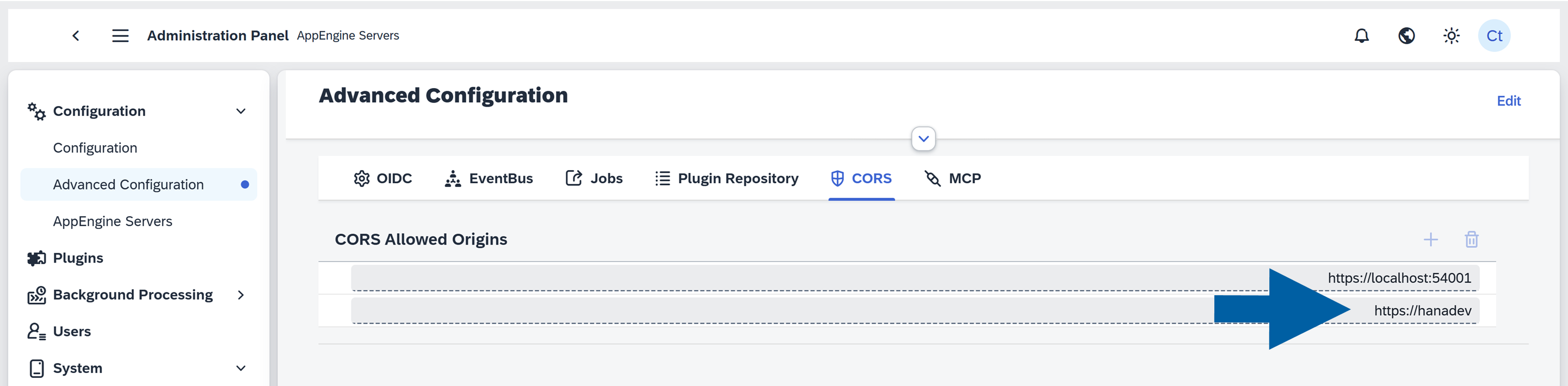
In the CORS Allowed Origins field, enter your SAP Web Client address.
-
Restart CompuTec AppEngine to apply changes.
How to set up Content Security Policy in the SAP Web Client manually
Sometimes, you may want to set up the Content Security Policy (CSP) in the SAP Web Client manually. To make sure it's filled with the correct data (or add your own CSP entries), follow these steps:
-
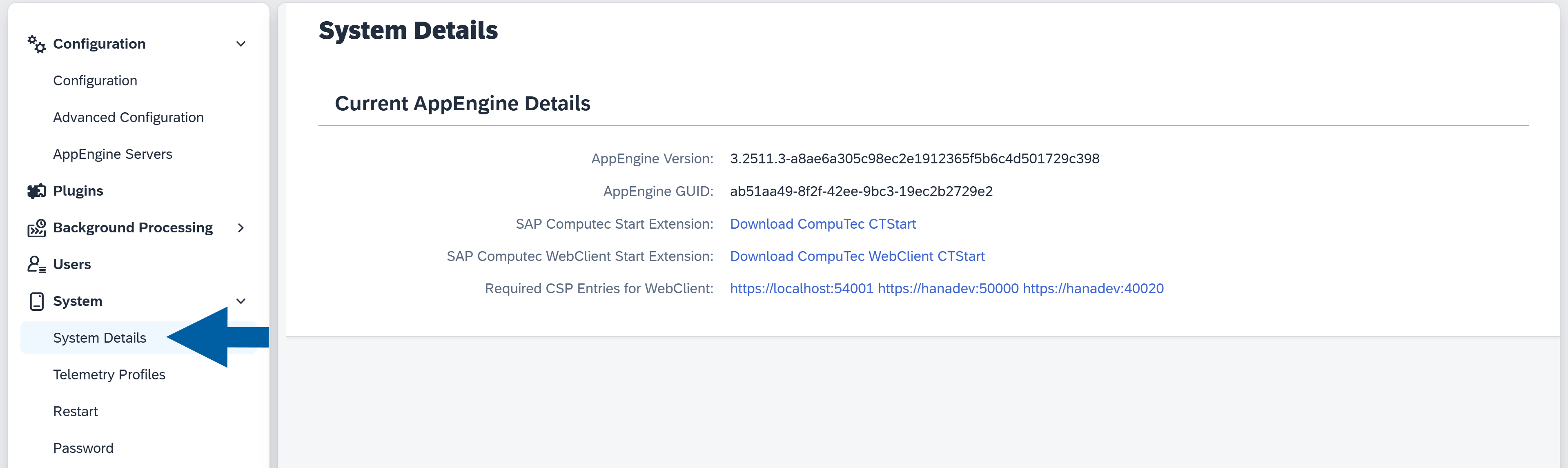
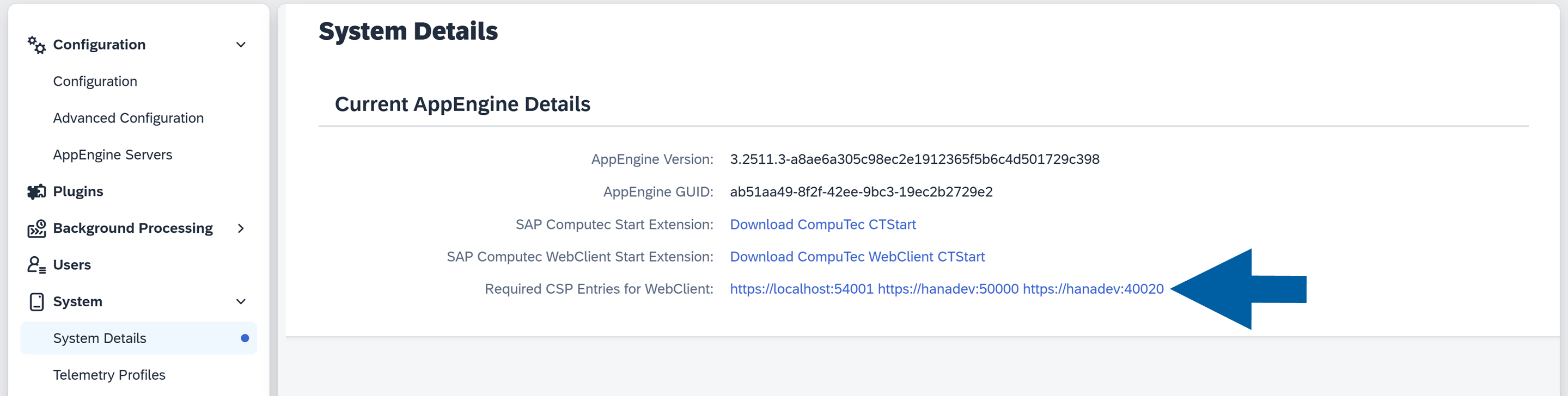
In the CompuTec AppEngine Administration Panel, navigate to System > System Details.
-
Click on the Required CSP Entries for Web Client link.
-
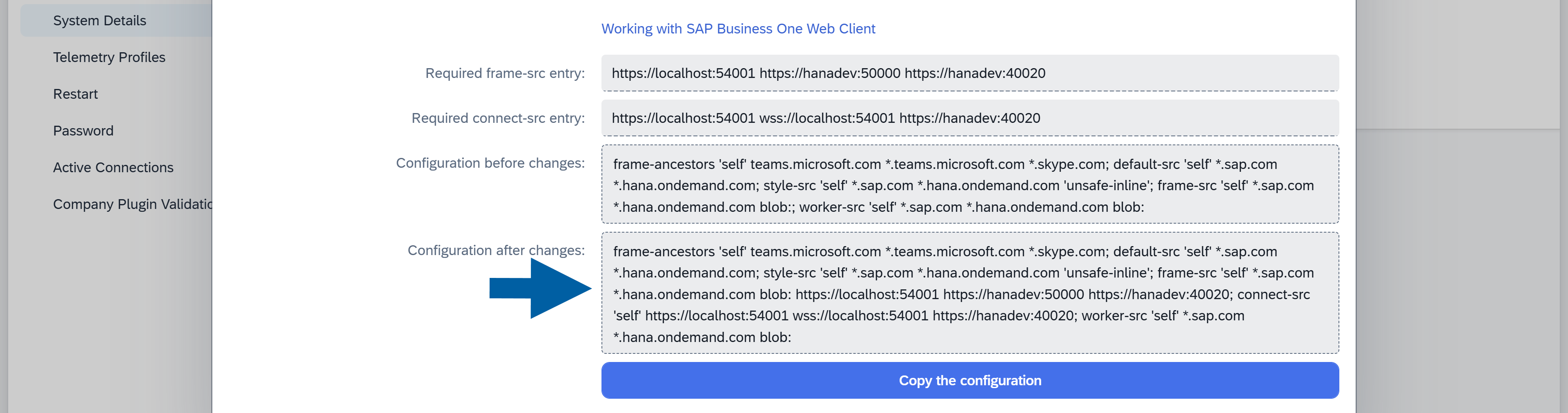
Here, you can find all the required entries for SAP Web Client Content Security Policy.
-
Copy the entries and close the window.
-
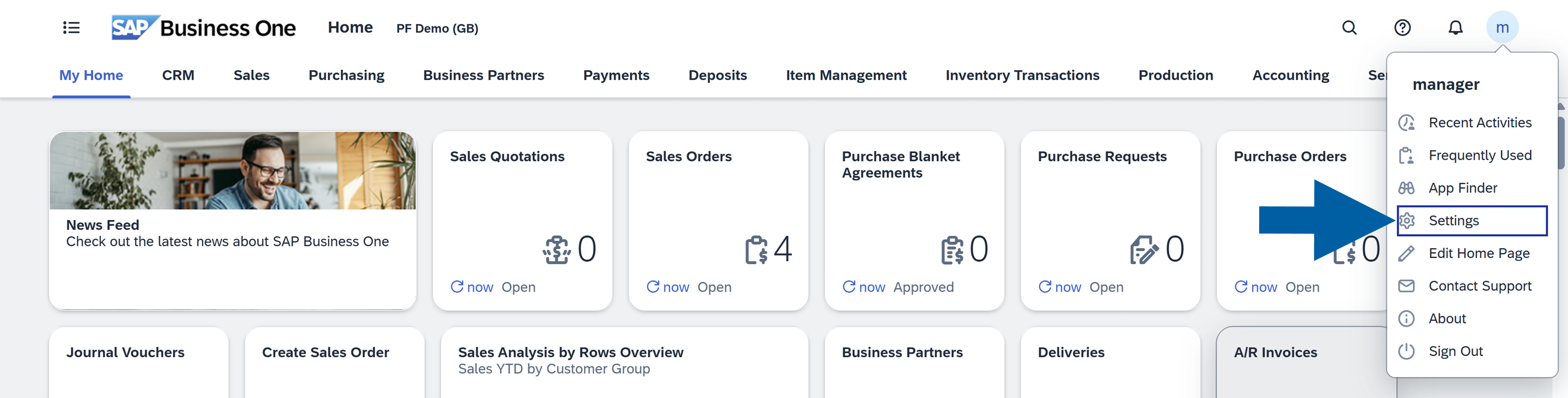
Open SAP Business One Web Client and click on your profile icon in the upper right corner of the interface.
-
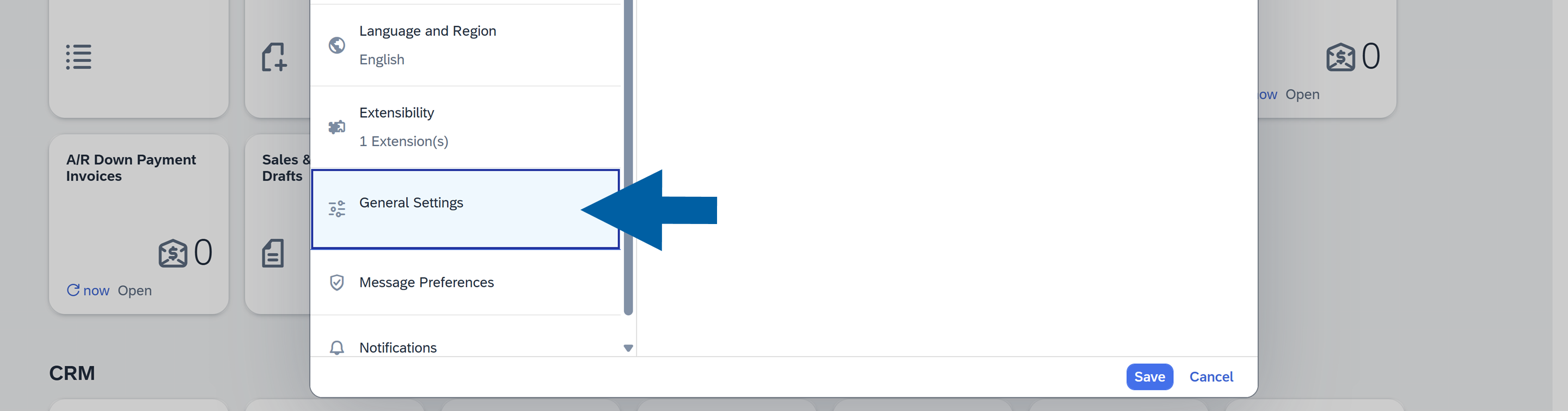
Navigate to Settings > General Settings.
-
Paste the copied entries to the Content Security Policy field.
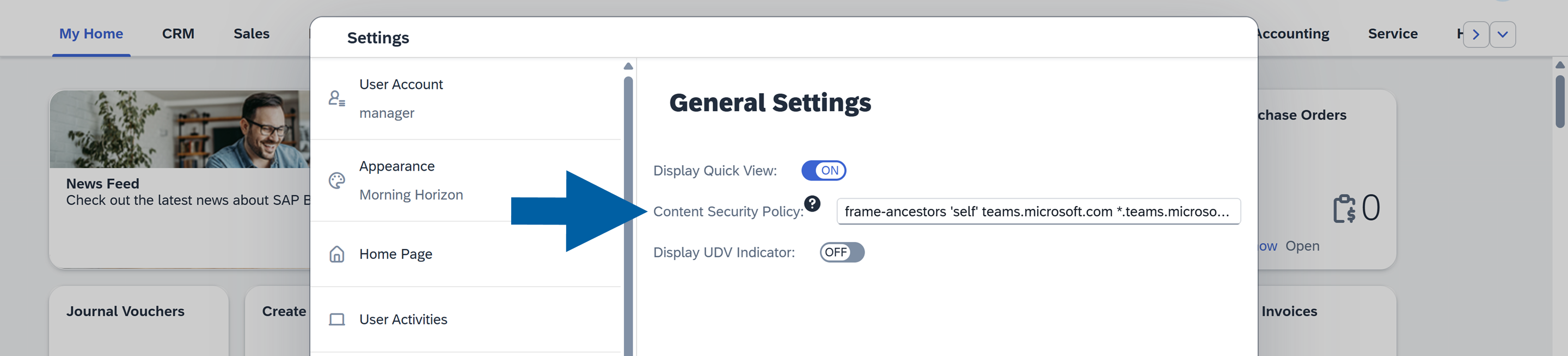
-
Refresh the SAP Business One Web Client page to apply the changes.