Send Outgoing Invoices to KSeF
Overview
Use CompuTec KSeF to send outgoing SAP Business One invoices to the Polish National e-Invoice System (KSeF).
When you create a supported outgoing document in SAP Business One, CompuTec KSeF prepares it for KSeF by generating and validating the required XML file. The invoice can then be sent:
- Automatically, according to the configured sending schedule.
- Manually from CompuTec KSeF.
- Manually from the related SAP Business One document.
After KSeF successfully processes the invoice, CompuTec KSeF stores the assigned KSeF number and makes the invoice verification QR code available.
How outgoing invoice processing works
A typical outgoing invoice follows this process:
SAP Business One invoice > XML generation and validation > Sending to KSeF > KSeF processing > Successful KSeF invoice
- You create the supported outgoing document in SAP Business One.
- CompuTec KSeF generates and validates the required XML.
- The invoice is sent to KSeF automatically or manually.
- KSeF processes the invoice.
- After successful processing, CompuTec KSeF stores the KSeF number and makes the invoice verification information available.
You can monitor the process from the SAP Business One document or from Output Invoices in CompuTec KSeF.
Before you start
Before you send outgoing invoices, make sure:
- CompuTec AppEngine is installed and configured. Read more
- CompuTec KSeF plugin is installed. Read more
- CompuTec KSeF is configured for your company. Read more
- Make sure you have access to Output Invoices in CompuTec KSeF. Read more
- Create a supported outgoing document in SAP Business One.
CompuTec KSeF supports outgoing documents such as A/R invoices, corrections, and A/R down payment invoices.
Open outgoing invoices
To open outgoing invoices, follow these steps:
-
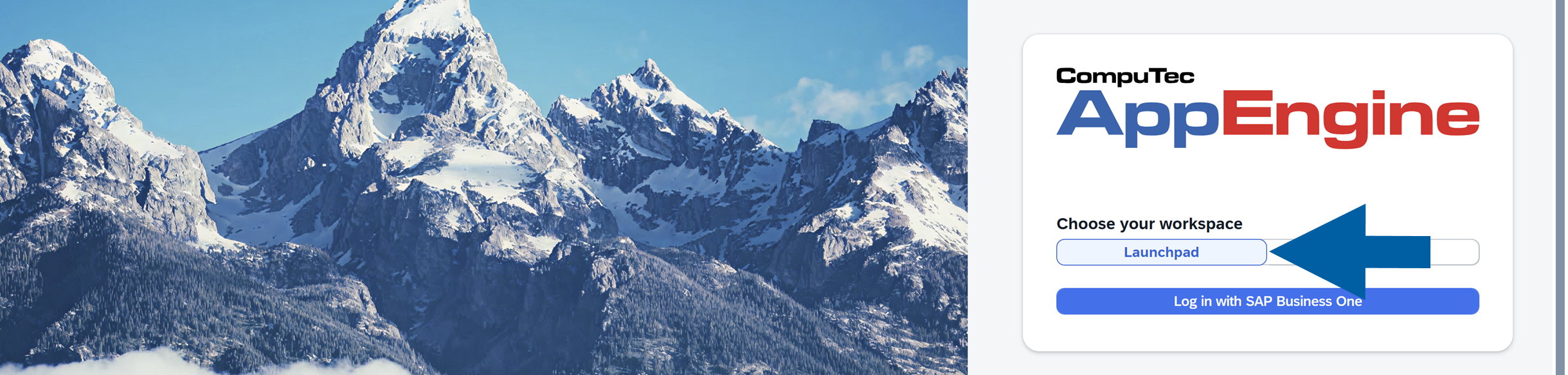
Log in to the CompuTec AppEngine Launchpad.
-
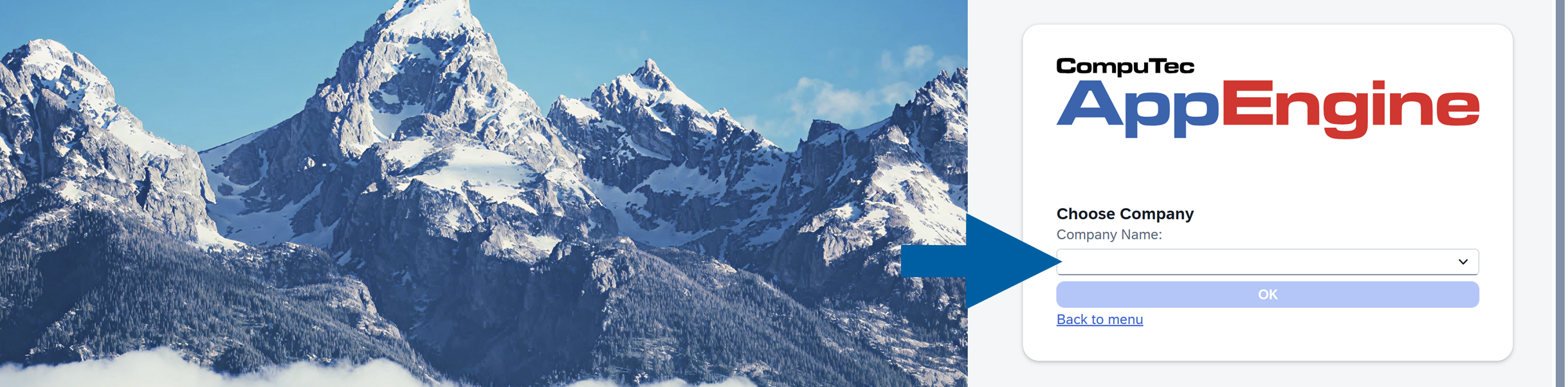
Choose the company.
-
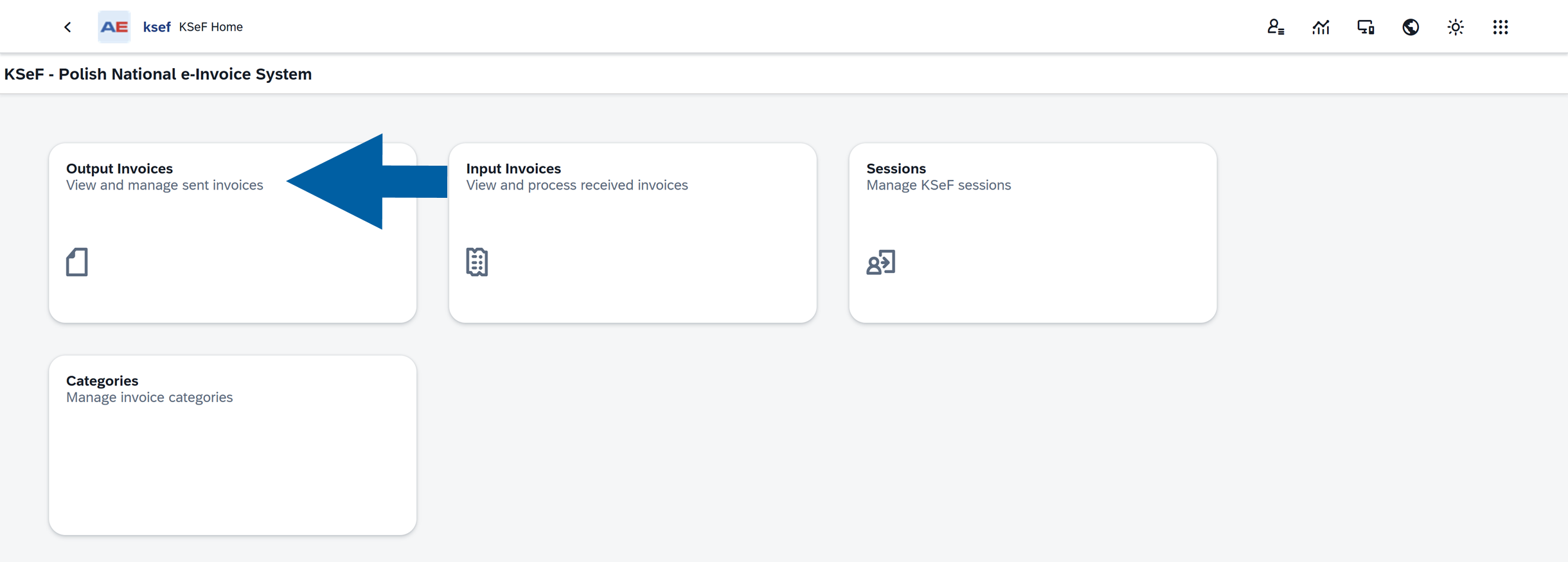
Open CompuTec KSeF.

-
Select Output Invoices.
-
The Output Invoices list displays outgoing invoices and their current KSeF processing status.
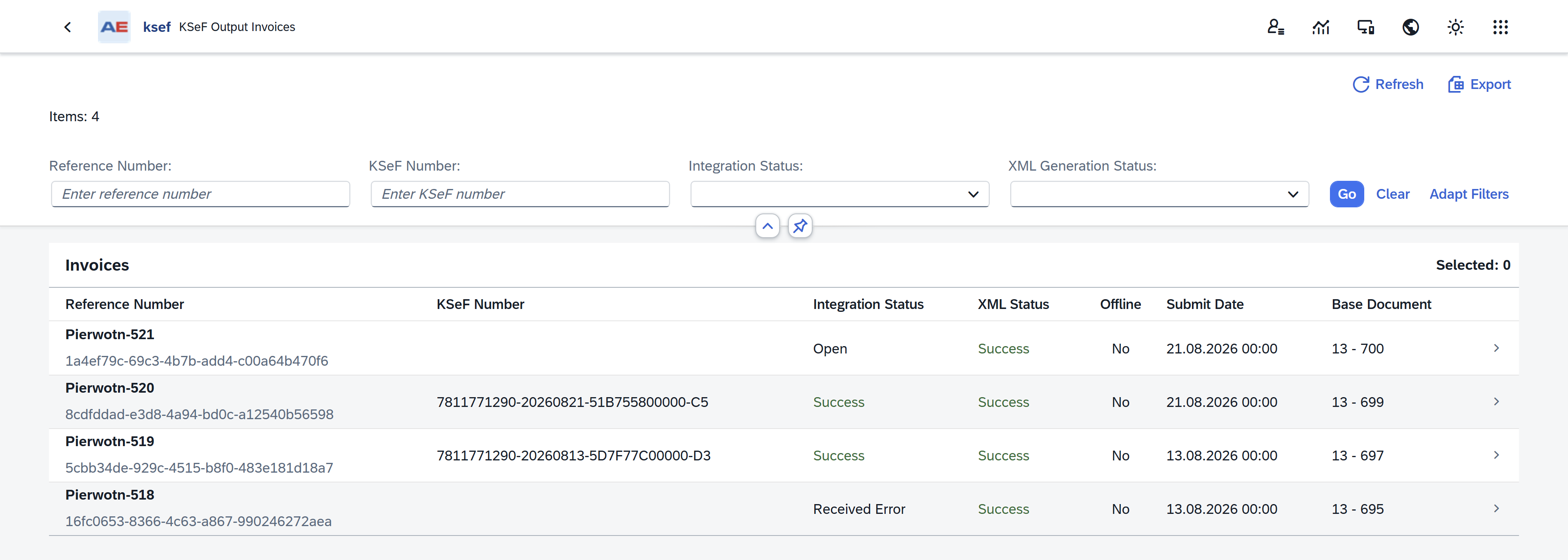
To learn about the information available for an outgoing invoice, see View outgoing invoice details.
Send invoices automatically
If automatic sending is configured, you do not need to send each invoice manually.
- Create the required outgoing document in SAP Business One.
- CompuTec KSeF generates and validates the XML file.
- The configured background processing job sends invoices that are ready for KSeF according to its schedule. Read more
- CompuTec KSeF updates the invoice as it moves through the KSeF processing stages.
An administrator or consultant configures the automatic sending schedule in CompuTec AppEngine. The sending frequency depends on your company's configuration. Read more
Send an invoice manually in CompuTec KSeF plugin
Use manual sending when you want to send an individual invoice without waiting for the automatic sending process.
-
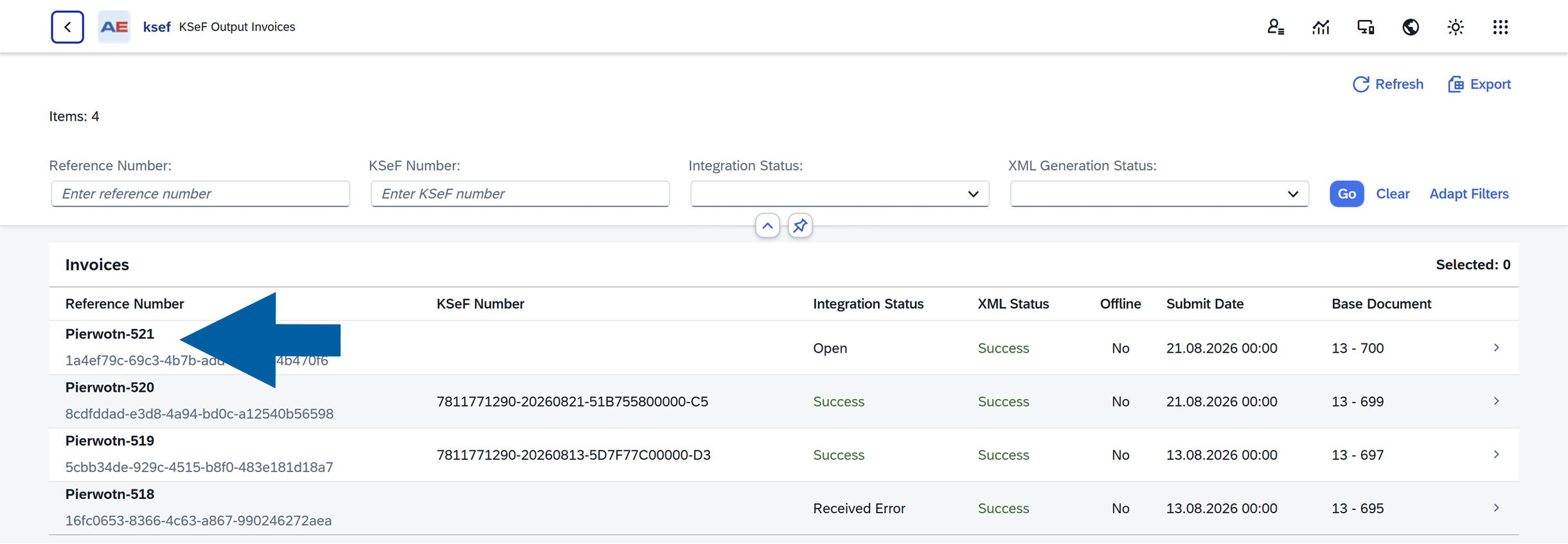
In CompuTec KSeF plugin, open Output Invoices.
-
Click the invoice to open its details.
-
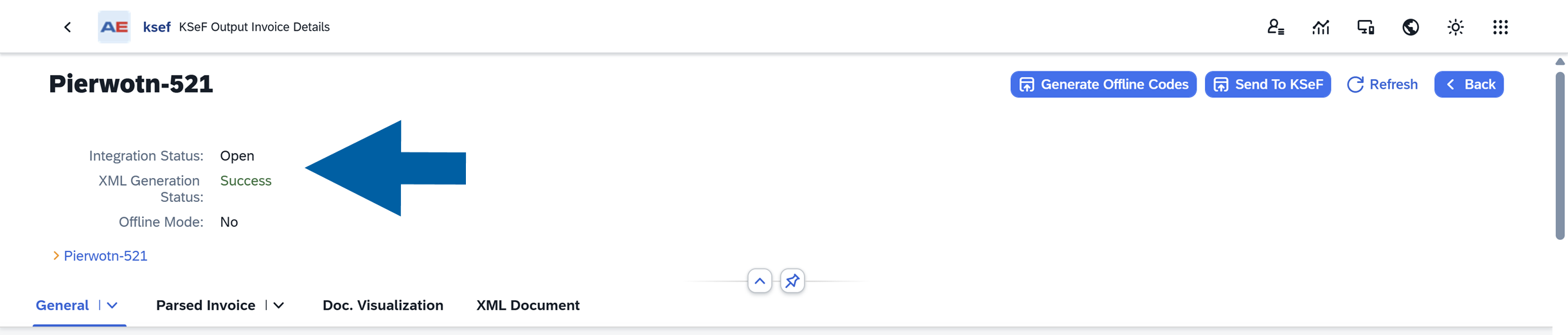
Make sure:
- Integration Status is Open.
- XML Generation Status is Success.
-
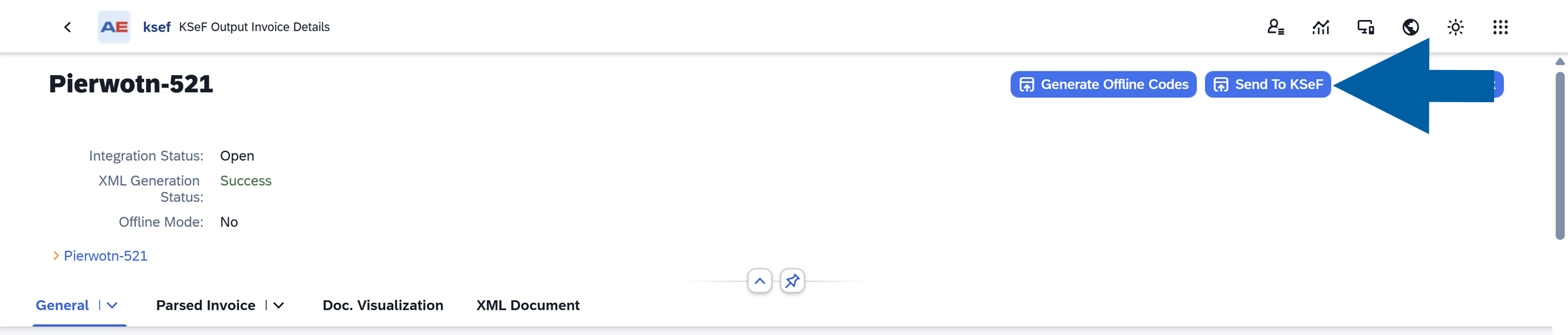
Click Send to KSeF.
-
CompuTec KSeF starts the sending process.

-
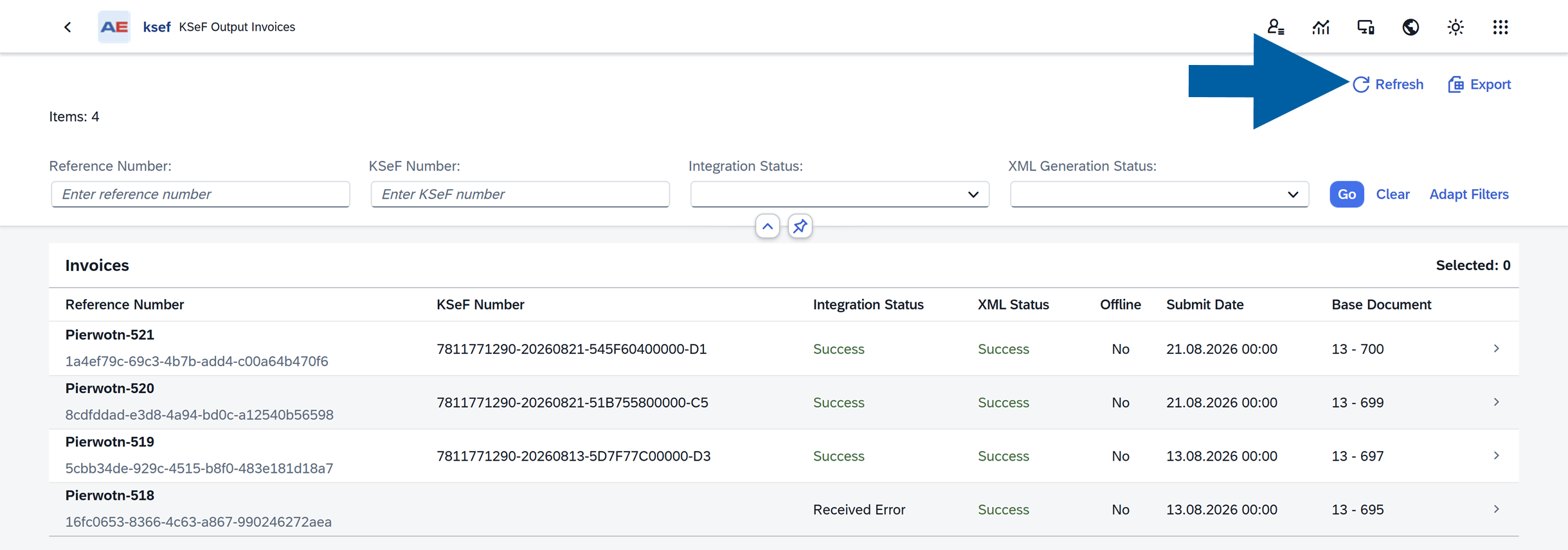
When CompuTec KSeF finishes sending the invoice, you will see Success in Integration Status.

-
Now you can go back to Output Invoices
-
Click Refresh to display the latest information.
Send an invoice from SAP Business One
You can also access CompuTec KSeF communication directly from the related SAP Business One document.
To send an invoice from SAP Business One, follow these steps:
-
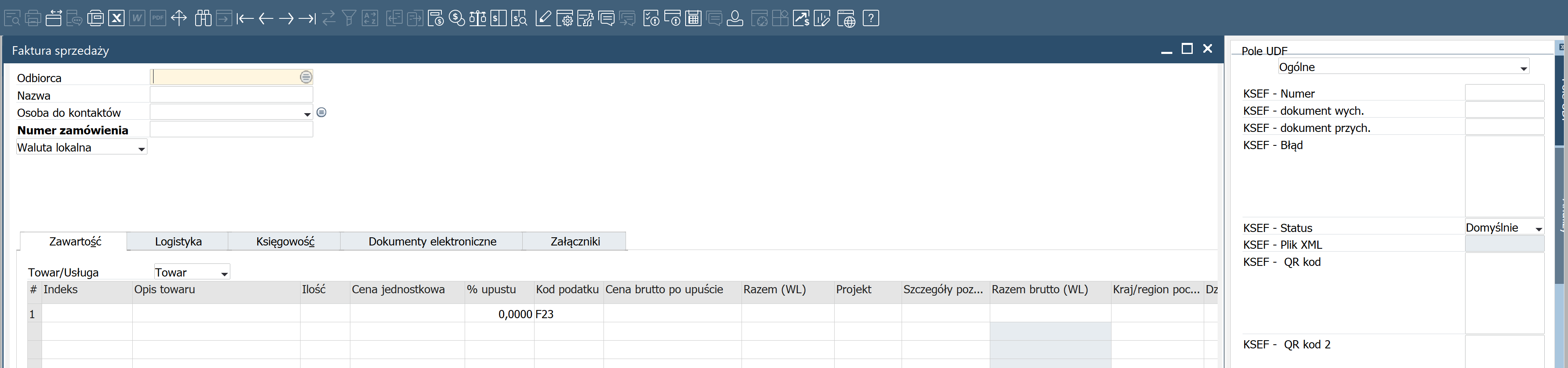
Open or create the outgoing invoice in SAP Business One.
 note
noteMake sure the UDF Fields panel is displayed on the right. If the panel is not visible, select View > UDF Fields.

-
Check the KSeF status in the UDF Fields panel.
For a document that follows the standard configured sending behavior, the initial status is NO – Domyślne.
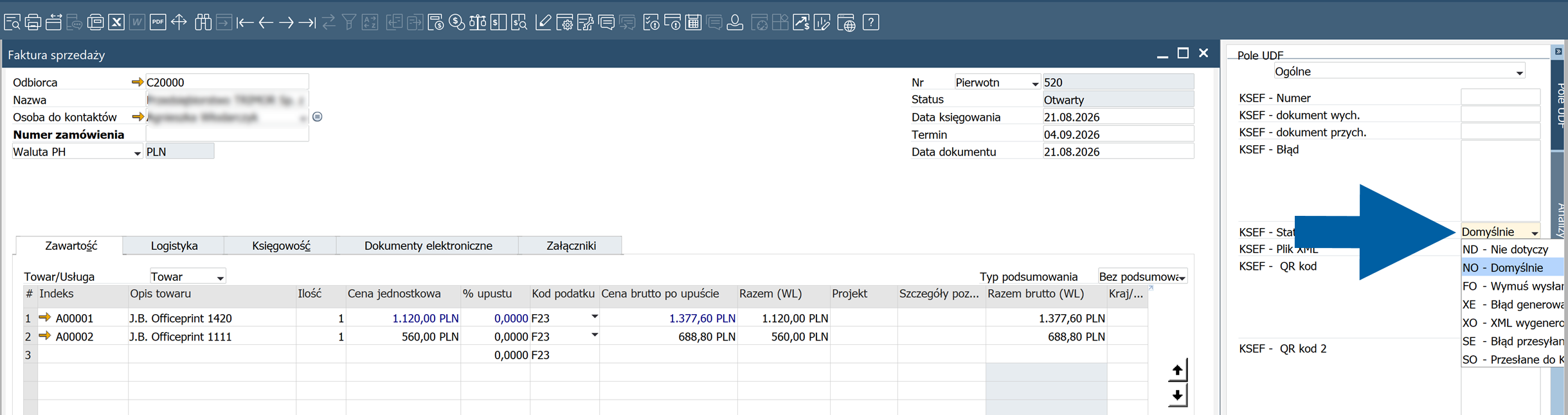
The following statuses can appear during KSeF processing in SAP Business One:
- ND - Nie dotyczy: The document is not intended to be sent to KSeF.
- NO - Domyślne: The document follows the default sending behavior defined in the company configuration. Whether the document is sent depends on that configuration.
- FO - Wymuś wysłanie: Forces the document to be sent to KSeF regardless of the default configured behavior.
- XE - Błąd generowania: XML generation failed, for example because required document data is incorrect or incomplete.
- XO - XML wygenerowane: The XML file was generated successfully and the document is waiting to be sent.
- SE - Błąd przesyłania: An error occurred while sending the document to KSeF.
- SO - Przesłane do KSeF: The document was successfully sent to KSeF.
-
Add the document in SAP Business One.
 note
noteXML generation runs asynchronously after the SAP Business One document is saved. The corresponding record may therefore not appear immediately in Output Invoices, and the KSeF status in SAP Business One may take a short time to update.
Refresh the document or Output Invoices to display the latest processing information.
-
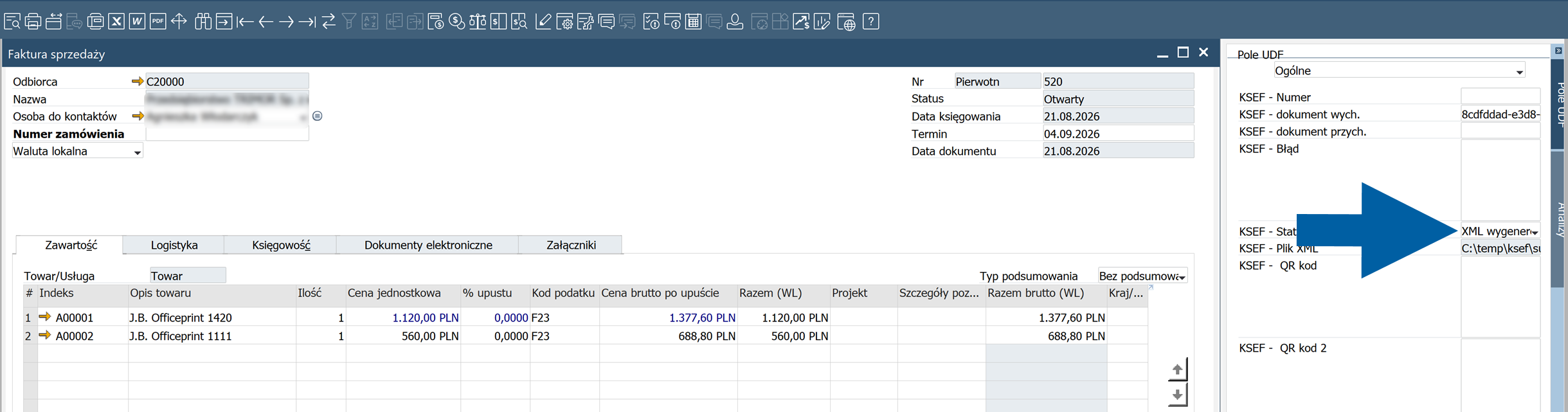
Refresh the document until the status changes to XO – XML wygenerowane.

-
The invoice is now ready to be sent to KSeF.
-
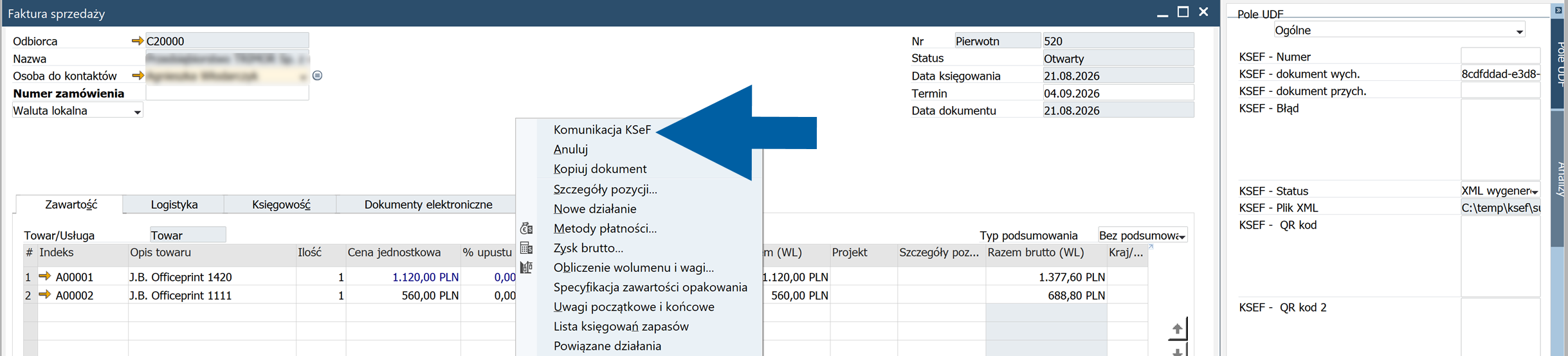
Right-click anywhere in the invoice and select KSeF Communication.
-
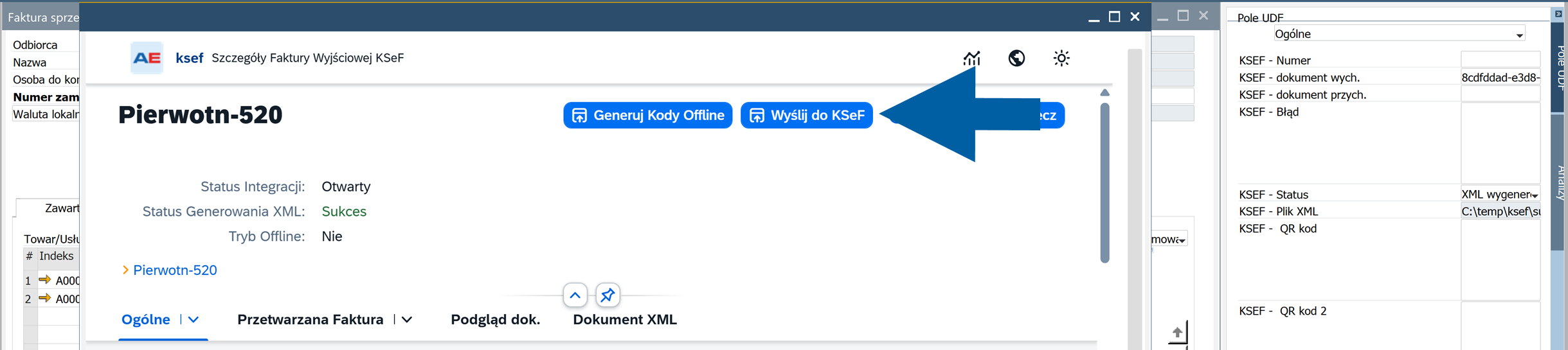
Select Send to KSeF.
-
Wait for the sending process to complete.
-
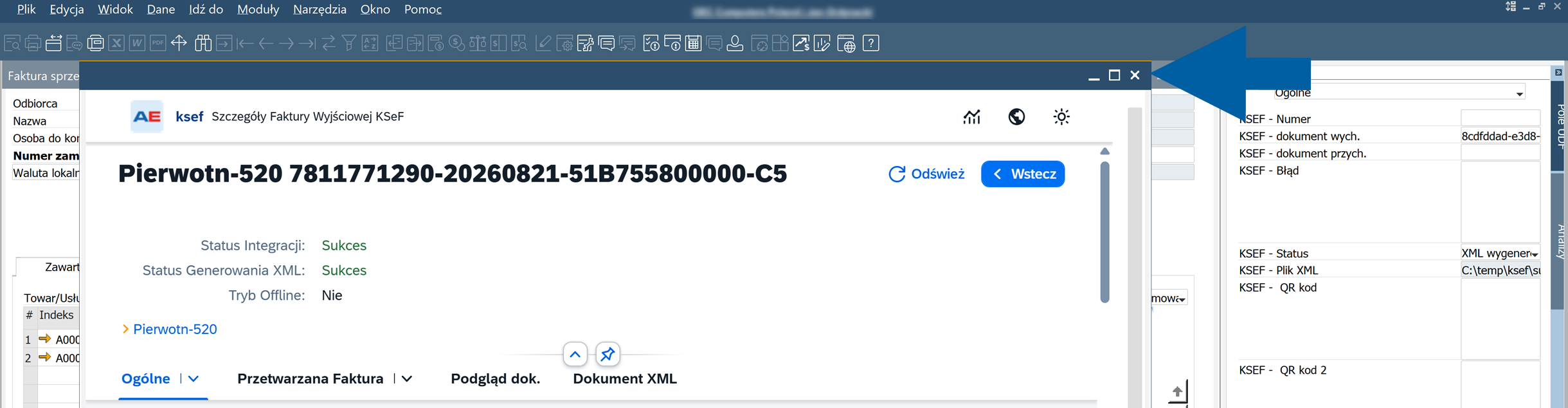
When Integration Status shows Success, close the window.
-
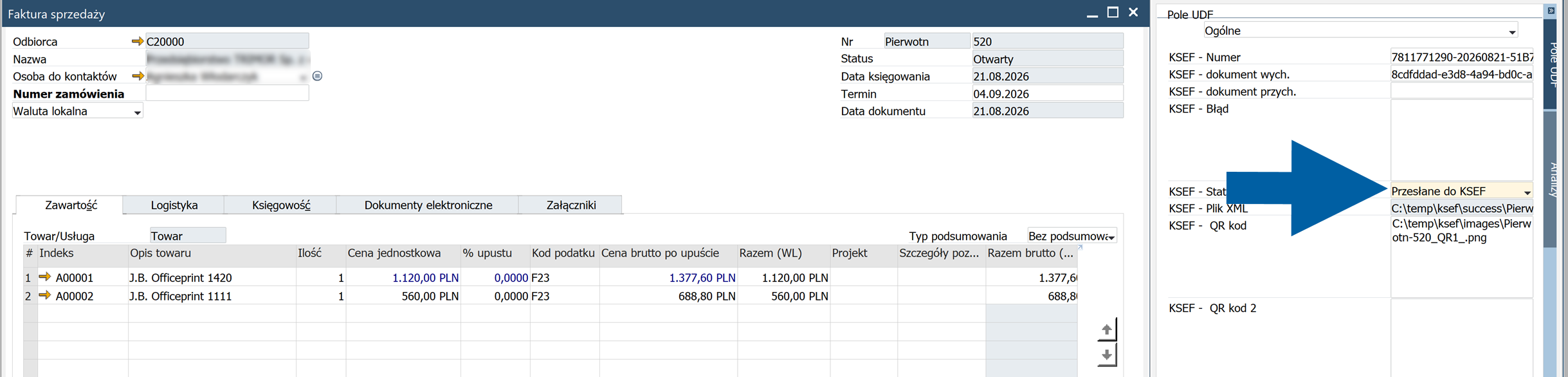
Refresh the SAP Business One document and check its KSeF status.
After a successful operation, you should see SO - Przesłane do KSeF status.
About Integration Status
The Integration Status field in CompuTec KSeF lets you monitor the progress of an invoice during KSeF processing.
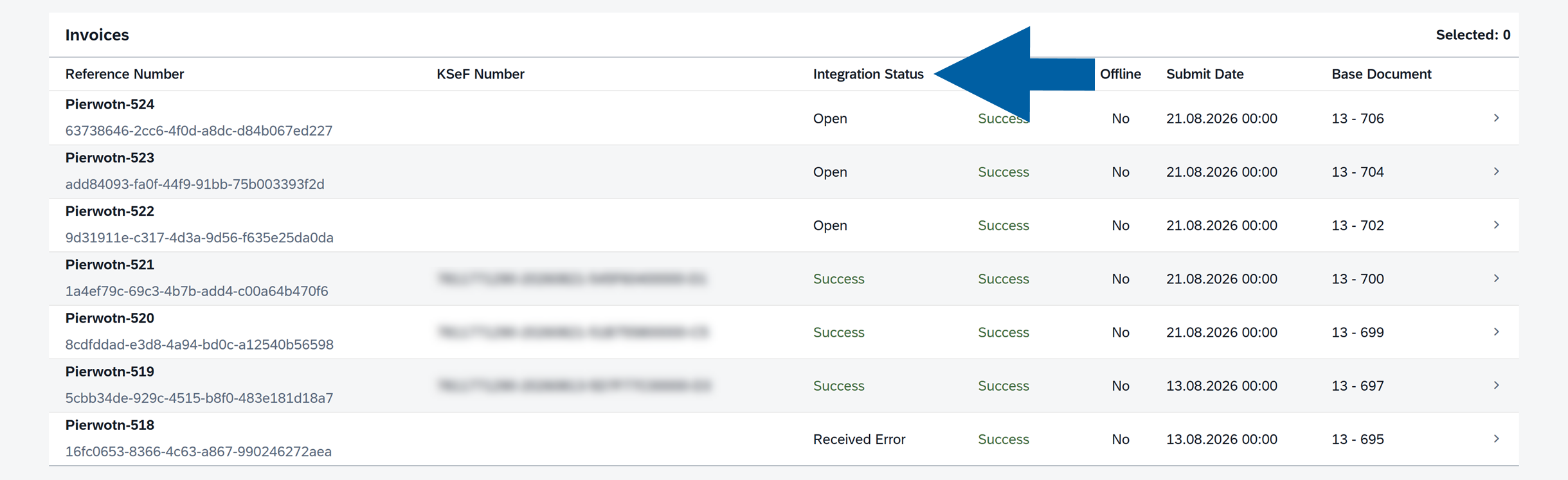
The main processing flow is: Open > Processing > Submitted > Success.
Processing can also end with Error or Received Error.
The KSeF status displayed in the SAP Business One UDF and Integration Status displayed in CompuTec KSeF provide information from different parts of the processing workflow:
- Use the SAP Business One KSeF status for a quick indication of the document's KSeF processing state from the source document.
- Use Integration Status in CompuTec KSeF when you need to monitor the KSeF processing workflow in more detail.
Open
The invoice is ready for processing.
Processing
CompuTec KSeF is processing the invoice.
Wait for processing to complete before taking further action.
Submitted
The invoice was submitted and is waiting for confirmation from KSeF.
Success
KSeF successfully processed the invoice.
CompuTec KSeF stores the KSeF number and makes the invoice verification QR code available.
Error
The sending process failed.
This status can occur because of a temporary communication or processing problem. Depending on the configured background processing, CompuTec KSeF can retry failed sessions. You can also try sending the invoice manually again.
Received Error
KSeF rejected the invoice.
Check Error Description in the invoice details to identify the problem. Correct the relevant SAP Business One data and follow your company's procedure for issuing the corrected invoice.
Result
The outgoing invoice is submitted to KSeF.
After KSeF successfully processes the invoice:
- Integration Status changes to Success.
- KSeF assigns a KSeF number to the invoice.
- CompuTec KSeF stores the KSeF processing information.
- The invoice verification QR code becomes available.
Additional information
CompuTec KSeF groups outgoing invoices into KSeF sessions during the sending process. You can use the session information available for an invoice to review its processing history.
If an invoice exists in SAP Business One but does not immediately appear in Output Invoices, XML generation may still be in progress. XML generation runs asynchronously after the SAP Business One document is saved.
Next steps
After KSeF successfully processes the invoice, you can review its KSeF information, invoice data, QR code, processing dates, and session history in CompuTec KSeF. Read more.