You are currently viewing documentation for CompuTec ProcessForce 3.0, which is a plugin installed and managed through CompuTec AppEngine 3.0, built on .NET 8. If you are working with older environments, you may need the documentation for CompuTec ProcessForce 2.0: https://learn.computec.one/docs/processforce/2.0/.
Please note that CompuTec ProcessForce 2.0 will be supported only until December 31, 2026. After this date, the product will no longer receive regular support or maintenance updates. Read more
CompuTec AppEngine 3.0 introduces a new architecture, and all CompuTec components, including the CompuTec ProcessForce 3.0 plugin, must be updated together to ensure full compatibility.
Before starting your installation or upgrade process, we strongly recommend reviewing the CompuTec AppEngine 3.0 and CompuTec ProcessForce 3.0 documentation.
CompuTec License Server Installation
The CompuTec License Server manages user licenses for CompuTec solutions.
This guide explains how to install the CompuTec License Server and configure Windows Firewall to allow communication with client applications.
For information about available license types, see CompuTec ProcessForce User License Types.
Before you start
Before you begin, make sure:
- You have administrator rights on the Windows server.
- Any previous version of CompuTec ProcessForce License Server has been removed.
- Any previous version of SAP COM License Bridge has been removed (required only for environments that previously used CompuTec ProcessForce 8.81, 8.82, or 9.0 PL05–PL08 HotFix).
- You have downloaded the latest CompuTec License Server installation package.
CompuTec License Server is supported only on Windows operating systems.
Install and congigure CompuTec License Server
Step 1: Install CompuTec License Server
-
Extract the CompuTec License Server installation package.
-
Run CompuTec.LicenseServer.Setup.msi.
-
Click Next.

-
Accept the default installation folder (recommended) or select a custom location.
-
Click Next.

-
Review the installation settings, and click Install.

-
Wait for the installation to finish.
-
Click Finish.

Step 2: Configure Windows Firewall
To allow communication with the CompuTec License Server, create an inbound firewall rule for TCP port 30002.
-
Open Windows Settings.
-
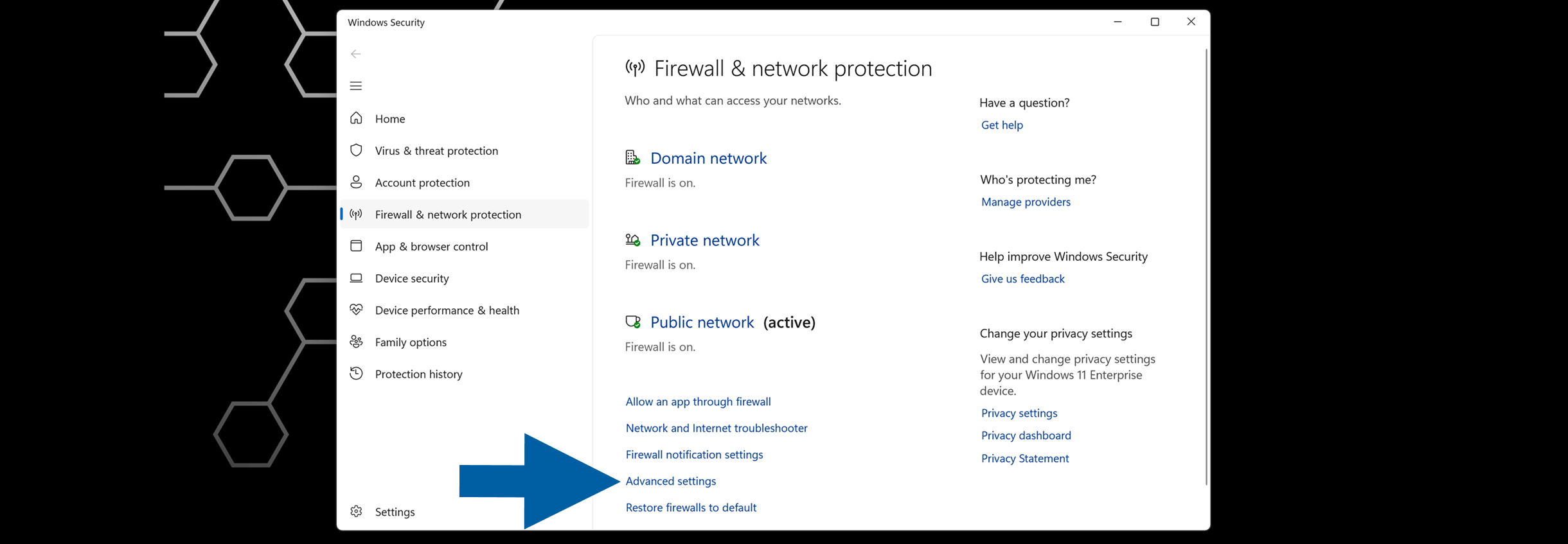
Navigate to Windows Security > Firewall & network protection.
-
Click Advanced settings.
-
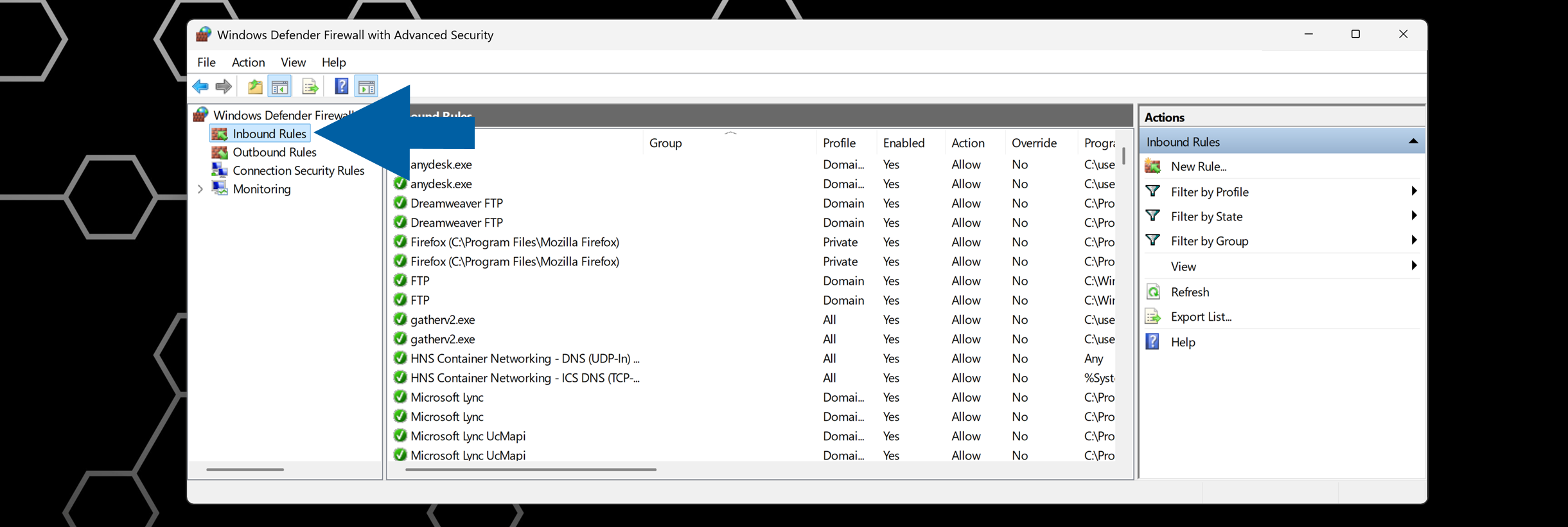
In Windows Defender Firewall with Advanced Security, select Inbound Rules.
-
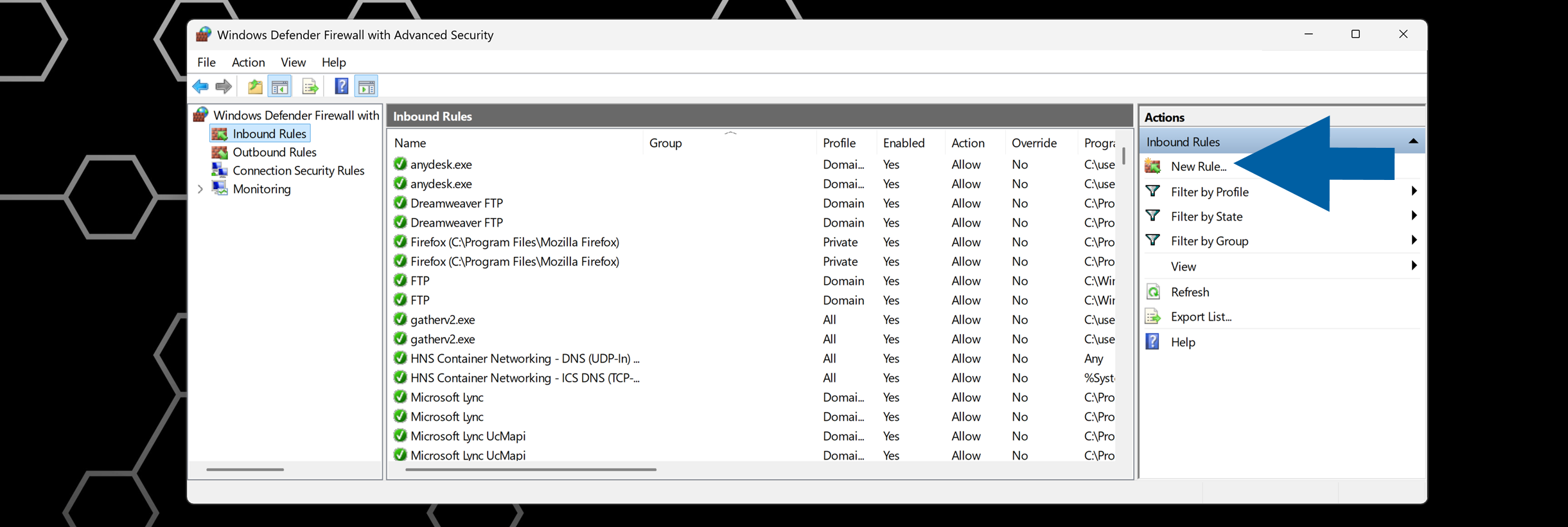
Click New Rule....
-
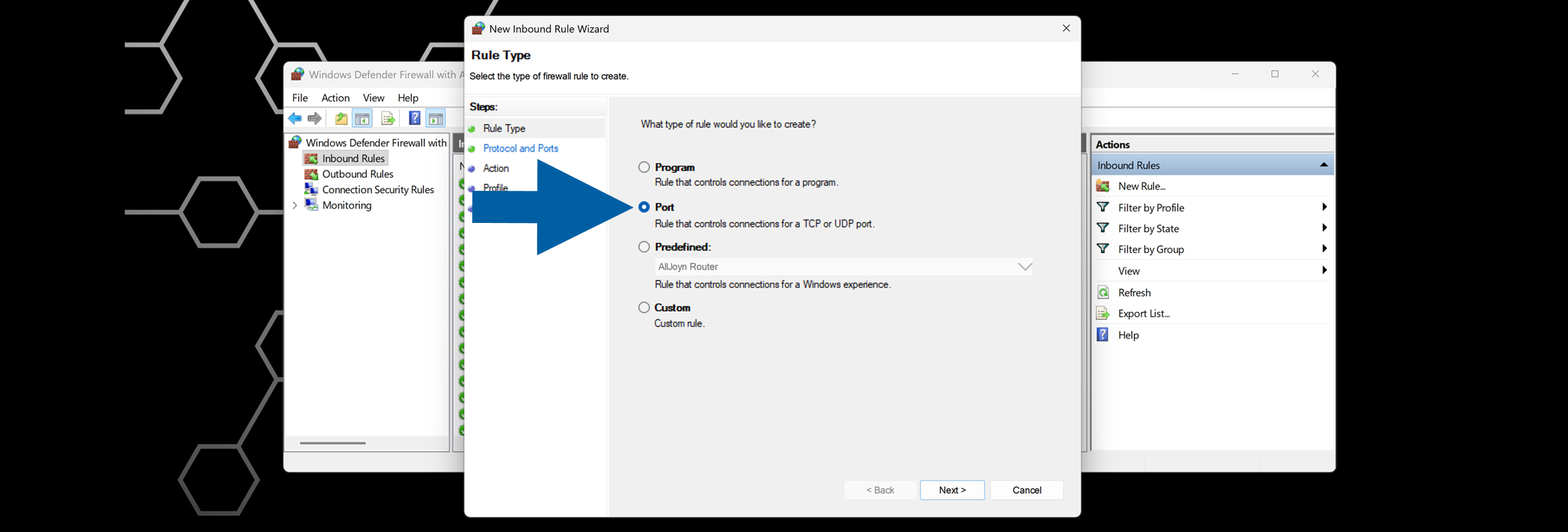
Select Port, and click Next.
-
Select TCP.
-
Enter
30002in Specific local ports.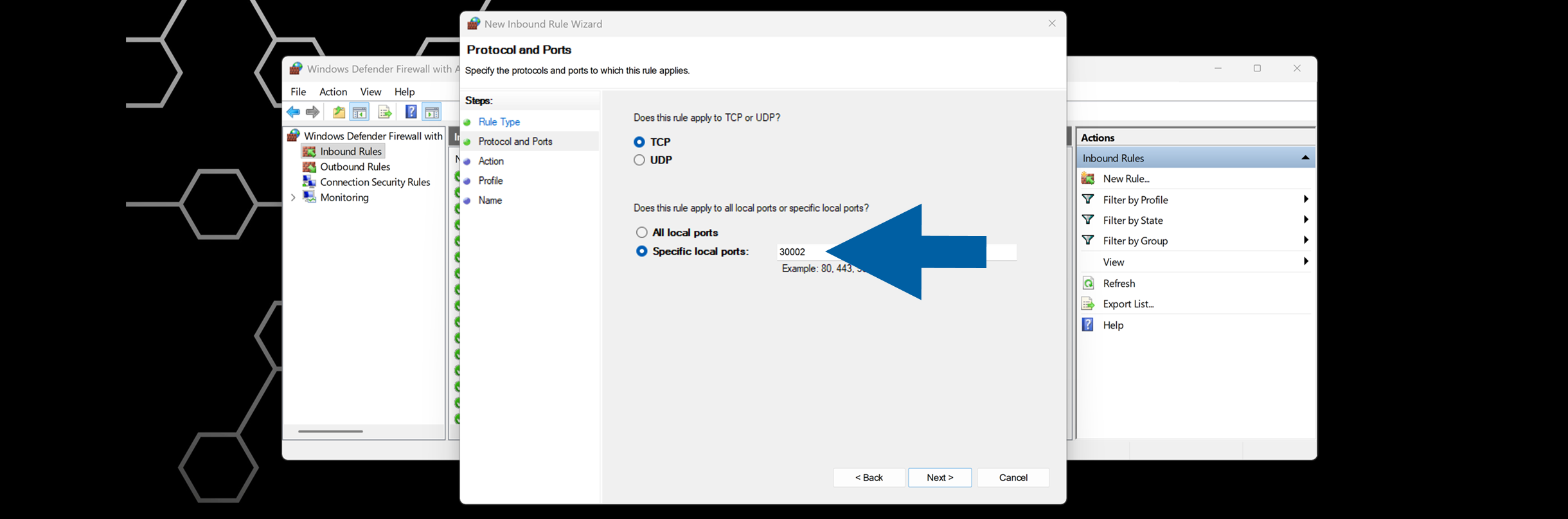
-
Click Next.
-
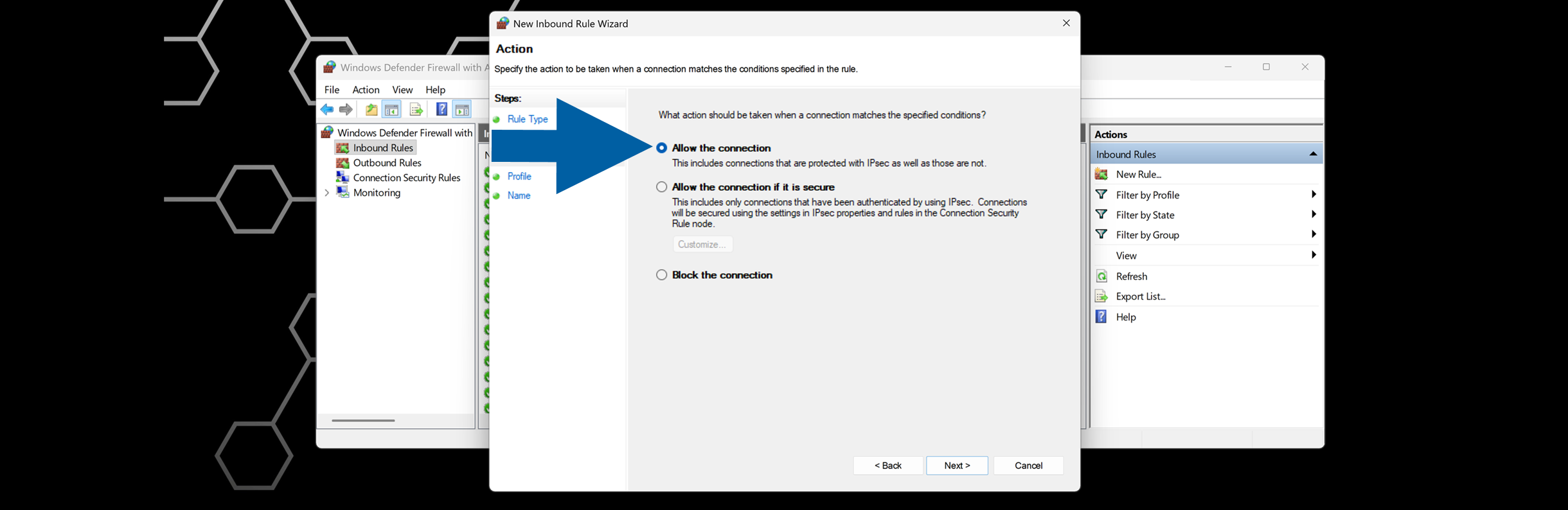
Choose Allow the connection, and click Next.
-
Select all profiles:
Domain,PrivateandPublic, and click Next.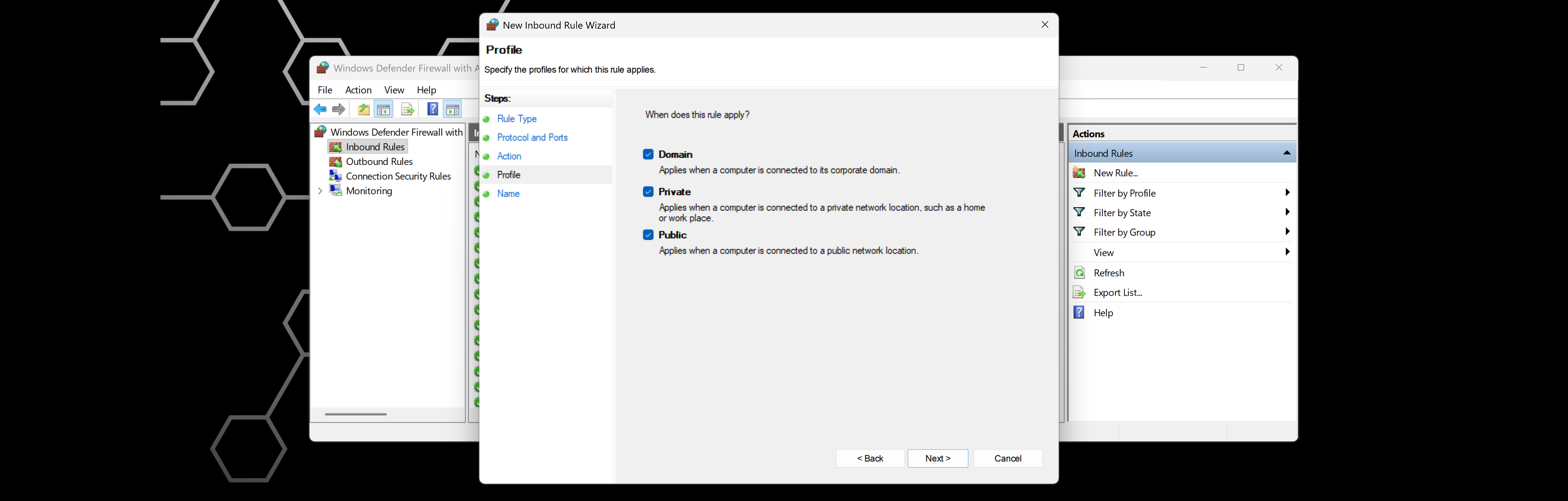
-
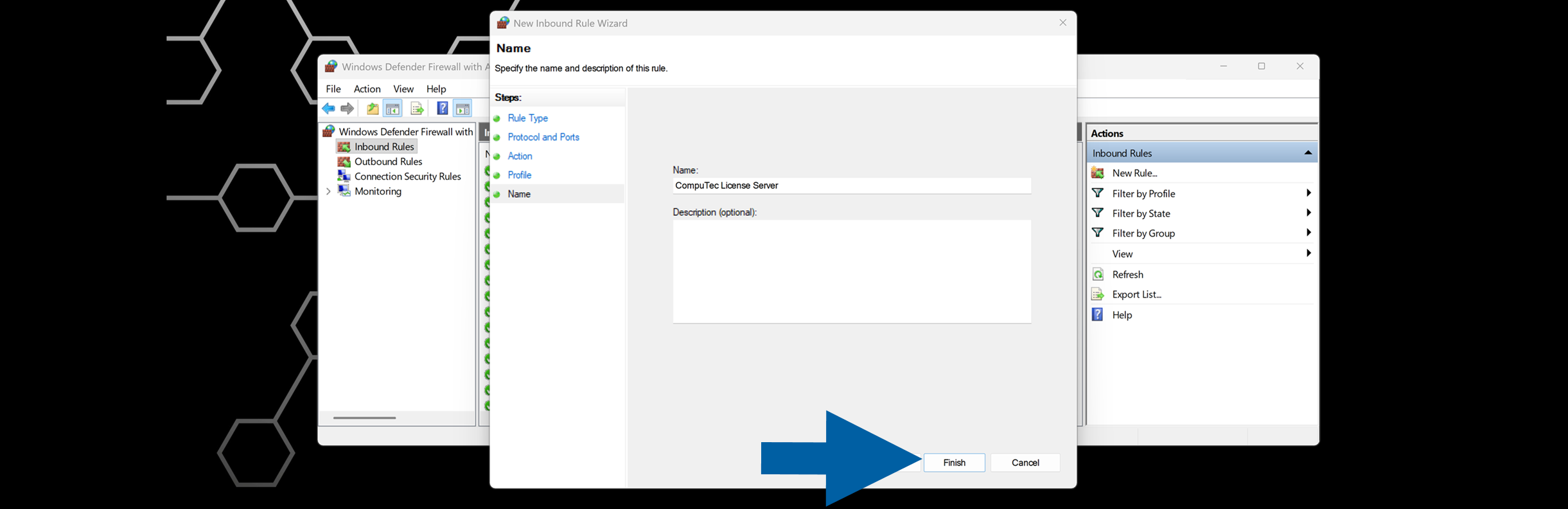
Enter a name for the rule, and click Finish.
Result
After completing the installation:
- CompuTec License Server is installed and running.
- Windows Firewall allows inbound TCP connections on port
30002. - CompuTec applications can connect to the CompuTec License Server and validate user licenses.
If client applications cannot connect to the CompuTec License Server after installation:
- Verify that the CompuTec License Server service is running.
- Confirm that TCP port
30002is open. - Check local and network firewall settings.
- Verify connectivity between the client workstation and the CompuTec License Server.