You are currently viewing documentation for CompuTec ProcessForce 3.0, which is a plugin installed and managed through CompuTec AppEngine 3.0, built on .NET 8. If you are working with older environments, you may need the documentation for CompuTec ProcessForce 2.0: https://learn.computec.one/docs/processforce/2.0/.
Please note that CompuTec ProcessForce 2.0 will be supported only until December 31, 2026. After this date, the product will no longer receive regular support or maintenance updates. Read more
CompuTec AppEngine 3.0 introduces a new architecture, and all CompuTec components, including the CompuTec ProcessForce 3.0 plugin, must be updated together to ensure full compatibility.
Before starting your installation or upgrade process, we strongly recommend reviewing the CompuTec AppEngine 3.0 and CompuTec ProcessForce 3.0 documentation.
Bill of Materials and Manufacturing Orders tab
This section provides detailed configuration options for managing Bills of Materials (BOM) and Manufacturing Orders (MOR) within CompuTec ProcessForce. The tab allows users to define default calculation formulas, manage SAP synchronization, set manufacturing priorities and optimize planning for semi-finished products.
This document outlines the key features and functionalities available in this tab to help users better understand and configure their manufacturing operations effectively.
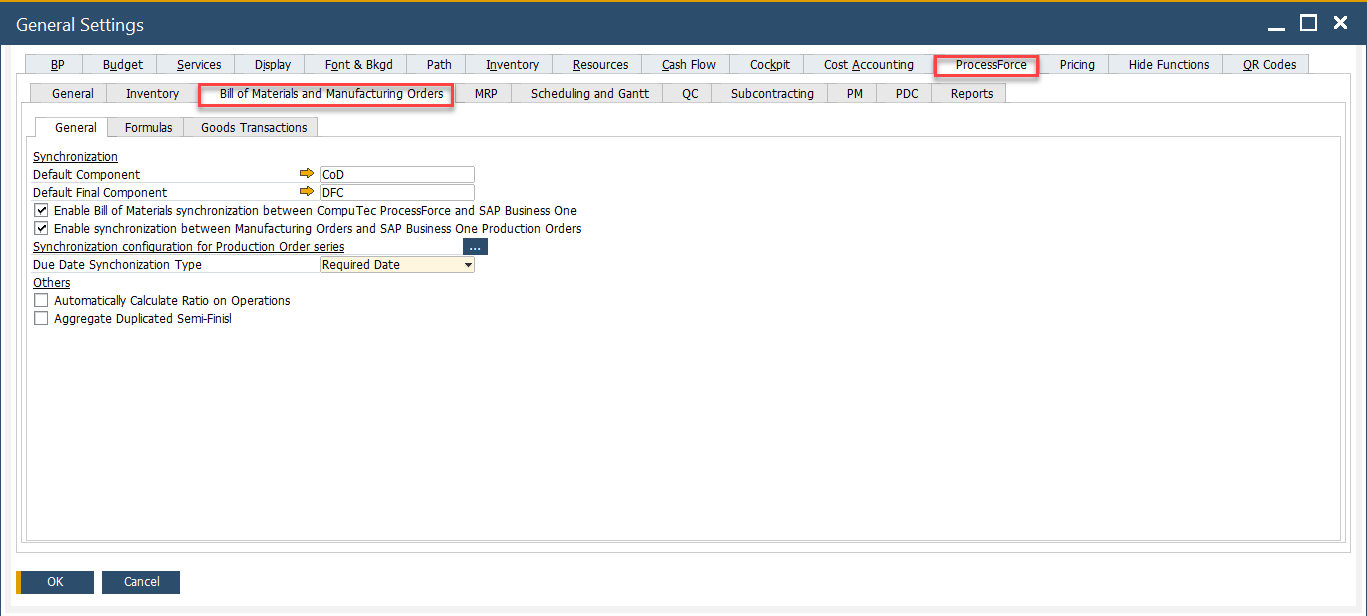
To access Bill of Materials and Manufacturing Orders tab, navigate to:
Administration → System Initialization → General Settings → ProcessForce tab → Bill of Materials and Manufacturing Orders tab
Key Settings
General
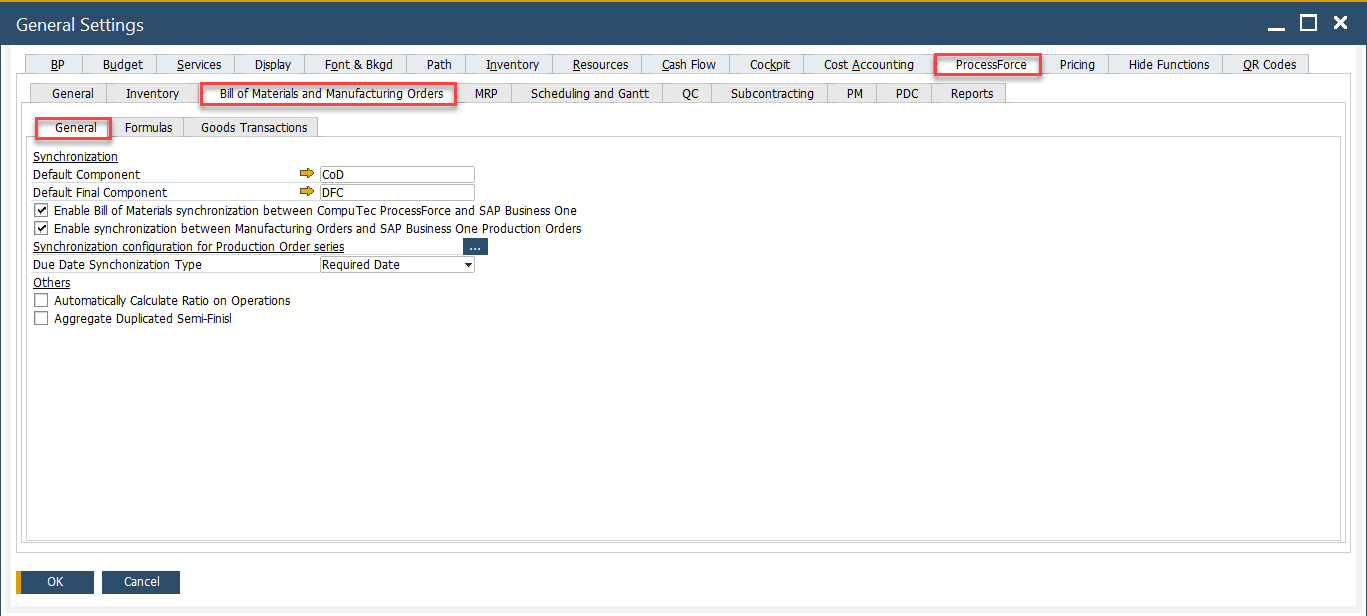
This option is related to synchronization between CompuTec ProcessForce and SAP Business One, along with additional manufacturing order behaviors.
Synchronization Options
- SAP Business One references the Inventory Data tab in the Item Master Data to generate make-or-buy recommendations during MRP runs.
- CompuTec ProcessForce integrates with SAP Business One through the MRP Wizard, allowing smooth and consistent data synchronization.
- Additional information is available in the MRP tab.
-
Bill of Materials
-
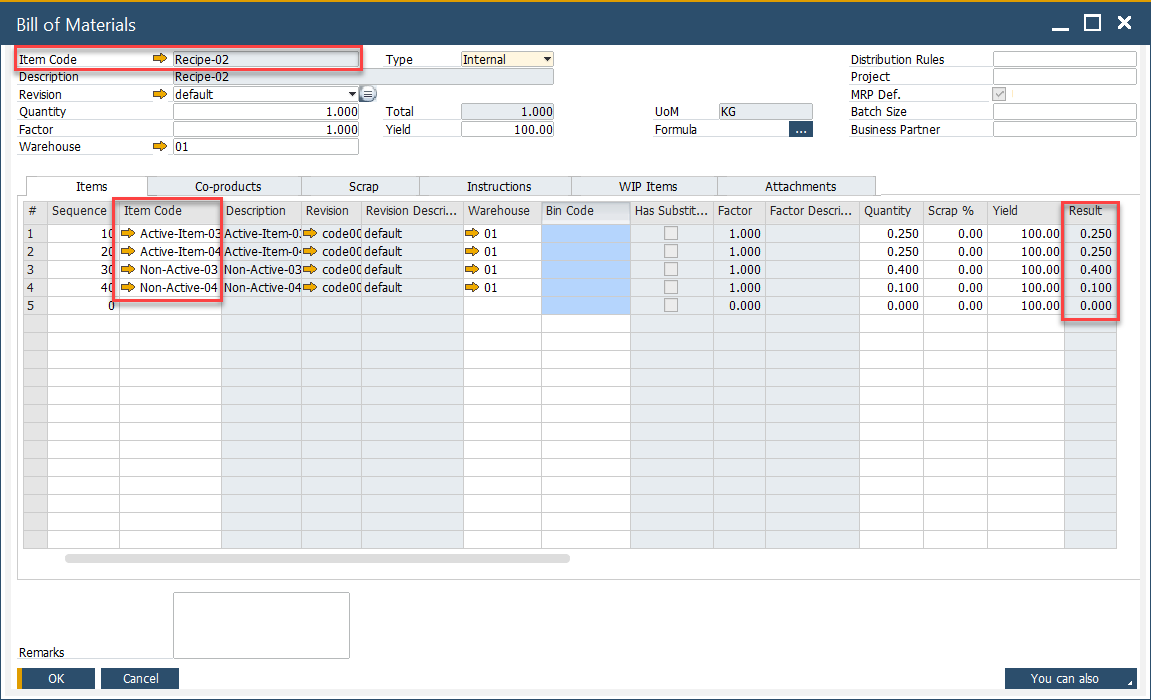
Enabling this option allows CompuTec ProcessForce's BOM data to sync with SAP Business One BOM objects.
-
The key data synchronized includes values from the Result Column.
-
-
Manufacturing Orders
To synchronize Manufacturing Orders between CompuTec ProcessForce and SAP:
- Ensure both systems use the same document numbering series.
- The sync includes planned and actual quantities from CompuTec ProcessForce MOs to SAP Production Orders.
Ensure numbering series match in SAP and CompuTec ProcessForce before enabling synchronization.
-
Due Date Synchronization
-
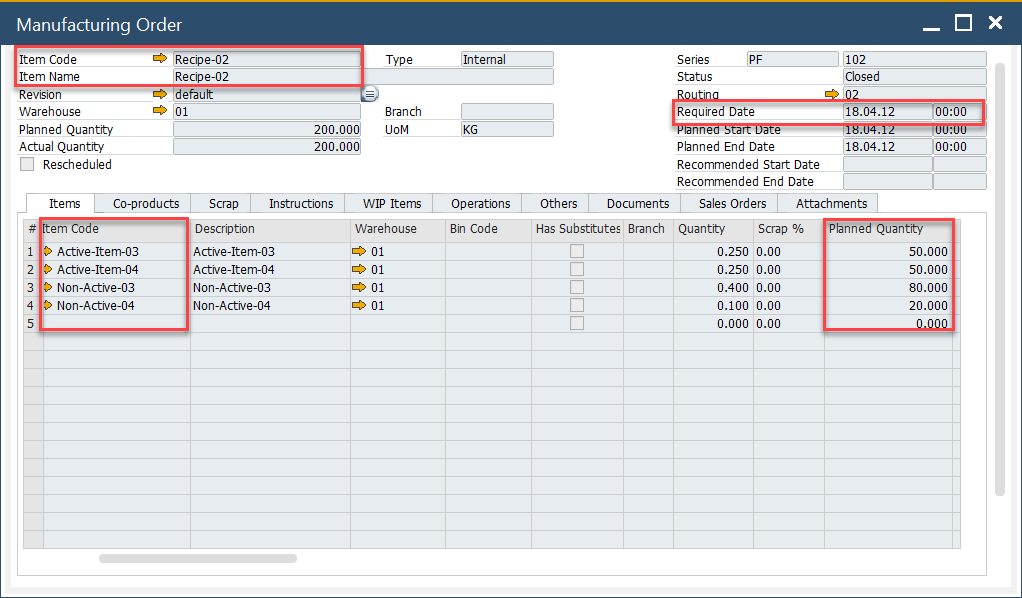
SAP Production Orders have a Due Date, while CompuTec ProcessForce Manufacturing Orders have Required Date and Planned Start Date.
-
You can define whether the Required Date or the Planned Start Date from CompuTec ProcessForce MO should populate the Due Date field in SAP Production Orders.

-
Other Settings
-
Automatically Calculate Ratio on Operations: When this is enabled, the system automatically distributes the ratio and binding quantity for items assigned to multiple operations.
Example: If an item is used in two operations, the system sets a ratio of 0.5 to each, automatically calculating the binding quantity.
-
Aggregate Duplicated Semi-Finish: When checked, it consolidates repeated semi-finished items into a single Manufacturing Order. If the same semi-finished product appears multiple times within a BOM, the system will create only one Manufacturing Order instead of separate ones for each occurrence.
Formulas
CompuTec ProcessForce provides a flexible method for configuring relationships among parent items, co-products, scrap, phantom items, scrap percentages, and calculation factors.
When a Bill of Materials (BOM) is created, default formulas are automatically applied to each item. These predefined formulas are made available in this tab as part of CompuTec ProcessForce installation.
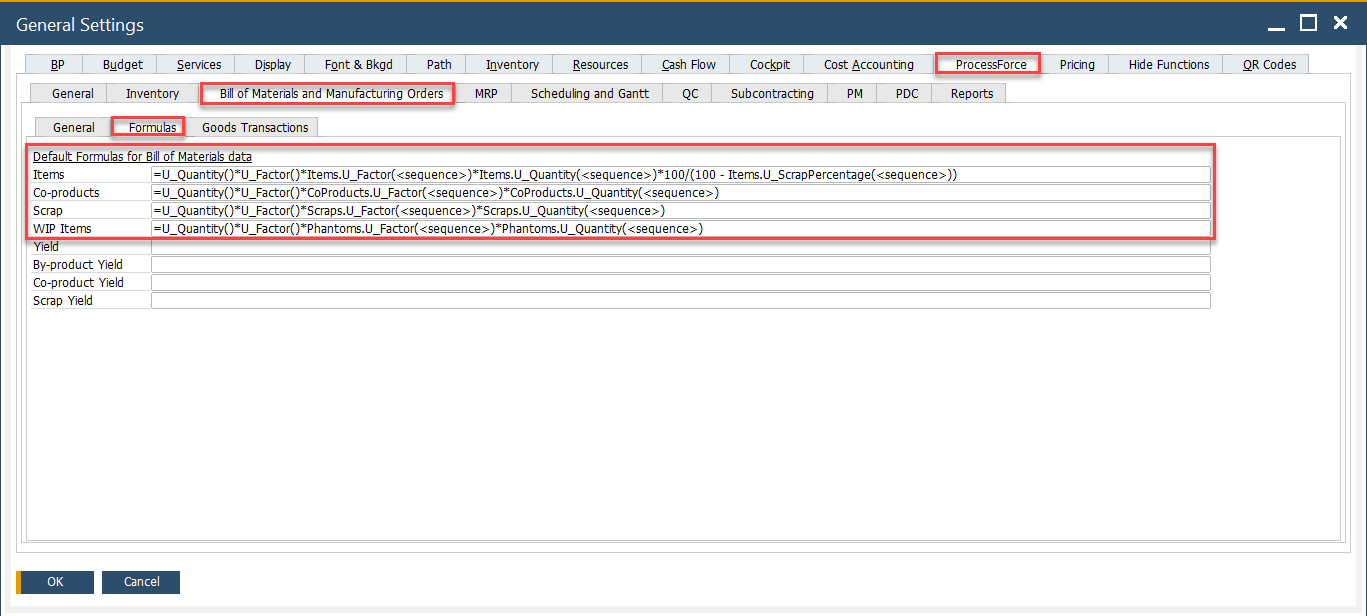
When creating custom formulas, you can use the <sequence> placeholder. It is automatically replaced with the current row sequence in Bills of Materials, Manufacturing Orders, and during PFI imports.
Default Formulas
-
Items:
=U_Quantity()*U_Factor()*Items.U_Factor(<sequence>)*Items.U_Quantity(<sequence>)*100/(100 - Items.U_ScrapPercentage(<sequence>)) -
Coproducts:
=U_Quantity()*U_Factor()*CoProducts.U_Factor(<sequence>)*CoProducts.U_Quantity(<sequence>) -
Scrap:
=U_Quantity()*U_Factor()*Scraps.U_Factor(<sequence>)*Scraps.U_Quantity(<sequence>) -
Phantom:
=U_Quantity()*U_Factor()*Phantoms.U_Factor(<sequence>)*Phantoms.U_Quantity(<sequence>) -
Naming:
Items Tab Coproducts Tab Scrap Tab Phantoms Tab ```U_Quantity = Quantity field value within the form header U_Quantity = Quantity field value within the form header U_Quantity = Quantity field value within the form header U_Quantity = Quantity field value within the form header U_Factor = Factor field value within the form header U_Factor = Factor field value within the form header U_Factor = Factor field value within the form header U_Factor = Factor field value within the form header Items.U_Factor = Factor field value CoProducts.U_Factor = Factor field value Scrap.U_Factor = Factor field value Phantom.U_Factor = Factor field value Items.U_Quantity = Quantity field value CoProducts.U_Quantity = Quantity field value Scrap.U_Quantity = Quantity field value Phantom.U_Quantity = Quantity field value Items.U_ScrapPercentage = Scrap Percentage field value CoProducts.U_ScrapPercentage = Scrap Percentage field value Scrap.U_ScrapPercentage = Scrap Percentage field value Phantom.U_ScrapPercentage = Scrap Percentage field value <sequence>= sequence number of the item master<sequence>= sequence number of the item master<sequence>= sequence number of the item master<sequence>= sequence number of the item master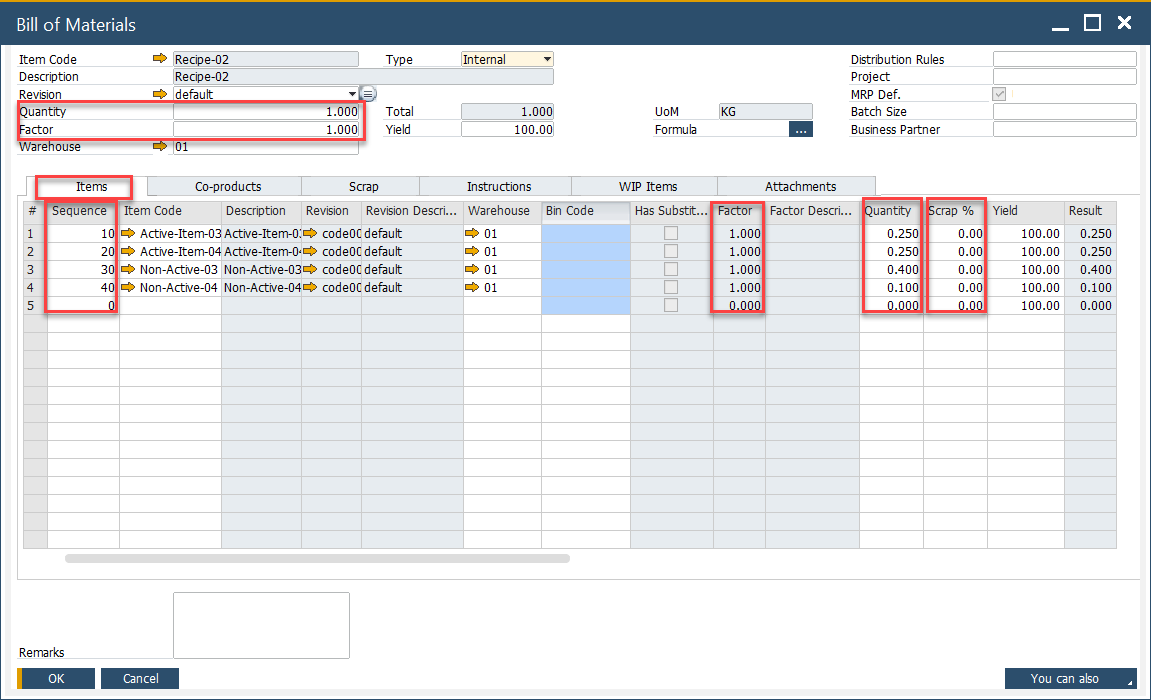
Note: No default formula is provided for Yield. Learn how to [define custom formulas for Yield].(../../formulations-and-bill-of-materials/formula.md#using-user-defined-fields-in-formulas).
Goods Transactions
Each checkbox enables or disables specific automation or behavior in production goods transactions:
-
Automatically issue materials on Pick Order Add/Update: When enabled, materials are automatically issued as soon as a Pick Order is added or updated.
-
Automatically receive materials on Pick Receipt Add/Update: Automatically receives materials into inventory upon adding or updating a Pick Receipt. Ideal for auto-posting goods receipts when the production output is confirmed.
-
Issue Residual Quantity on next Goods Receipt when possible: If there’s a shortfall in the previous Goods Receipt, the system will issue any remaining quantity in the next receipt when this option is enabled.
-
Don’t use corrected Fixed Backflush: Disables the use of the corrected fixed backflush logic.
-
Use Header dimensions for backflushed inventory items: When enabled, the system uses dimension values from the document header for inventory items backflushed during production.
-
Copy Classification during Pick Receipt: Automatically transfers classification codes from the Manufacturing Order to the Pick Receipt document.
Default Priority for Production
- You can configure Manufacturing Order Priority for the Scheduling Board, with one being the highest and ten the lowest.
- In General Settings, you can define a default priority for all newly created Manufacturing Orders.
Priority Level
If the Default Priority is set at the Business Partner Master Data level, it will be applied to every newly created Manufacturing Order for that partner when generated from a Sales Order via the Scheduling Board.
Business Partner Master Data > Business Partner Master Data > General tab
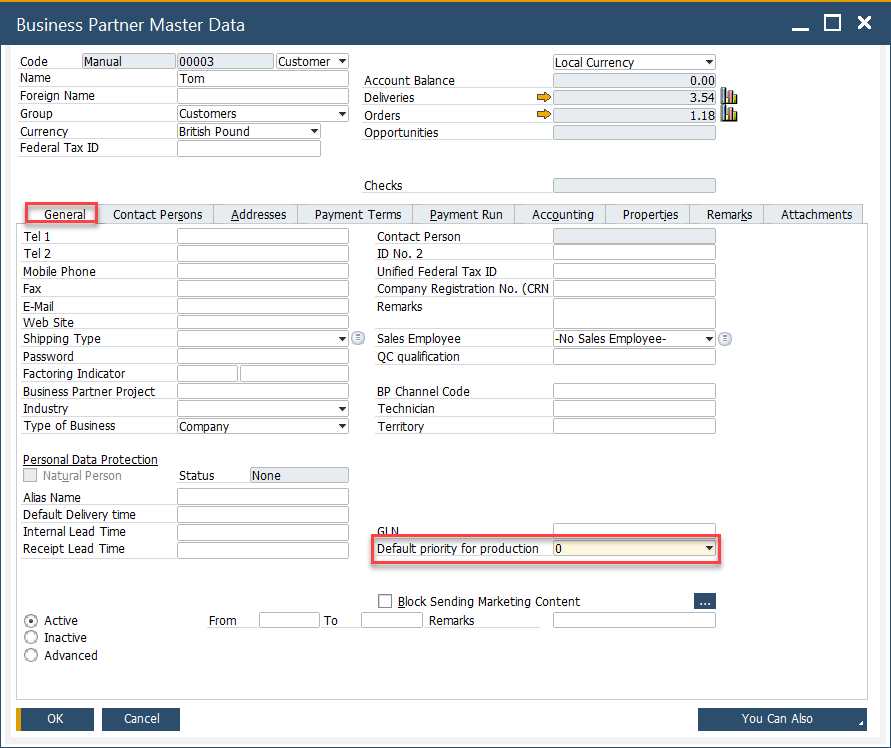
If the Default Priority is set to "0" in the Business Partner Master Data, the system will use the priority defined in General Settings.
Manufacturing Order
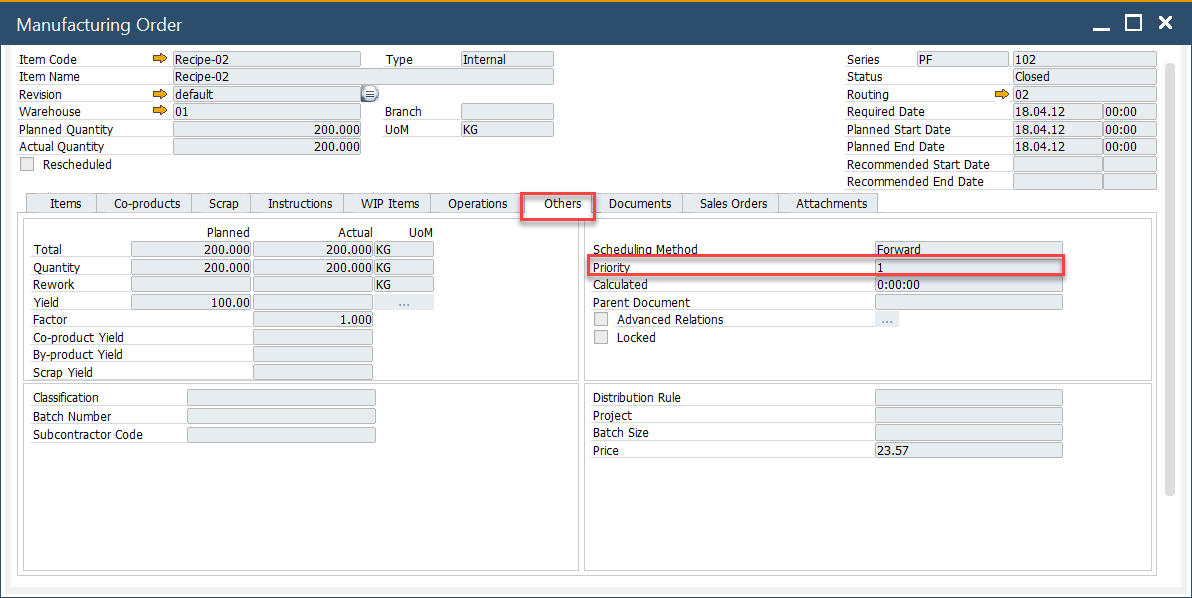
You can check (and change – if it is in any other than Finished status) Priority for a specific Manufacturing Order:
Production → Manufacturing Order → Manufacturing Orders → Others tab