You are currently viewing documentation for CompuTec AppEngine 2.0 (.NET Framework), which will be supported only until December 31, 2026. After this date, the product will no longer receive regular support or maintenance updates. Read more
We recommend upgrading to CompuTec AppEngine 3.0 built on .NET 8, which provides better performance and a modern, centralized installation process for CompuTec ProcessForce and other CompuTec solutions.
Please note that CompuTec AppEngine 3.0 has a different architecture, and all CompuTec components need to be updated together to ensure full compatibility.
Please review the CompuTec AppEngine 3.0 documentation before starting your installation or upgrade process.
Installation
This guide will walk you through the installation process for CompuTec AppEngine, ensuring a smooth setup and proper configuration. Follow the steps below to get started.
-
Run the installation file (CompuTec AppEngine) from the Download section and click "Install" in the opened installation Wizard.
-
Click "Close" after getting Installation Successfully Completed.
-
The new service should now be running:

-
Access the platform using the following web address in your browser:
http://{host}:54000.
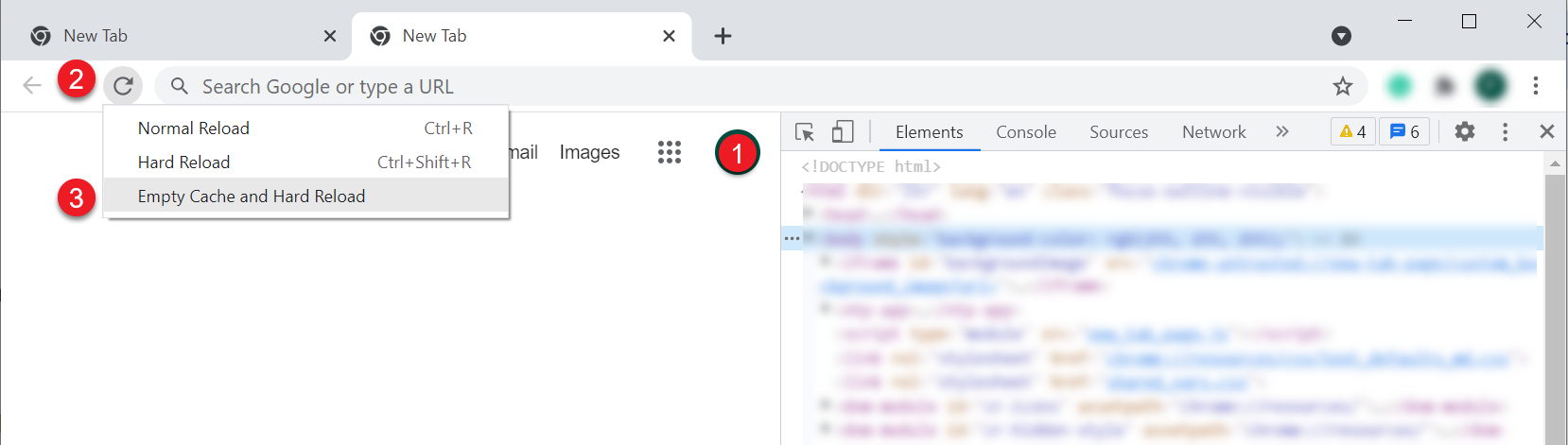
After upgrading from any 1.00 version to any 2.00, please use the Empty Cache and Hard Reload option in the browser on which you use CompuTec AppEngine, to clear your browser cache to ensure smooth operation.
Click here to find out more
Example on How to Clear Cache in Google Chrome or Microsoft Edge (Chromium)
-
Open Google Chrome or Microsoft Edge (Chromium) browser and click F12 to open Developers Tools,
-
Right-click on the refresh button,
-
Select Empty Cach and Hard Reload option: