You are currently viewing documentation for CompuTec AppEngine 3.0 (.NET 8).
If you are working with older environments, you may need the documentation for CompuTec AppEngine 2.0 based on .NET Framework: https://learn.computec.one/docs/appengine/2.0/.
Please note that CompuTec AppEngine 2.0 will be supported only until December 31, 2026. After this date, the product will no longer receive regular support or maintenance updates. Read more
As CompuTec AppEngine 3.0 introduces a new architecture, all CompuTec components must be updated together to ensure full compatibility.
Please review the CompuTec AppEngine 3.0 documentation before starting your installation or upgrade process.
MCP Server for SAP Business One
Requirements
Before you begin, make sure the following prerequisites are met:
- CompuTec AppEngine is installed. Minimum version
3.2509.1-rc-02. - OIDC authentication is enabled in SAP Business One.
Here's how to check it:- In the SAP SLD server, open the Identity Providers tab.
- Make sure that SAP Business One Authentication Server is enabled.
Enable MCP for a company in CompuTec AppEngine
To allow MCP Server access for a specific CompuTec AppEngine company, follow these steps:
-
Log in to the CompuTec AppEngine Administration Panel.
-
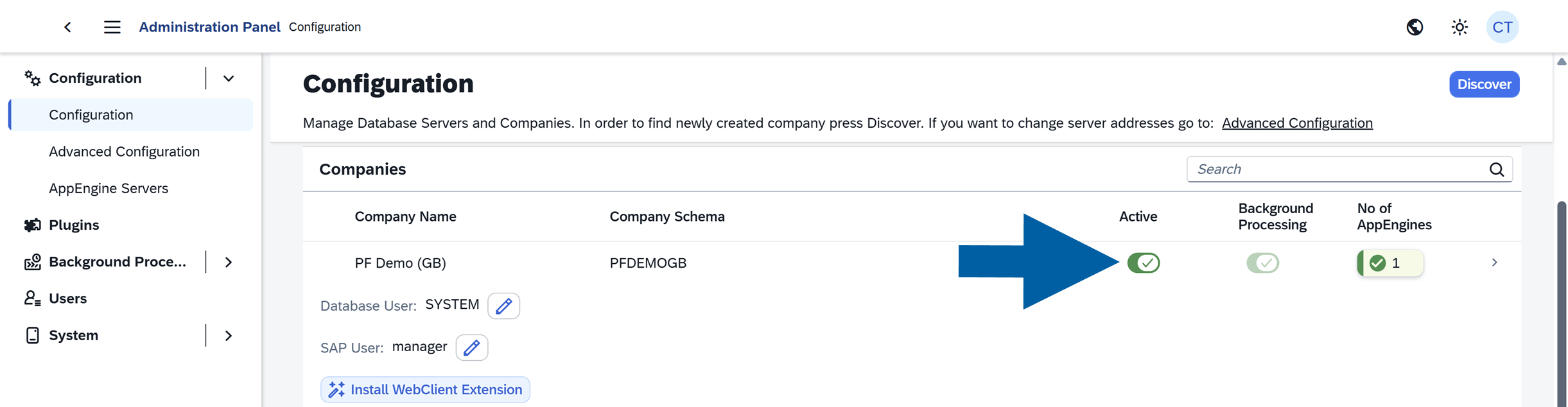
Go to Configuration.

-
Locate the company and make sure that it's active.
-
Click the company name to open its details.
-
Click Settings.

-
Choose
Yesin the EnableMcpServer field.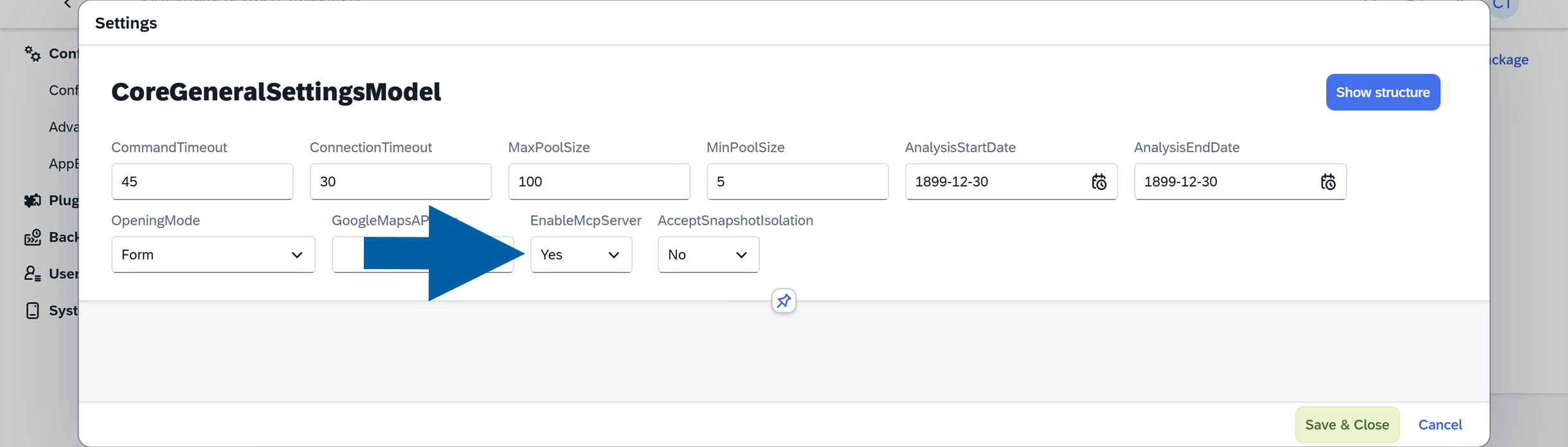
-
Click Save & Close to save your changes.
Set user authorizations
To allow users to perform actions through MCP, follow these steps:
-
Open SAP Business One.
-
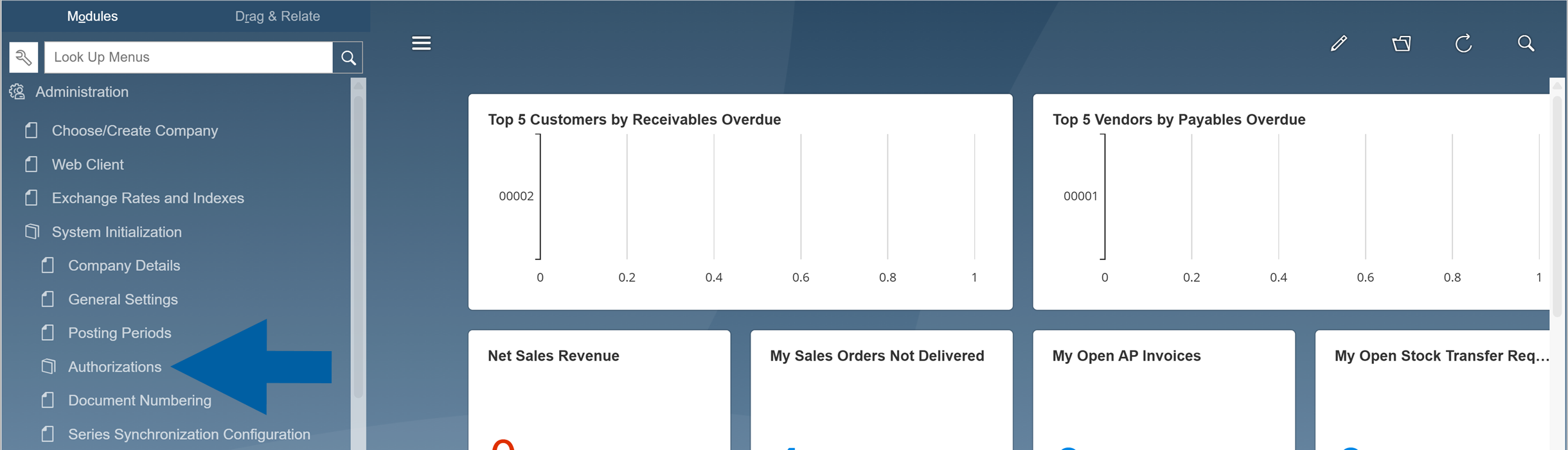
Go to Menu > Administration > System Initialization > Authorizations.
-
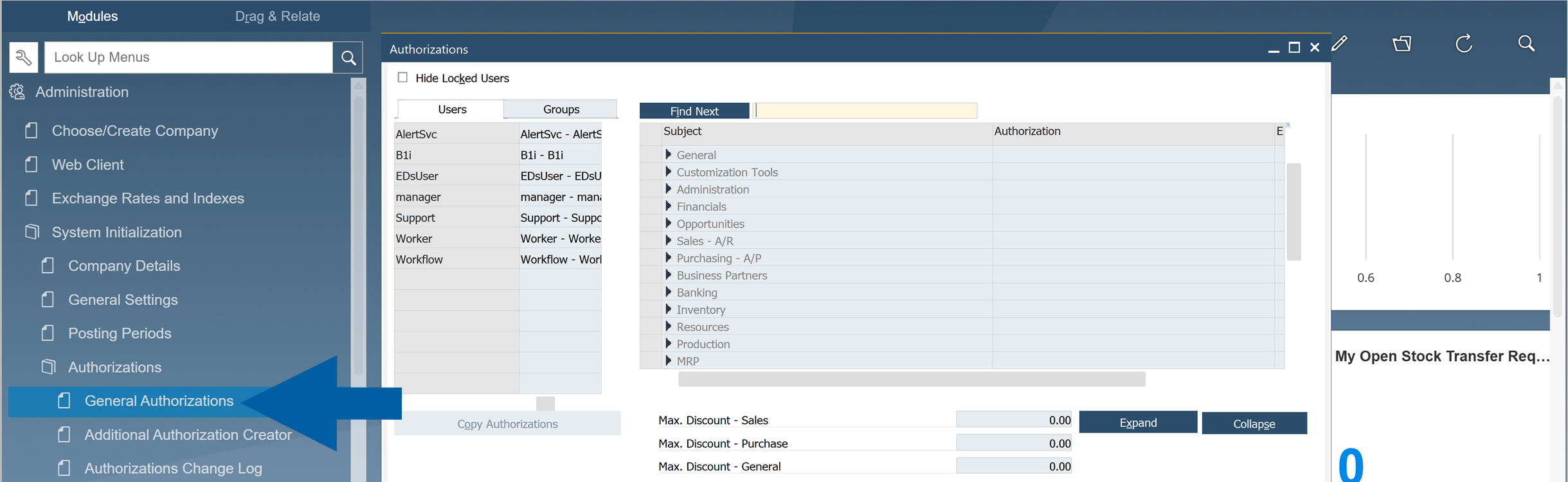
Navigate to General Authorizations.
-
Use Find Next field to locate the
Allow MCP Server to execute modification commandsauthorization.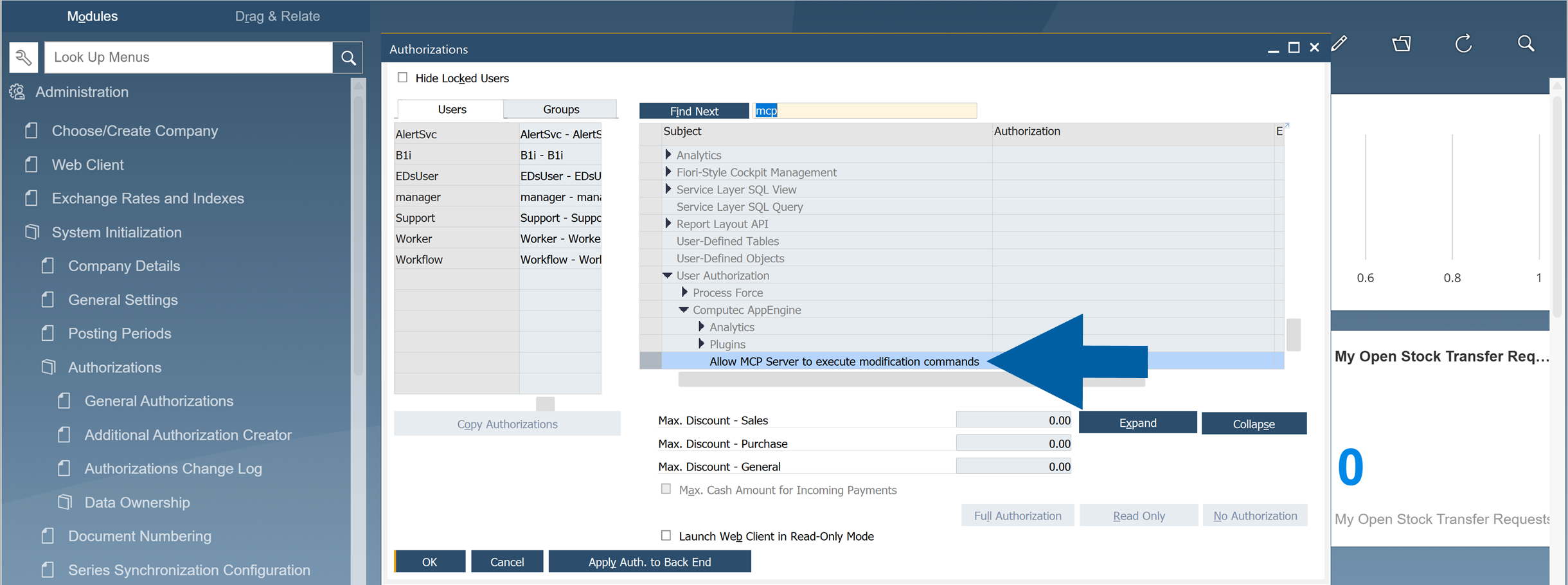
-
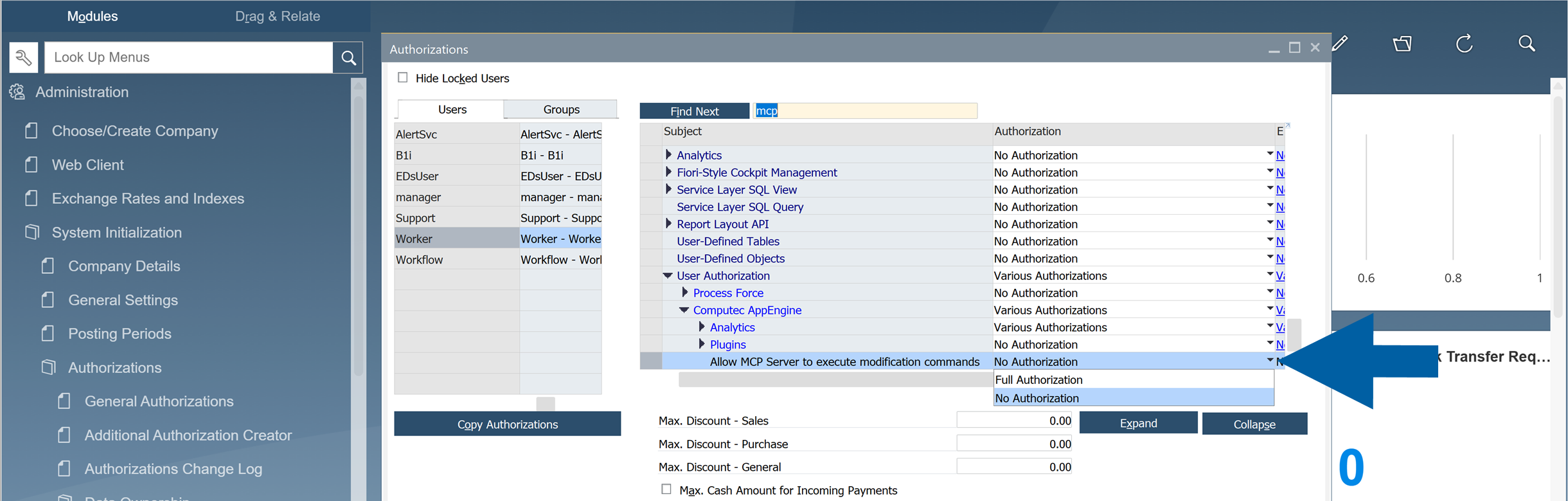
Assign it to the required users or groups.
-
Save the changes.
ImportantOnly users with the authorization assigned in SAP Business One can execute modification commands using the MCP Server.
Supported AI Clients
Currently, the MCP Server can be used with several AI tools:
- Claude (recommended):
The desktop version requires one of the following:- Pro Plan Subscription (for Development Mode)
- Team Plan Subscription or Claude for Work (connectors)
- GitHub Copilot:
Requires manual configuration using themcp.jsonfile.
You can find the required configuration in CompuTec AppEngine under: CompuTec AppEngine Administration Panel > Advanced Settings > MCP > GitHub Copilot. - Claude Code
This information may change over time. For the most up-to-date details, refer to the official AI tool documentation.
Recommended AI Client
We recommend using Claude for most scenarios.
Why choose Claude:
- Native support for local MCP servers
- Easier setup, especially in Claude Desktop
- Suitable for business users and non-developers
- Built-in configuration experience
When to use GitHub Copilot:
Use GitHub Copilot if:
- You are comfortable working in Visual Studio Code
- You prefer a developer-oriented workflow
- You can manage configuration files like
mcp.json
Built-in MCP Tools
The MCP Server provides several ready-to-use tools:
-
Session Tools:
- List companies and connect to one
- Retrieve information about the logged-in SAP Business One user
-
Service Layer Objects and Metadata:
- Create and retrieve SAP Business One business objects
-
CompuTec AppEngine Plugin Information and Objects:
- Allows AI to get information about the plugins installed for this company
- Work with plugin business objects
-
Document Access:
- Open documents and master data in SAP Business One or Web Client
-
Inventory Levels
-
Approval Procedures
If you have an idea for a useful MCP tool, feel free to share it with us - we'll consider adding it as a standard feature in CompuTec AppEngine.
You can also create your own tools by developing a custom CompuTec AppEngine plugin.
Troubleshooting MCP Activation
If the MCP Server is not working, follow these steps:
-
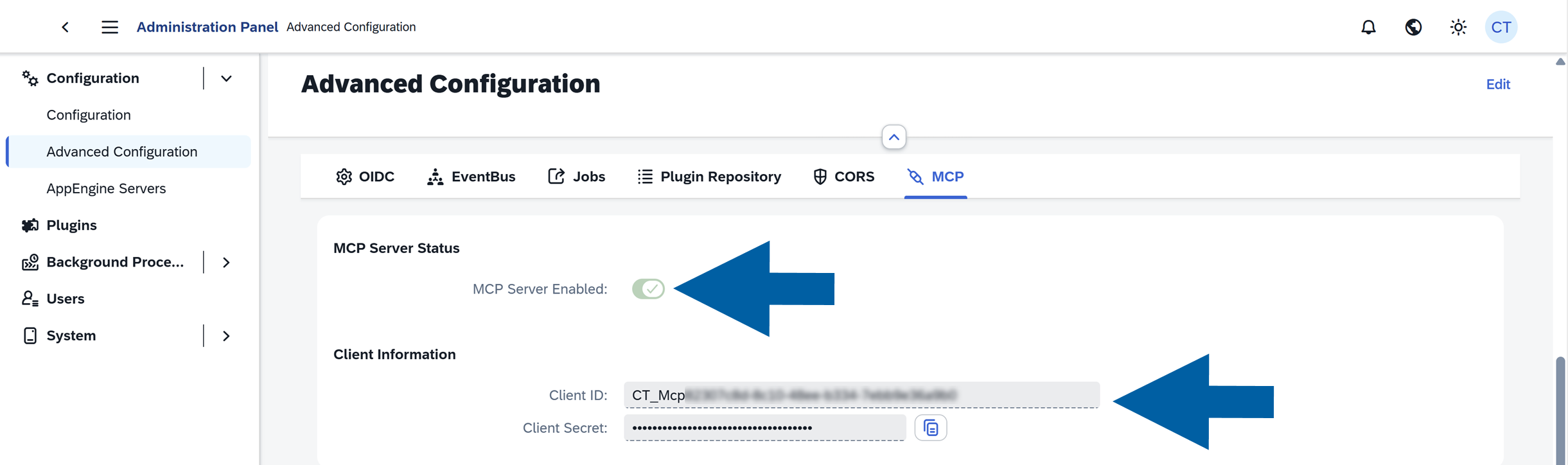
In the CompuTec AppEngine Administration Panel, go to Advanced Settings.
-
In the MCP section, you should see that:
- MCP Server Enabled toggle is turned on and green.
- Client Information is filled with the
Client IDandClient Secret.
-
If the MCP indicator is disabled, please make sure that all requirements are met.
-
If the indicator is still off, please go to CompuTec AppEngine Administration Panel > Configuration and press the Discover button.

Connect Claude Desktop to SAP Business One by CompuTec AppEngine
Pro Plan setup
-
Install Node.js.
-
Launch Claude Desktop on your computer.
-
Click the Claude menu in your system's menu bar, and select Settings.
-
Navigate to Developer.
-
Click Edit Config to open the
claude_desktop_config.jsonfile. -
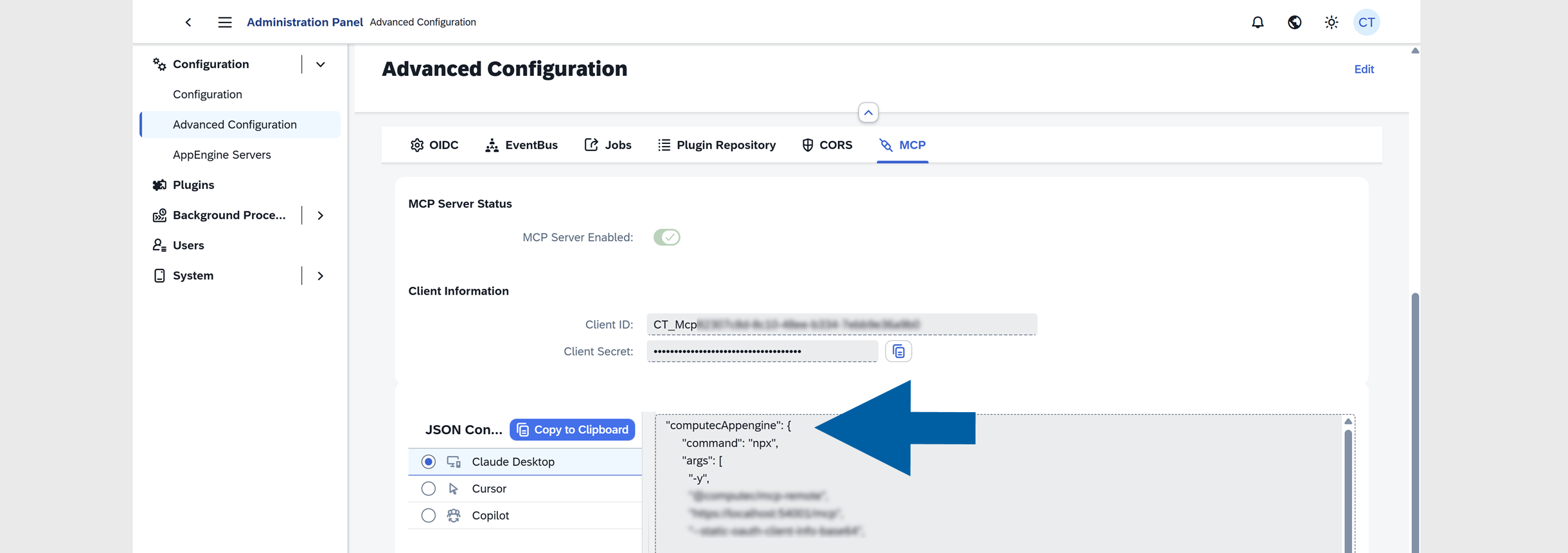
Go to the CompuTec AppEngine Administration Panel > Advanced Settings.

-
Navigate to the MCP tab.

-
Find the Claude for Code configuration and copy it.
-
In the
claude_desktop_config.json, in the mcpServers section, paste the previously copied content.
Example:{"mcpServers": {"computecAppengine": {"command": "npx","args": ["-y","@computec/mcp-remote","https://localhost:54001/mcp","--static-oauth-client-info-base64","[some generated token]","--host","localhost","--force-refresh"],"env": {"NODE_TLS_REJECT_UNAUTHORIZED": "0"}}},"isUsingBuiltInNodeForMcp": true}
Team Plan setup
- In the Connectors settings, click Add Custom Connector.
- Enter a name and the address of CompuTec AppEngine, e.g.,
https://localhost:54001/mcp. - In the advanced section, copy the
OAuth Client IDandClient Secretfrom CompuTec AppEngine Administration Panel > Advanced Settings > MCP.
Troubleshooting
If authentication or session issues occur:
-
Restart the application.
noteClosing the application window does not fully restart it, as it may still be running in the system tray.
To properly close it, click the application icon, for example, the Claude icon, in the system tray and select Close. -
Navigate to the following folder:
c:\Users\[windowsUserAccountName]\.mcp-auth. -
Delete all files in this folder.
-
Reopen the application, for example, Claude Desktop.
-
When the browser opens automatically, sign in again using your SAP Business One user credentials.
Use GitHub Copilot with CompuTec AppEngine MCP Server in VS Code
If you prefer using GitHub Copilot, follow these steps:
-
Open the following file on your computer:
C:\Users\<USERNAME>\AppData\Roaming\Code\User\mcp.json. -
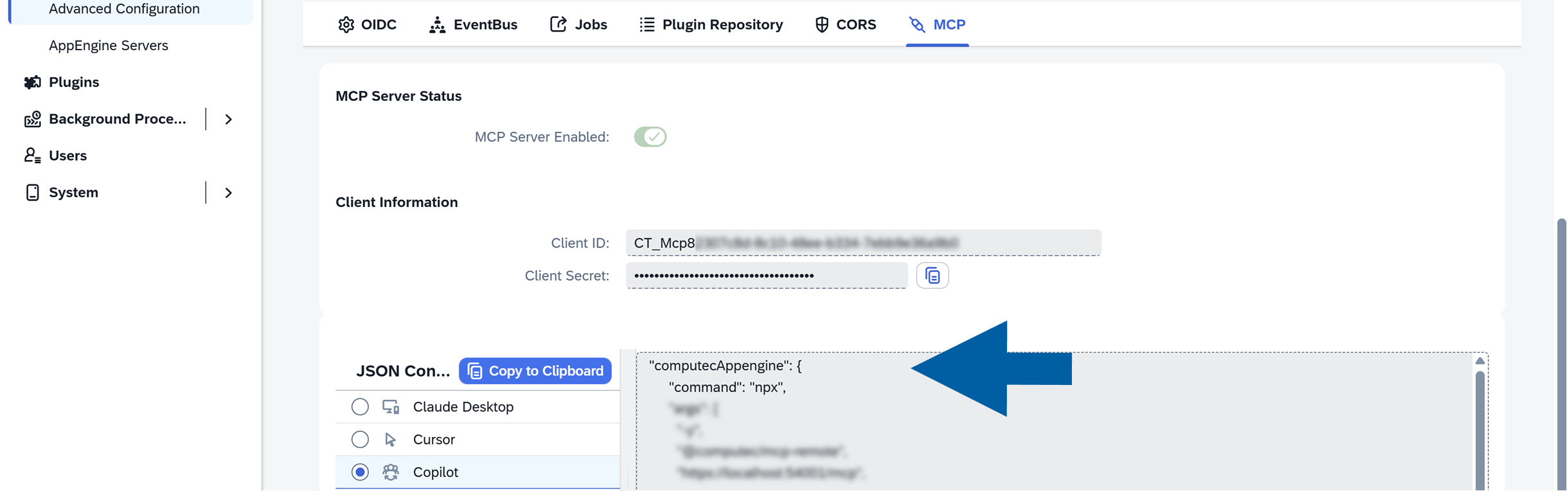
In Computec AppEngine, to CompuTec AppEngine Administration Panel > Configuration > Advanced Configuration.

-
Navigate to the MCP tab.

-
Copy the GitHub Copilot configuration.
-
Paste it into the mcp.json file.
Example:{"servers": {"computecAppengine": {"command": "npx","args": ["-y","@computec/mcp-remote","https://XXXXX:54001/mcp","--static-oauth-client-info","{\\\"client_id\\\":\\\"XXXXXXXXXXXXXXXXXXXXXXXXXXX\\\",\\\"client_secret\\\":\\\"XXXXXXXXXXXXXXXXXXXXXXXXXXXX\\\"}","--host","localhost","--force-refresh"],"env": {"NODE_TLS_REJECT_UNAUTHORIZED": "0"},"description": "CompuTec AppEngine MCP Server with browser authentication"}}} -
Restart Visual Studio Code.
-
Open Copilot Chat.
-
Switch to Agent mode.

-
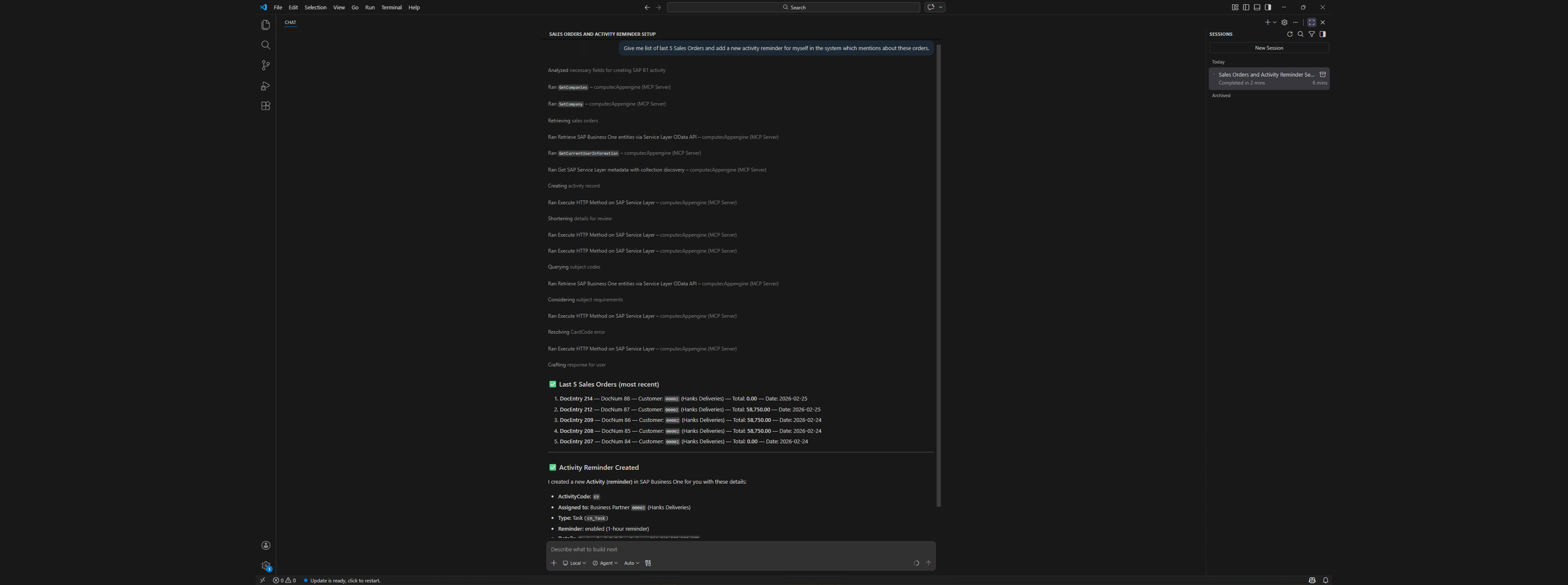
Done! Now you can start interacting with the MCP Server.
If CompuTec AppEngine MCP is not working as expected, check:
- The correct AI client is configured (Claude vs Copilot).
- MCP configuration is properly copied from CompuTec AppEngine.
- The application (Claude, VS Code, ChatGPT) has been fully restarted (including background processes).