Przejdź do głównej zawartości
Wersja: 3.0
informacja

You are currently viewing documentation for CompuTec AppEngine 3.0 (.NET 8).

If you are working with older environments, you may need the documentation for CompuTec AppEngine 2.0 based on .NET Framework: https://learn.computec.one/docs/appengine/2.0/.

Please note that CompuTec AppEngine 2.0 will be supported only until December 31, 2026. After this date, the product will no longer receive regular support or maintenance updates. Read more

As CompuTec AppEngine 3.0 introduces a new architecture, all CompuTec components must be updated together to ensure full compatibility.

Please review the CompuTec AppEngine 3.0 documentation before starting your installation or upgrade process.

Preview & Print Feature

The Preview & Print feature lets you generate PDF reports directly from an Analytics data source. You can preview reports in your browser, download them, or print data for one or multiple records.

Reports use SAP Business One Crystal Reports templates configured for the selected Analytics source.

Before You Begin

Make sure:

  • You can access CompuTec AppEngine Launchpad.
  • The Analytics source already has at least one configured print option.
  • You know which data source you want to use.

Open Preview & Print

To access the feature:

  1. Log in to CompuTec AppEngine Launchpad.
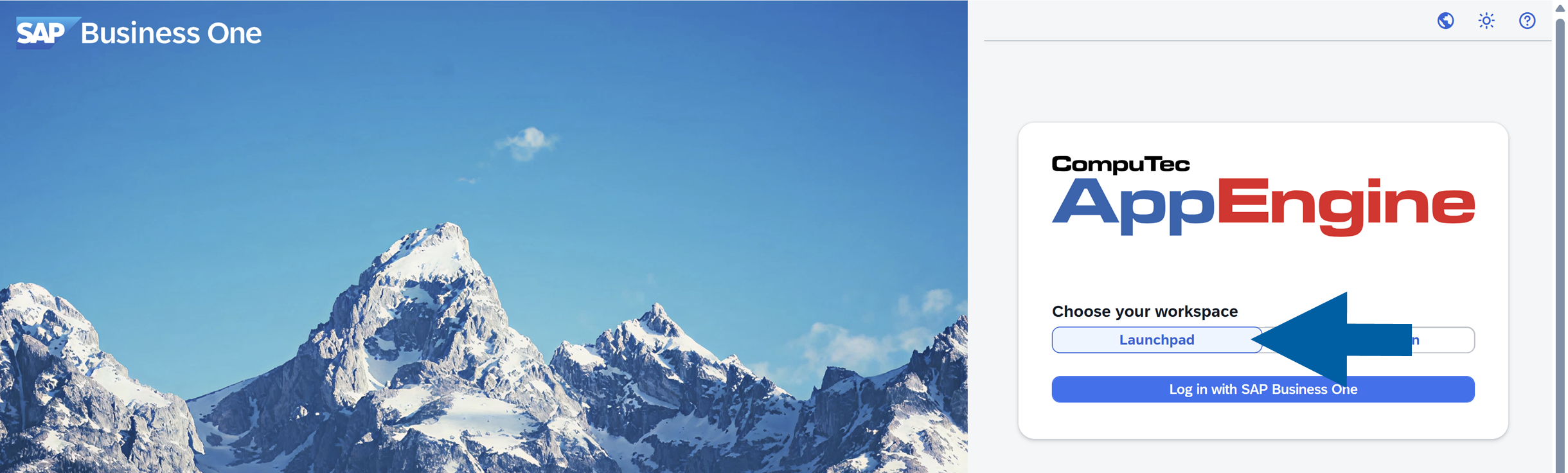
    Screenshot showing CompuTec AppEngine Launchpad login interface with AppEngine branding, a white card over a mountain background, and navigation for choosing a workspace. The visible text includes Choose your workspace, Launchpad, and Log in with SAP Business One. The screen has a clean business application design with a calm blue environment.

  2. Click the Analytics icon.

    Analytics icon in the AppEngine Launchpad header navigation, shown as a stylized rising bar chart, with the launchpad interface and workspace cards visible below text

  3. Click Go to Source Manager.

    A blue Go To Source Manager button in the AppEngine Launchpad header navigation, shown on a clean business application screen with a large blue arrow pointing to the button, indicating where to access the source manager from the Analytics interfacetext

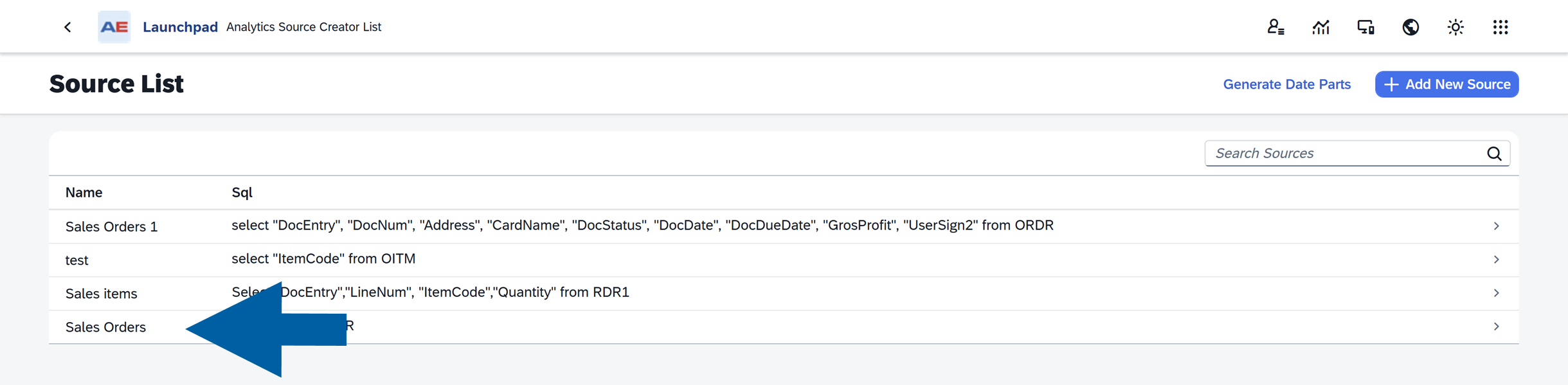
  4. Select your data source.

    Analytics Source Manager screen in AppEngine Launchpad showing a Source List table with columns Name and Sql; a large blue arrow points to the Sales Orders row in the table

  5. Open the Preview & Print tab.

    Preview and Print tab in AppEngine Launchpad source manager with Sales Orders selected and a large blue arrow pointing to the Preview and Print tab. The screen shows a header with Sales Orders and tabs labeled General Actions Preview and Print in a clean business application interface.

The tab displays all configured print options available for the selected source.

Create a New Print Instance

A print instance is a saved print configuration. It defines which report to use and what data is sent to that report.

For example:

  • Invoice PDF
  • Order Summary
  • Delivery Confirmation

To create a new instance:

  1. Click the edit icon to enter edit mode.

    Edit icon button in the Preview and Print tab of AppEngine Launchpad source manager, shown as a pencil symbol in a toolbar with other action buttons, indicating how to enter edit mode for configuring print instances

  2. In the Preview & Print tab, click + Add.
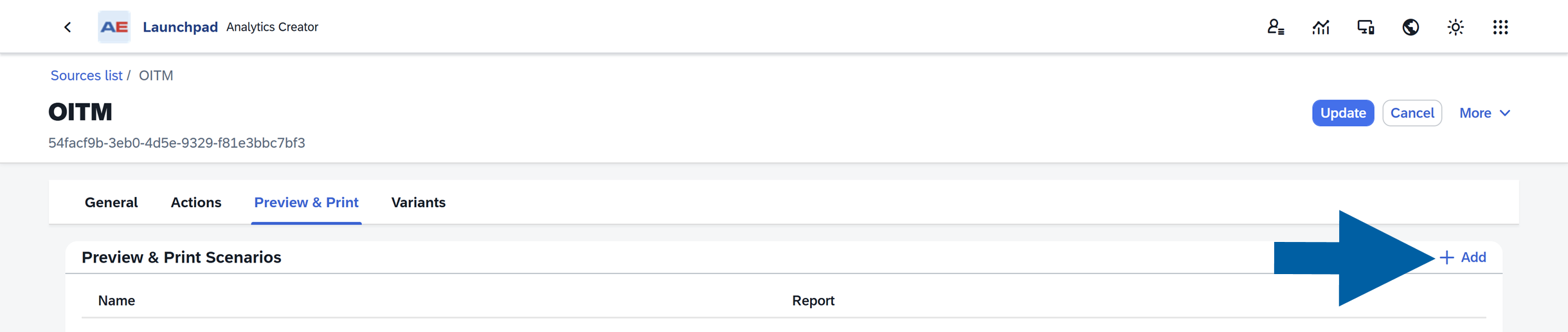
    Preview and Print tab toolbar in AppEngine Launchpad source manager showing a blue plus Add button on the right side of the header and the label Add, indicating where to click to add a new print instance

  3. Enter a Name, and select the Content Type.
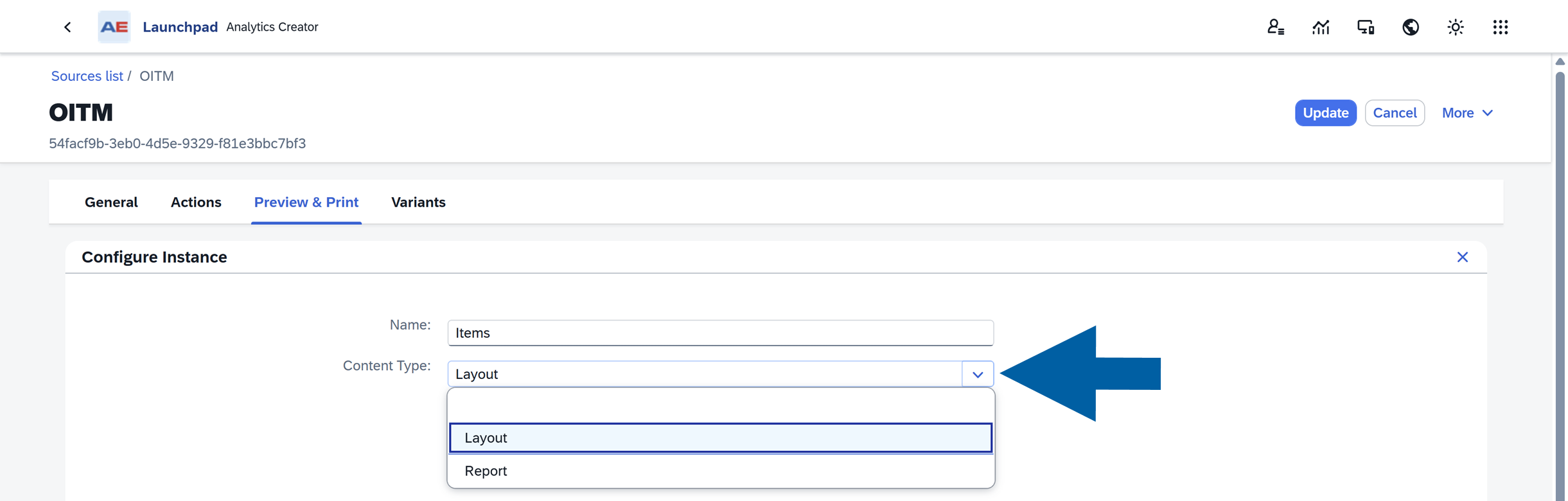
    AppEngine Launchpad Preview & Print configuration dialog showing the Name field set to Items and the Content Type dropdown open to Layout and Report options, displayed in the source manager interface on a white panel within the Analytics screen.

  4. Select the report or layout that will generate the PDF.
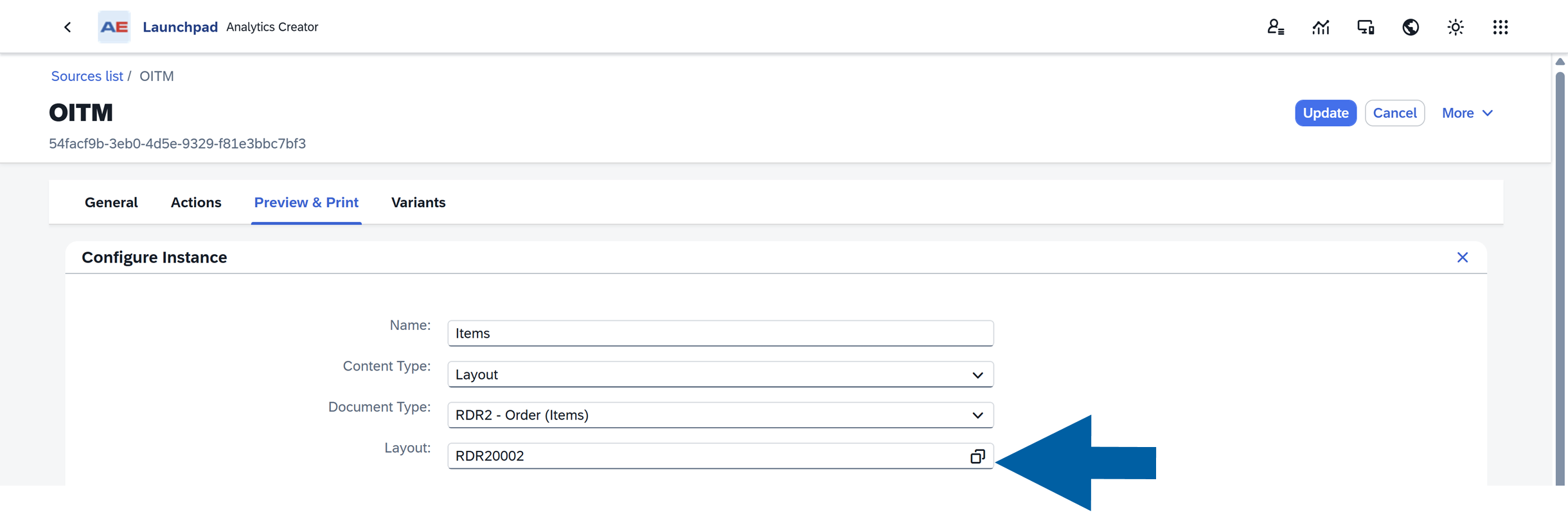
    Preview and Print configuration panel in AppEngine Launchpad showing the layout field set to RDR20002 and the Content Type set to Layout, with a large blue arrow pointing to the layout selector in the Analytics source manager interface

    Note

    Currently, Crystal Reports are fully supported.

  5. Configure the parameters:

    • Use Constant when the value should always stay the same. Example: CompanyCode = US01
    • Use Field when the value should come from the Analytics data source. Example: Use the selected row’s Document Number column.
    • Check the field under the Ask option to turn on Ask at Print Time feature if users should enter or select a value when generating the report. This is useful when the value changes between print runs.

    Preview and Print parameter configuration dialog showing options for Constant, Field, and Ask. The screen includes guidance that Constant keeps a fixed value such as CompanyCode = US01, Field uses a value from the selected row’s Document Number column, and Ask enables Ask at Print Time so users can enter or select a value when generating the report. The interface appears as a white panel inside the AppEngine Launchpad environment.

  6. Click Save.

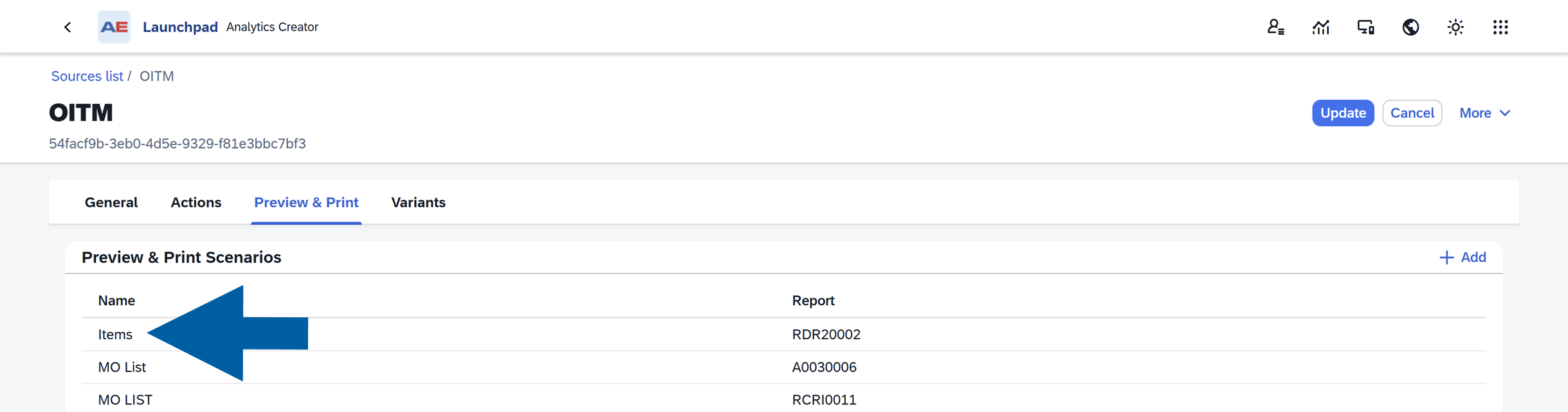
  7. Done! The new print option becomes available for users of this Analytics source.
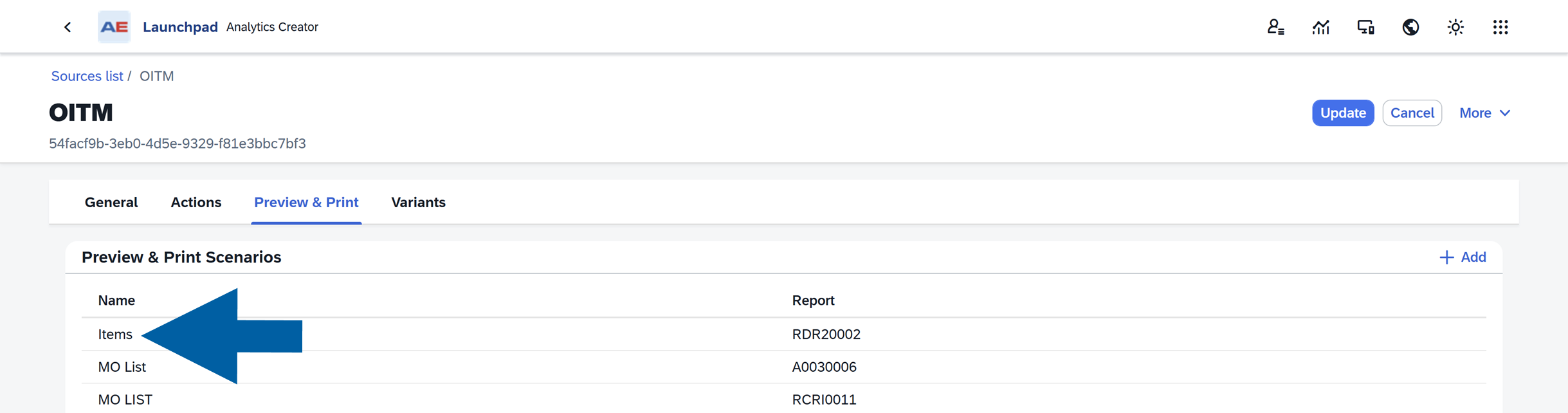
    Preview and Print scenarios table in AppEngine Launchpad source manager showing the row named Items with report RDR20002 selected. The interface includes tabs labeled General Actions Preview & Print Variants, a header for source OITM with ID 54facf9b-3eb0-4d5e-9329-f81e3bbc7bf3, and a clean business application layout with a blue arrow pointing to the Items entry.

Combine Multiple Records into One PDF

Some reports support multi-value parameters. If available, you can enable Combine into Single Export.

Behavior depends on this setting:

SelectionResult
DisabledOne PDF is generated per selected row
EnabledOne combined PDF is generated for all selected rows

This option helps when users need a single report containing multiple records.

Edit or Delete a Print Instance

To change an existing instance:

  1. Open the Preview & Print tab.

    Preview and Print tab showing the edit icon in a toolbar and a list of print instances in AppEngine Launchpad source manager, with the interface framed as a white header and content area that indicates edit mode for configuring print instances

  2. Click the edit icon to enter the edit mode.

    Preview & Print tab in AppEngine Launchpad source manager showing a toolbar with a highlighted edit pencil icon and a list of saved print instances. The active tab label reads Preview & Print in the header; the interface shows a white content area and table of print options for the selected Analytics source. Tone is neutral and professional.

  3. Select the instance from the list.

    A print instance selection list in AppEngine Launchpad source manager showing three configured print options: Items with report RDR20002, MO List with report A0030006, and MO LIST with report RCRI0011. The interface displays a white content panel with a Name column and Report column, set within the Preview & Print tab of the Analytics source manager. A large blue arrow points to one of the entries, indicating which instance to select for editing.

  4. Make your changes.

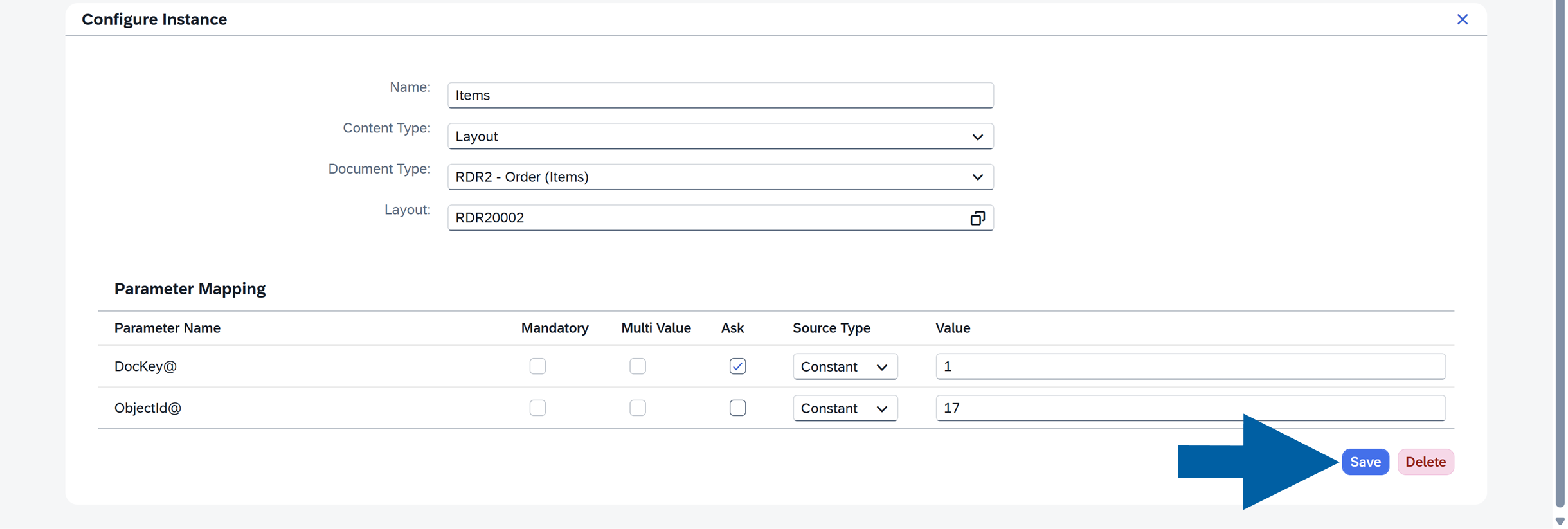
  5. Click Save.

    Preview and Print Configure Instance dialog in CompuTec AppEngine Launchpad showing the Configure Instance panel with fields Name: Items; Content Type: Layout; Document Type: RDR2 - Order (Items); Layout: RDR20002. Parameter Mapping table lists DocKey@ with Ask checked, Source Type Constant, Value 1; and ObjectId@ with Source Type Constant, Value 17. A large blue arrow points to the blue Save button at the lower right and a pink Delete button appears next to it. Header text includes Configure Instance and Parameter Mapping; the interface is a white modal over a light grey AppEngine background, tone neutral and instructional.

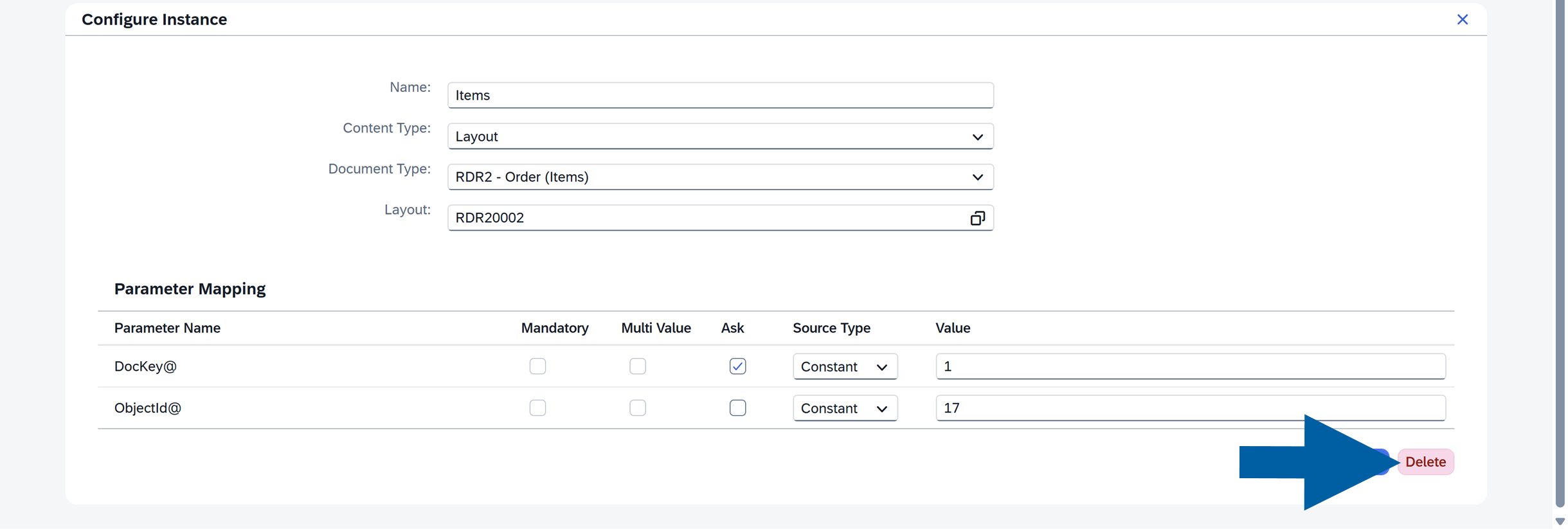
  6. To remove an instance, click Delete.

    Delete button in the Preview and Print Configure Instance dialog, displayed as a pink button labeled Delete positioned to the right of the blue Save button in the lower right corner of the white modal panel, within the AppEngine Launchpad interface showing parameter mapping fields for a print instance configuration.

Note

Deleted instances are no longer available to users.

Use Preview & Print in Analytics

After a print instance is configured, users can generate reports directly from the Analytics table.

To generate a report, follow these steps:

  1. Open the chosen Analytics source.

    AppEngine Launchpad Analytics table showing an open source with rows of data and a selected row; header reads Sales Orders and toolbar includes a Preview & Print button; transcribed text Sales Orders and Preview and Print; surrounding interface is a web application with white panels, light gray background, and blue accent buttons; visual tone neutral and professionaltext](media/preview_print/prev-and-print16.png)

  2. Select one or more rows.

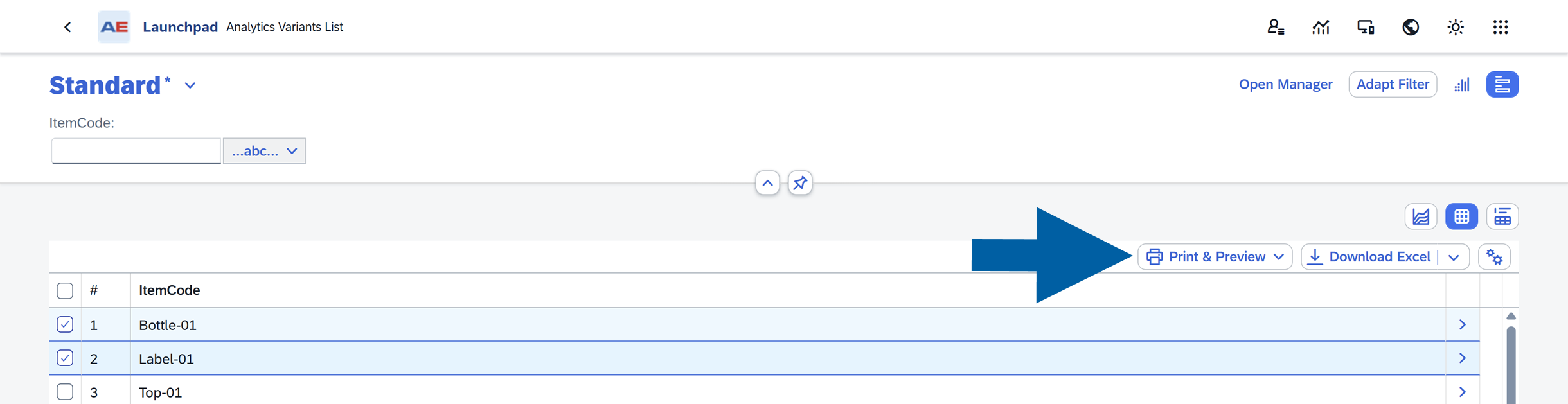
  3. Click Preview & Print in the toolbar.

    Preview and Print button in the Analytics data table toolbar at AppEngine Launchpad, displayed as a blue button with a printer icon in the header area next to Download Excel and other action buttons. The surrounding interface shows the open Sales Orders source with data rows and selected records in a clean business application environment with neutral professional tone.

  4. Choose a print option from the dropdown list.

    Print options dropdown menu in AppEngine Launchpad showing available print instances including Items, MO List, and MO LIST, displayed as a white popup list below the Preview and Print button in the Analytics table toolbar, with a blue arrow pointing to the selected option in a neutral professional interface

  5. If prompted, enter any required parameter values, and click OK.
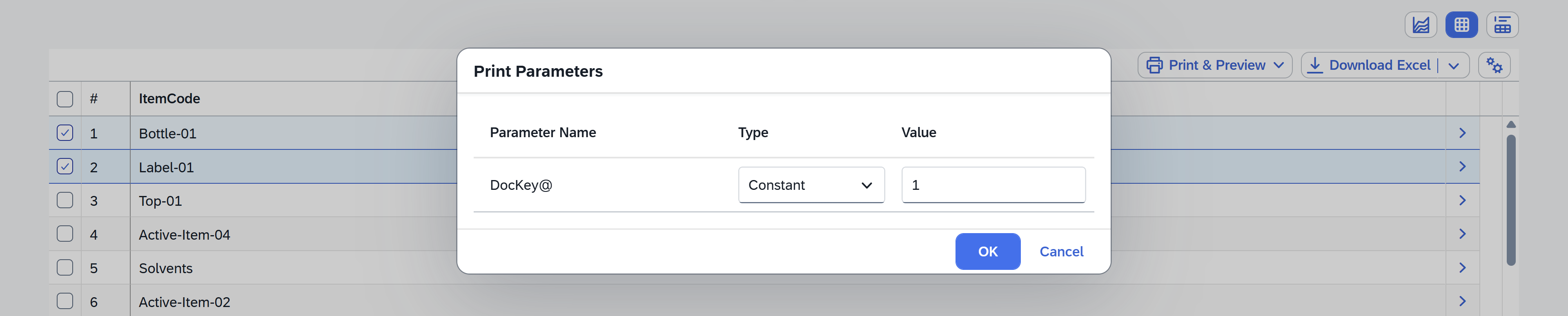
    Print Parameters dialog showing Parameter Name Type Value column headers and a single parameter row DocKey@ with Type Constant and Value 1. Header text reads Print Parameters. Dialog includes OK and Cancel buttons. The modal overlays the AppEngine Analytics table with rows and checkboxes visible in the background. Tone neutral and professional.

  6. Wait for the report generation to complete.
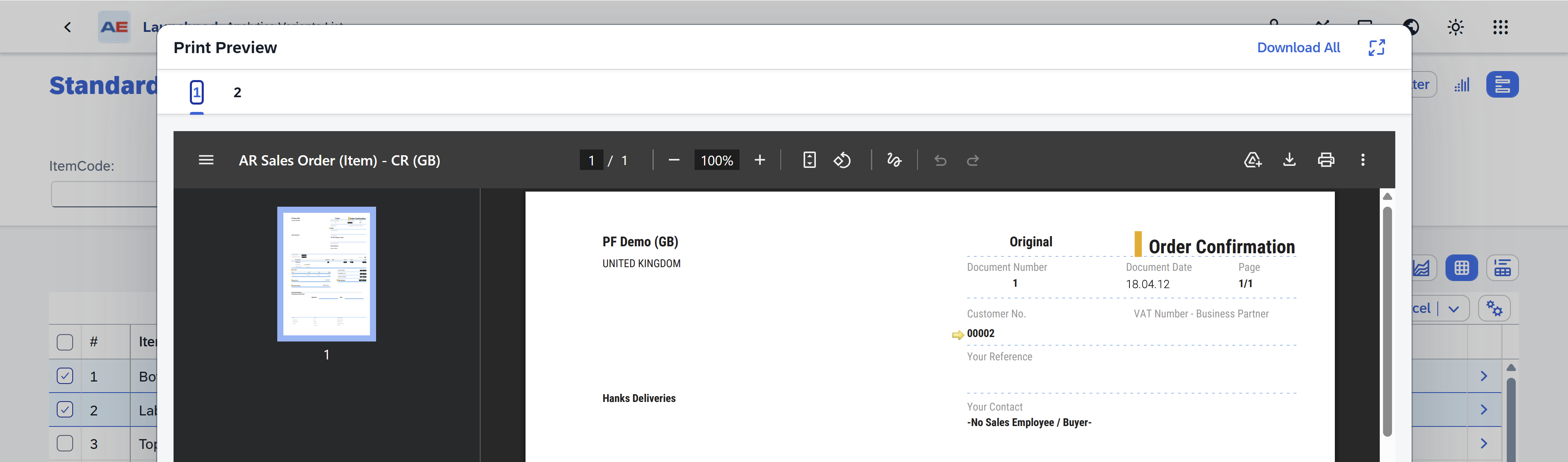
    Browser print preview dialog showing a PDF order confirmation report. Left column shows a single page thumbnail. Top bar reads Print Preview and AR Sales Order (Item) - CR (GB). Main preview shows the document header Order Confirmation and label Original, with visible fields Document Number 1, Document Date 18.04.12, Page 1/1, Customer No. 00002, PF Demo (GB) UNITED KINGDOM, and Your Contact - No Sales Employee / Buyer. The wider environment is a web application interface with a dark preview sidebar, toolbar icons, and a vertical scroll bar. The tone is neutral and professional.

    When finished, you can:

    • Preview the PDF in your browser
    • Download the PDF
    • Print the report

Supported Report Types

  • Currently, Crystal Reports are supported.
  • Layout-based reporting is planned for a future release. If a layout option is selected, the system displays a not yet implemented message.