You are currently viewing documentation for CompuTec AppEngine 3.0 (.NET 8).
If you are working with older environments, you may need the documentation for CompuTec AppEngine 2.0 based on .NET Framework: https://learn.computec.one/docs/appengine/2.0/.
Please note that CompuTec AppEngine 2.0 will be supported only until December 31, 2026. After this date, the product will no longer receive regular support or maintenance updates. Read more
As CompuTec AppEngine 3.0 introduces a new architecture, all CompuTec components must be updated together to ensure full compatibility.
Please review the CompuTec AppEngine 3.0 documentation before starting your installation or upgrade process.
Plugin Update
You can update plugins using the Releases tab in the CompuTec AppEngine Administration Panel.
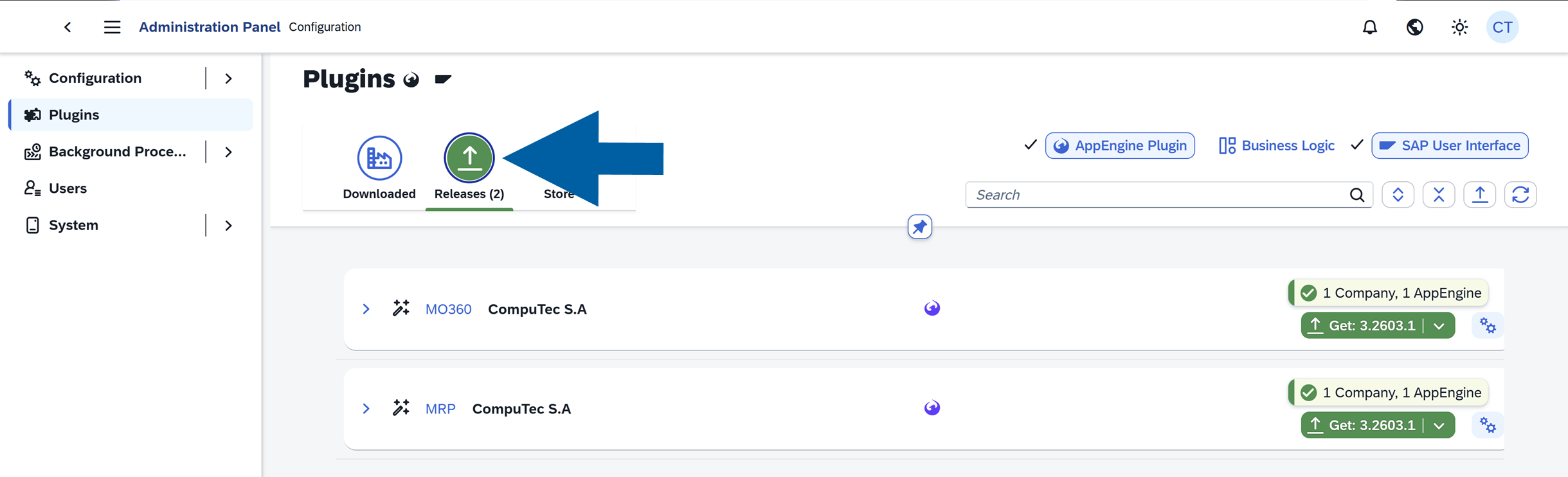
Update a plugin
To update an installed plugin, follow these steps:
-
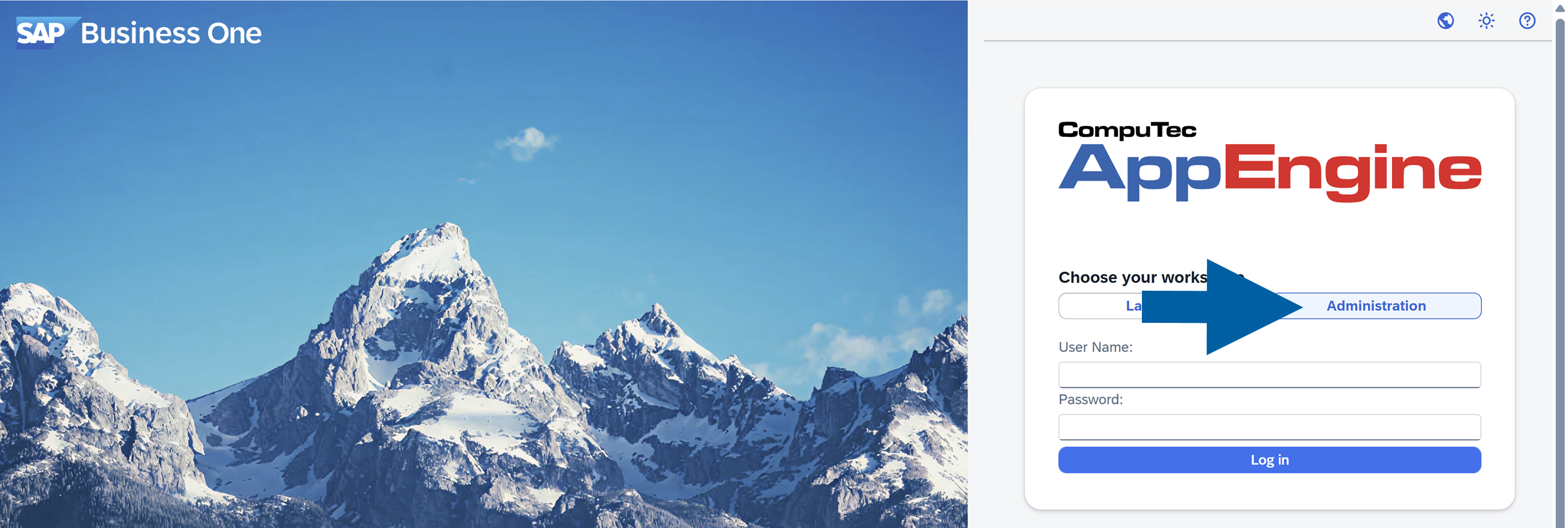
Log in to CompuTec AppEngine Administration Panel.
-
Go to Plugins.

-
Navigate to Releases.
-
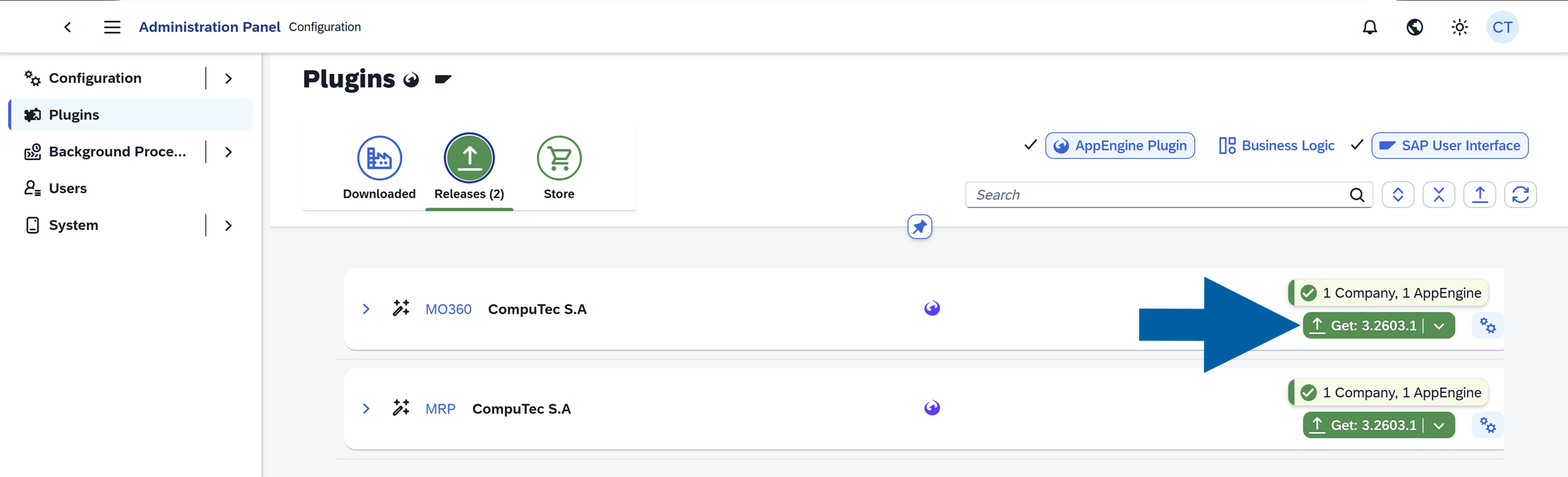
Click the Get... to install the latest plugin version.
-
(optional) If you want to install a different version, foolow these steps:
-
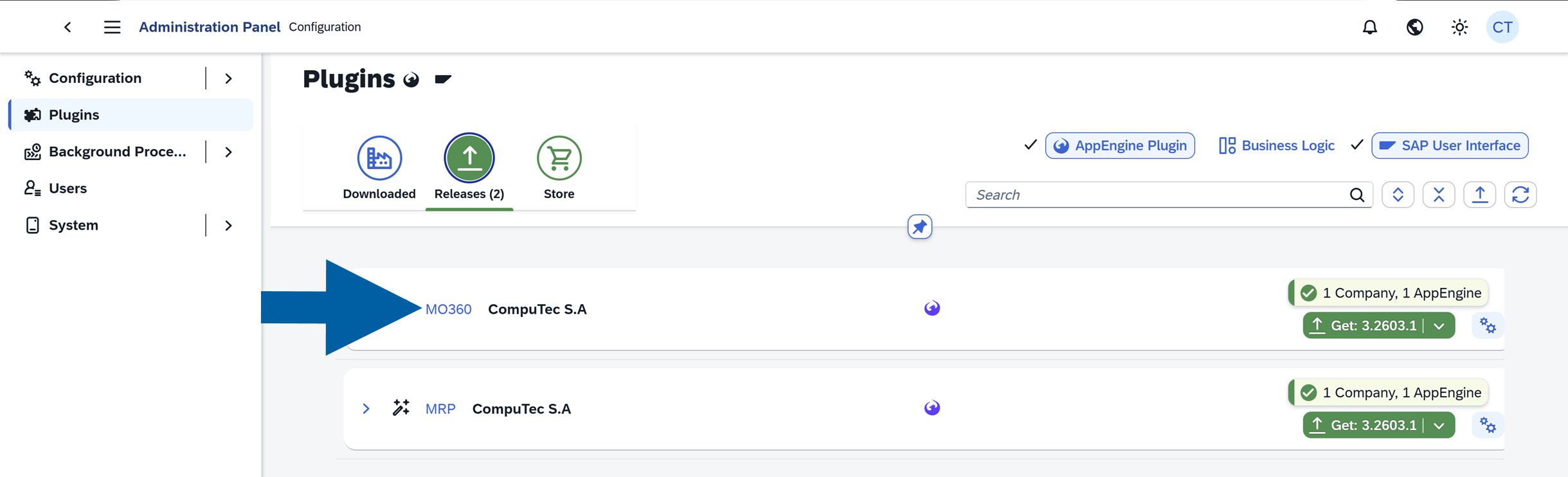
Click the plugin name.
-
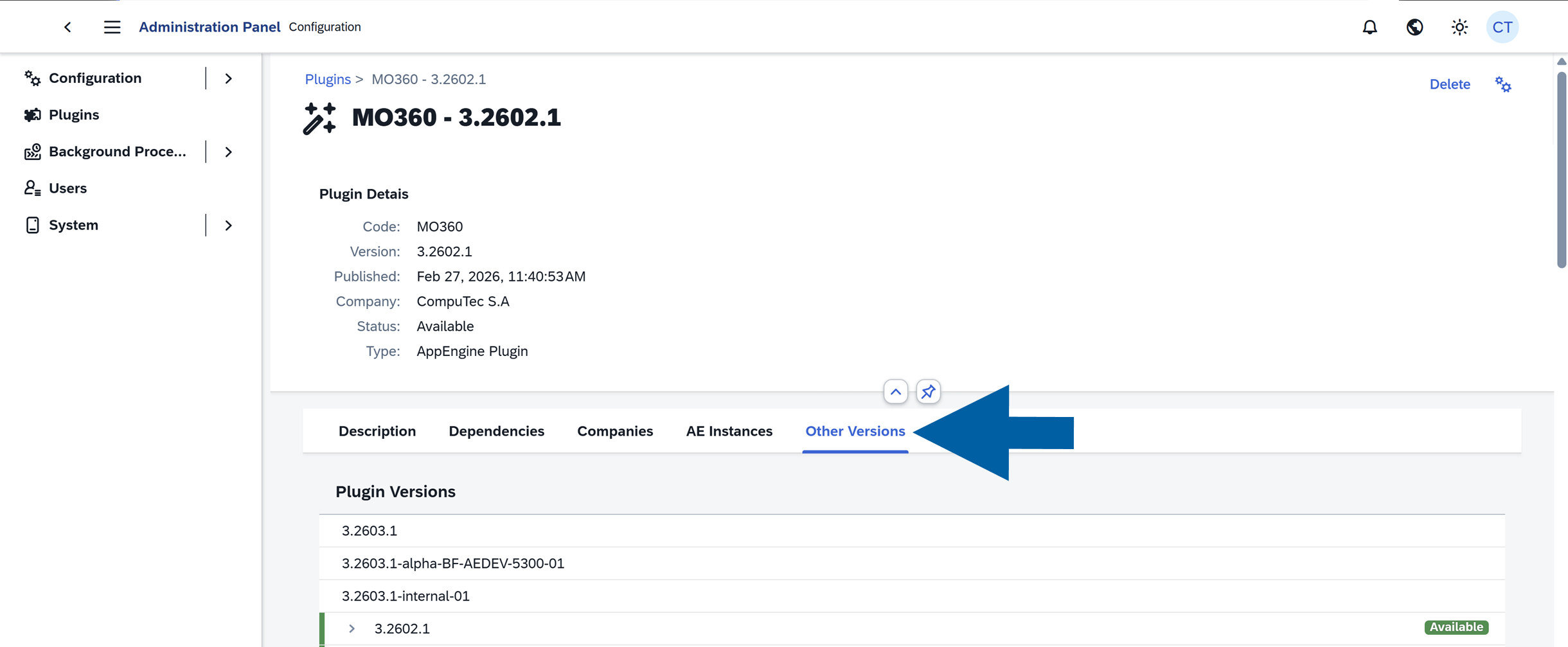
Navigate to Other Versions.
-
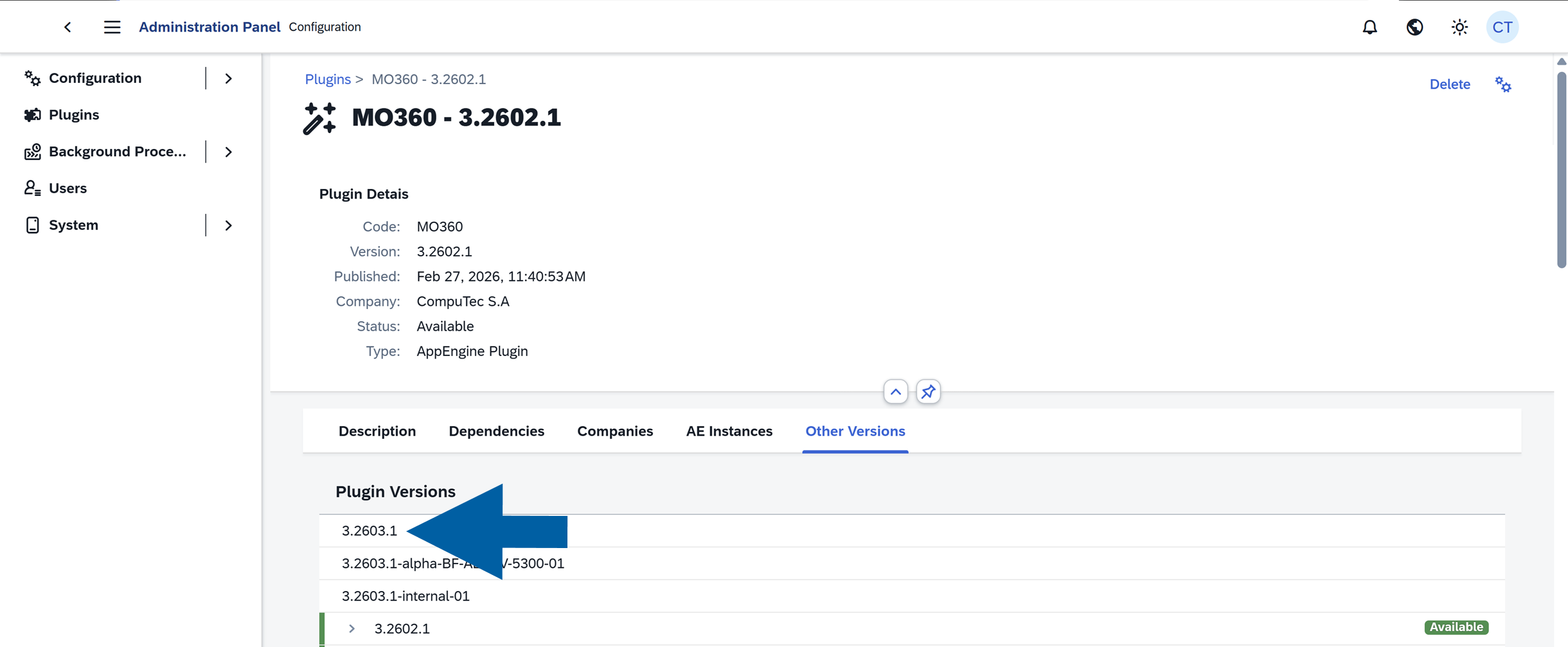
Choose the version you want to install.
-
-
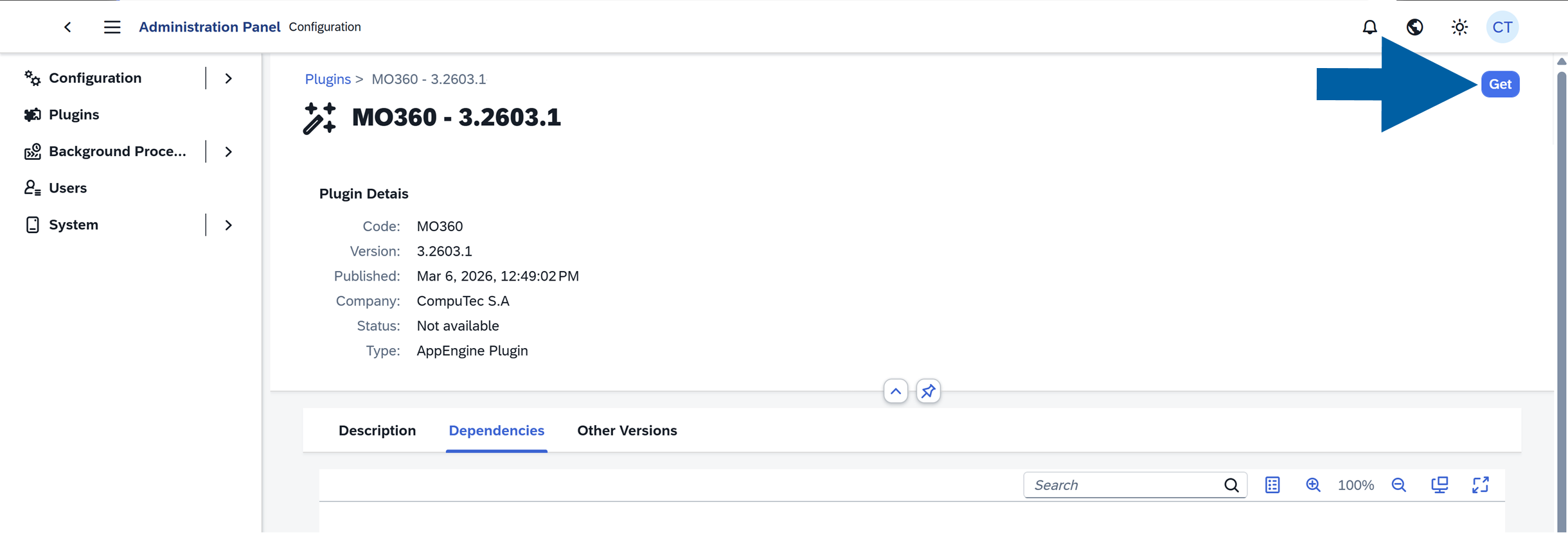
Click Get.
-
Click Get & Install.

-
Select the company for installation and click Accept.

-
Select CompuTec AppEngine Instance for installation and click Accept.

-
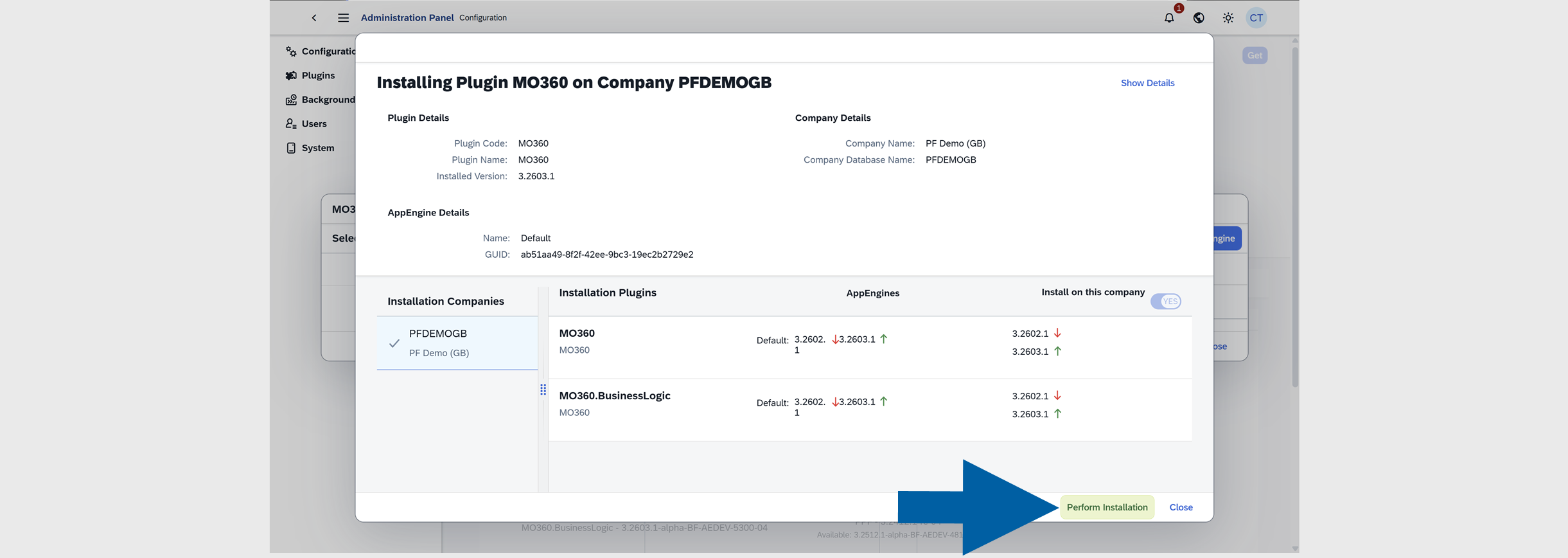
Review the installation details and click Perform Installation.
-
Click OK.

-
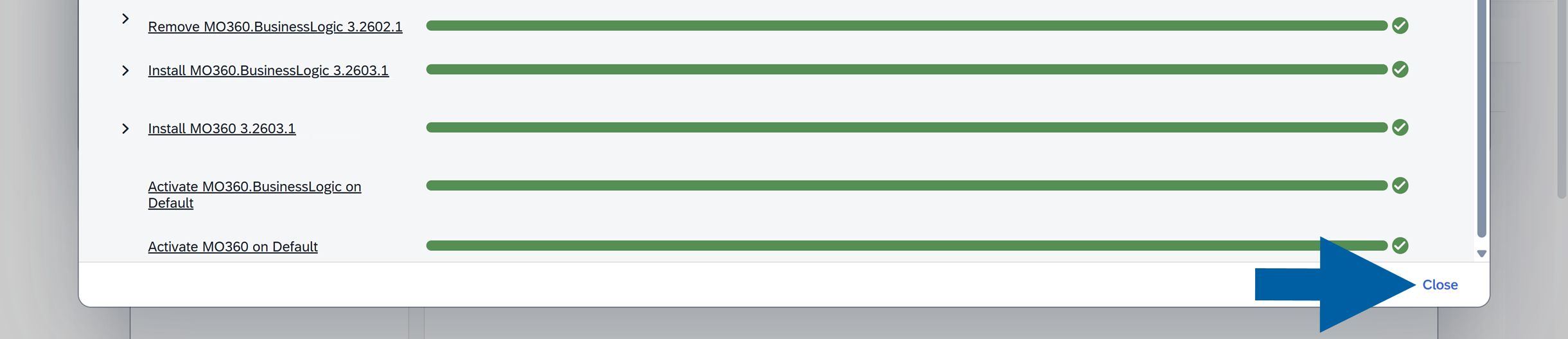
After the installation is completed, click Close.
-
Click Yes to restart CompuTec AppEngine.

-
After the restart is completed, click Close.

-
Done! You’ve successfully updated the plugin.
After update
After the successful update:
- The plugin runs in the selected version
- The previous version is replaced on the Computec AppEngine instance
To learn about new features or changes, refer to the plugin’s documentation.