You are currently viewing documentation for CompuTec ProcessForce 3.0, which is a plugin installed and managed through CompuTec AppEngine 3.0, built on .NET 8. If you are working with older environments, you may need the documentation for CompuTec ProcessForce 2.0: https://learn.computec.one/docs/processforce/2.0/.
Please note that CompuTec ProcessForce 2.0 will be supported only until December 31, 2026. After this date, the product will no longer receive regular support or maintenance updates. Read more
CompuTec AppEngine 3.0 introduces a new architecture, and all CompuTec components, including the CompuTec ProcessForce 3.0 plugin, must be updated together to ensure full compatibility.
Before starting your installation or upgrade process, we strongly recommend reviewing the CompuTec AppEngine 3.0 and CompuTec ProcessForce 3.0 documentation.
Overview
This guide walks you through the essential setup steps to ensure accurate and efficient costing in SAP Business One with CompuTec ProcessForce. Both platforms need to be correctly configured for accurate and efficient costing calculations. The sections below outline the key configuration steps, paths, and considerations.
1. SAP Business One Settings
These foundational settings define how inventory and costing are managed at the system level, ensuring consistency across warehouses, documents, and item records.
Company Details
To access Company Details, navigate to:
Administration → System Initialization → Company Details
-
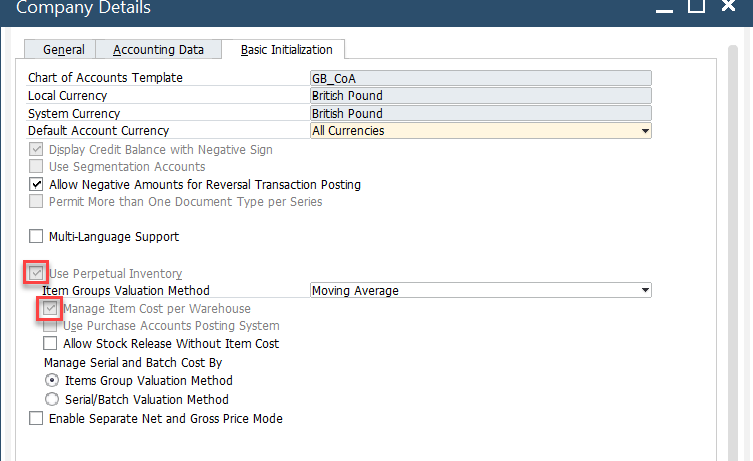
Use Perpetual Inventory: This field can be checked or unchecked based on regional practices. For instance, it is checked in the UK and unchecked in Italy.
-
Manage Item Cost per Warehouse: Optional, but must be decided before costing records are created or recalculated.
Document Settings
To access Document Settings, navigate to:
Administration → System Initialization → Document Settings
In a Standard Costing environment, WIP (Work-in-Progress) variances arise from differences between planned and actual quantities or costs of finished products. To accommodate this - ensure Parent Item WIP Accounts are checked.
Warehouses
Warehouse configuration directly impacts how costing records behave:
- New Warehouses: Automatically added to the Item Master record based on the SAP Business One configuration. In turn, each warehouse is added to each Item Costing record.
- Deleted Warehouses: Automatically removed from each Item Costing record.
- Drop Ship Warehouses: Excluded from Item Costing records.
2. CompuTec ProcessForce Settings
These configurations extend costing functionality with detailed control over cost categories, overhead rates, and restore actions, enabling precise and automated cost calculations.
To access Costing tab, navigate to:
Administration → System Initialization → General Settings → ProcessForce tab → Costing tab
Costing Price Determination
You can define how item costing prices should be pulled (planned, actual, average, etc.).
➡️ Refer to Costing Price Determination for more information.
Restore Functions
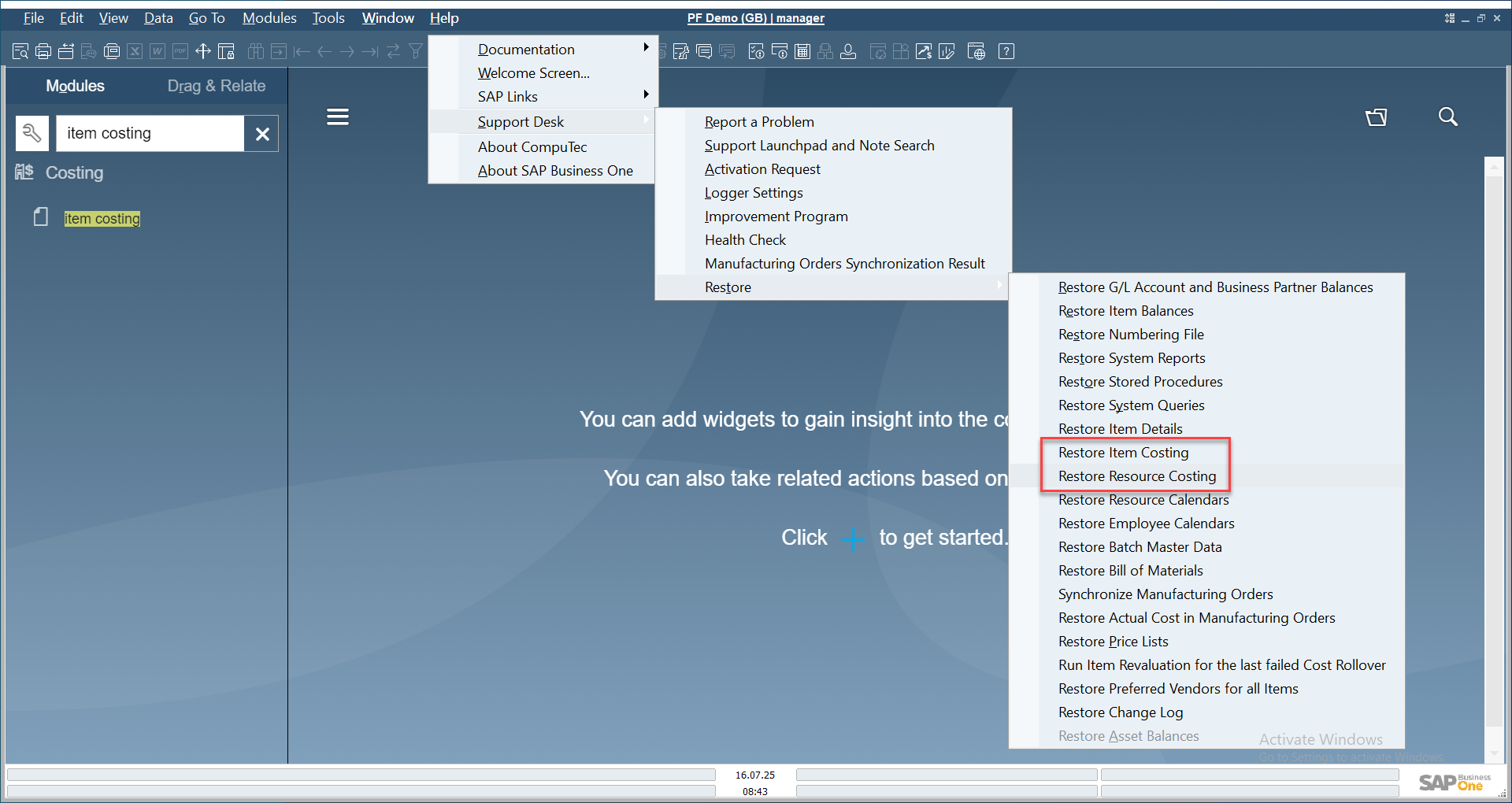
If items or resources were created before CompuTec ProcessForce was installed, use the restore functions:
- Restore Item Costing
- Restore Resource Costing
This will populate missing costing data for previously added records.
➡️ Learn more about Data Restore.
Cost Categories
To access Cost Categories, navigate to:
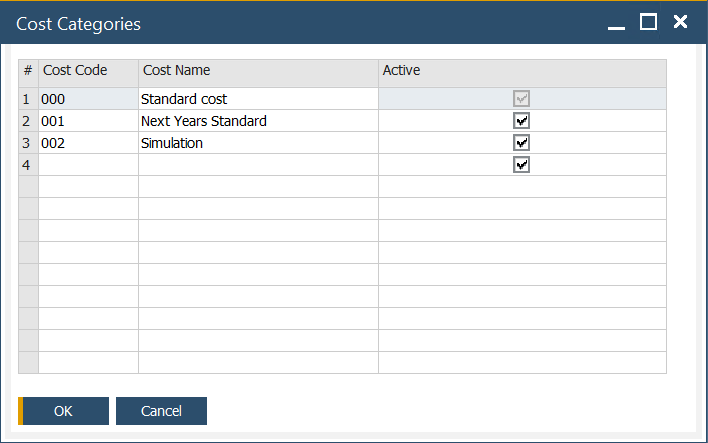
Administration → Setup → Financials → Cost Categories
Define and manage cost categories for streamlined cost calculations.
Default Overhead Rates
To access Item Groups, navigate to:
Administration → Setup → Inventory → Item Groups
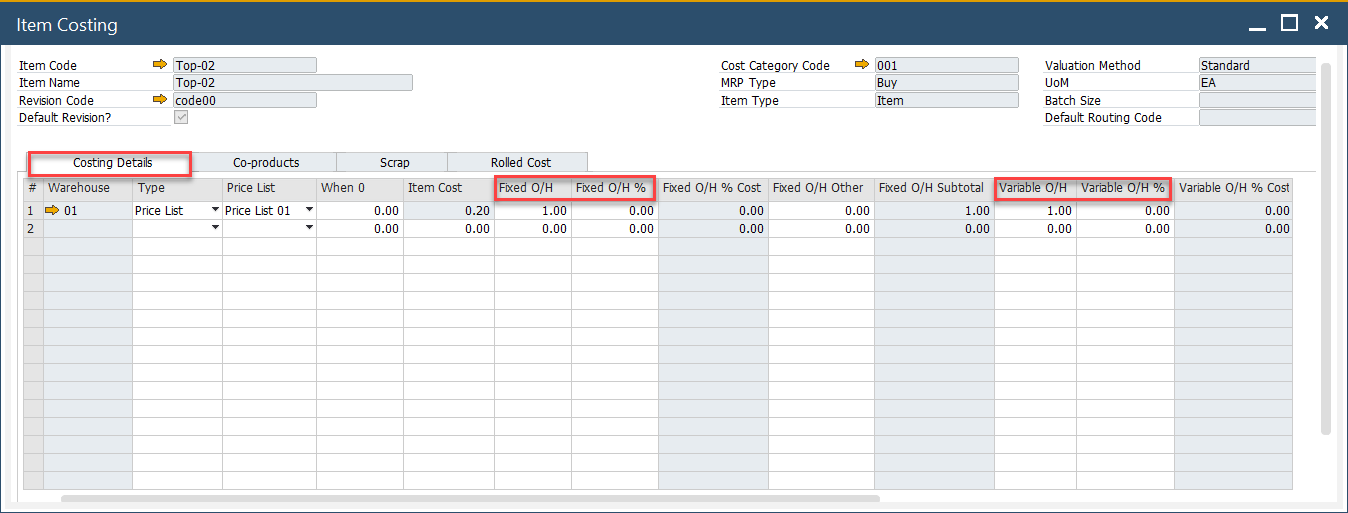
Assign fixed and variable overhead rates by Item Group. When a new item is created as part of an Item Group, these values will be automatically added to the corresponding fields within the Item Costing form.

Default fixed and overhead values are automatically added to the item costing record for all defined cost categories, except 000
Changing Default Overhead Values
- Update the default values and press the "Update" button.
- A system message will display.
- To apply new values to all existing Item Costing records, press "OK" and then "Update".
- To apply new values only to new items, close the window and press "Update".
- Newly added items will automatically use the updated default values.