You are currently viewing documentation for CompuTec ProcessForce 3.0, which is a plugin installed and managed through CompuTec AppEngine 3.0, built on .NET 8. If you are working with older environments, you may need the documentation for CompuTec ProcessForce 2.0: https://learn.computec.one/docs/processforce/2.0/.
Please note that CompuTec ProcessForce 2.0 will be supported only until December 31, 2026. After this date, the product will no longer receive regular support or maintenance updates. Read more
CompuTec AppEngine 3.0 introduces a new architecture, and all CompuTec components, including the CompuTec ProcessForce 3.0 plugin, must be updated together to ensure full compatibility.
Before starting your installation or upgrade process, we strongly recommend reviewing the CompuTec AppEngine 3.0 and CompuTec ProcessForce 3.0 documentation.
Phantom Item
A Phantom Item is a Bill of Materials (BOM) template that forms part of another BOM but is not treated as an inventory item.
- It is never received into a warehouse.
- It does not generate inventory or financial transactions.
- It acts as a marker in the master BOM, expanding its components and operations directly into a Manufacturing Order (MO).
Phantom Items are commonly used as an alternative to semi-finished products.
- With semi-finished products, each child BOM requires its own Manufacturing Order.
- With Phantom Items, no additional MO is created—the phantom BOM simply explodes into the parent MO.
Phantom Item
Setting up a Phantom Item
Inventory → Item Master Data → Production Data tab
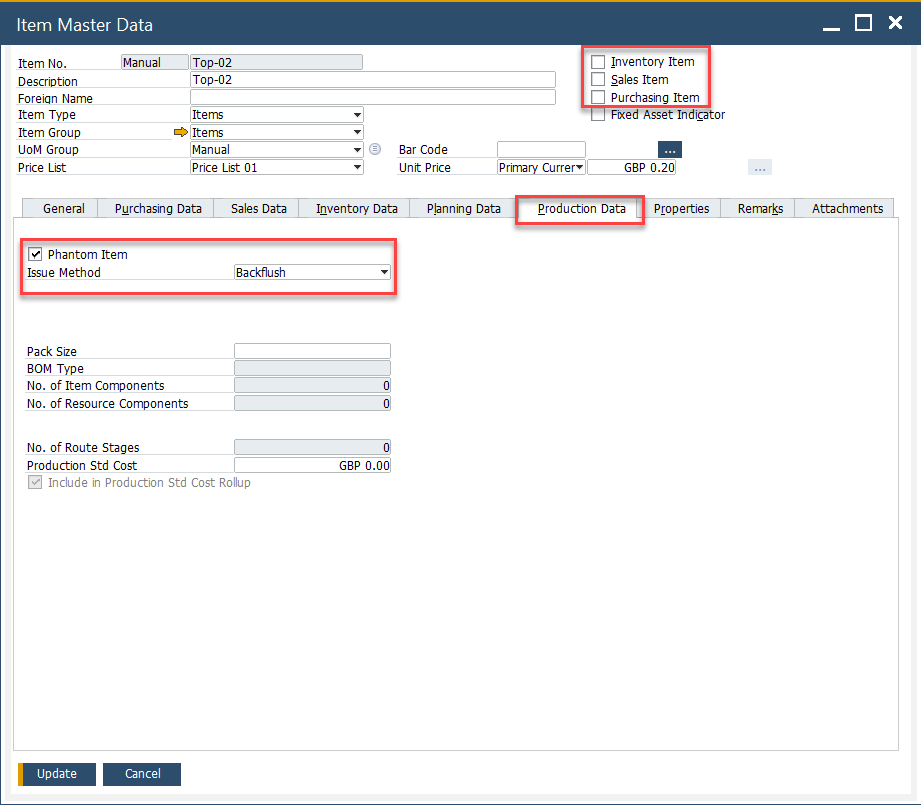
To use a specific Item as Phantom, be sure to check the following settings:
- ✅ Check Phantom Item.
- ❌ Uncheck Inventory, Sales, and Purchase Item.
- ⚙️ Set Issue Method = Backflush.
- 🚫 Phantom Items cannot be managed by Batches or Serials (General tab).
Example: Beverage Production
For Product-A (finished beverage), the BOM includes:
- Packaging materials (Bottle-01, Label-01, Top-01) → inventory items.
- Recipe-01 → Phantom Item (formulation of the drink).
When an MO for Product-A is created:
-
Packaging items are drawn from stock.
-
Recipe-01 expands inline: all of its components and operations are added directly to the MO.
-
No separate MO is required for Recipe-01.
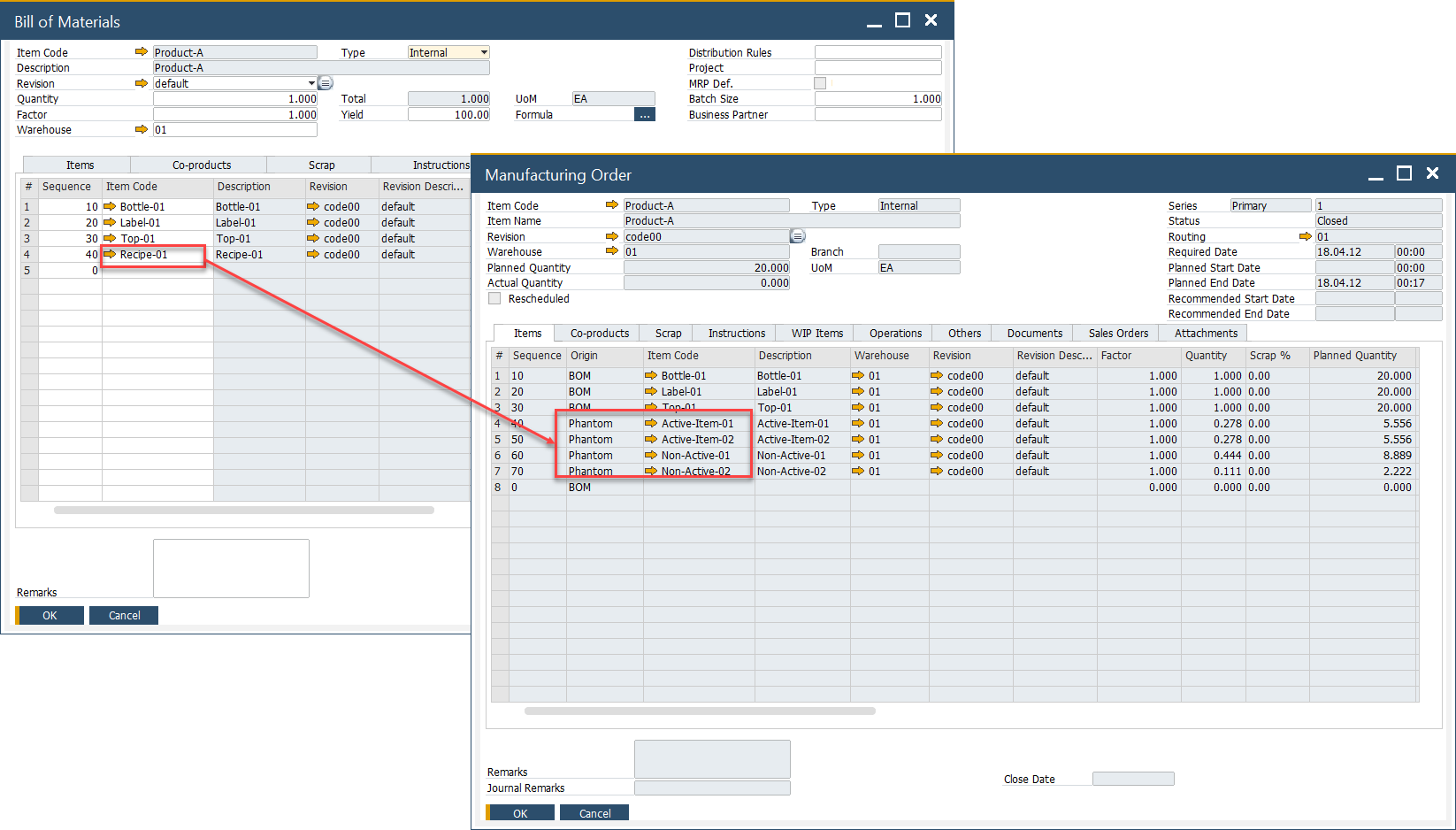
To review expanded phantoms in an MO, check the WIP Items tab:

If you add a Phantom manually to an MO, the system prompts you to confirm expansion before the document is added.
Bind Phantom Header Qty
The Bind Phantom Header Qty option ensures that a phantom’s header quantity scales automatically with the parent BOM quantity.
- Enabled → The phantom header quantity is always tied to the parent’s order quantity.
- Disabled → The phantom header quantity can be edited independently (manual control).
This setting helps keep BOM proportions consistent and reduces errors when scaling production orders.
A Material Phantom is a hybrid between a Phantom Item and a standard inventory item.
- It can be stocked, sold, or purchased like a normal item.
- It can also expand into its BOM within a parent MO, avoiding the need for a separate linked MO.
Example: Car Manufacturing
- The Engine is defined as a Material Phantom in the car’s BOM.
- During car production, the engine’s BOM expands inline without needing its own MO.
- However, the company may also produce and sell engines separately—this is supported since it is a stock item.
Setting up a Material Phantom
Material Phantom option can be set up for specific revisions in Item Details. To do so, navigate to:
Inventory → Item Details → Revisions tab
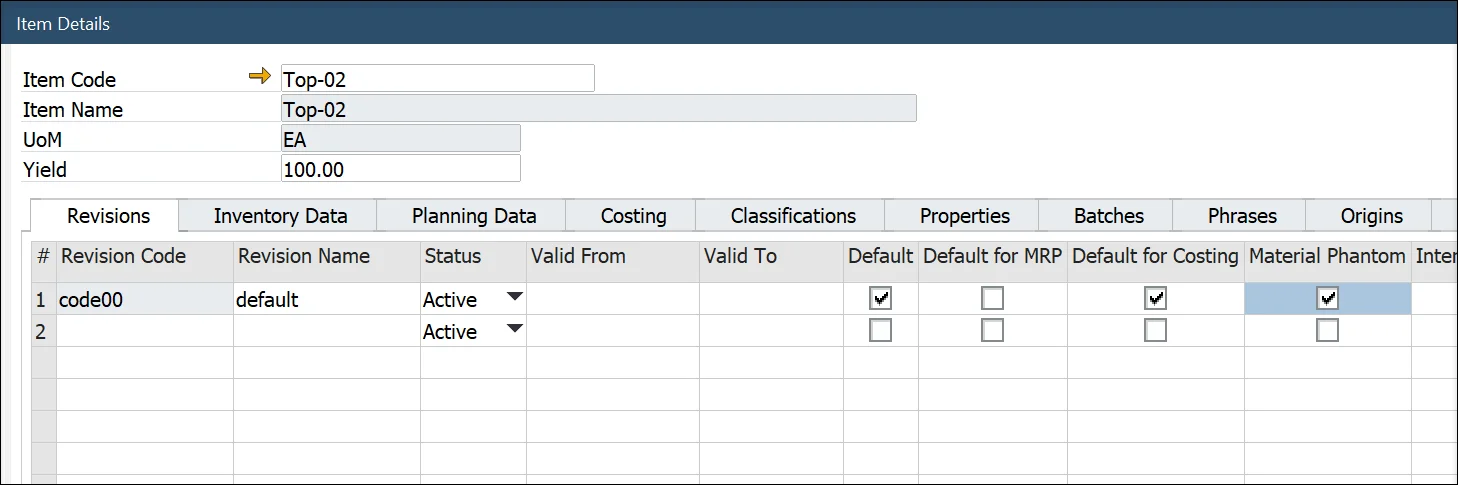
Enable Material Phantom for the revision.
Usage
- Add the Material Phantom to an MO.
- Right-click to explode it into components.
- If not exploded, the system prompts:
“There are phantoms. All phantoms will expand automatically. Do you want to continue?” - The MO cannot be finalized until all phantoms are expanded.
If an item needs both behaviors—regular stock item and Material Phantom—create two revisions:
- One without the Material Phantom setting (standard inventory).
- One with the Material Phantom setting (expandable BOM).
Explanation (Why)
- Phantom Items simplify production by embedding child BOMs directly into parent orders.
- Material Phantoms combine the benefits of phantom explosion with the flexibility of stocking and selling.
- Bind Phantom Header Qty guarantees consistent scaling of BOM quantities, reducing manual adjustments.
➡️ Click here to see related videos.