You are currently viewing documentation for CompuTec ProcessForce 3.0, which is a plugin installed and managed through CompuTec AppEngine 3.0, built on .NET 8. If you are working with older environments, you may need the documentation for CompuTec ProcessForce 2.0: https://learn.computec.one/docs/processforce/2.0/.
Please note that CompuTec ProcessForce 2.0 will be supported only until December 31, 2026. After this date, the product will no longer receive regular support or maintenance updates. Read more
CompuTec AppEngine 3.0 introduces a new architecture, and all CompuTec components, including the CompuTec ProcessForce 3.0 plugin, must be updated together to ensure full compatibility.
Before starting your installation or upgrade process, we strongly recommend reviewing the CompuTec AppEngine 3.0 and CompuTec ProcessForce 3.0 documentation.
Batch Queue Function
CompuTec ProcessForce proposes component batches in a fixed order: FIFO, FEFO, or FMFO. The Batch queue function setting lets you replace that order with your own rule. You write a table function in the company database and enter its name in the Batch queue function field. Batches that the function ranks move to the front of the queue. All other batches keep the configured order.
If you leave the field empty, nothing changes.
This guide explains what the function changes, and then takes you through the complete setup with an example function, My_Prefix_FinishStartedBatchFirst. The example applies this rule: if a component batch is already issued to a manufacturing order, by a Pick Order or by backflush, and still has stock in the warehouse, CompuTec ProcessForce proposes that batch first. Otherwise, the normal FEFO order applies.
The setup consists of four steps:
- Create the function in the company database: Adds the function to SAP HANA or Microsoft SQL Server.
- Test the function: Checks that the function returns the expected batch.
- Enter the function name in CompuTec ProcessForce: Activates the function for the company, an item group, or an item.
- Verify the setup: Checks the batch order on a Pick Order and on a backflush.
What can you do with this feature?
With the Batch queue function, you can:
- finish a batch that is already in use on a manufacturing order before CompuTec ProcessForce proposes another batch, even when a newer batch has an earlier expiry date,
- apply a different batch rule to the whole company, to one item group, or to one item,
- switch the rule off at any time by clearing the field.
What the function changes
The function only decides the order of batches. It cannot make a batch available that CompuTec ProcessForce would not offer anyway. It also does not decide quantities.
The function controls:
- the order of batches in the Pick Order batch selector,
- which batches Auto-Select takes first,
- which batches backflush (Pick Receipt) consumes first.
CompuTec ProcessForce still controls:
- batch status filtering (released, not accessible, locked),
- the revision filter,
- the available quantity, including the reduction by open allocations,
- bin restrictions and the bin order inside a batch,
- how much is taken from each batch.
A batch that the function does not mention is not removed from the queue. It moves behind the ranked batches and keeps the configured order (for example, FEFO) among the other batches. When the ranked batches run out of stock, the configured order takes over completely.
The following table shows the example rule with and without the function:
| Situation | Without a function (FEFO) | With the function |
|---|---|---|
| Batch A is open on the order. Batch B arrives with an earlier expiry date. | Batch B moves ahead, and batch A stays partly used. | Batch A stays first. The rank is more important than the date. |
| Batch C arrives with the same expiry date as batch A. | The internal numbering decides, often against batch A. | Batch A stays first. CompuTec ProcessForce never compares the dates. |
| Batch A has 500 pieces left. The line needs 2,000 pieces. | – | CompuTec ProcessForce takes 500 from batch A and the remaining 1,500 from the next batch in FEFO order. |
| Batch A reaches zero stock. | – | The rank ends with the stock, so the queue is plain FEFO again. |
The example function ranks batches for manufacturing orders only. For Plant Maintenance maintenance orders, CompuTec ProcessForce keeps the configured order.
Before you start
Before you begin, make sure that:
- CompuTec ProcessForce is installed and licensed for the company. Read more
- You can log in to the company database with permission to create functions, or a database administrator can create the function for you.
- You have a test company. We recommend creating and testing the function there before you use it in production.
The function belongs to your company, not to CompuTec ProcessForce.
CompuTec ProcessForce does not install, upgrade, or back up the function. The product database scripts deliberately exclude it, so a CompuTec ProcessForce upgrade never overwrites your version. Store the function source with your other customizations. Check the function again after a database migration or after you copy the company to a test company.
Requirements for the function
CompuTec ProcessForce only calls the function. It never creates or updates it. Create the function in the company database with exactly the signature used in this guide. It must return a table with the two columns Batch and SortEntry.
The function receives these parameters:
ItemCode- The component item.Revision- The revision in play.Emptywhen no revision is used.WhsCode- The source warehouse.BinCode- Reserved. AlwaysNULLtoday.BaseDocEntry- TheDocEntryof the base document.0when there is none.BaseLineNum- The line of the base document.0when unknown.BaseDocType-CT_PF_ManufacOrdfor a manufacturing order orCT_PF_MainOrderfor a Plant Maintenance maintenance order.PorDocEntry- TheDocEntryof the Pick Order.0for backflush.
The function returns these values:
Batch- The batch number, as in the batch master data. CompuTec ProcessForce ignores a value that the company does not know.SortEntry- The rank. A lower number means earlier in the queue. The numbers do not need to be consecutive. If the function returns a batch twice, the lowest rank counts.No row for a batch- No opinion. The batch keeps the configured queue and moves behind the ranked batches.No rows at all- The queue stays exactly as it is without the function.
Follow these rules when you write the function:
- Your own prefix: Start the function name with your own prefix, for example
My_Prefix_. Never useCT_PF. A function with aCT_PFname can be overwritten unexpectedly by a CompuTec ProcessForce upgrade. - Inline and read-only: On Microsoft SQL Server, use a single
RETURN SELECTstatement withoutBEGIN…END. On SAP HANA, use aTABLE FUNCTION. The function must not write data or cause side effects. - Fast: CompuTec ProcessForce runs the function while it processes a document, once for each component line. A slow function slows down the whole document. In the worst case, the document times out.
- Plain name: Use only letters, digits, and underscores. The name must start with a letter or an underscore, and it can have up to 128 characters. CompuTec ProcessForce refuses any other name.
- No quotes around the name on SAP HANA: Create the function without quotes around its name. If you use quotes, HANA keeps the mixed-case name and CompuTec ProcessForce reports that the function does not exist. Keep the quotes around the result columns
"Batch"and"SortEntry". - Check the document type: The two document types number their documents independently, so
BaseDocEntryalone is ambiguous. Always testBaseDocType. Return no rows for the document types that your rule does not cover. - Language of your database platform: Create the function according to the language rules of your database platform: T-SQL for Microsoft SQL Server and SQLScript for SAP HANA.
Step 1: Create the function in the company database
In this step, you create the function in the company database. The examples use the demo company schema PFDEMOGB. Replace it with the schema or database name of your company.
Open an SQL console for your company
To open an SQL console for your company, follow these steps:
- SAP HANA
- Microsoft SQL Server
-
Open SAP HANA Studio.
-
In the Systems view, expand your system, for example
DEV@DEV (SYSTEM). -
Expand Catalog.
-
Right-click the schema of your company, for example
PFDEMOGB, and select Open SQL Console.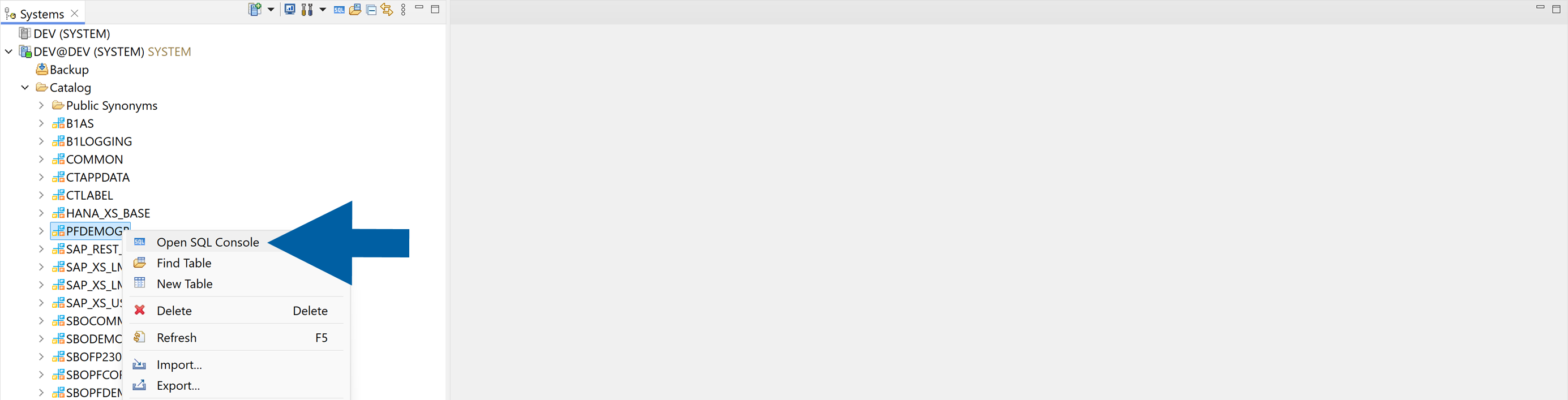
-
Check the title of the console. It must show your company schema, for example Current Schema: PFDEMOGB. If you are not sure that this is the schema of your company, see the following note.
-
Done! The SQL console is open and uses your company schema.
Create the function in the schema of the company that you log in to in SAP Business One. CompuTec ProcessForce does not find a function in another schema. To check which schema belongs to your company, run the following query. Replace <SCHEMA> with the schema name from the Catalog list. The result must show the name of your company.
SELECT "CompnyName" FROM <SCHEMA>.OADM;
- Open Microsoft SQL Server Management Studio.
- Log in to your database server.
- In Object Explorer, expand Databases.
- Right-click the database of your company, and select New Query.
- Check the database selector above the query window. It must show your company database, not
master. - Done! The query window is open and uses your company database.
Create the function
To create the function, follow these steps:
- SAP HANA
- Microsoft SQL Server
-
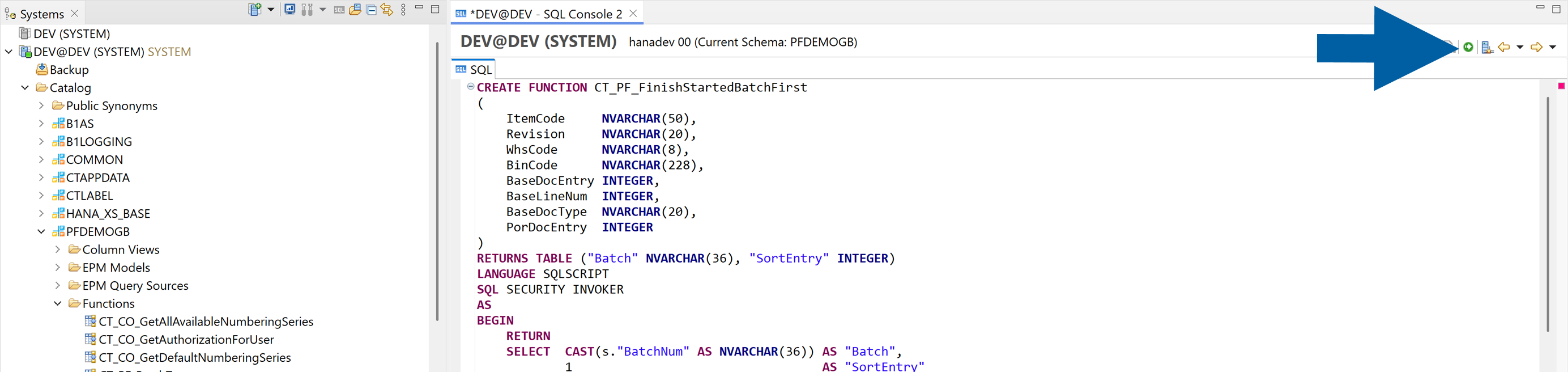
In the SQL console, paste the following script. Do not put quotes around the function name. HANA then stores the name in upper case, and CompuTec ProcessForce finds it.
CREATE FUNCTION My_Prefix_FinishStartedBatchFirst(ItemCode NVARCHAR(50),Revision NVARCHAR(20),WhsCode NVARCHAR(8),BinCode NVARCHAR(228),BaseDocEntry INTEGER,BaseLineNum INTEGER,BaseDocType NVARCHAR(20),PorDocEntry INTEGER)RETURNS TABLE ("Batch" NVARCHAR(36), "SortEntry" INTEGER)LANGUAGE SQLSCRIPTSQL SECURITY INVOKERASBEGINRETURNSELECT CAST(s."BatchNum" AS NVARCHAR(36)) AS "Batch",1 AS "SortEntry"FROM "OIBT" sWHERE :BaseDocType = 'CT_PF_ManufacOrd'AND :BaseDocEntry > 0AND s."ItemCode" = :ItemCodeAND s."WhsCode" = :WhsCodeAND s."Quantity" > 0AND s."BatchNum" IN(-- issued through a Pick OrderSELECT b."U_BatchNo"FROM "@CT_PF_POR1" lJOIN "@CT_PF_POR2" bON b."DocEntry" = l."DocEntry"AND b."U_LineNum" = l."U_LineNum"WHERE l."U_BaseType" = '999000001'AND l."U_BaseEntry" = :BaseDocEntryAND l."U_ItemCode" = :ItemCodeAND l."U_SrcWhsCode" = :WhsCodeAND b."U_Issued" = 'Y'AND b."U_Quantity" > 0UNION-- issued by backflush on a Pick ReceiptSELECT ib."BatchNum"FROM "IBT1" ibJOIN "IGE1" gON ib."BaseType" = 60AND ib."BaseEntry" = g."DocEntry"AND ib."BaseLinNum" = g."LineNum"JOIN "@CT_PF_PRE1" pON p."DocEntry" = g."U_PickEntry"WHERE g."U_PickType" = 'CT_PF_PickReceipt'AND p."U_BaseType" = '999000001'AND p."U_BaseEntry" = :BaseDocEntryAND ib."ItemCode" = :ItemCodeAND ib."WhsCode" = :WhsCodeAND ib."Direction" = 1AND ib."Quantity" > 0);END; -
Run the script.
-
In the Systems view, expand your schema and right-click Functions. Select Refresh.
-
Check that the function appears under Functions. HANA shows the name in upper case:
MY_PREFIX_FINISHSTARTEDBATCHFIRST. -
Done! The function exists in the company schema.
-
In the query window, paste the following script:
CREATE FUNCTION My_Prefix_FinishStartedBatchFirst(@ItemCode NVARCHAR(50),@Revision NVARCHAR(20),@WhsCode NVARCHAR(8),@BinCode NVARCHAR(228),@BaseDocEntry INT,@BaseLineNum INT,@BaseDocType NVARCHAR(20),@PorDocEntry INT)RETURNS TABLEAS RETURNSELECT CAST(s.BatchNum AS NVARCHAR(36)) AS "Batch",CAST(1 AS INT) AS "SortEntry"FROM OIBT sWHERE @BaseDocType = 'CT_PF_ManufacOrd'AND @BaseDocEntry > 0AND s.ItemCode = @ItemCodeAND s.WhsCode = @WhsCodeAND s.Quantity > 0AND s.BatchNum IN(-- issued through a Pick OrderSELECT b.U_BatchNoFROM "@CT_PF_POR1" lJOIN "@CT_PF_POR2" bON b.DocEntry = l.DocEntry AND b.U_LineNum = l.U_LineNumWHERE l.U_BaseType = '999000001'AND l.U_BaseEntry = @BaseDocEntryAND l.U_ItemCode = @ItemCodeAND l.U_SrcWhsCode = @WhsCodeAND b.U_Issued = 'Y'AND b.U_Quantity > 0UNION-- issued by backflush on a Pick ReceiptSELECT ib.BatchNumFROM IBT1 ibJOIN IGE1 gON ib.BaseType = 60 AND ib.BaseEntry = g.DocEntry AND ib.BaseLinNum = g.LineNumJOIN "@CT_PF_PRE1" pON p.DocEntry = g.U_PickEntryWHERE g.U_PickType = 'CT_PF_PickReceipt'AND p.U_BaseType = '999000001'AND p.U_BaseEntry = @BaseDocEntryAND ib.ItemCode = @ItemCodeAND ib.WhsCode = @WhsCodeAND ib.Direction = 1AND ib.Quantity > 0); -
Press F5 to run the script.
-
In Object Explorer, expand your database, then Programmability > Functions > Table-valued Functions. Refresh the list.
-
Check that
My_Prefix_FinishStartedBatchFirstappears in the list. -
Done! The function exists in the company database.
The company database user executes the function. Make sure that the privileges of this user do not restrict the execution of functions.
Change the function later
To change the function after you created it, follow these steps:
- SAP HANA
- Microsoft SQL Server
- In the SQL console, run
DROP FUNCTION My_Prefix_FinishStartedBatchFirst;. - Run the changed
CREATE FUNCTIONscript.
- In the query window, replace
CREATE FUNCTIONwithALTER FUNCTIONin the script. - Run the changed script.
Write your own rule
To write your own rule, start from the empty template for your database platform. Return a Batch and a SortEntry for each batch that you want to rank. Return no row for the other batches.
- SAP HANA
- Microsoft SQL Server
CREATE FUNCTION My_Prefix_BatchOrder
(
    ItemCode     NVARCHAR(50),   -- component item
    Revision     NVARCHAR(20),   -- revision in play, '' when not used
    WhsCode      NVARCHAR(8),    -- source warehouse
    BinCode      NVARCHAR(228),  -- reserved, always NULL today
    BaseDocEntry INTEGER,        -- base document DocEntry, 0 when there is none
    BaseLineNum  INTEGER,        -- line of the base document, 0 when unknown
    BaseDocType  NVARCHAR(20),   -- 'CT_PF_ManufacOrd' or 'CT_PF_MainOrder'
    PorDocEntry  INTEGER         -- Pick Order DocEntry, 0 for backflush
)
RETURNS TABLE ("Batch" NVARCHAR(36), "SortEntry" INTEGER)
LANGUAGE SQLSCRIPT
SQL SECURITY INVOKER
AS
BEGIN
    RETURN
    SELECT  CAST(NULL AS NVARCHAR(36)) AS "Batch",      -- must match OBTN.DistNumber
            CAST(NULL AS INTEGER)      AS "SortEntry"   -- lower value = earlier in the queue
    FROM    DUMMY
    WHERE   1 = 0;                                      -- replace with your rule
END;
CREATE FUNCTION My_Prefix_BatchOrder
(
    @ItemCode     NVARCHAR(50),   -- component item
    @Revision     NVARCHAR(20),   -- revision in play, '' when not used
    @WhsCode      NVARCHAR(8),    -- source warehouse
    @BinCode      NVARCHAR(228),  -- reserved, always NULL today
    @BaseDocEntry INT,            -- base document DocEntry, 0 when there is none
    @BaseLineNum  INT,            -- line of the base document, 0 when unknown
    @BaseDocType  NVARCHAR(20),   -- 'CT_PF_ManufacOrd' or 'CT_PF_MainOrder'
    @PorDocEntry  INT             -- Pick Order DocEntry, 0 for backflush
)
RETURNS TABLE
AS RETURN
    SELECT  CAST(NULL AS NVARCHAR(36)) AS "Batch",      -- must match OBTN.DistNumber
            CAST(NULL AS INT)          AS "SortEntry"   -- lower value = earlier in the queue
    WHERE   1 = 0                                       -- replace with your rule
Step 2: Test the function
Test the function with a manufacturing order that already has an issued batch.
To test the function, follow these steps:
- Find a manufacturing order that has a component with an issued batch. Note the manufacturing order
DocEntry, the component item code, and the source warehouse. - Run the following query for your database platform. Replace the values with your own values. The example uses the manufacturing order
17, the itemActive-Item-02, and the warehouse01from the demo company.
- SAP HANA
- Microsoft SQL Server
SELECT * FROM My_Prefix_FinishStartedBatchFirst
    ('Active-Item-02', '', '01', NULL, 17, 0, 'CT_PF_ManufacOrd', 0);
SELECT * FROM dbo.My_Prefix_FinishStartedBatchFirst
    (N'Active-Item-02', N'', N'01', NULL, 17, 0, N'CT_PF_ManufacOrd', 0);
Check the result:
- A batch that is already issued on the order and still has stock is returned with
SortEntry1. In the example, the result is the batch2012-04-18-3. - A component without a started batch returns no rows. In this case, CompuTec ProcessForce uses the configured order, for example FEFO.
Done! The function returns the expected batch.
If the query returns an error, do not enter the function name in CompuTec ProcessForce yet. Fix the error first. If the query returns no rows for an order that has a started batch, check that the order, item, and warehouse values are correct.
Step 3: Enter the function name in CompuTec ProcessForce
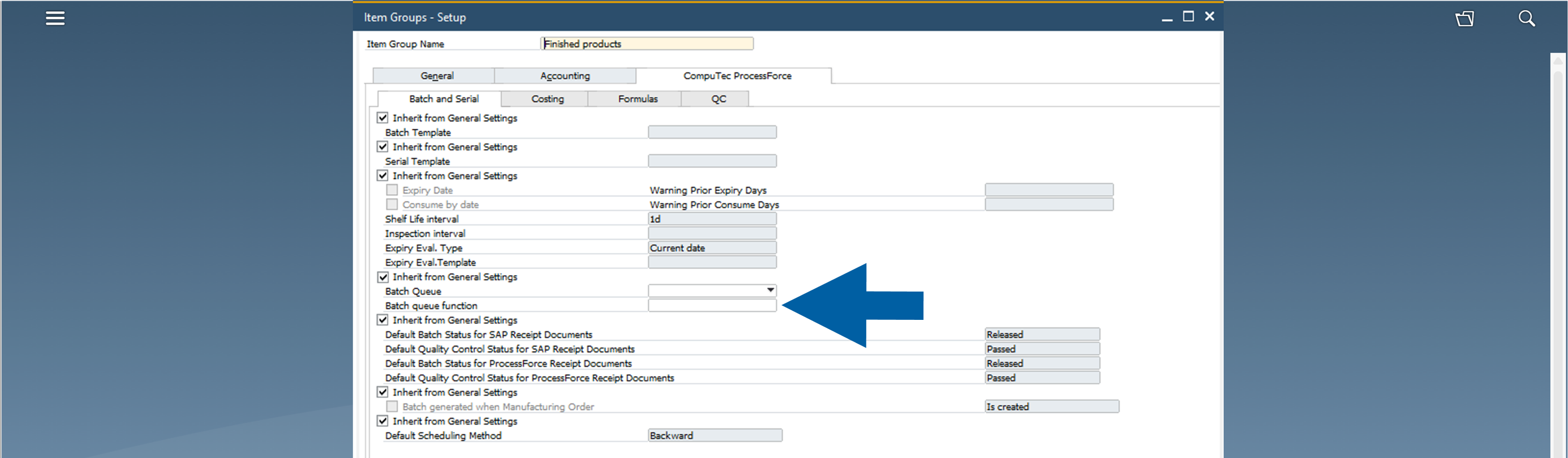
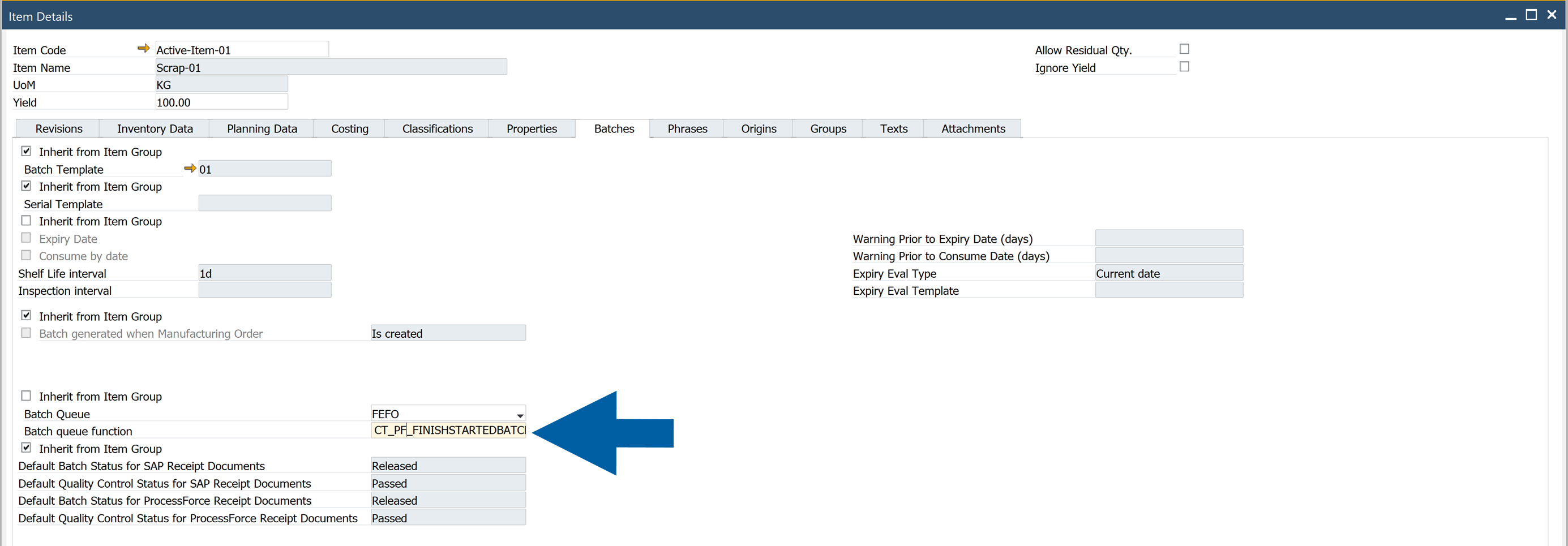
Enter the function name in the Batch queue function field. The field is directly under Batch Queue Type on three forms. You can set it for the whole company, for an item group, or for a single item.
CompuTec ProcessForce checks the function when you save the field. If the function does not exist or does not return the Batch and SortEntry columns, a red message appears in the status bar and CompuTec ProcessForce does not accept the name. See Troubleshoot the function.
Set the function for the whole company
To set a company-wide function, follow these steps:
-
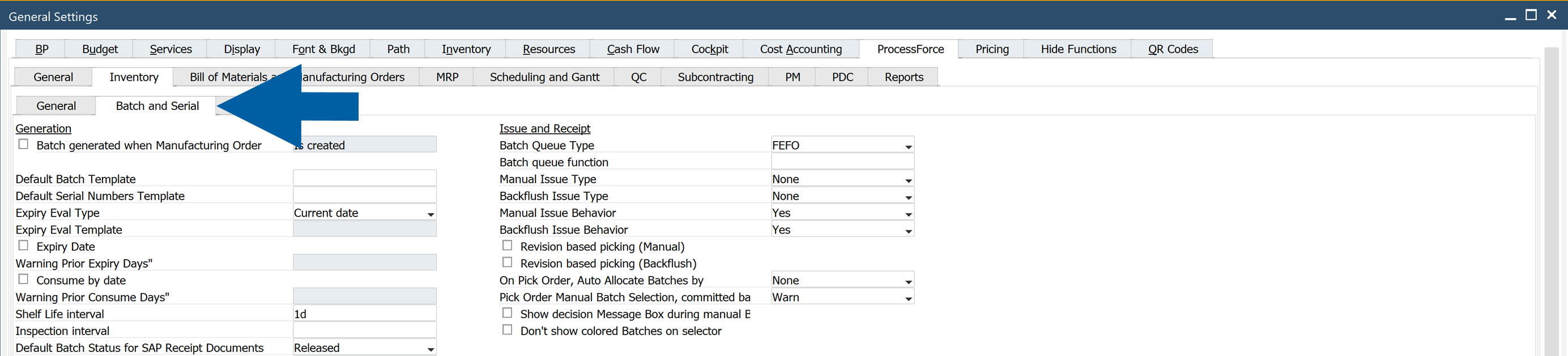
In SAP Business One, go to Administration > System Initialization > General Settings.
-
Select the ProcessForce tab, then the Inventory tab, and then the Batch and Serial tab.
-
In the Issue and Receipt group, go to Batch queue function.
-
Enter the function name, for example
My_Prefix_FinishStartedBatchFirst.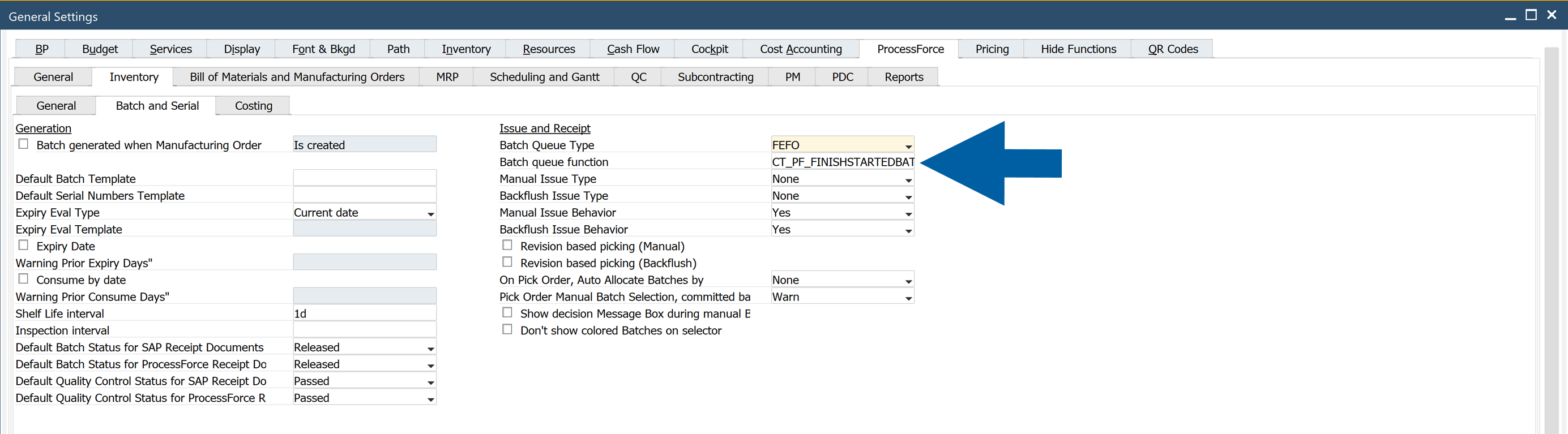
-
Click Update.
-
Done! The function applies to all items that do not have their own function.
Set the function for an item group
To set a function for an item group, follow these steps:
-
Go to Administration > Setup > Inventory > Item Groups.
-
Select the item group.
-
Select the CompuTec ProcessForce tab, and then the Batch and Serial tab.
-
Clear the Inherit from General Settings check box that is above Batch Queue Type.
-
In Batch queue function, enter the function name.
-
Click Update.
-
Done! The function applies to all items in this group that do not have their own function.
Set the function for an item
To set a function for one item, follow these steps:
-
Open the item in Item Master Data.
-
Go to ProcessForce > Item Details, and then select the Batches tab.
-
Clear the Inherit from Item Group check box that is above Batch Queue Type.
-
In Batch queue function, enter the function name.
-
Click Update.
-
Done! The function applies to this item only.
On Item Groups and Item Details, both Batch Queue Type and Batch queue function are under one Inherit from… check box. When you clear the check box, Batch Queue Type also stops inheriting its value. Set the batch queue type you want at that level as well.
How CompuTec ProcessForce selects the function
The three levels work as a ladder. An empty Batch queue function field means that CompuTec ProcessForce uses the level above. The function has no separate Inherit check box. The value itself decides.
| Order | Level | CompuTec ProcessForce uses it when |
|---|---|---|
| 1 | Item Details (the item) | The field has a value. This level always wins. |
| 2 | Item Groups | The field has a value and Item Details is empty. |
| 3 | General Settings | The field has a value and both levels above are empty. |
| – | All three levels empty | Batches follow FIFO, FEFO, or FMFO, as they did before. |
When you select Inherit from… on Item Details or Item Groups, CompuTec ProcessForce removes the function name at that level. The level stops having its own function, and the ladder moves up. Click Update to save the change. General Settings is the top level and has no check box. To clear the field there, delete the text.
Step 4: Verify the setup
To verify that CompuTec ProcessForce uses the function, follow these steps:
- Create a Pick Order for a manufacturing order that has a started batch of the component.
- Open the batch selector and check that the started batch is first in the list.
- Click Auto-Select and check that the started batch is allocated first.
- If the started batch has less stock than the line needs, check that CompuTec ProcessForce takes the remaining quantity from the next batch in FEFO order.
- Post a Pick Receipt for the same component and check that backflush consumes the batches in the same order.
- Clear the Batch queue function field, or select Inherit from…, and check that the previous order returns.
- Done! The function works as expected.
Troubleshoot the function
A problem with the function never blocks a document. CompuTec ProcessForce uses the configured queue and writes a warning that names the function to the log. When you save the field, CompuTec ProcessForce also checks the function and shows a red message if the check fails. After that, the log is the first place to look.
| What you see | Likely cause | What to do |
|---|---|---|
| A red message says the function does not exist when you save the field. | On SAP HANA, the function was created with quotes around its name. Or the function is in another schema than the company you are logged in to, or it does not return Batch and SortEntry. | Drop the function and create it again without quotes around its name, in the schema of your company. Check the column names. Run the test query from Step 2 to find an error in the function. |
| The order is unchanged for every item. | The field is empty on all three levels, the name is not a plain identifier, or the function does not exist in the company database. | Check the three levels. Check the log for a line that names the function. |
| The order is unchanged although the function exists. | The function does not return the columns Batch and SortEntry, it is in another schema, or the database user cannot run it. | Correct the column names or the schema. Check that the privileges of the company database user do not restrict the execution of functions. |
| Only some items follow the rule. | A lower level has a different function name. | On the level that must inherit the value, select Inherit from… or delete the text. Then click Update. |
| A ranked batch is not offered. | CompuTec ProcessForce filtered it out because of batch status, revision, zero available quantity, open allocations, or bin restrictions. | Check the batch itself. A function ranks batches. It cannot bring back a batch that CompuTec ProcessForce filtered out. |
| The rule stops applying after a while. | The ranked batch has no stock left. | No action is needed. The configured queue takes over. |
| Documents are noticeably slower. | The function is too heavy for a document. | Simplify the function, or clear the field to switch it off immediately. |
Before you go live
Make sure that:
- The function exists in the schema or database of the production company, is inline and read-only, and returns
BatchandSortEntry. - The function tests
BaseDocTypeand returns no rows for the document types that the rule does not cover. - The name is entered at the correct level: company, item group, or item.
- A Pick Order shows the expected order, and Auto-Select allocates in that order.
- A backflush (Pick Receipt) consumes in that order.
- Clearing the field, or selecting Inherit from…, restores the previous behavior.
- The function source is stored with your other customizations, so you can create it again after a migration.