You are currently viewing documentation for CompuTec ProcessForce 3.0, which is a plugin installed and managed through CompuTec AppEngine 3.0, built on .NET 8. If you are working with older environments, you may need the documentation for CompuTec ProcessForce 2.0: https://learn.computec.one/docs/processforce/2.0/.
Please note that CompuTec ProcessForce 2.0 will be supported only until December 31, 2026. After this date, the product will no longer receive regular support or maintenance updates. Read more
CompuTec AppEngine 3.0 introduces a new architecture, and all CompuTec components, including the CompuTec ProcessForce 3.0 plugin, must be updated together to ensure full compatibility.
Before starting your installation or upgrade process, we strongly recommend reviewing the CompuTec AppEngine 3.0 and CompuTec ProcessForce 3.0 documentation.
Configure CompuTec AppEngine for Preventive Maintenance Scheduling
To use Preventive Maintenance Scheduling in CompuTec ProcessForce, you must configure CompuTec AppEngine, install the required plugins, and enable the appropriate background processing jobs.
This guide explains how to:
- Configure the SLD Server.
- Install and activate the required plugins.
- Enable Background Processing for time-based and meter-based preventive maintenance schedules.
Before you start
Before you begin, make sure that:
- You have administrator access to the CompuTec AppEngine Administration Panel.
- CompuTec AppEngine is installed and configured.
- The CompuTec ProcessForce and Plant Maintenance Mobile (MI 360) plugins are available.
- The System Landscape Directory (SLD) is configured correctly.
Set up Preventive Maintenance Scheduling
Step 1: Configure the SLD Server
-
Open the CompuTec AppEngine Administration Panel.
-
Go to Configuration.
-
Enable Background Processing Data for the company.
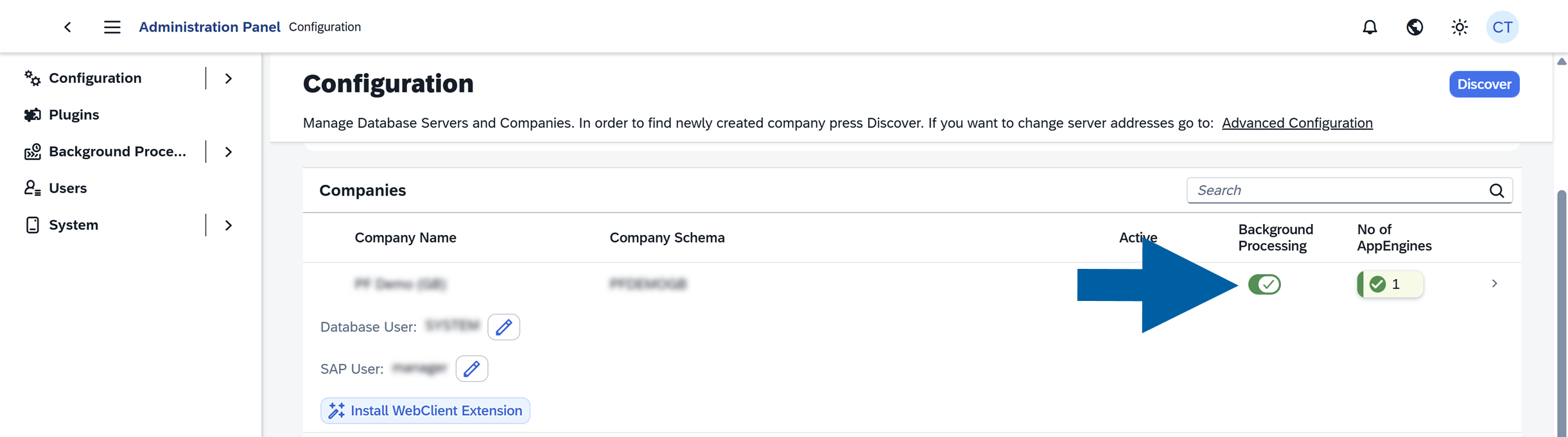 note
noteDuring the initial configuration, you may receive a message indicating that the Post Transaction Notification Procedure must be updated.
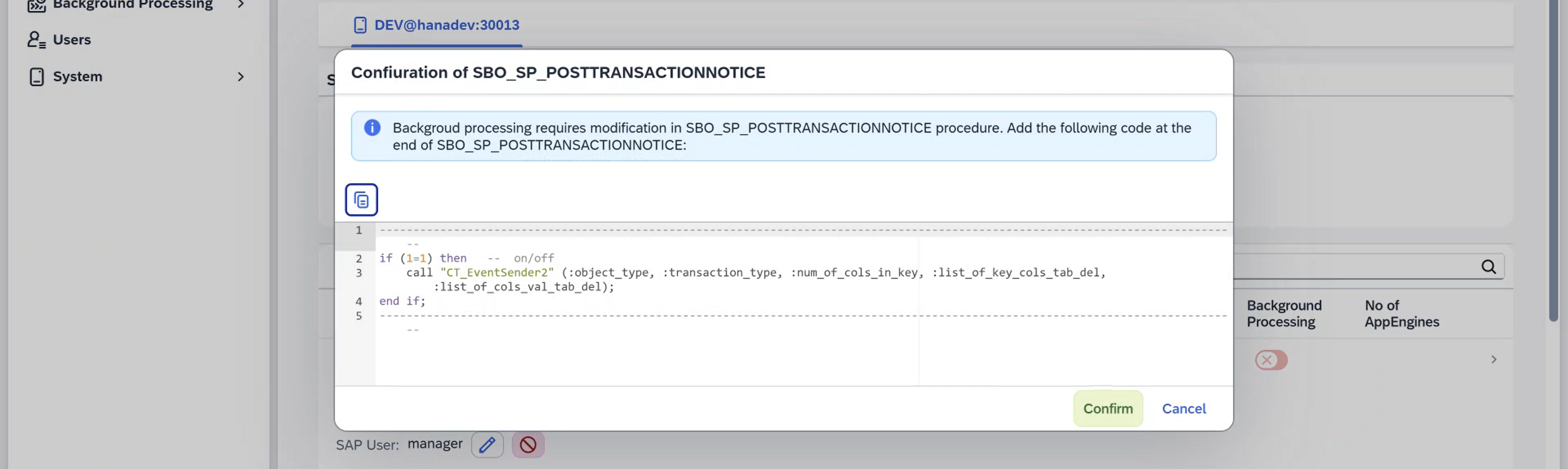
If this happens:
- Update the Post Transaction Notification Procedure as described in our configuration guide.
- Return to the CompuTec AppEngine Administration Panel.
- Click Confirm.
- Enable Background Processing Data again.
Step 2: Install and activate the required plugins
-
In the CompuTec AppEngine Administration Panel, go to Plugins > Store.

-
Install the following plugins:
- CompuTec ProcessForce
- Plant Maintenance Mobile (MI 360)
-
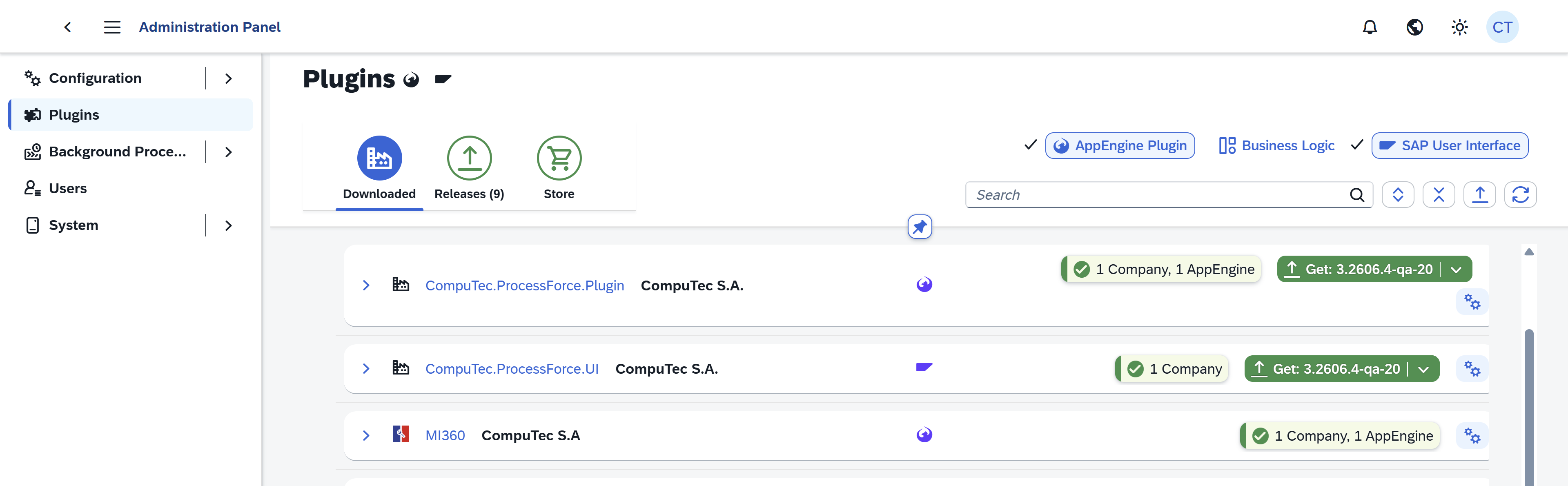
Go to Plugins > Downloaded.
-
Activate both plugins for the company where Preventive Maintenance Scheduling will be used.
Step 3: Configure Background Processing
Depending on the type of preventive maintenance you use, enable the appropriate background jobs.
You can do it in CompuTec AppEngine Administration Panel > Background Processing > Cofiguration.

Time-Based Preventive Maintenance
To enable time-based preventive maintenance schedules, follow these steps:
-
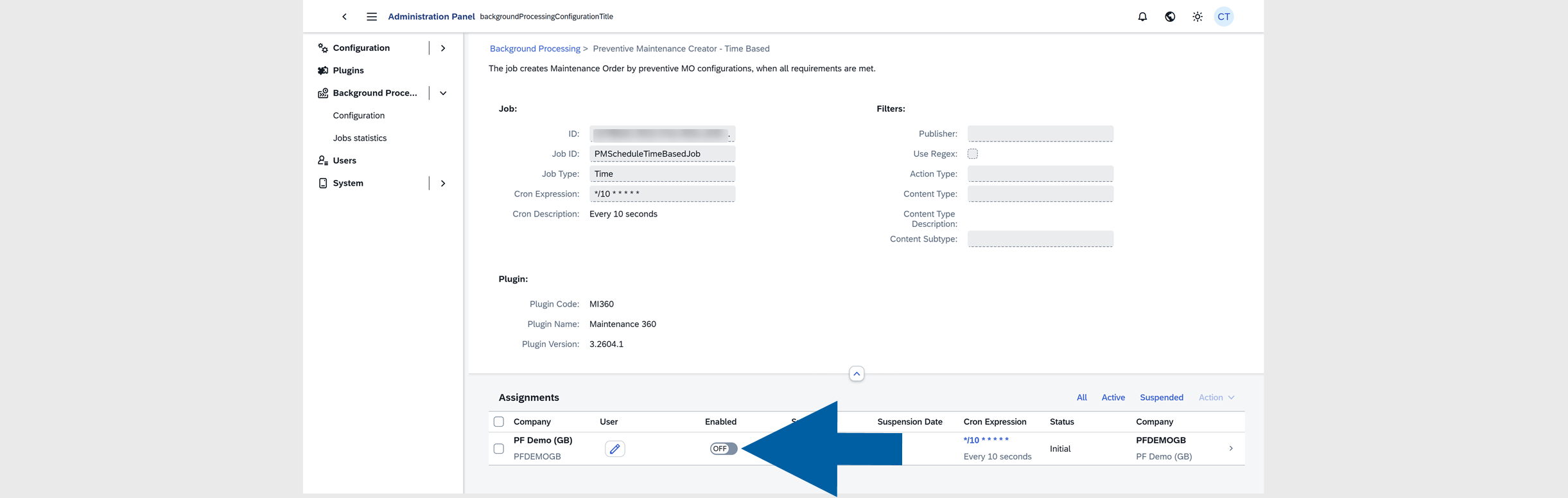
Find PMScheduleTimeBasedJob background processing job on the list and click it.

-
Turn on the Enabled toggle.
-
Click Yes to activate the job.

Meter-Based Preventive Maintenance
To enable meter-based preventive maintenance schedules, follow these steps:
-
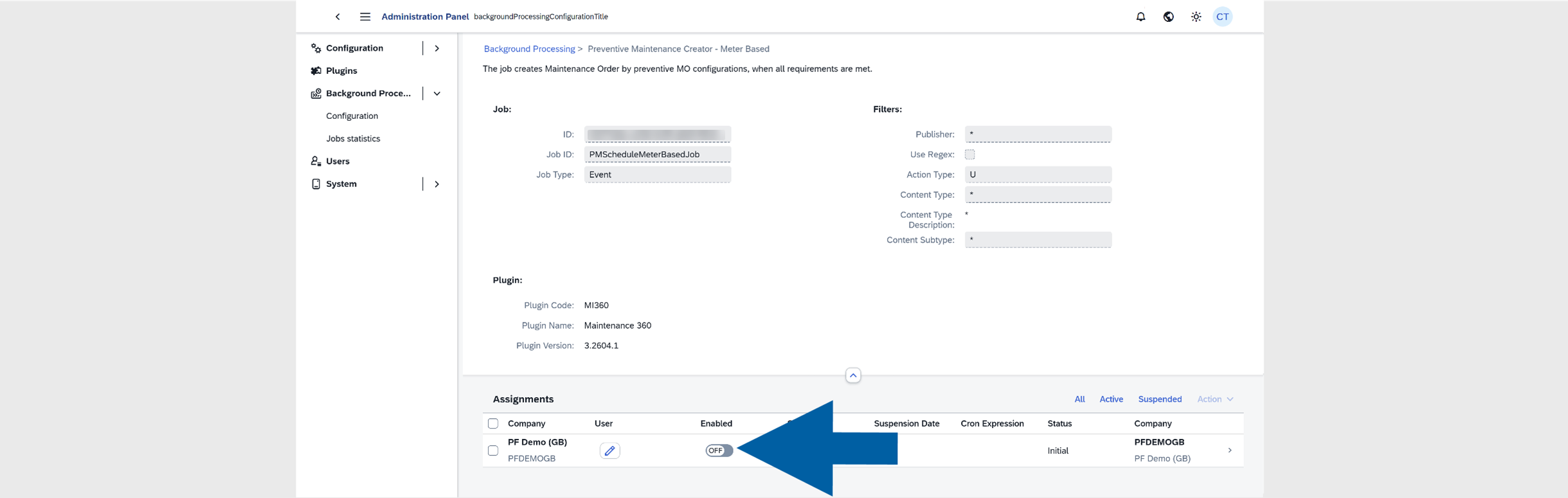
Find PMScheduleMeterBasedJob background processing job on the list and click it.

-
Turn on the Enabled toggle.
-
Click Yes to activate the job.

Combined Time-Based and Meter-Based Preventive Maintenance
If your company uses both scheduling methods, activate:
-
PMScheduleTimeBasedJob
-
PMScheduleMeterBasedJob

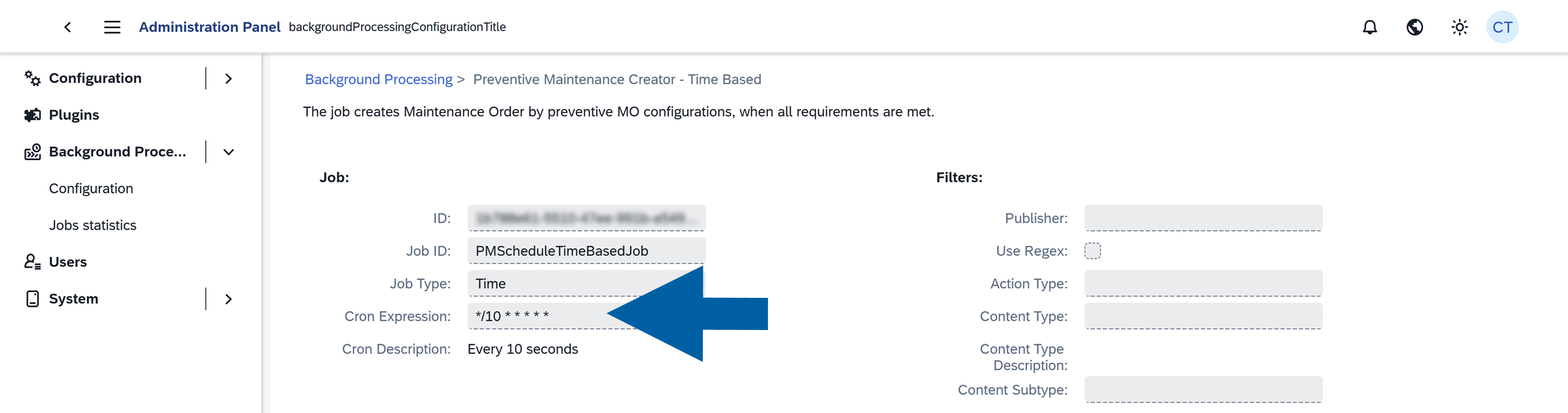
Make sure the Cron Expression for each job is configured according to how often you want preventive maintenance schedules to be processed.
Result
After completing these steps, CompuTec AppEngine is configured to process Preventive Maintenance Schedules.
Maintenance Orders can now be created automatically based on:
- time-based schedules,
- meter-based schedules, or
- both scheduling methods, depending on your configuration.