You are currently viewing documentation for CompuTec ProcessForce 3.0, which is a plugin installed and managed through CompuTec AppEngine 3.0, built on .NET 8. If you are working with older environments, you may need the documentation for CompuTec ProcessForce 2.0: https://learn.computec.one/docs/processforce/2.0/.
Please note that CompuTec ProcessForce 2.0 will be supported only until December 31, 2026. After this date, the product will no longer receive regular support or maintenance updates. Read more
CompuTec AppEngine 3.0 introduces a new architecture, and all CompuTec components, including the CompuTec ProcessForce 3.0 plugin, must be updated together to ensure full compatibility.
Before starting your installation or upgrade process, we strongly recommend reviewing the CompuTec AppEngine 3.0 and CompuTec ProcessForce 3.0 documentation.
Automatic Creation of Quality Control Documents
Efficient Quality Control (QC) processes are essential for maintaining product standards and ensuring compliance. To simplify this, you can automate the creation of QC documents based on predefined conditions.
This feature supports two approaches:
-
Option 1: With frequency control based on Supplier Rating (using Counter Schemes) for Goods Receipt PO (GRPO) only.
-
Option 2: Without frequency control (QC created for every qualifying transaction)
Prerequisites
To enable automatic QC document creation, follow these steps:
-
Log in to SAP Business One.
-
Go to: Administration > System Initialization > General Settings.
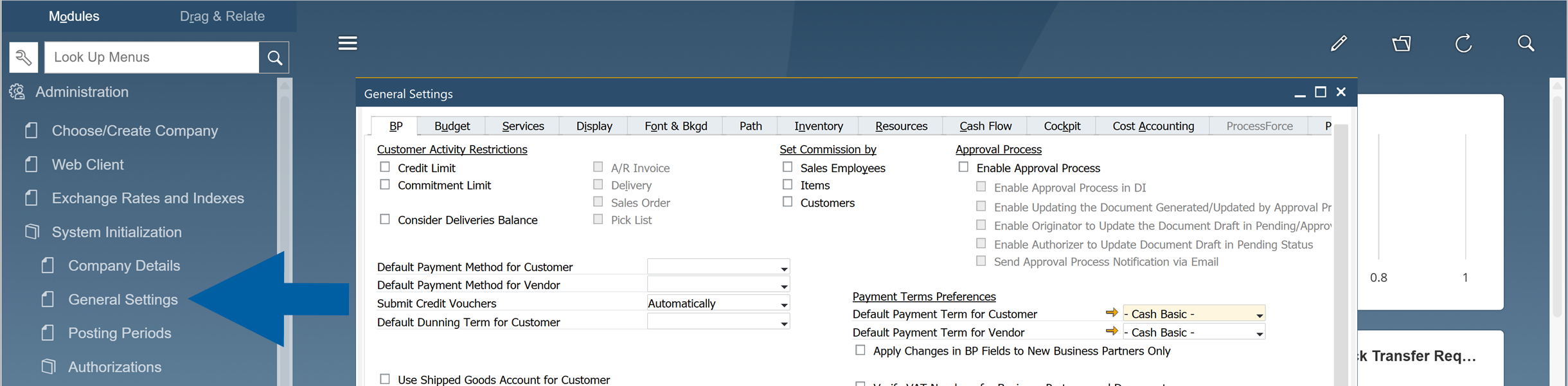
-
Navigate to ProcessForce tab > QC tab.
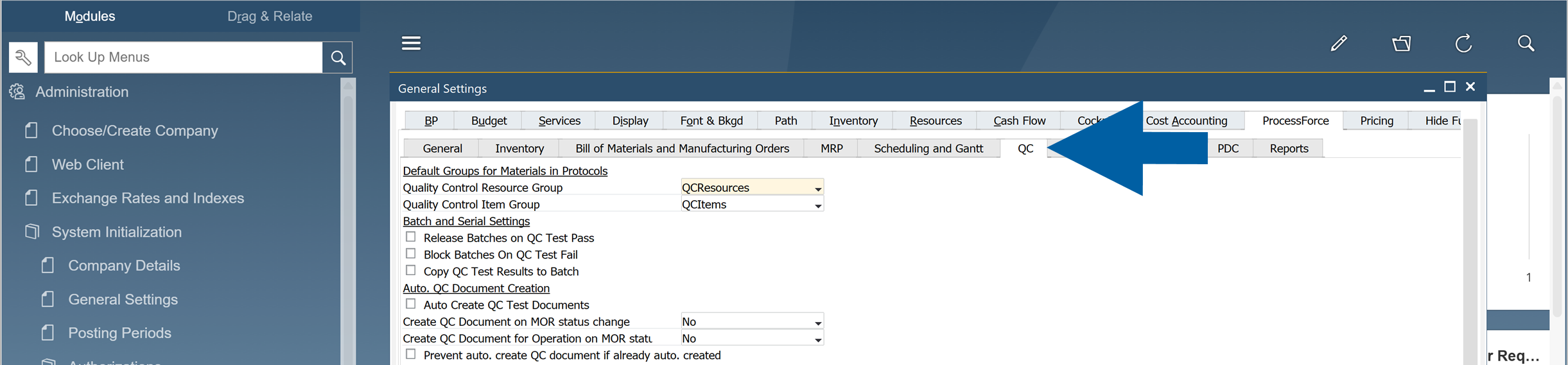
-
Select the option for automatic QC test document creation to enable it.
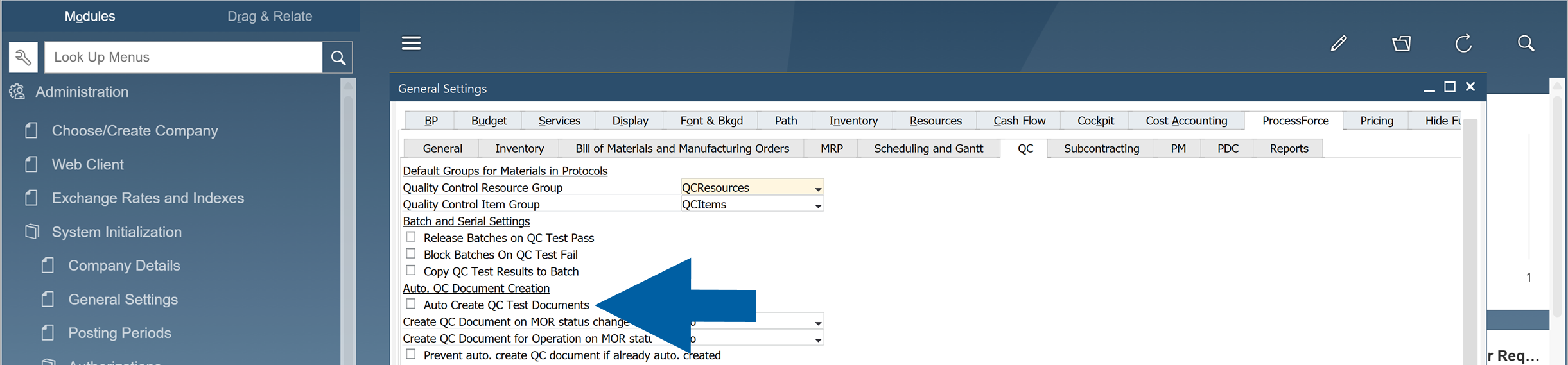
-
Click Update to save the changes.
Configuration Options
Choose one of the following configuration options depending on your business requirements.
Option 1: Enable automatic creation of Quality Control documents with Frequency Control
Use this option when QC documents should be created at defined intervals (for example, every 30 batches), typically based on supplier performance.
To enable automatic creation of Quality Control documents with Frequency Control, follow these steps:
Step 1: Create a Counter Scheme
-
Go to: Administration > Setup > Quality Control > Counter Schemes.
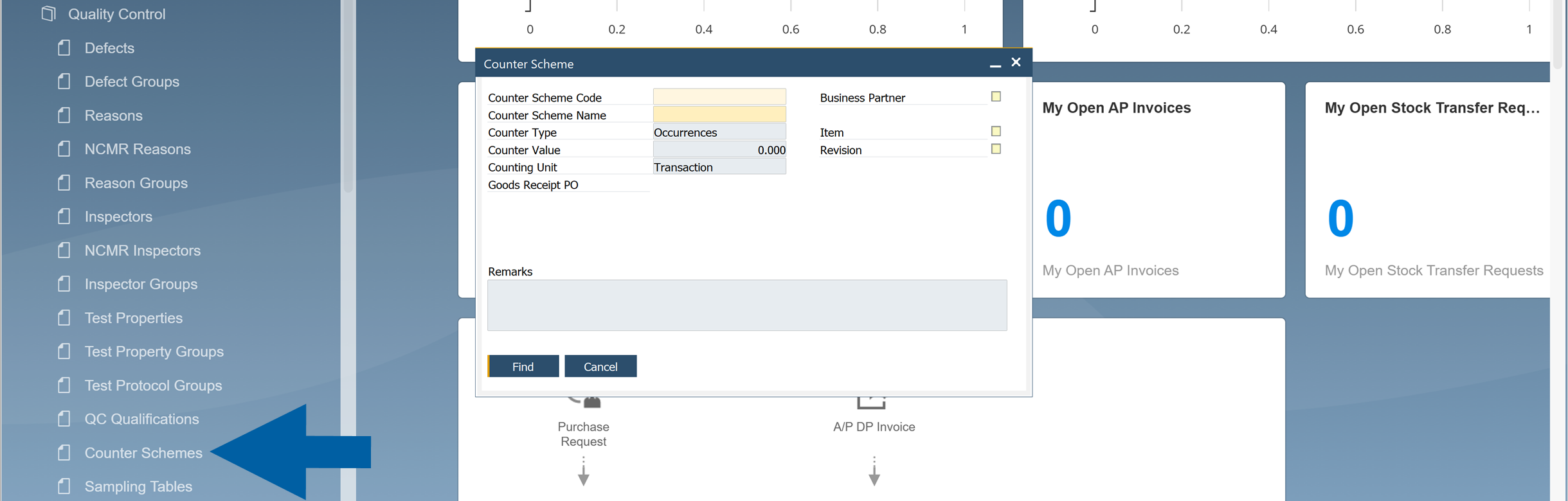
-
Define a Counter Scheme, for example, create a scheme that generates a QC document every 30 batches.
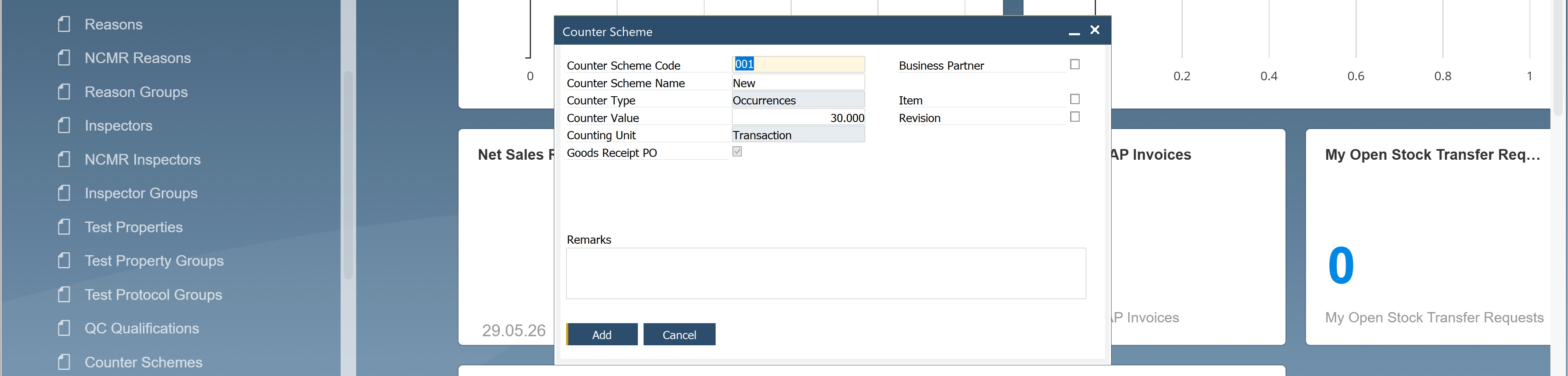
-
Click Add to save the changes.
Step 2: Assign Counter Scheme to Test Protocol
-
In SAP Business One menu, go to Quality Control > Test Protocol.

-
Click the Counter Scheme Code field to select the Counter Scheme.
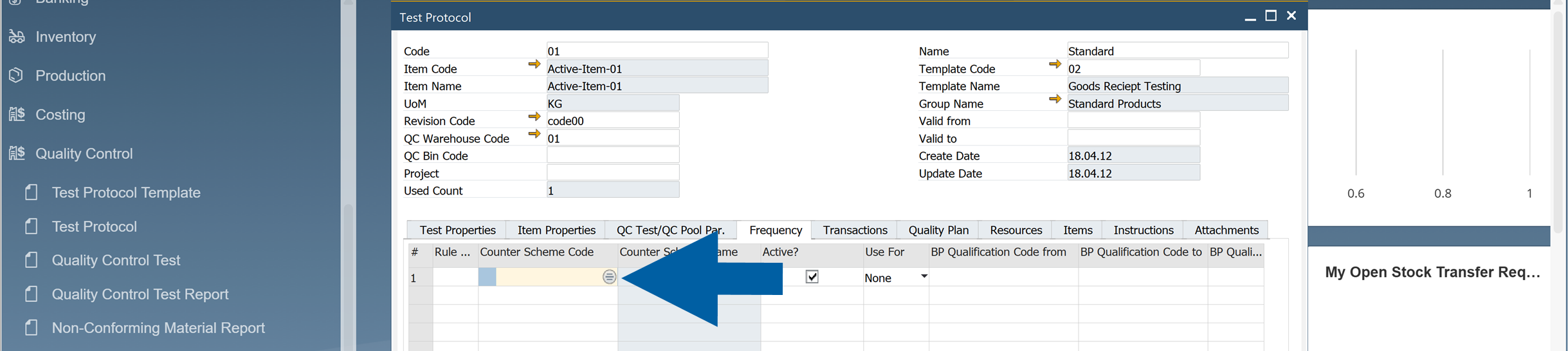
-
Select your counter scheme code and click Choose.
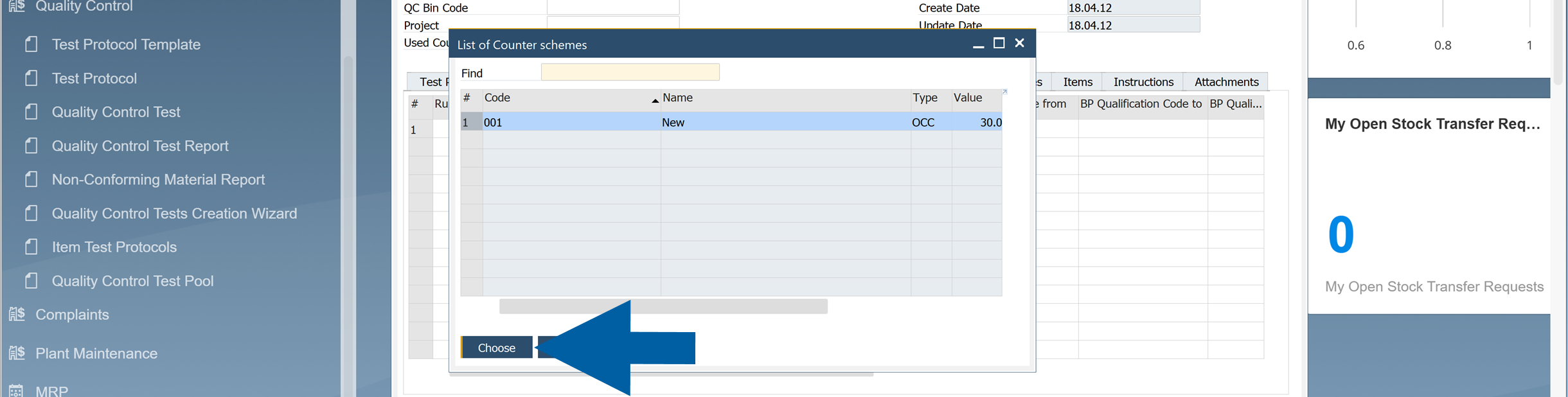
-
Check the Active field to activate it.
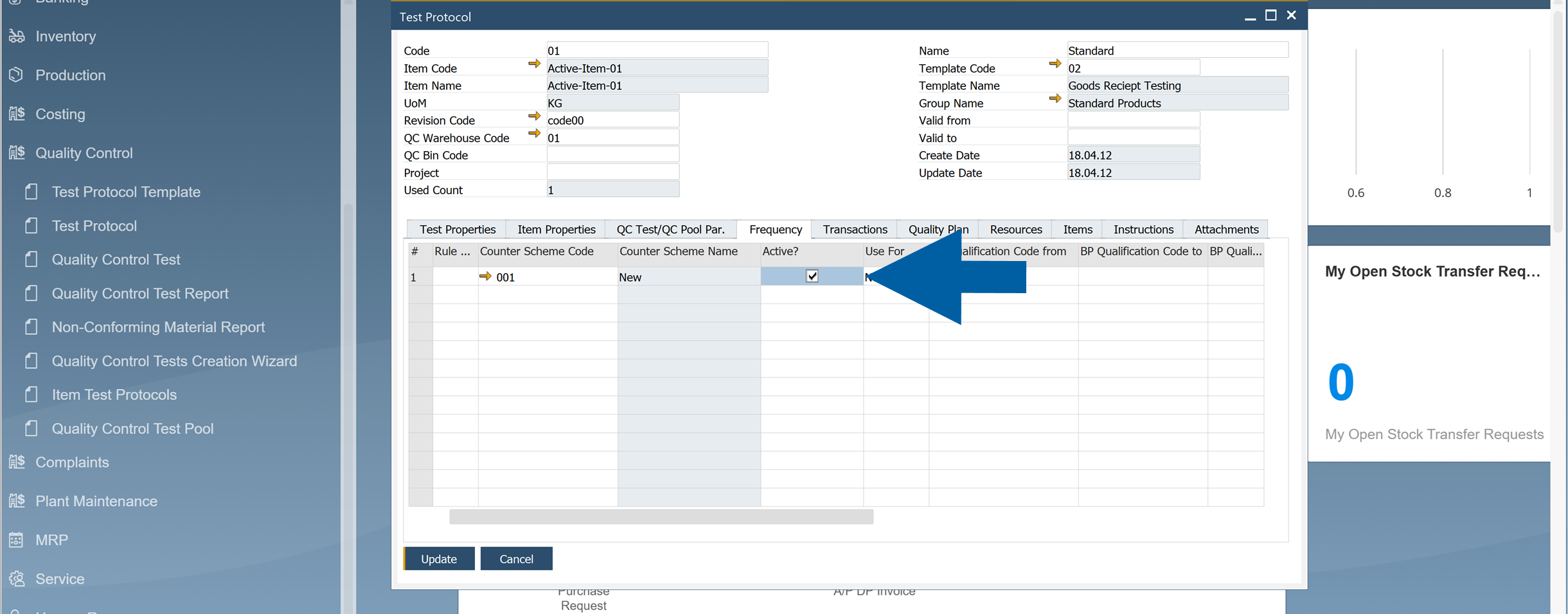
-
Click Update to save your changes.
Step 3: Configure QC Test Creation
-
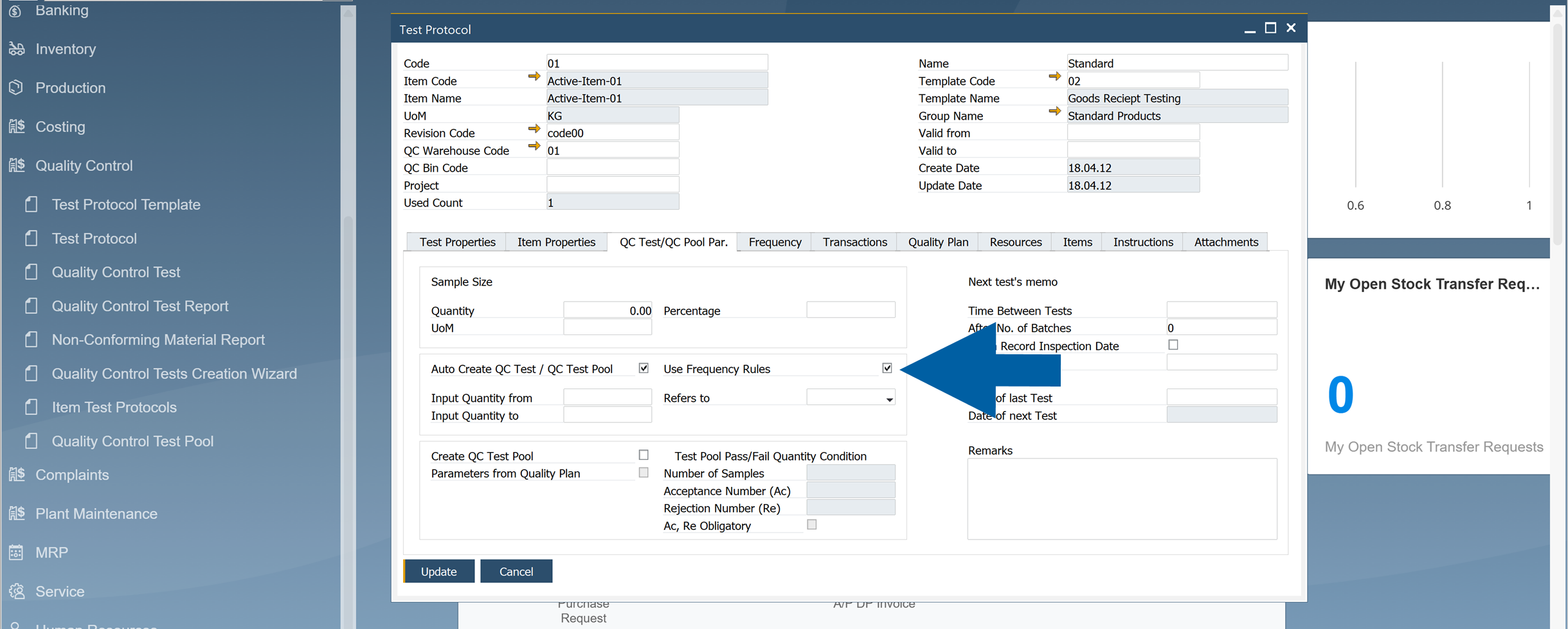
Navigate to the QC Test/QC Pool Pr. tab.

-
Check the Auto Create QC Test / QC Test Pool and Use the Frequency Rules options to automatically create tests based on the defined frequency.
-
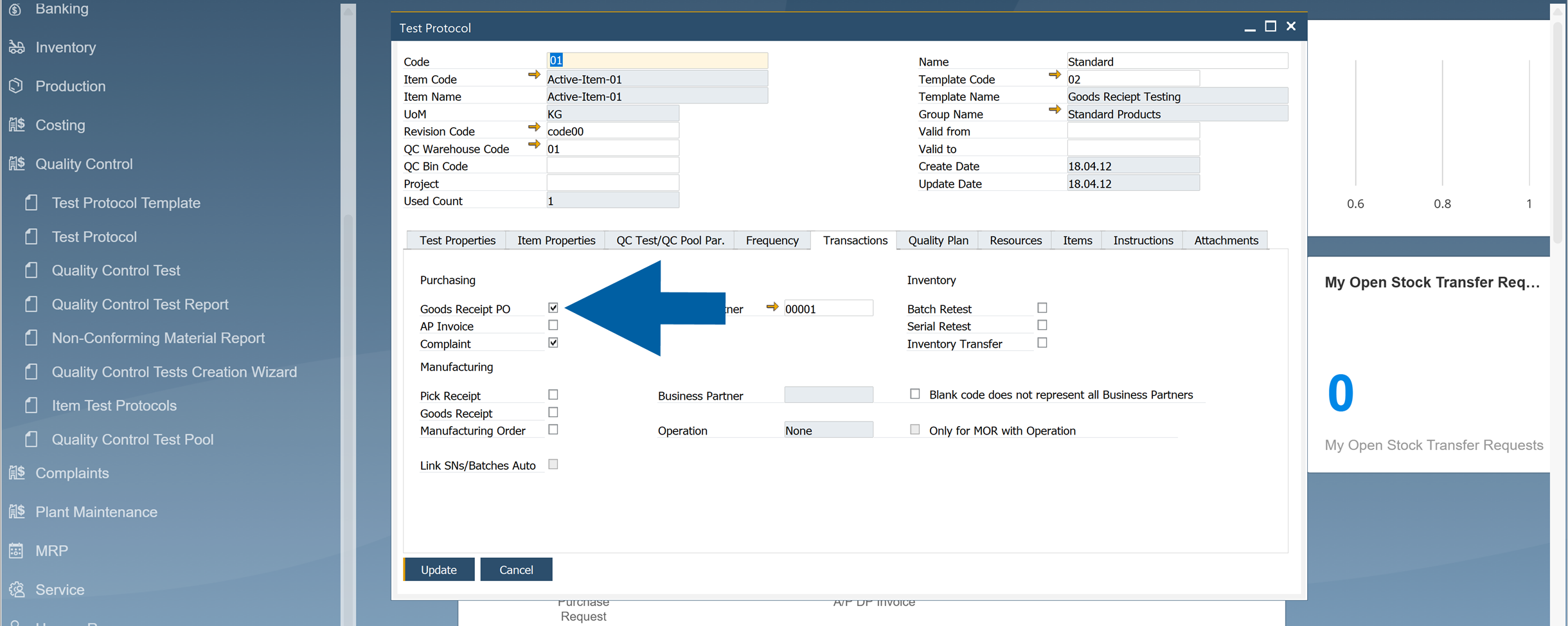
In Transactions tab, specify the transaction types that trigger QC documents.
-
Save the changes.
ImportantThis functionality currently supports only one transaction type: Goods Receipt PO.
The Counter Type must be set to Occurrences.
The feature works only when:
Enable Create Closed QC Tests from Frequency Rules=Yes
in Administration > System Initialization > General Settings > ProcessForce > QC.
Option 2: Without Frequency Control
Use this option when QC documents should be created for every qualifying transaction, without applying frequency rules.
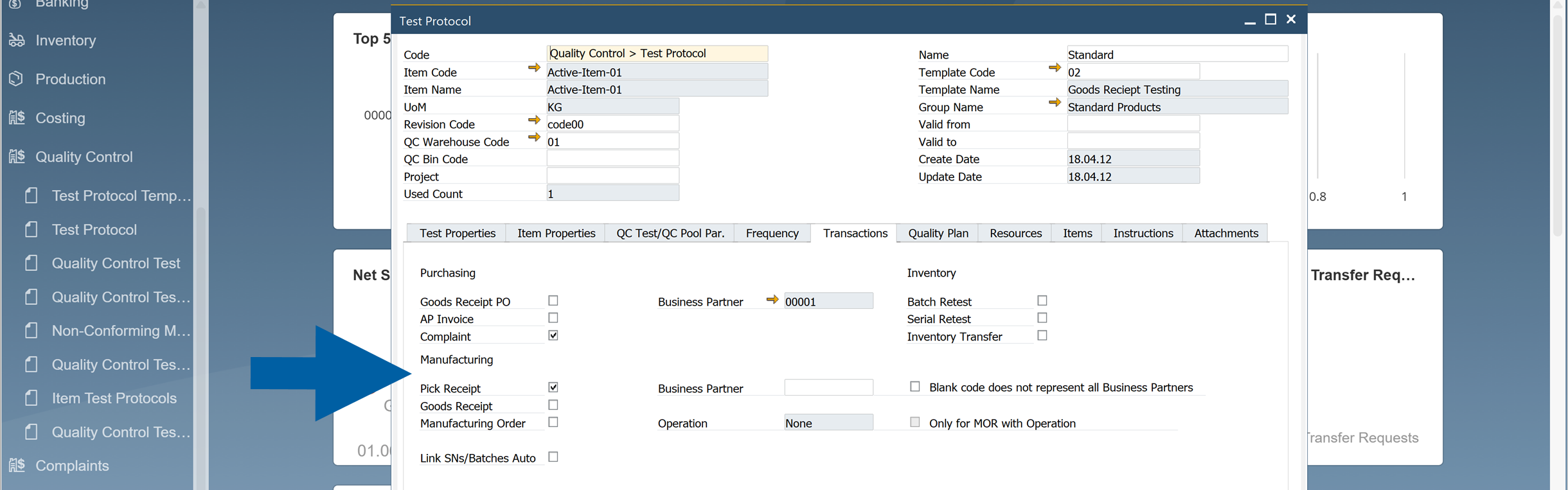
This option is available for all transaction types supported in the Test Protocol settings.
To set up automatic creation of Quality Control documents without frequency control, follow these steps:
-
In SAP Business One, go to Quality Control > Test Protocol.

-
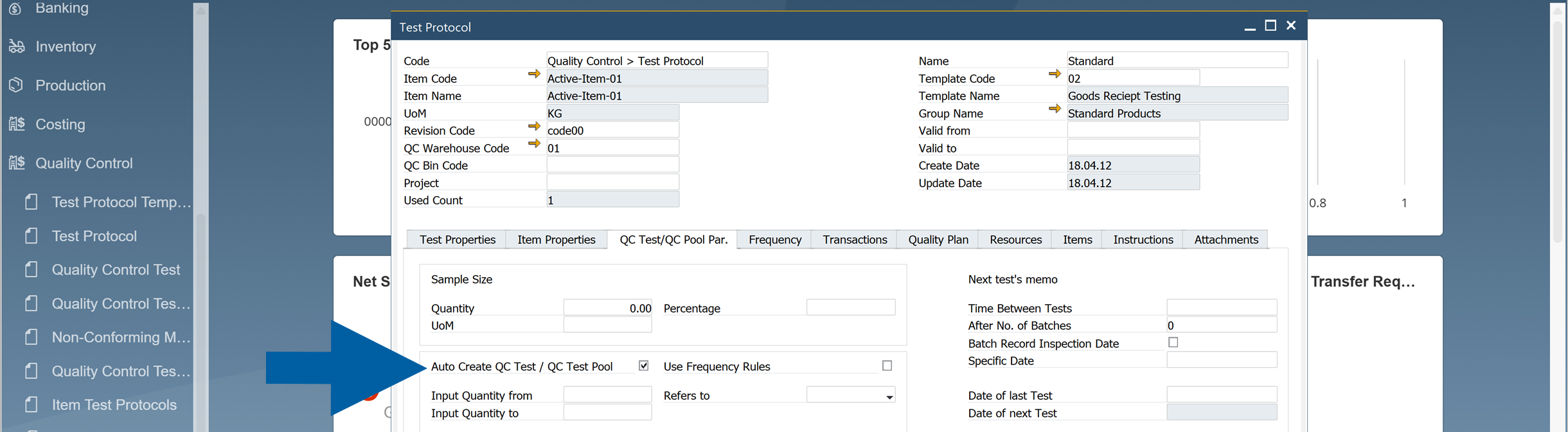
Navigate to QC Test / QC Pool Pr. tab.
-
Turn on the Auto Create QC Test / QC Test Pool function.
-
In Transactions tab, specify the transaction types that trigger QC documents.
-
Save the changes.
Business Partner Configuration (Applies to Option 1)
Step 1: Create Qualifications
To tailor QC processes for specific suppliers, you have to create Qualifications. Here’s how to do it:
-
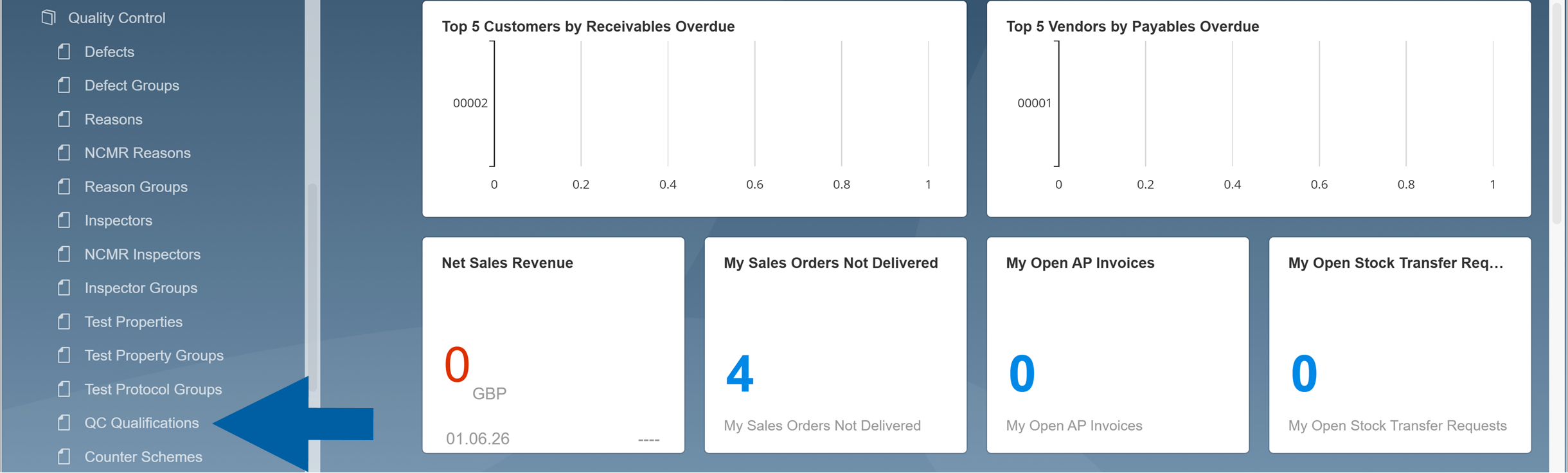
In SAP Business One, go to: Administration > Setup > Quality Control.
-
Navigate to QC Qualifications.
-
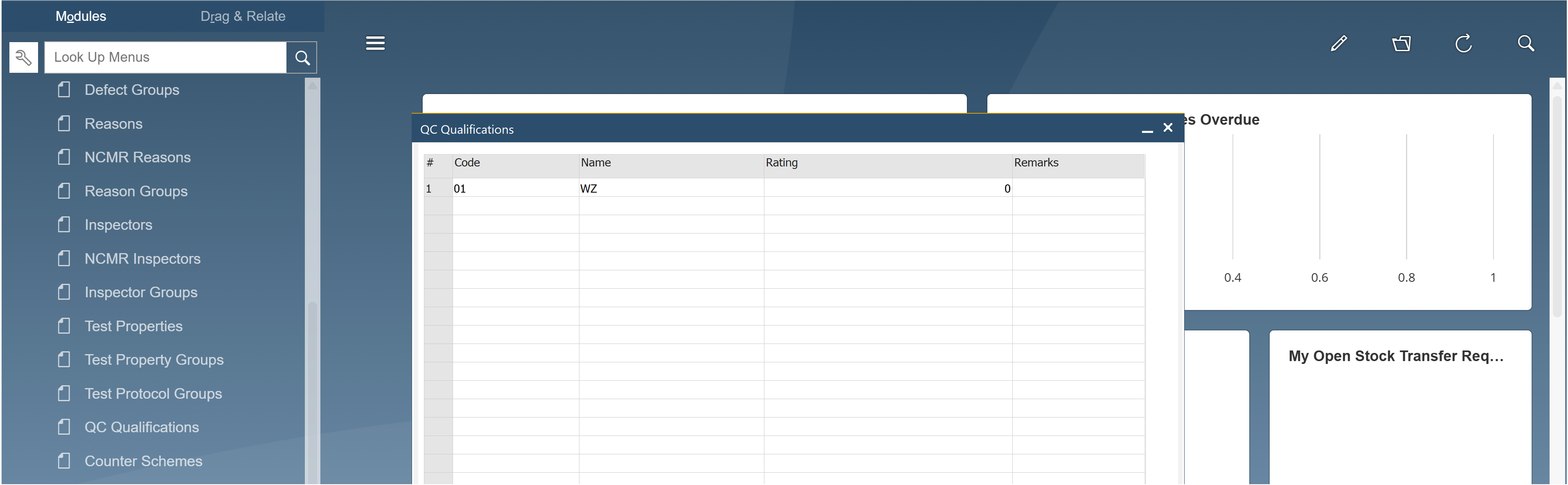
Create new qualifications.
-
Click Update to save the changes, and then OK to close the window.
-
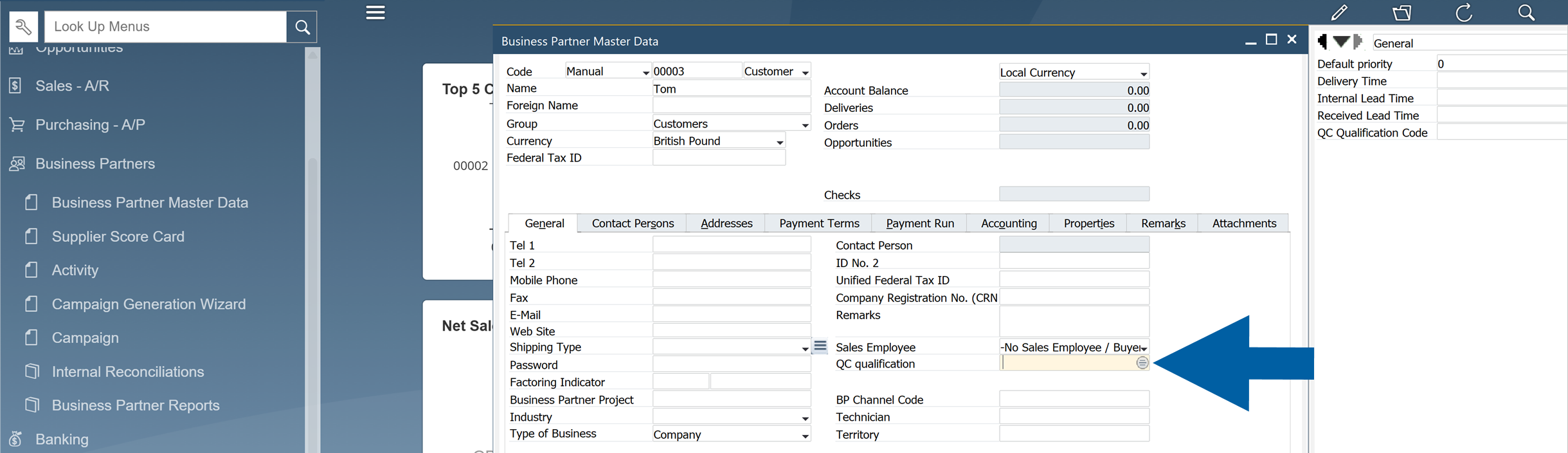
Go to Business Partners > Business Partner Master Data.

-
Choose or add a Business Partner.
-
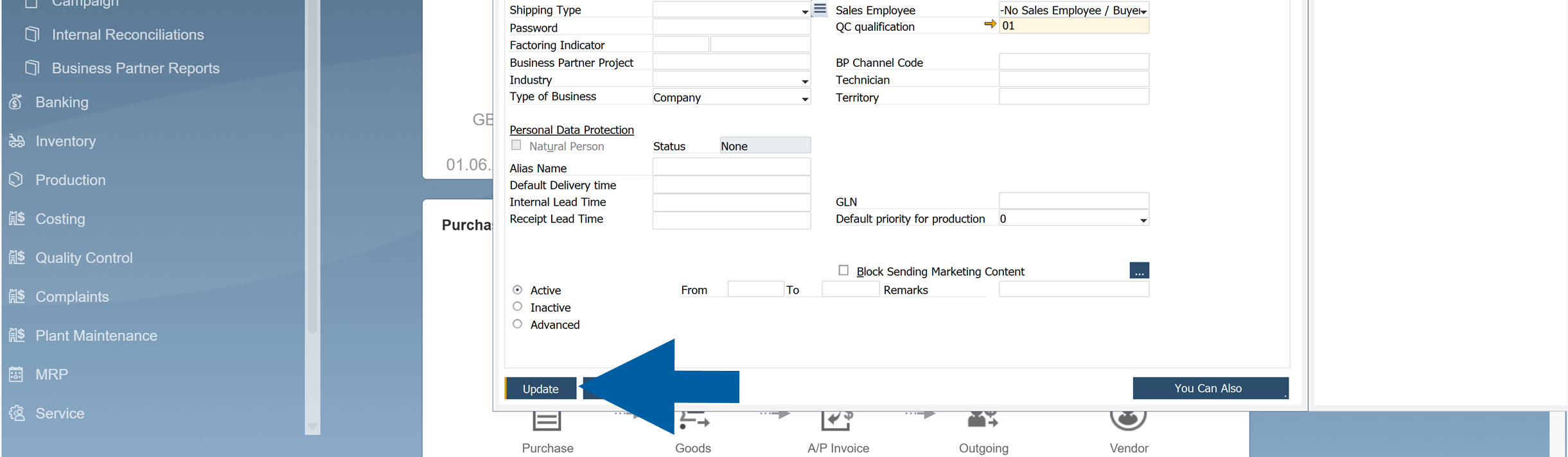
In General tab, click on the QC qualification field.
-
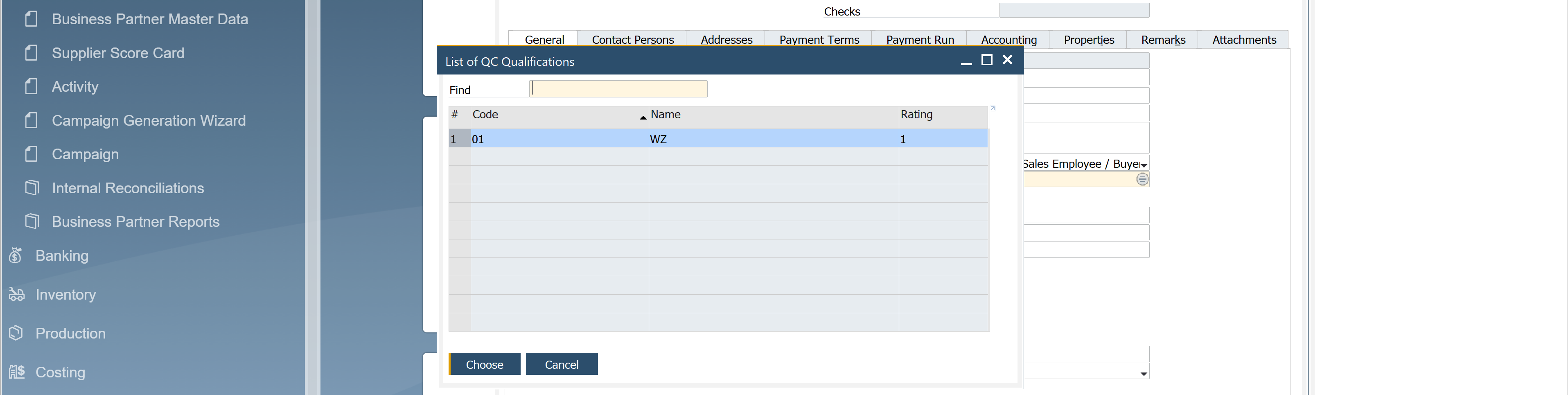
Select the defined qualifications from the list and click Choose to assign it to the business partner.
-
Click Update.
Step 2: Connect Qualifications to Test Protocols
Now you have to connect the relevant qualifications to the appropriate Test Protocols.
-
In SAP Business One, go to Quality Control > Test Protocols.
-
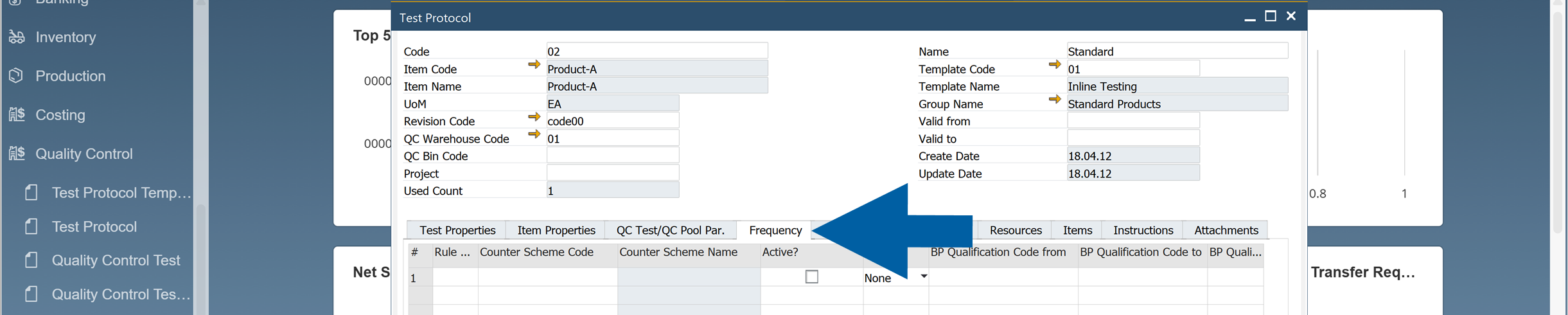
Navigate to Frequency tab.
-
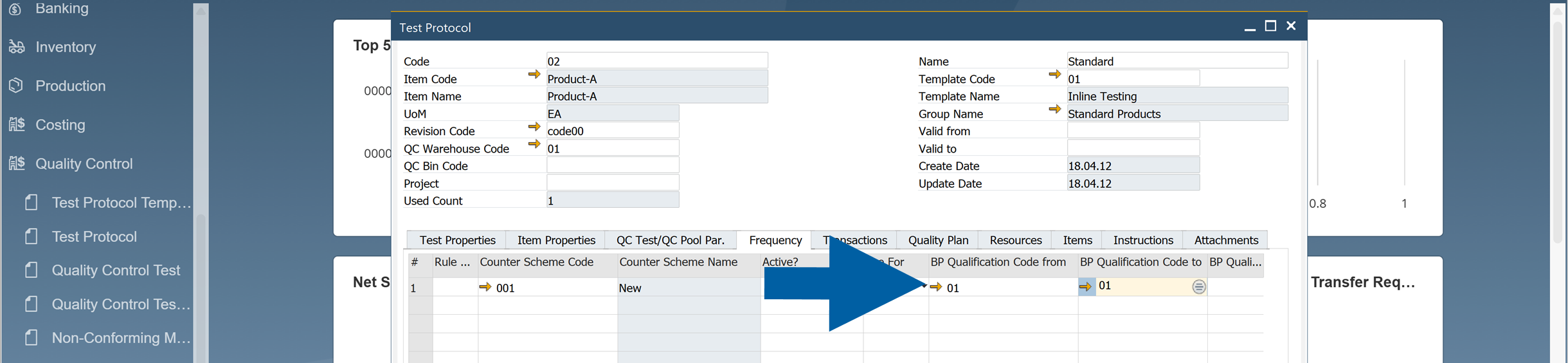
Enter the code of your qualifications in BP Qualification Code from and BP Qualification Code to fields.
-
Click Update.
-
Done! The assigned qualification will be used when applying frequency-based QC rules during Goods Receipt PO processing.
Validate or create Quality Control Tests on operation status change
You can configure how the system handles Quality Control Tests when the status of a manufacturing operation changes. To configure this behavior:
-
Go to Administration > System Initialization > General Settings.
-
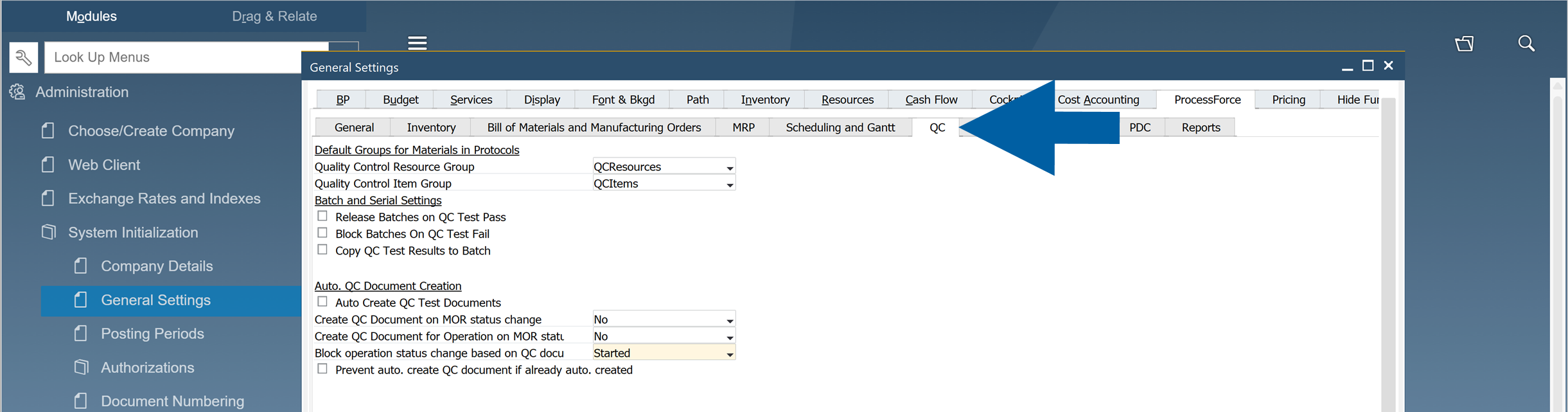
Navigate to ProcessForce tab > QC tab.
-
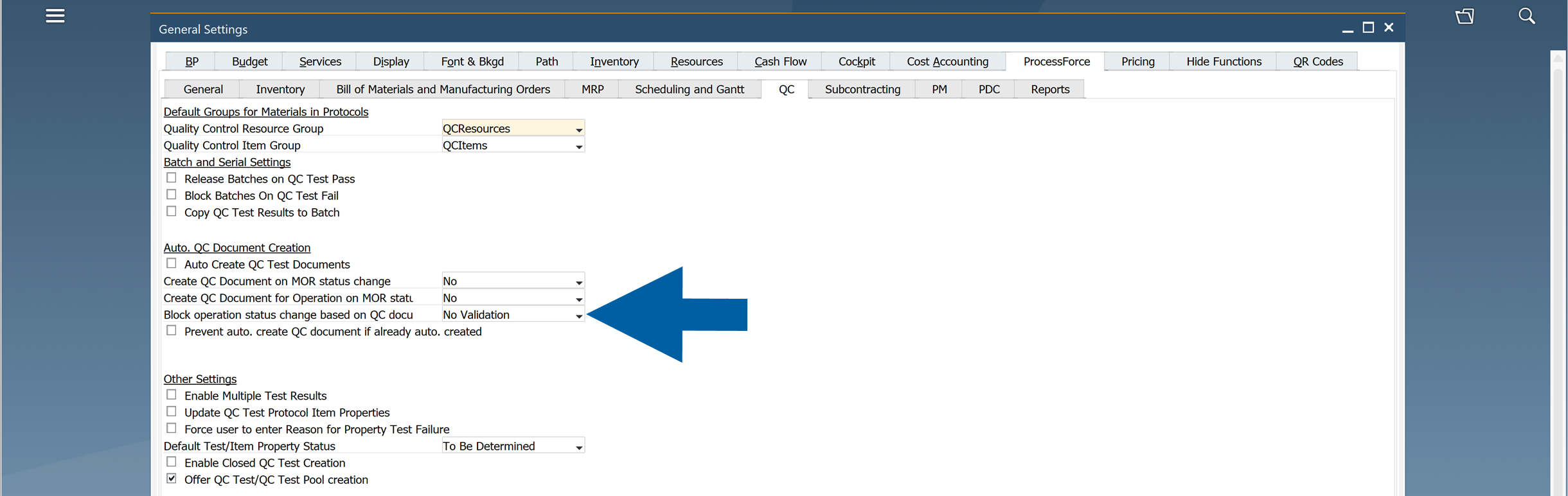
Find Block operation status change based on QC document setting field, and click the **arrow to see your options.
-
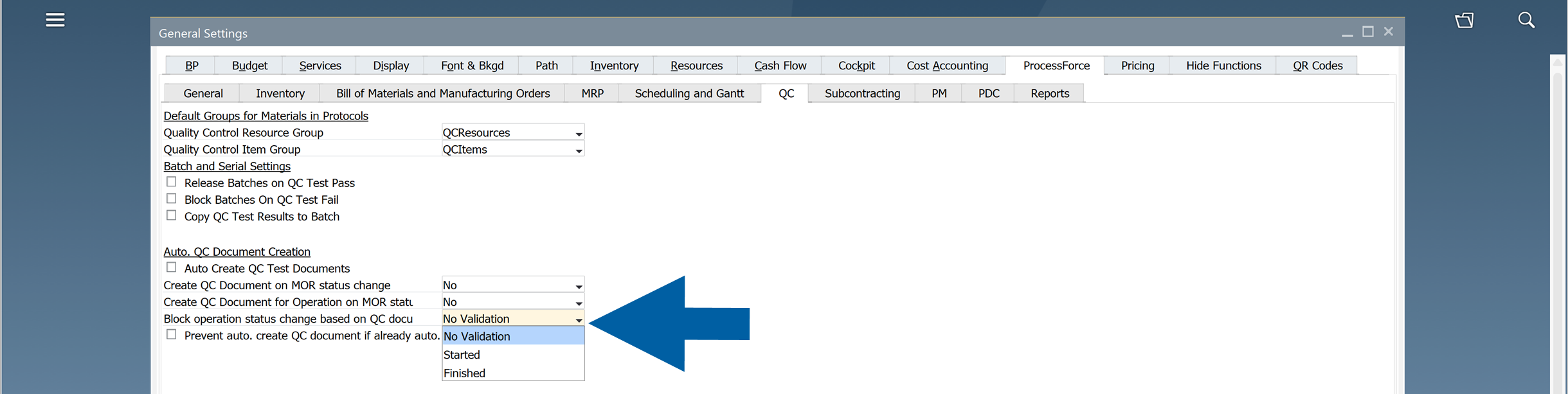
Choose one option from the list:
- No Validation: The system does not validate the related Quality Control Test when the operation status changes.
- Started: The system requires the related Quality Control Test to be in the
Startedstatus when the operation status changes. - Finished: The system requires the related Quality Control Test to be in the
Finishedstatus when the operation status changes.
-
Click Update.
This setting works together with the automatic Quality Control Test creation options and allows you to control how Quality Control Tests are processed when an operation status changes.