Dot Actions
In SAP Business One Web Client, you press the . (dot or full stop) key to open the command palette. It lists the standard SAP Business One actions for the current screen. Dot Actions in CompuTec WebUp add your own actions to this list. Each Dot Action runs a Smart Action, so users can start it from the keyboard without leaving the document.
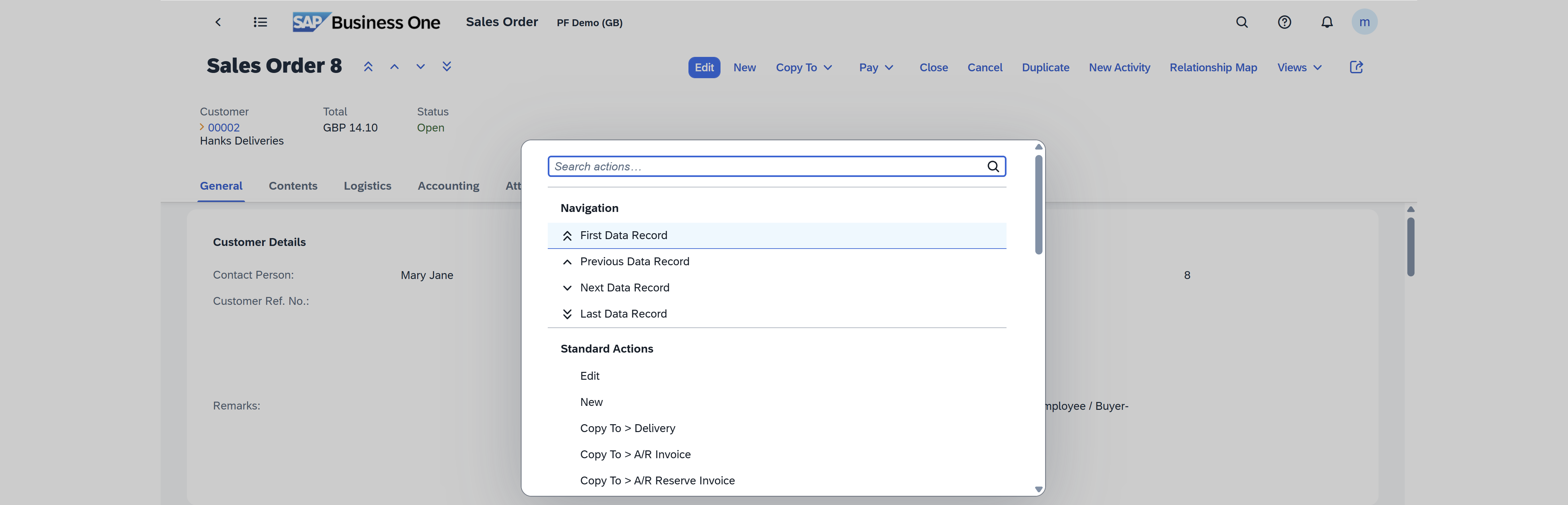
You create Dot Actions in the Dot Actions tab of CompuTec WebUp Manager.
Key functions of Dot Actions
With Dot Actions, you can:
- Run a Smart Action from the command palette
- Choose the name, icon, and category of the action
- Place the action in the correct group of the command palette
- Enter values for the Action Parameters of the Smart Action once, when you create the Dot Action
Before you start
Before you begin, make sure that:
-
You created the Smart Action that the Dot Action runs. Read more
-
The screen supports CompuTec WebUp extensions.
-
You are in edit mode. If the view is Active, click Edit first.

Global Dot Actions are available only on views that support CompuTec WebUp extensions.
Add a Dot Action
To add a Dot Action, follow these steps:
-
Open your screen in SAP Business One Web Client, and then go to the Dot Actions tab in the CompuTec WebUp Manager side panel.
-
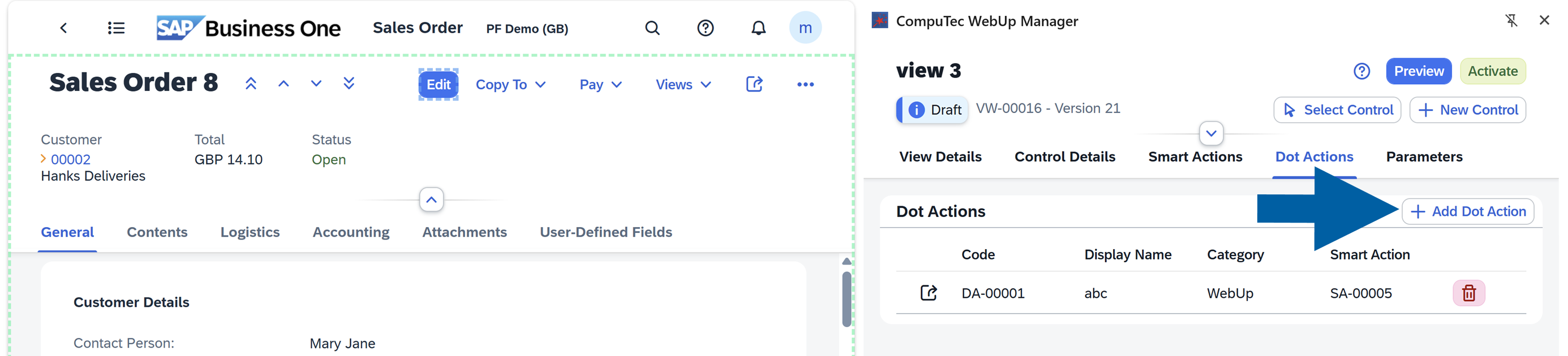
Click Add Dot Action.
-
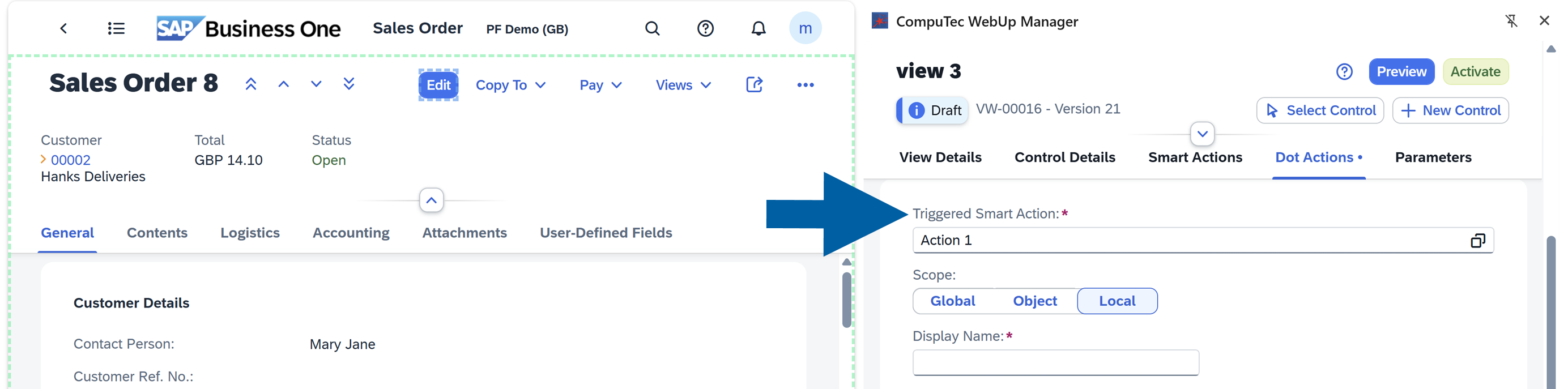
In Smart Action, select the Smart Action that the Dot Action runs.
-
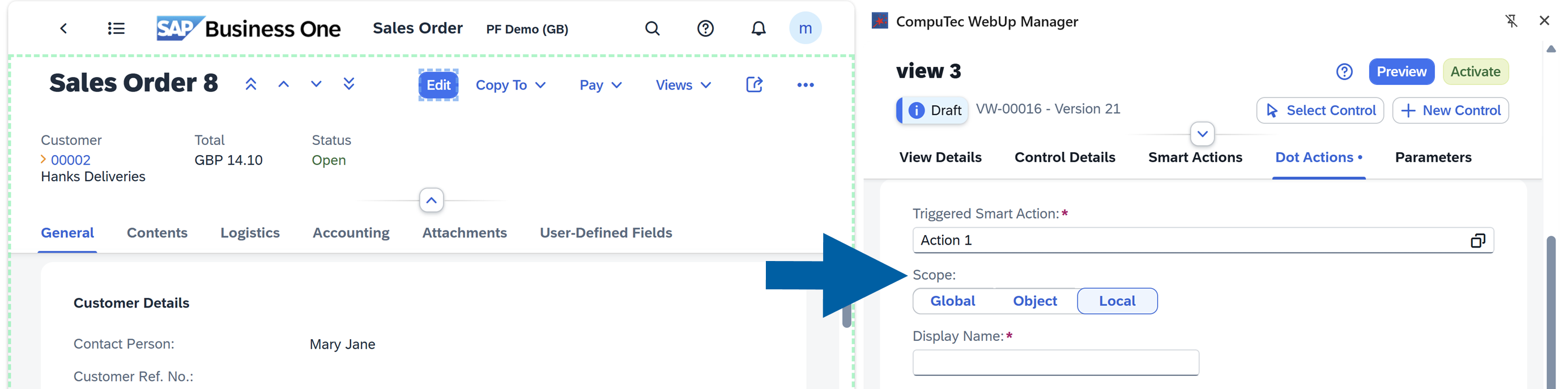
Select the Scope. You can choose from:
- Global : Available across all views and all document types, for example, a reusable validation used in Sales Orders, Purchase Orders, and Business Partners.
- Object: Available for all CompuTec WebUp views (e.g., Sales Order), across all its view versions.
- Local: Available only in the current view version. Use Local for temporary or highly customized behavior.
-
In Display Name, enter the name that users see in the command palette.
-
In Icon, choose an icon from the list of predefined icons.
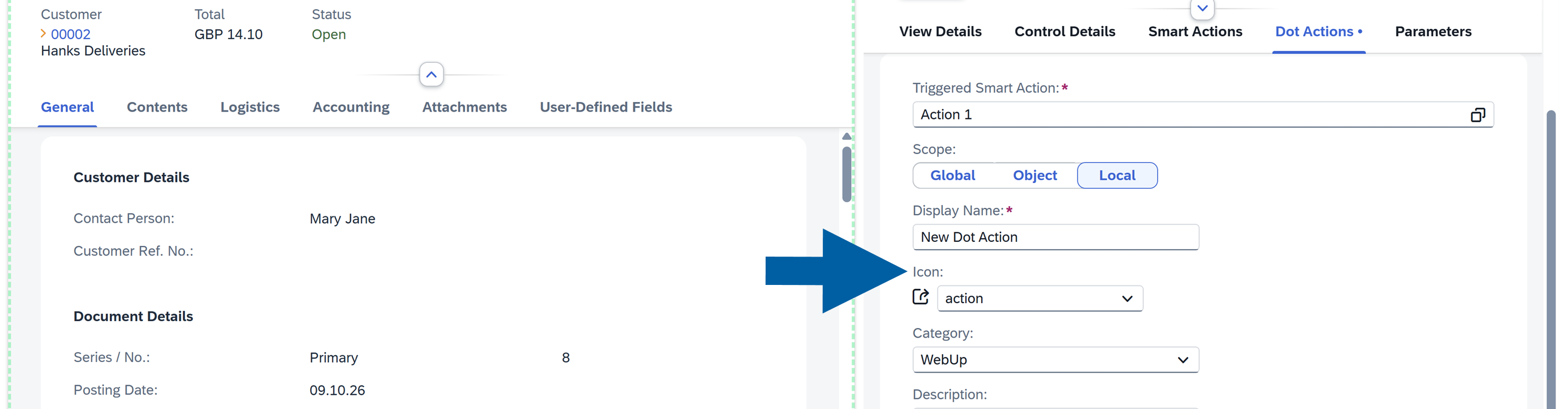
-
In Category, choose the group in which the action appears. CompuTec WebUp suggests categories that you saved before.
-
(Optional) In Description, enter a description.
-
If the Smart Action has an Action Parameter with Default set to None, enter a value for it.
-
Click Add & Preview.
-
If you like the results, click Activate.
-
Done! CompuTec WebUp adds the Dot Action to the command palette.
If you select Required for an Action Parameter and the Action Parameter has no value, CompuTec WebUp doesn't activate the Smart Action. For more information, see Create a new Smart Action.
Run a Dot Action
To run a Dot Action, follow these steps:
-
Click anywhere on the SAP Business One Web Client page, outside the CompuTec WebUp Manager side panel.
-
Press the . key (dot or full stop).
The command palette opens.
-
Find your Dot Action in its category.
-
Select the Dot Action.
-
Done! The Smart Action runs.
Dot Actions best practices
- Give each Dot Action a short name that describes the result, because users find it by name in the command palette
- Use categories to group related actions
- Always test using Preview before activation
Next steps
See Smart Actions to create the logic that a Dot Action runs, and Parameters to share values between controls and Smart Actions.