Overview
The CompuTec Production Data Capture (PDC) Plugin provides a fast and convenient way to manage production activities directly from the shop floor using mobile touchscreen devices.
Operators can record time spent on production tasks and operations and access relevant information about operations, machines, resources, items, and production history. The management view also provides an overview of production resources and their current status.
Running on CompuTec AppEngine, the PDC Plugin provides a faster, web-based alternative for recording and managing shop floor activities.
This guide explains how to install, configure, and start using the CompuTec PDC Plugin with CompuTec AppEngine.
This guide provides comprehensive instructions on working with the CompuTec PDC Plugin and CompuTec AppEngine. It complements the main CompuTec PDC application manual, which is available after clicking this link.
Before you start
Before installing the CompuTec PDC Plugin, make sure that:
- CompuTec ProcessForce is installed and configured. Read more
- CompuTec License Server is installed and configured. Read more
- Your environment meets the CompuTec PDC requirements. Read more
- CompuTec AppEngine is installed and configured. Read more
- CompuTec ProcessForce API is installed on the same server as CompuTec AppEngine.
The CompuTec PDC Plugin is compatible only with the 64-bit version of CompuTec PDC.
Install and configure the CompuTec PDC Plugin
Step 1: Install the required components
To use the CompuTec PDC Plugin, install the following components:
- CompuTec PDC Plugin
- CompuTec ProcessForce Plugin
- CompuTec ProcessForce API (on the same server as CompuTec AppEngine)
- CompuTec PDC
Install the required plugins through the CompuTec AppEngine Administration Panel. Read more
CompuTec ProcessForce API needs to be installed on the same server as CompuTec AppEngine.
Step 2: Configure the PDC connection
After the required plugins are installed, configure CompuTec PDC to connect to CompuTec AppEngine.
-
In the CompuTec AppEngine Administration Panel, make sure that the required SAP Business One company is available and active.
-
Open CompuTec PDC.
-
Open Settings.
-
Enter the CompuTec AppEngine server address.
The default address for a local installation is:
https://localhost:54000 -
Complete the connection settings in the required order.
-
Some fields are populated automatically after the connection information is entered. Select the required values from the available lists where applicable.
noteFilling in the fields marked with the red arrows automatically fills in the fields marked with the purple arrows (then, choose one option from the drop-down list).
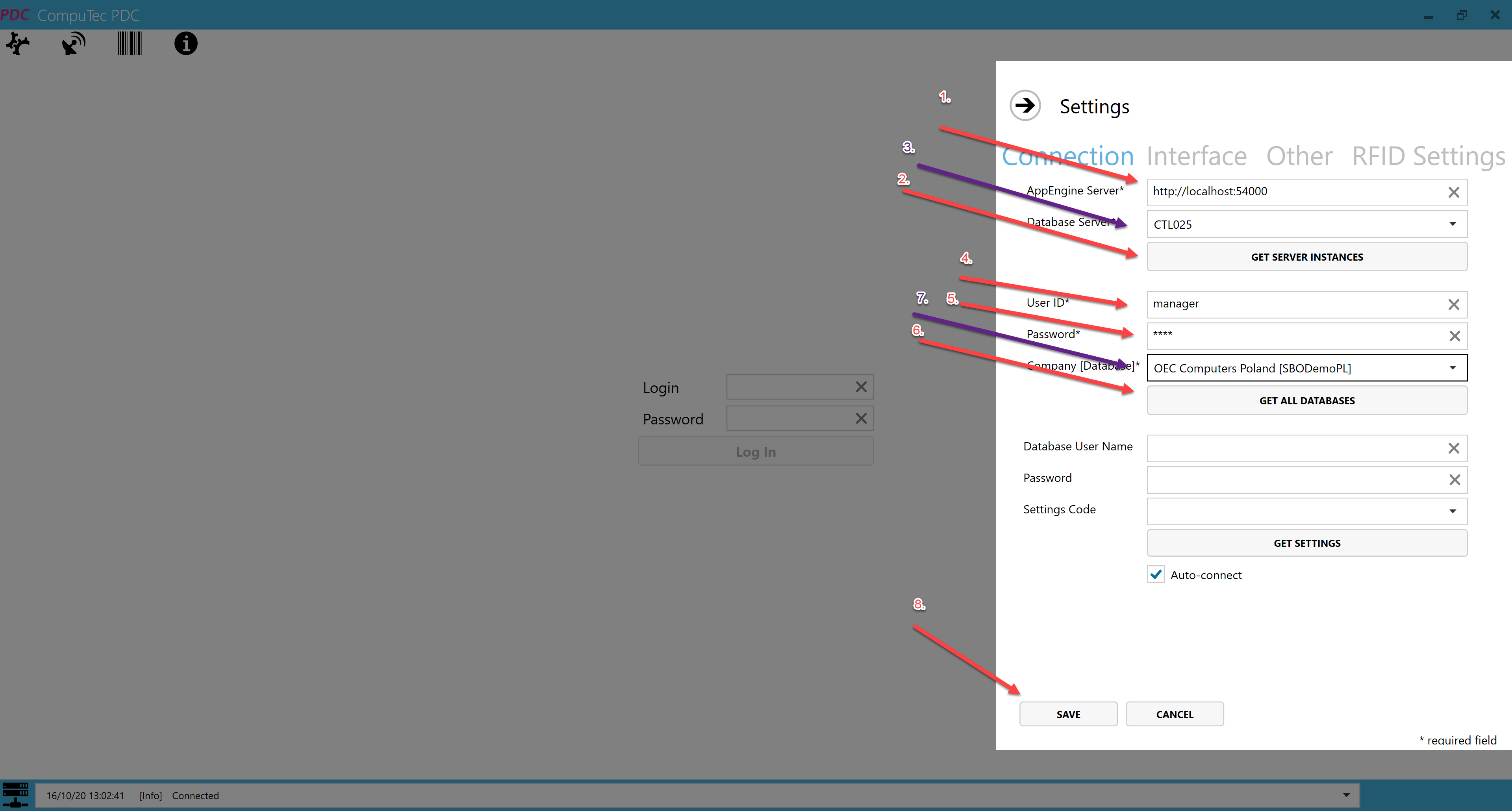
-
Click Save.
Update the CompuTec PDC Plugin
When a newer version of the plugin is available, update it through the CompuTec AppEngine Administration Panel.
For instructions, see Update a Plugin.
After updating the plugin, make sure that the installed CompuTec PDC application and any required ProcessForce API components are compatible with the new version.
If a newer PDC application version is required, install the corresponding version before continuing to use CompuTec PDC.