You are currently viewing documentation for CompuTec ProcessForce 3.0, which is a plugin installed and managed through CompuTec AppEngine 3.0, built on .NET 8. If you are working with older environments, you may need the documentation for CompuTec ProcessForce 2.0: https://learn.computec.one/docs/processforce/2.0/.
Please note that CompuTec ProcessForce 2.0 will be supported only until December 31, 2026. After this date, the product will no longer receive regular support or maintenance updates. Read more
CompuTec AppEngine 3.0 introduces a new architecture, and all CompuTec components, including the CompuTec ProcessForce 3.0 plugin, must be updated together to ensure full compatibility.
Before starting your installation or upgrade process, we strongly recommend reviewing the CompuTec AppEngine 3.0 and CompuTec ProcessForce 3.0 documentation.
Resource Calendar
The Resource Calendar is a tool that helps in planning and managing the weekly capacity of specific resources, including exceptions (such as additional work capacity) and holidays (time-offs). It can be created manually or by assigning a predefined calendar template, offering flexibility in managing resource schedules. This tool plays a crucial role in optimizing resource allocation and ensures that you can track and manage the availability of resources effectively, enabling smooth production workflows.
To access the Resource Calendar, navigate through the following path:
Production → Routings → Resource Calendar
Purpose
Use the Resource Calendar to:
- Define and track working hours for each resource.
- Record exceptions such as overtime or added capacity.
- Manage holidays and non-working days.
- Apply and maintain consistent scheduling using calendar templates.
Resource Calendars
A Resource Calendar is automatically created when a resource is added.
You can open it:
-
Through the navigation path above, or
-
By clicking the yellow arrow beside the Resource Calendar field.
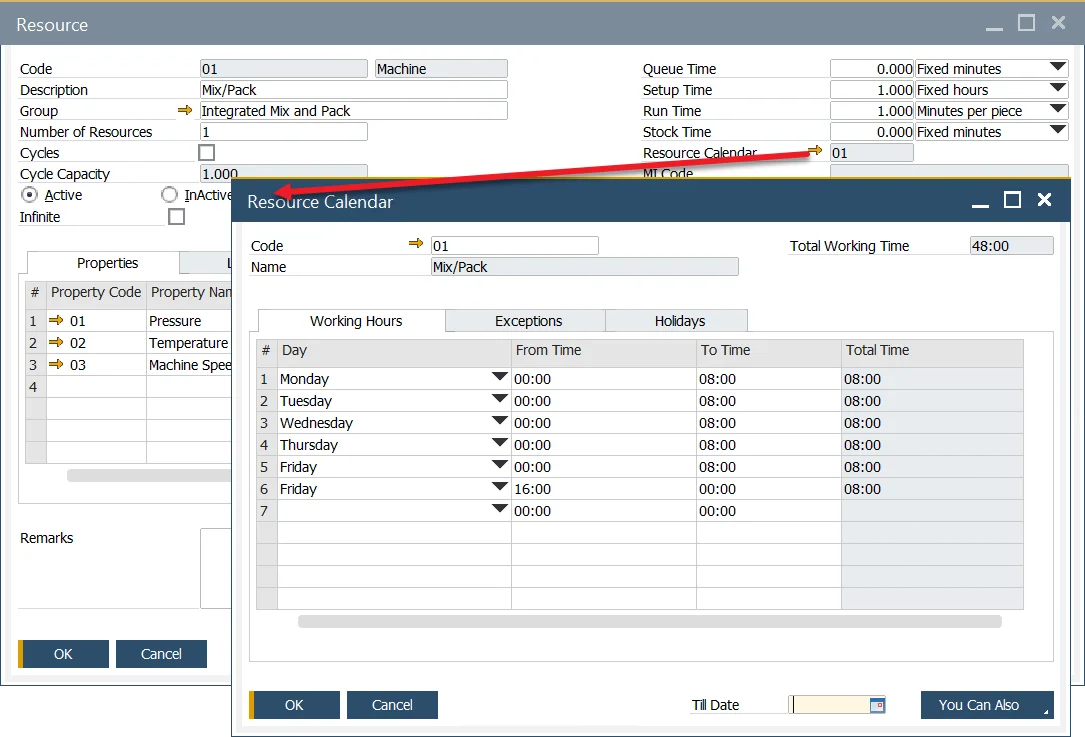
Resource Calendar tabs
Working Hours
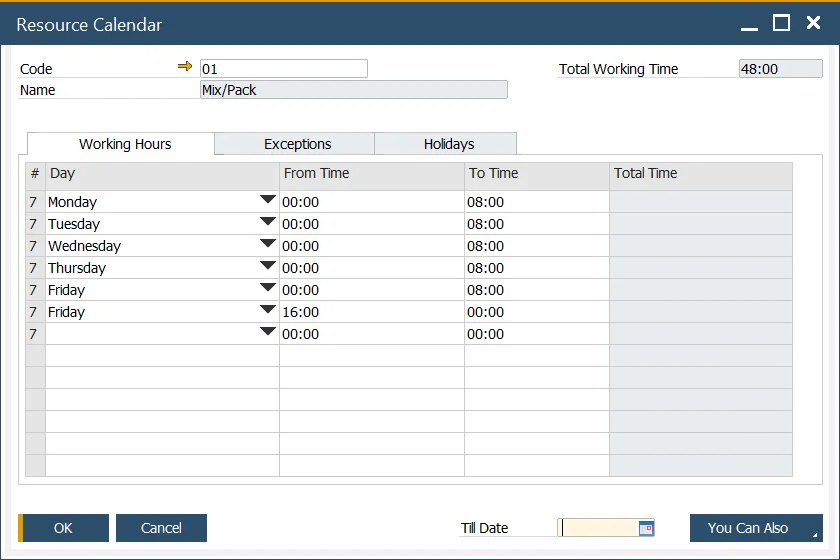
The Working Hours tab defines the standard weekly schedule for the resource.
- Set multiple work periods per day using From Time and To Time fields.
- The system automatically calculates the Total Time for each period.
- The total working time for the entire week appears in the Total Working Time field.
This setup ensures accurate scheduling and prevents resource overloading.
Exceptions
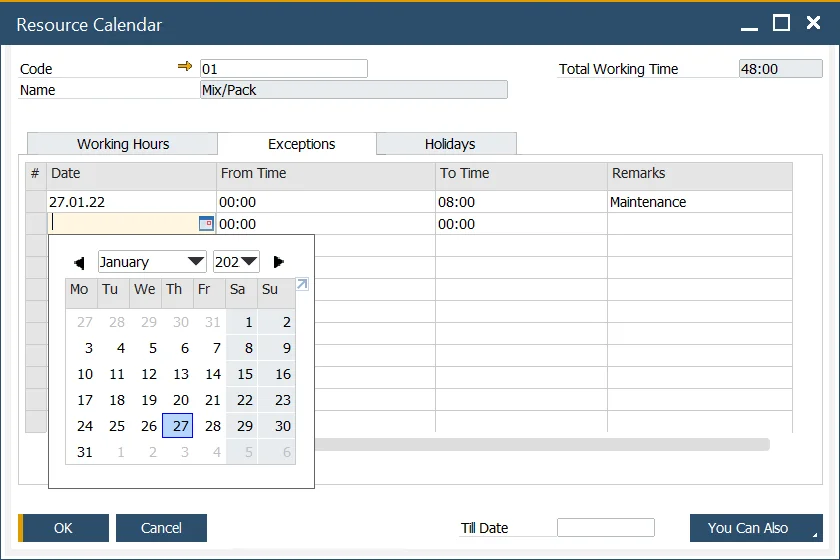
Exceptions are used to extend a resource’s working capacity temporarily — for instance, during peak production or overtime scenarios.
Each exception record includes:
- Date and Time of the exception.
- Remarks for context or justification.
You can manage exceptions through the You Can Also button:
- Remove past exceptions – Deletes previous entries automatically.
- Create exceptions based on current working days till... – Duplicates current workday settings until a specified Till Date.
This flexibility helps manufacturers easily manage capacity adjustments.
Holidays
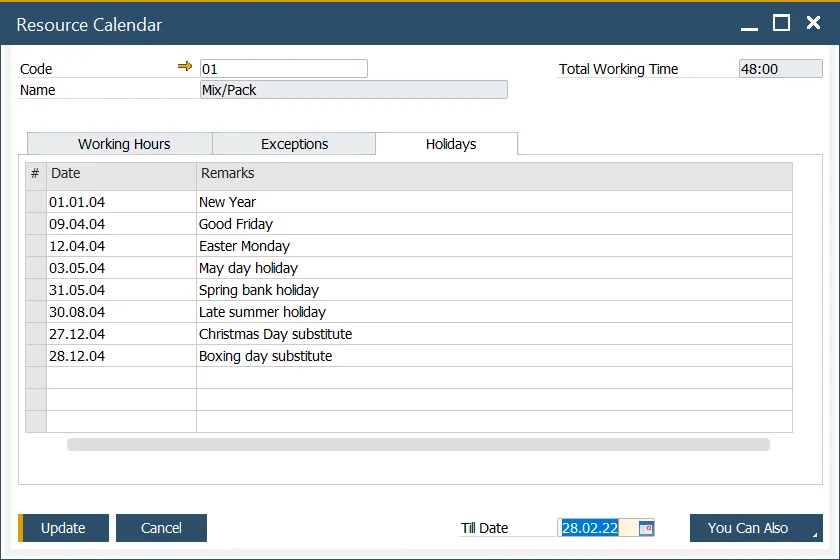
The Holidays tab defines non-working days for a resource, such as company holidays or planned time-offs.
You can:
-
Add holidays manually and include remarks.
-
Use the You Can Also → Copy a list of Holidays defined in the system option to import predefined holiday data.
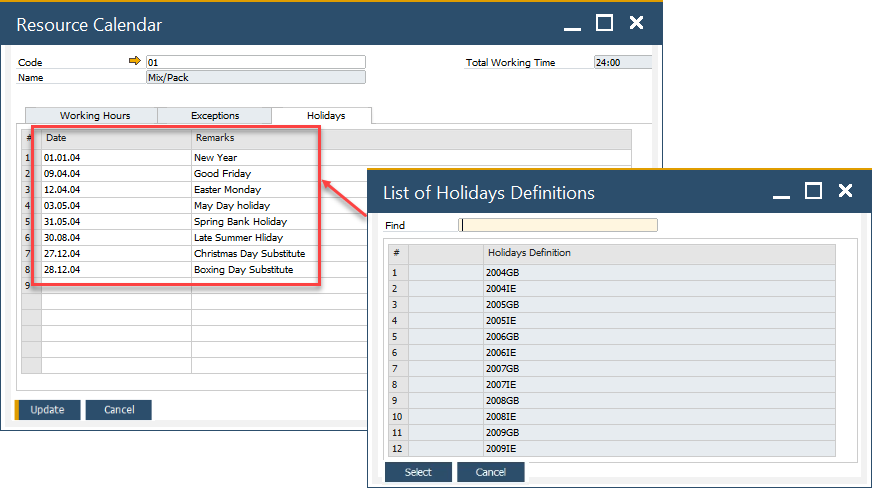
To access Holidays, navigate to:
Administration → System Initialization → Company Details → Accounting tab → Holidays
Here, new holidays can also be created for assignment to resources.
Resource Calendar Update Tool
To access Calendar Updates, navigate to:
Production → Routings → Calendar Updates
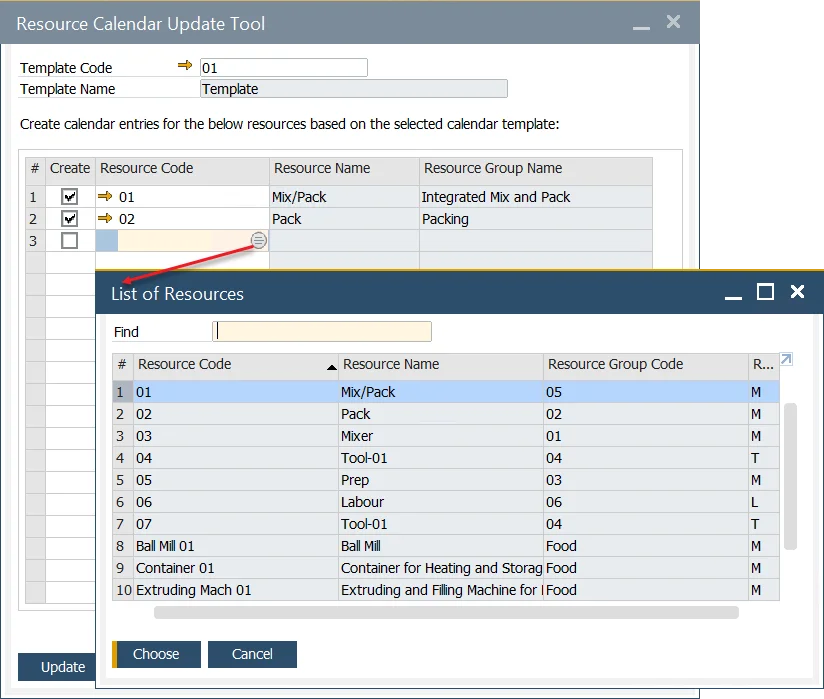
The Resource Calendar Update Tool allows you to assign a predefined calendar template to multiple resources simultaneously.
This ensures scheduling consistency across machines or work centers.
Resource Calendar Template
To create a template, go to:
Administration → Setup → Production → Resource Calendar Template
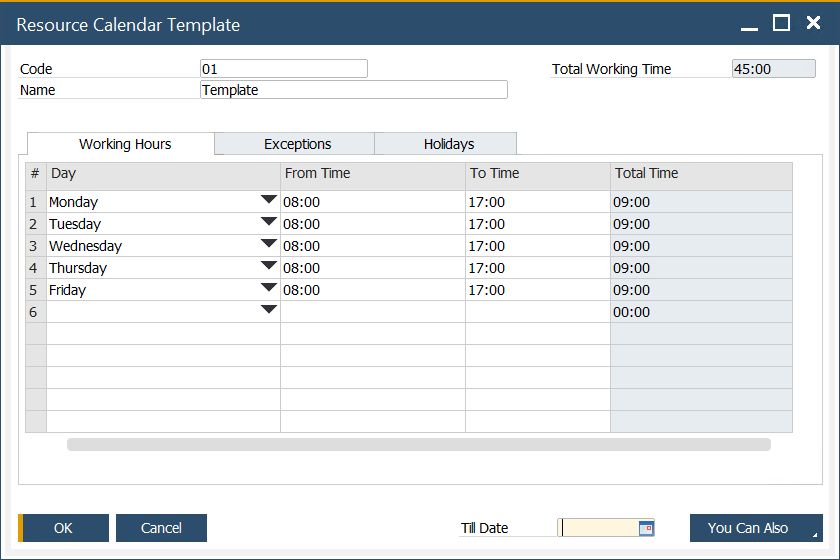
To Create a Template:
- Open the Resource Calendar Template window.
- Enter the required working hours, exceptions, and holidays (similar to a regular Resource Calendar).
- Click Add to save the template.
These templates can later be applied to multiple resources through the Calendar Update Tool, ensuring uniform scheduling and reducing manual configuration.
Update
The Resource Calendar Update Tool allows you to assign predefined calendar templates to specific resources, ensuring consistent scheduling across multiple resources. To use this feature, go to: