You are currently viewing documentation for CompuTec ProcessForce 3.0, which is a plugin installed and managed through CompuTec AppEngine 3.0, built on .NET 8. If you are working with older environments, you may need the documentation for CompuTec ProcessForce 2.0: https://learn.computec.one/docs/processforce/2.0/.
Please note that CompuTec ProcessForce 2.0 will be supported only until December 31, 2026. After this date, the product will no longer receive regular support or maintenance updates. Read more
CompuTec AppEngine 3.0 introduces a new architecture, and all CompuTec components, including the CompuTec ProcessForce 3.0 plugin, must be updated together to ensure full compatibility.
Before starting your installation or upgrade process, we strongly recommend reviewing the CompuTec AppEngine 3.0 and CompuTec ProcessForce 3.0 documentation.
Authorizations
Use Authorizations to control which CompuTec ProcessForce features and documents users can access.
You configure CompuTec ProcessForce authorizations using the standard SAP Business One authorization framework.
Before you start
Make sure you have the Professional license so you can modify user authorizations.
Configure User Authorizations
To manage user permissions, follow these steps:
-
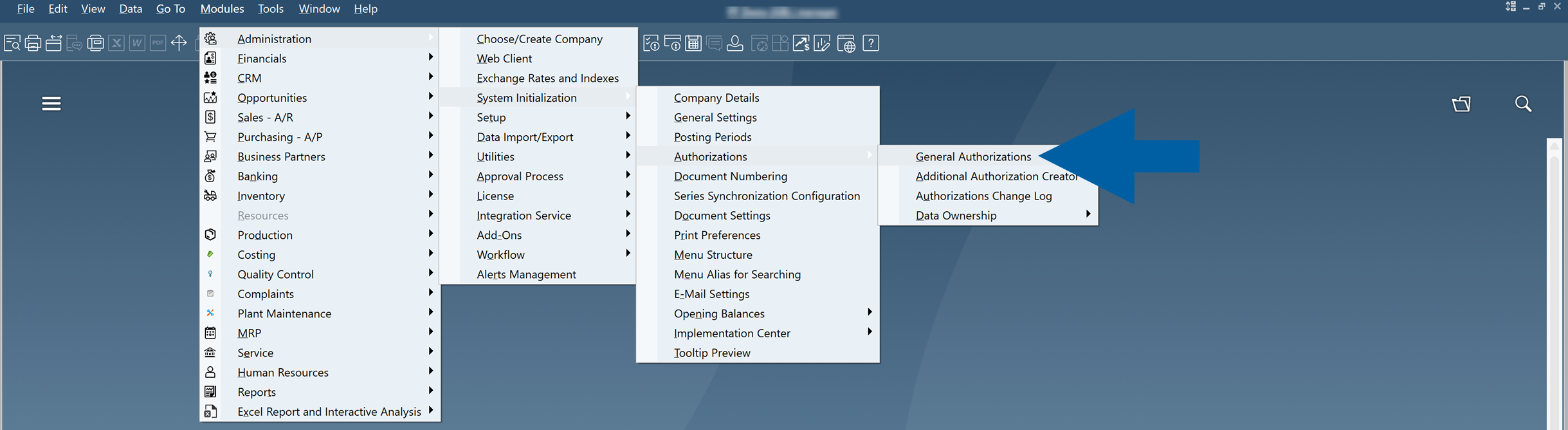
In SAP Business One, go to Administration > System Initialization > Authorizations > General Authorizations.
-
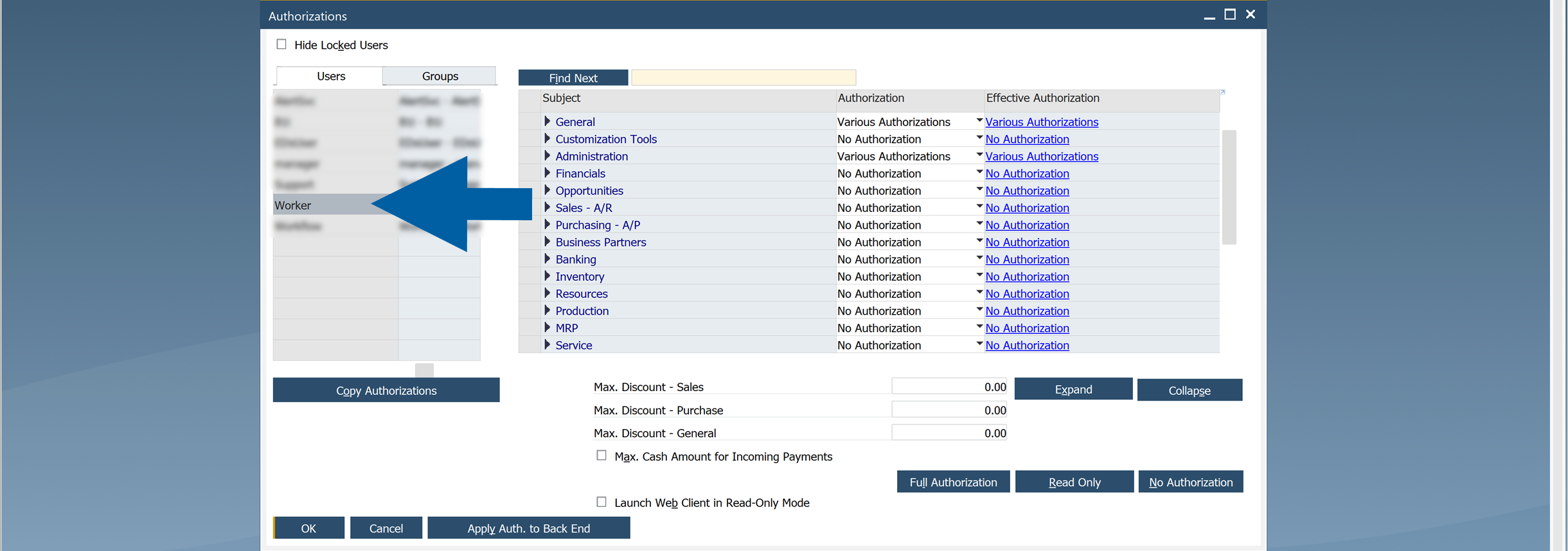
Select a user (or a group) whose permissions you want to configure.
-
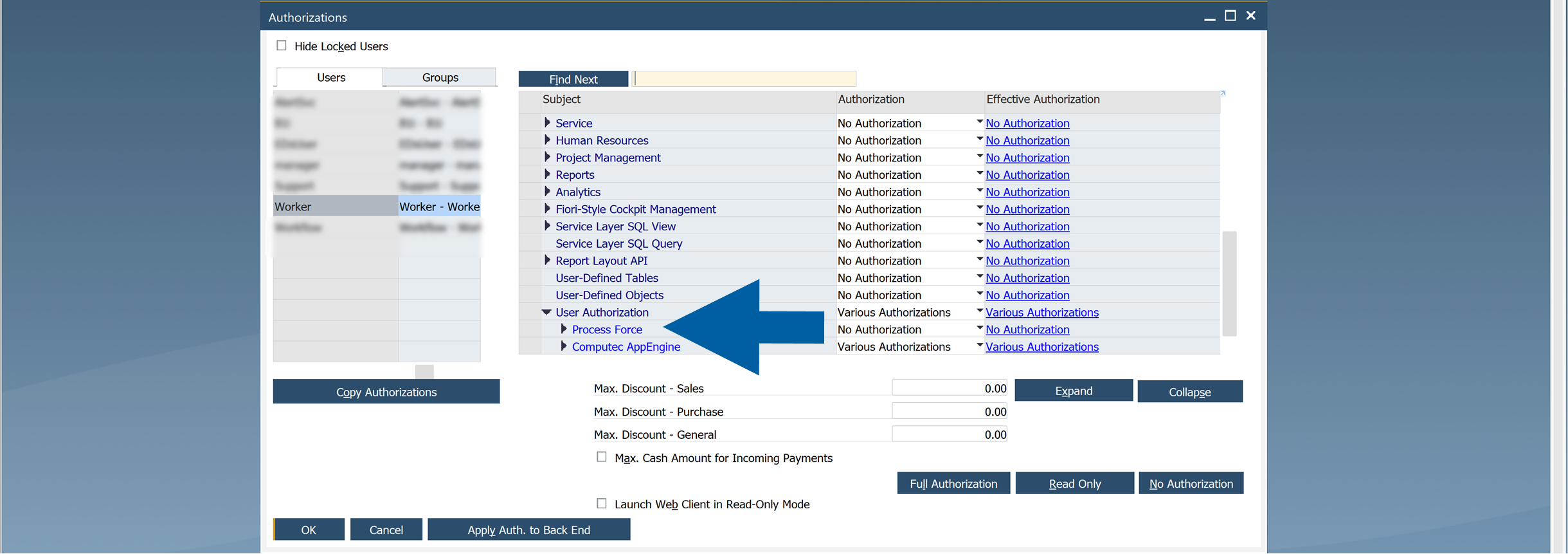
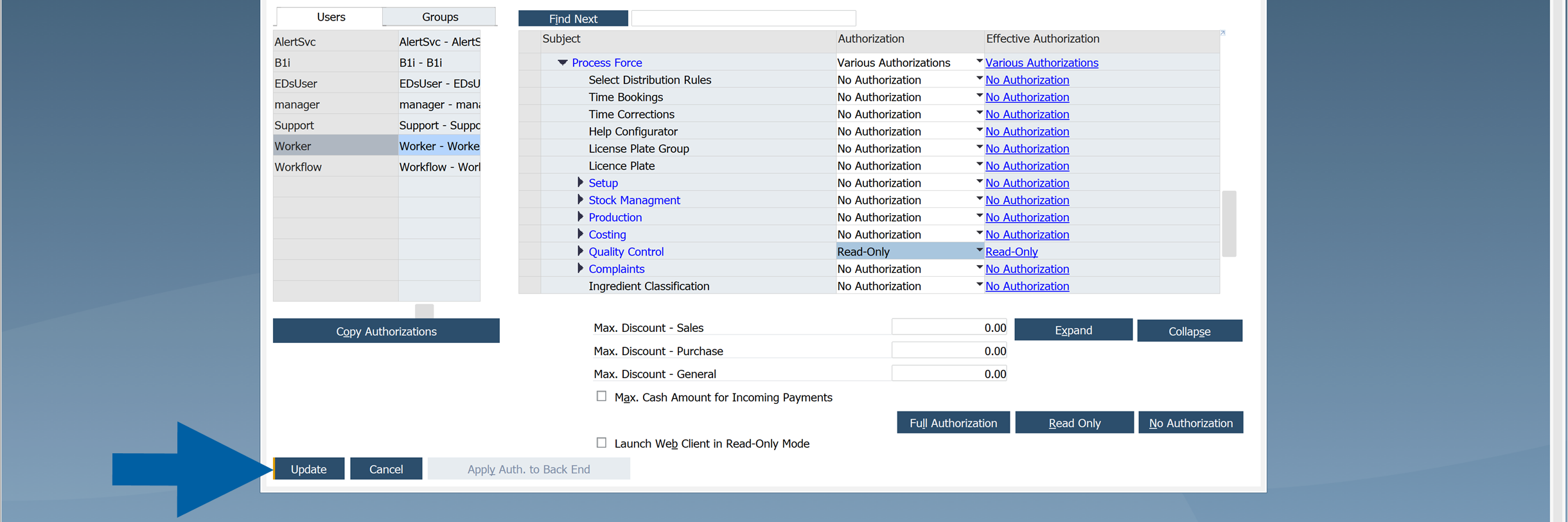
Navigate to User Authorization > ProcessForce.
-
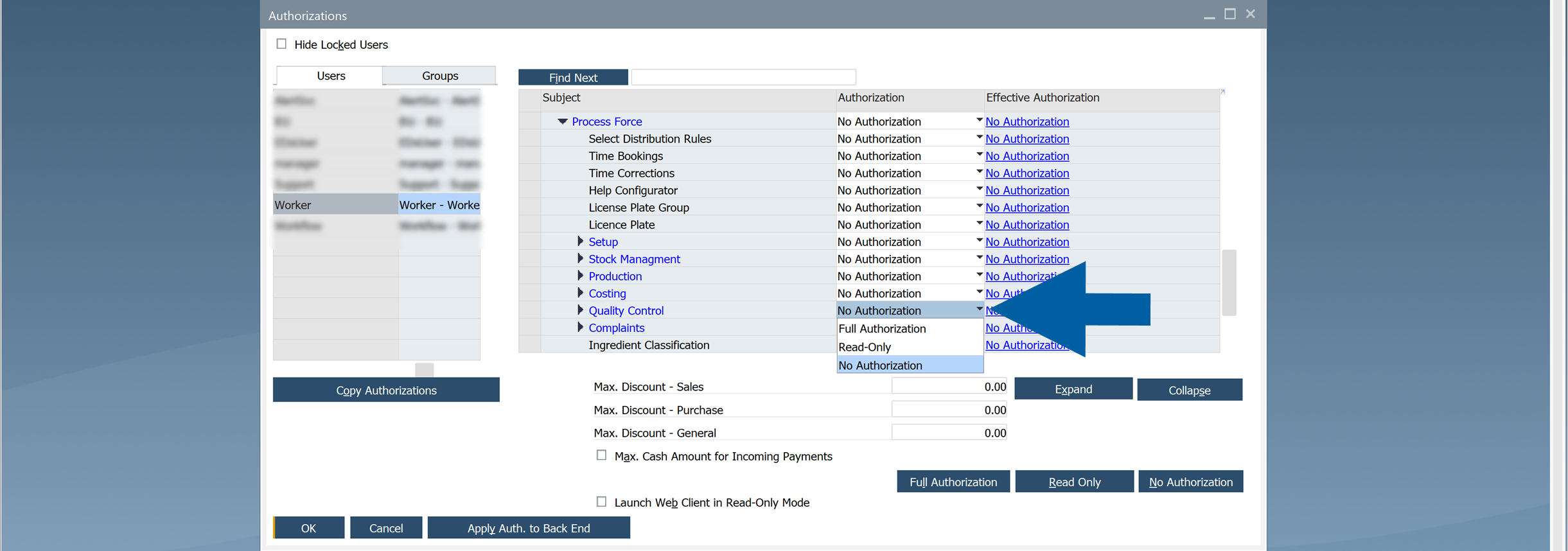
Choose the appropriate authorization level from the list for each feature.
-
Click Update.
Authorization Levels
You can assign one of the following authorization levels:
- Full Authorization: The user can view, create, modify, and process documents.
- Read Only: The user can view information but cannot make changes.
- No Authorization: The user cannot access the feature.

If the authorization options are unavailable (grayed out), the user has Superuser authorization level.
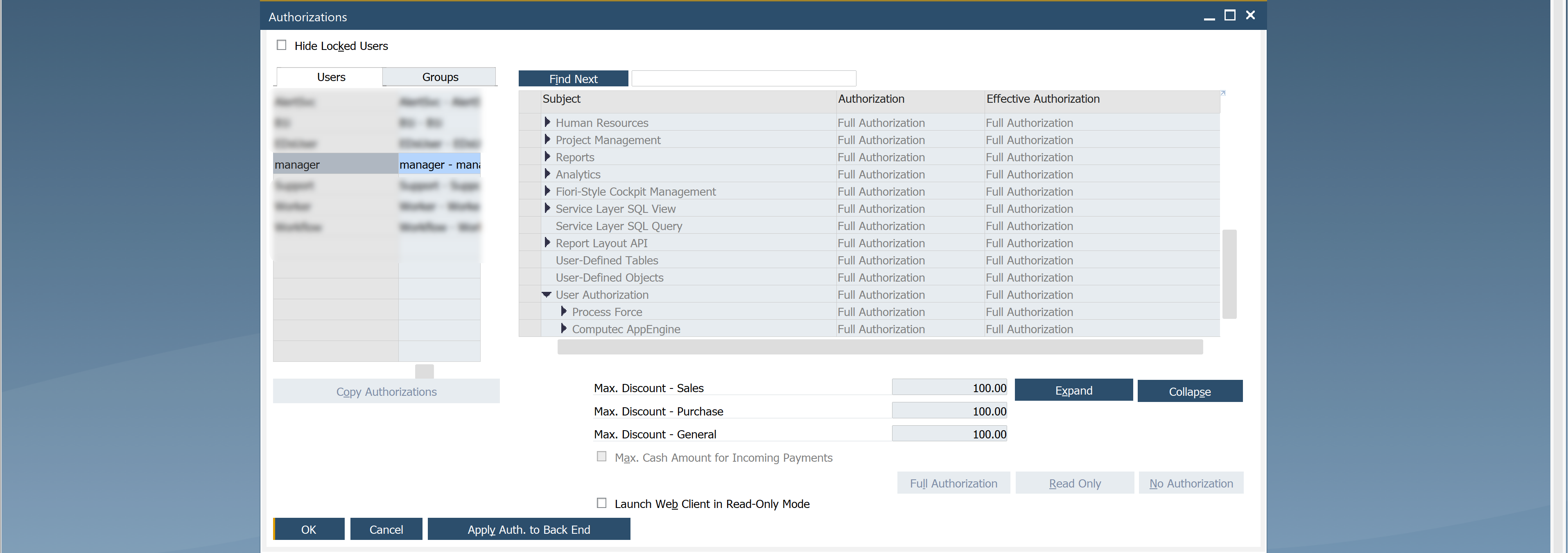
Assign Superuser authorization
To assign Superuser atuthorization, follow these steps:
-
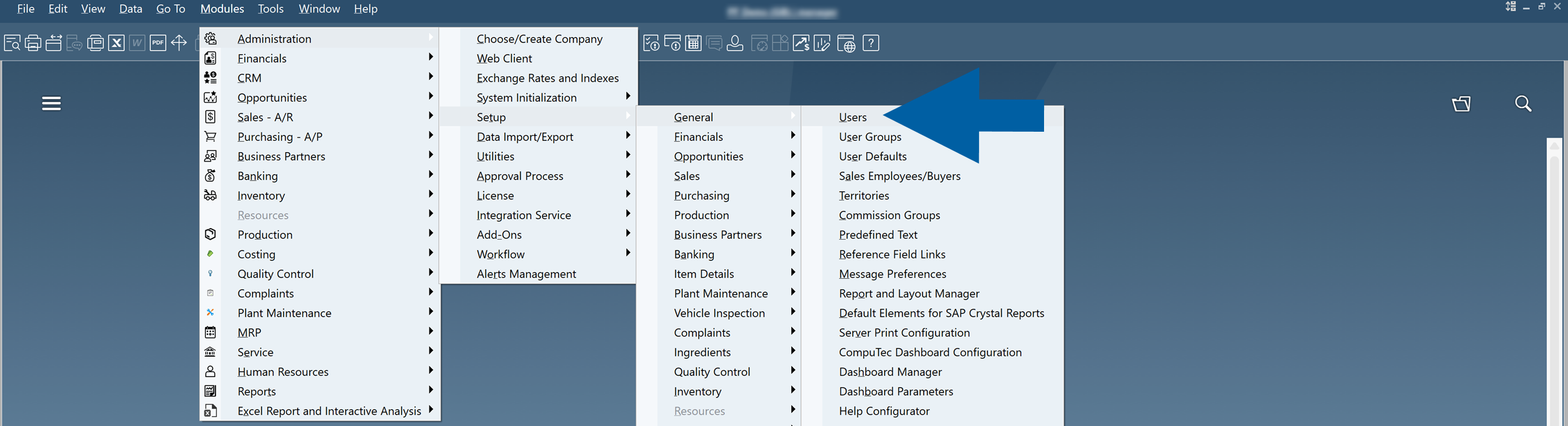
Go to Administration > Setup > General > Users.
-
Enter the User Code or User Name to choose the user.
-
Check the Superuser box.

-
Click Update.

Additional SAP Business One authorizations
Some CompuTec ProcessForce functions also require standard SAP Business One authorizations.
- Goods Receipt: Inventory > Inventory Transactions > Goods Receipt
- Goods Issue: Inventory > Inventory Transactions > Goods Issue
- Journal Entry: Financials > Journal Entry
- Pick Receipt: ProcessForce > Production > Inventory Transactions > Pick Receipt
- Pick Order: ProcessForce > Production > Inventory Transactions > Pick Order
- Document Series: Administration > Numbering Series
Understanding User Authorization Behavior
- Granular Control: Authorizations are assigned per user and per feature, offering precise control over system access.
- Superuser Override: Users with superuser status automatically have full access to all forms and transactions.
- Dependency on License Type: Only users with a Professional license can be granted or edit authorizations.
- Integration with SAP Business One: CompuTec ProcessForce leverages SAP's built-in authorization framework to control access uniformly across modules.
Troubleshooting
If a user cannot perform an action:
- Verify that the user has Full Authorization for the required CompuTec ProcessForce feature.
- Verify that any required SAP Business One authorizations are also assigned.
- If the user is a Superuser, authorization settings cannot be modified because Superusers always have full access.
Result
After you configure the required authorizations, the user can access and work only with the CompuTec ProcessForce features and documents permitted by their assigned permissions.