You are viewing documentation for CompuTec WMS 3.0, which runs on CompuTec AppEngine 3.0 (.NET 8).
If you use CompuTec WMS 2.0, see the CompuTec WMS 2.0 documentation.
When upgrading to CompuTec WMS 3.0, update all required CompuTec components together to ensure compatibility.
Before installing or upgrading, review the CompuTec WMS Installation Guide and the system requirements.
System Requirements
Before installing CompuTec WMS 3.0 Plugin, check the software, hardware, and network requirements below.
CompuTec WMS 3.0 Plugin runs on CompuTec AppEngine and follows its configuration requirements.
Before installing CompuTec WMS 3.0 Plugin, manually uninstall the previous CompuTec WMS Server through Windows Start > Apps > Installed Apps.
Software requirements
SAP Business One
- Minimum supported version: 10.0 FP 2502 (or higher)
- SAP Business One Web Client: Must be installed and properly configured.
CompuTec AppEngine
Download the official release package from the CompuTec AppEngine download page.
For installation and configuration instructions, see the CompuTec AppEngine Installation Guide.
CompuTec ProcessForce
The following requirements apply only if CompuTec ProcessForce is installed in the company database:
- License: The SAP Business One user must have a CompuTec ProcessForce license that matches their SAP Business One license type. For example, a user with a SAP Business One Limited Logistics license must also have a CompuTec ProcessForce Limited Logistics license.
- API: Install CompuTec ProcessForce API. Its version must exactly match the version of CompuTec ProcessForce installed in the company database.
For instructions, see Install CompuTec ProcessForce API.
Database servers
CompuTec WMS supports the following database platforms, provided that the database version is supported by SAP for the SAP Business One version you use:
- SAP HANA 2.0
- Microsoft SQL Server 2022
- Microsoft SQL Server 2019
- Microsoft SQL Server 2017
- Microsoft SQL Server 2016
Hardware requirements
For server and client hardware requirements, see CompuTec AppEngine System Requirements.
Network and authentication requirements
The devices used to access CompuTec WMS 3.0 Plugin must be able to reach both:
- The SAP Business One Web Client endpoint.
- The CompuTec AppEngine service over HTTPS.
After the user signs in to SAP Business One Web Client, CompuTec WMS 3.0 Plugin uses the same active session for authentication and authorization.
CompuTec WMS Server requirements
Server placement
Avoid installing CompuTec WMS Server on a Remote Desktop (RDP) server or a server that hosts other applications using the SAP Business One DI API, including the SAP Business One desktop client.
Concurrent DI API use by these applications can cause instability.
Windows Firewall
Allow inbound connections on TCP port 31002 on the computer hosting CompuTec WMS Server.
Configure the Windows Firewall rule
-
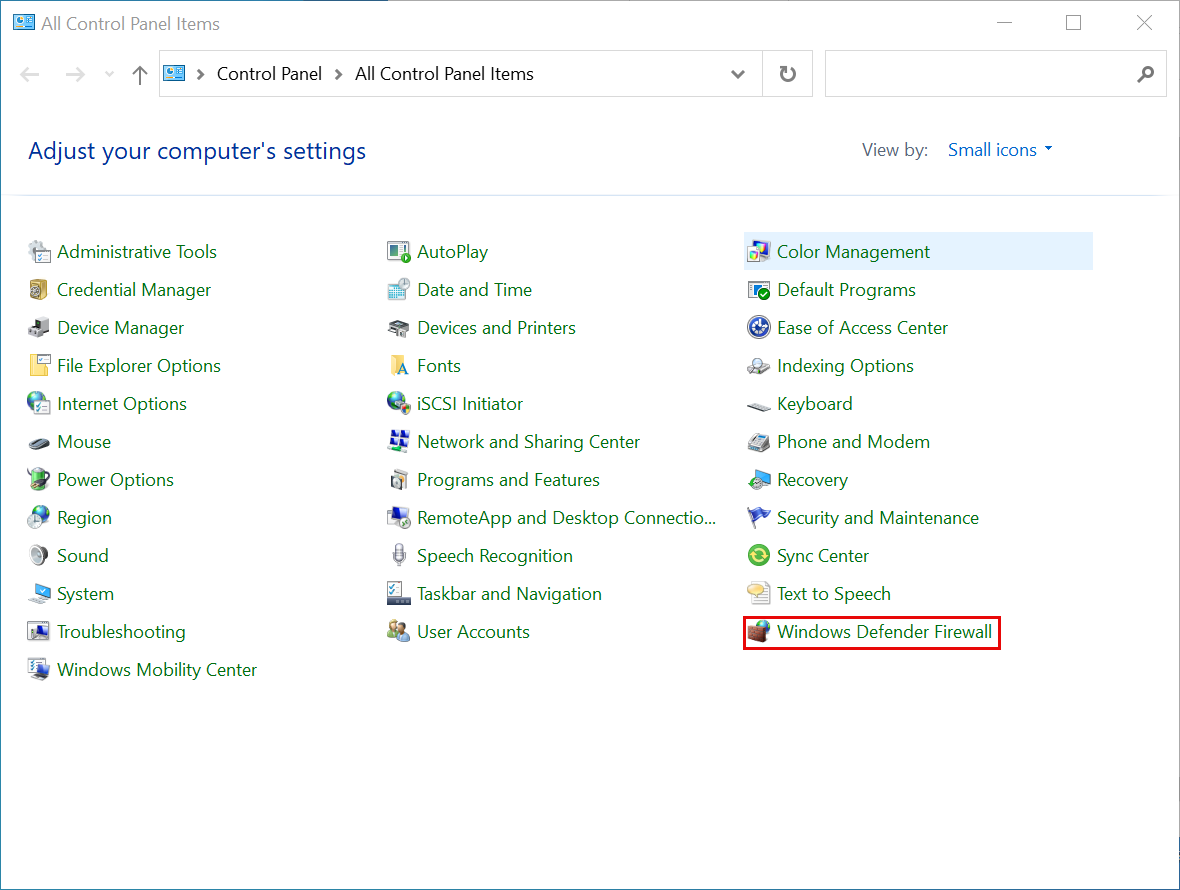
Open Control Panel > Windows Defender Firewall.
-
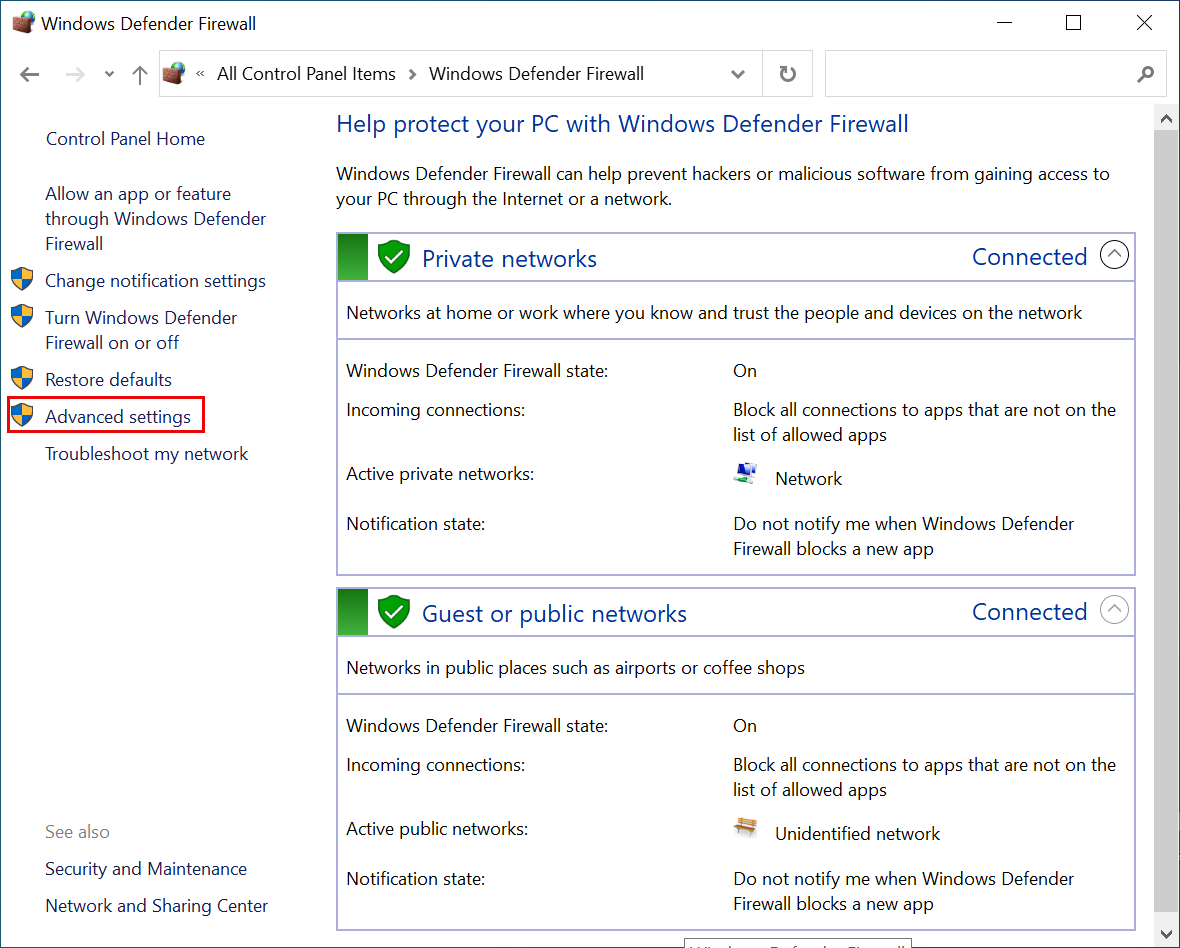
Click Advanced settings.
-
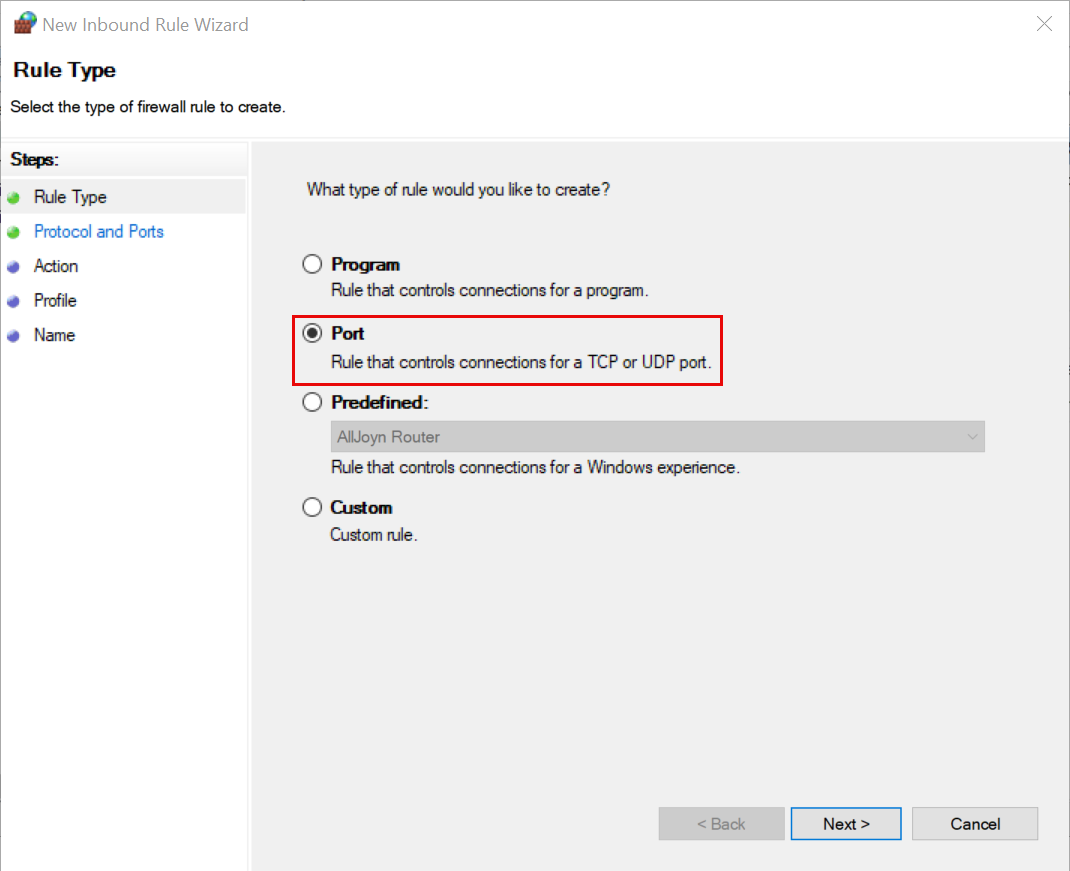
Select Inbound Rules and choose New Rule... in the Actions window. This runs New Inbound Rule Wizard.

-
Choose Port as the rule type.
-
Choose TCP protocol and specify
31002as the local port.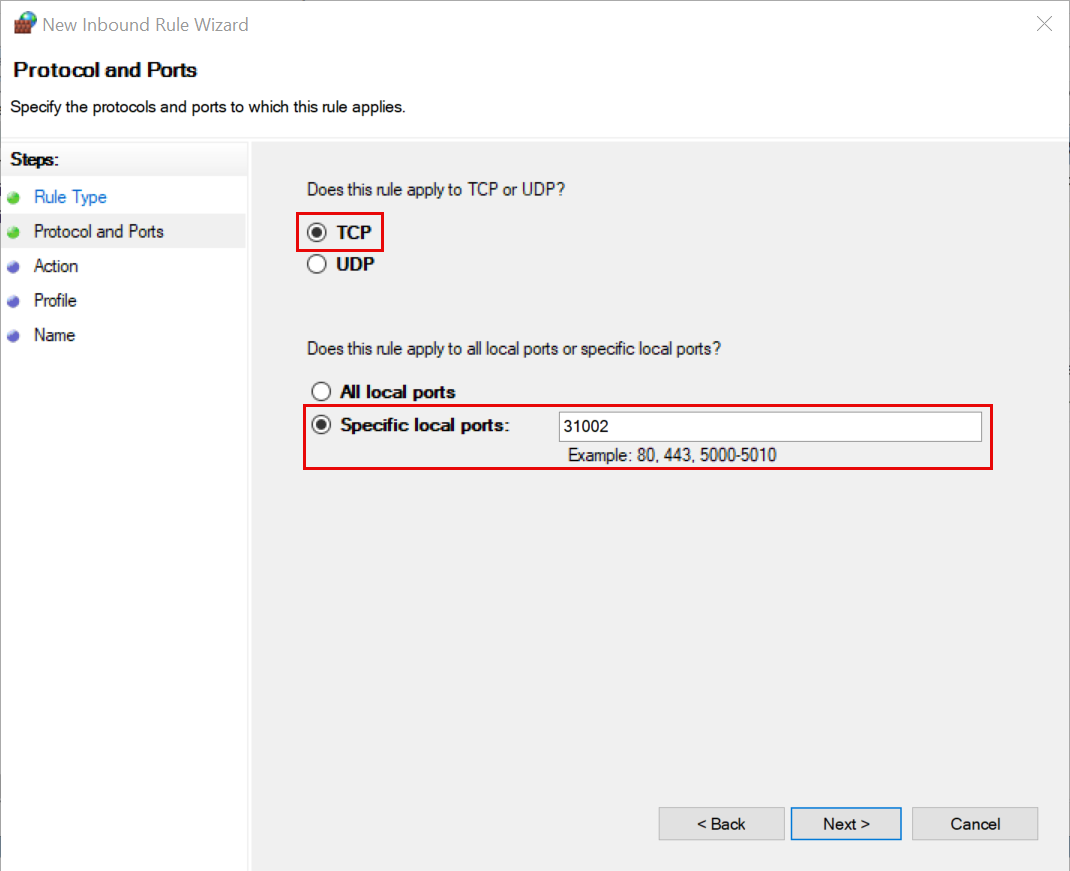
-
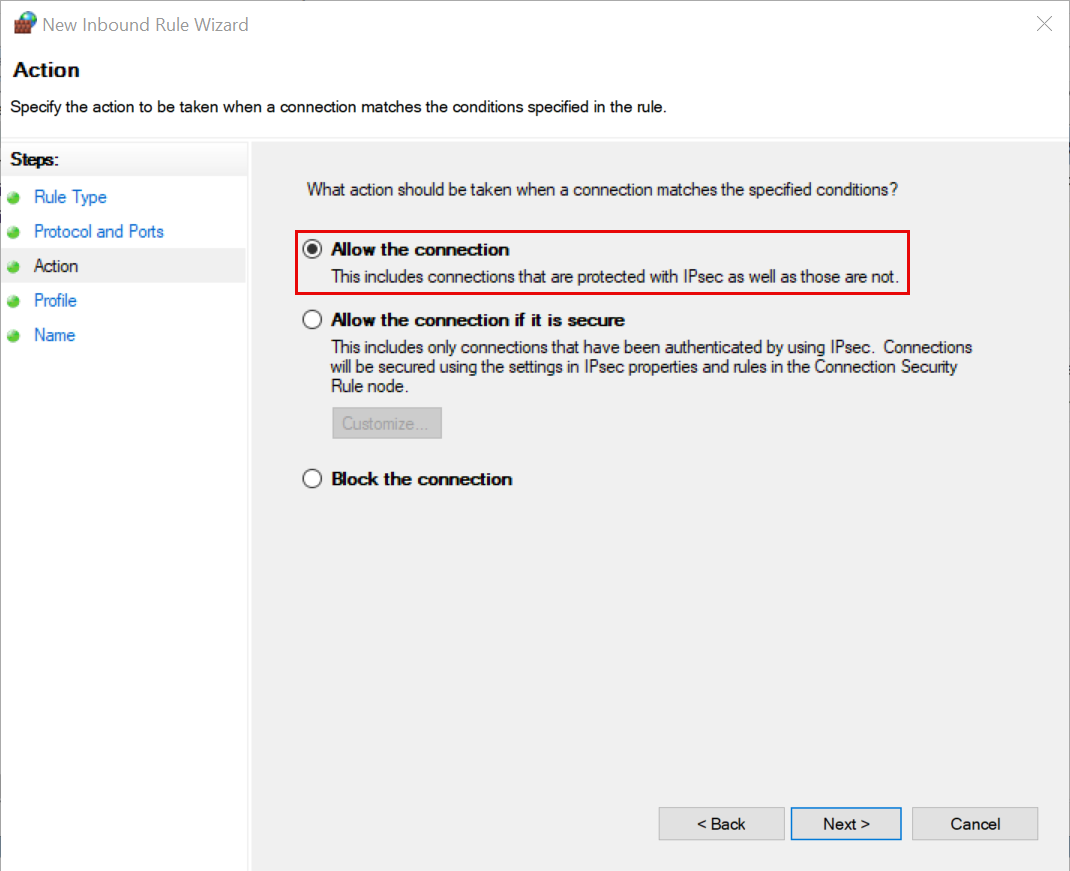
Choose the Allow the connection action.
-
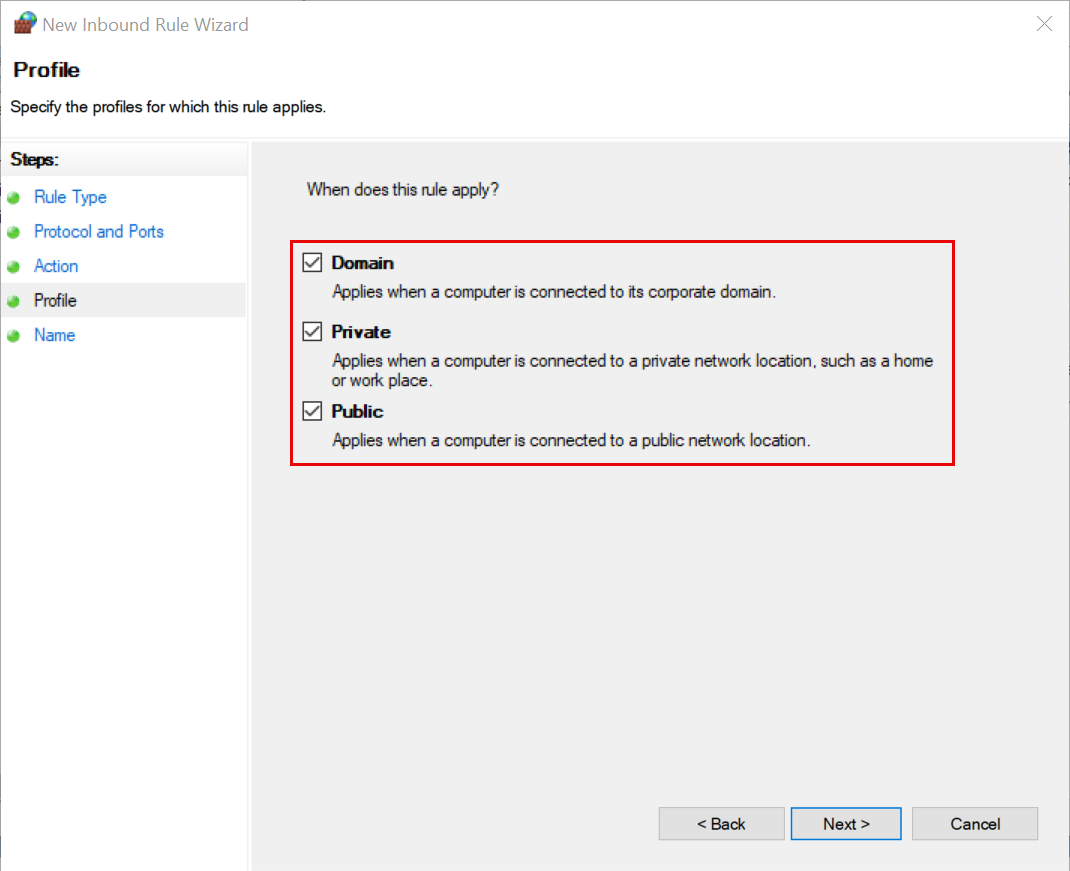
Choose all profiles.
-
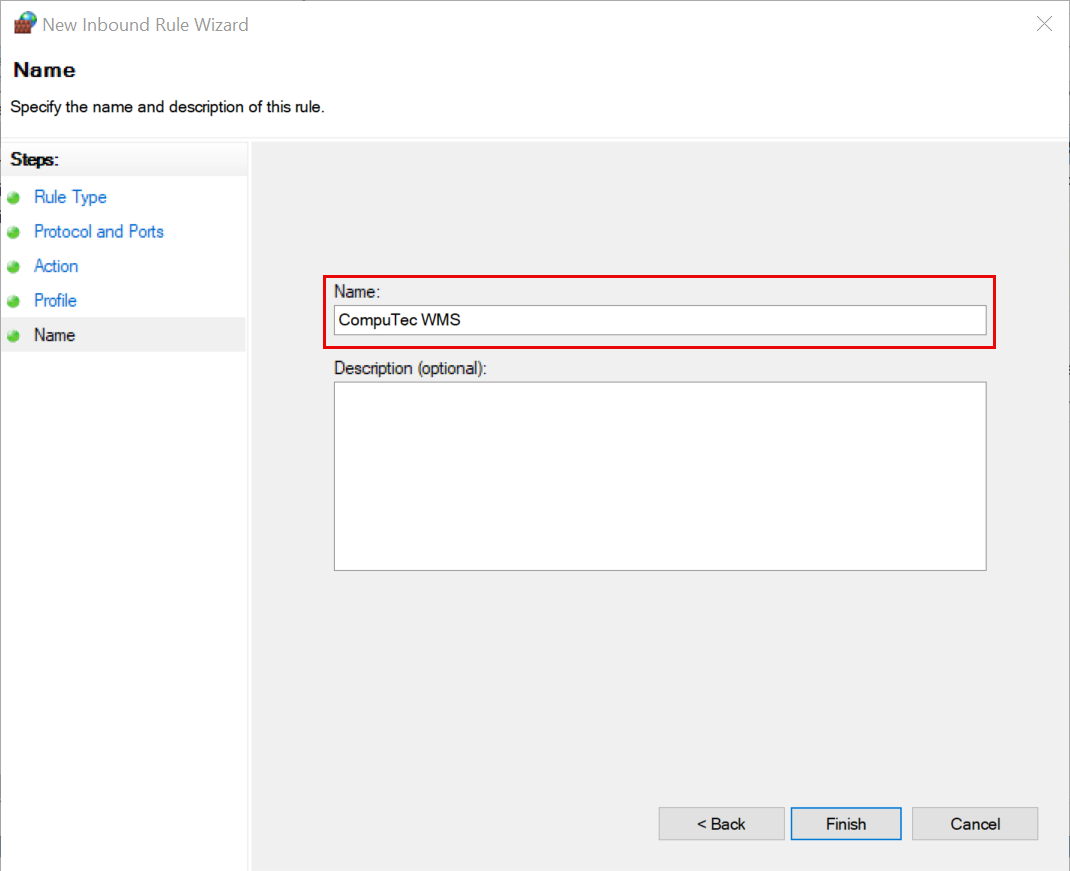
Enter a descriptive rule name, such as CompuTec WMS Server, and click Finish.
Anti-malware software
If anti-malware software blocks the installation, add an exception for the CompuTec WMS Server installer in its settings.