You are viewing documentation for CompuTec WMS 3.0, which runs on CompuTec AppEngine 3.0 (.NET 8).
If you use CompuTec WMS 2.0, see the CompuTec WMS 2.0 documentation.
When upgrading to CompuTec WMS 3.0, update all required CompuTec components together to ensure compatibility.
Before installing or upgrading, review the CompuTec WMS Installation Guide and the system requirements.
Storage Category
Overview
Storage Categories define operational rules for groups of warehouse locations. They control how locations behave during warehouse processes such as Put Away, capacity validation, and storage unit handling.
Storage Category allows you to define:
- how much can be stored in a location (by Quantity or Weight)
- whether a Storage Unit (SU) is required
- the ABC class of the location
- which warehouse the category belongs to
These settings help ensure that goods are stored in the right locations based on both operational needs and physical limits.
What this means in practice:
- the system blocks storage if a location exceeds its capacity
- it automatically selects suitable locations during the Put Away process
- it helps you organize warehouse space more efficiently
- it supports safer and more automated warehouse operations
Before You Start
Make sure the following components are installed and active:
- WMS Plugin
- WMS Business Logic
To learn how to install CompuTec AppEngine plugins, see the plugin installation guide.
Add a Storage Category
To add a new Storage Category, follow these steps:
-
Log in to CompuTec AppEngine Launchpad.

-
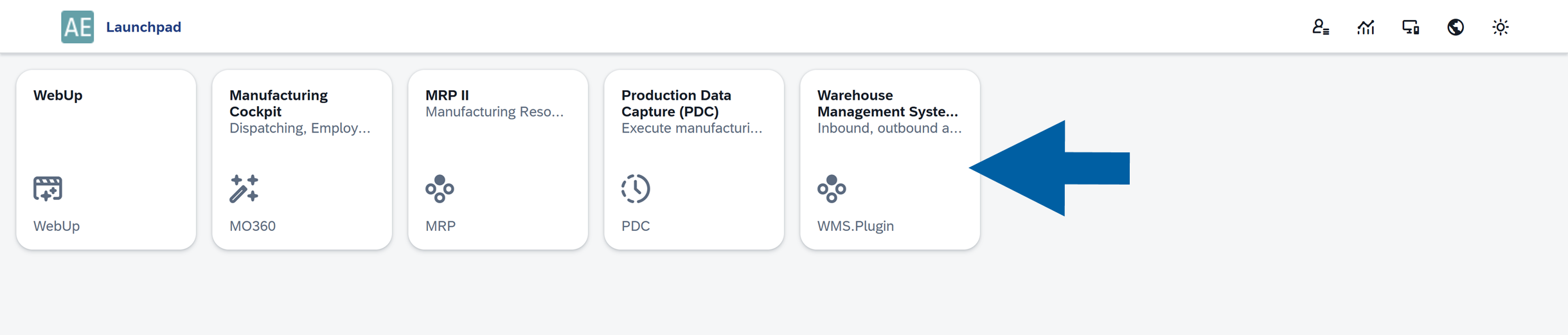
Open the WMS Plugin.
-
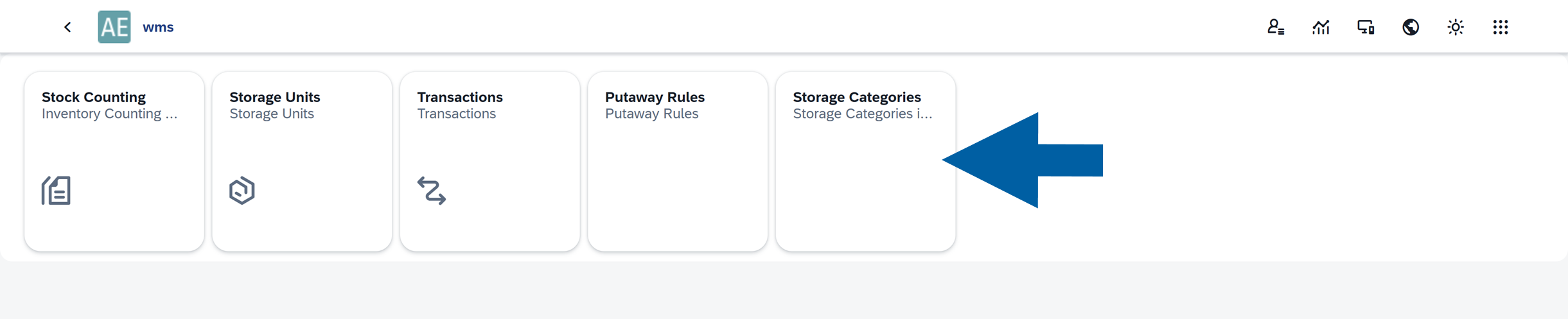
Go to Storage Categories.
-
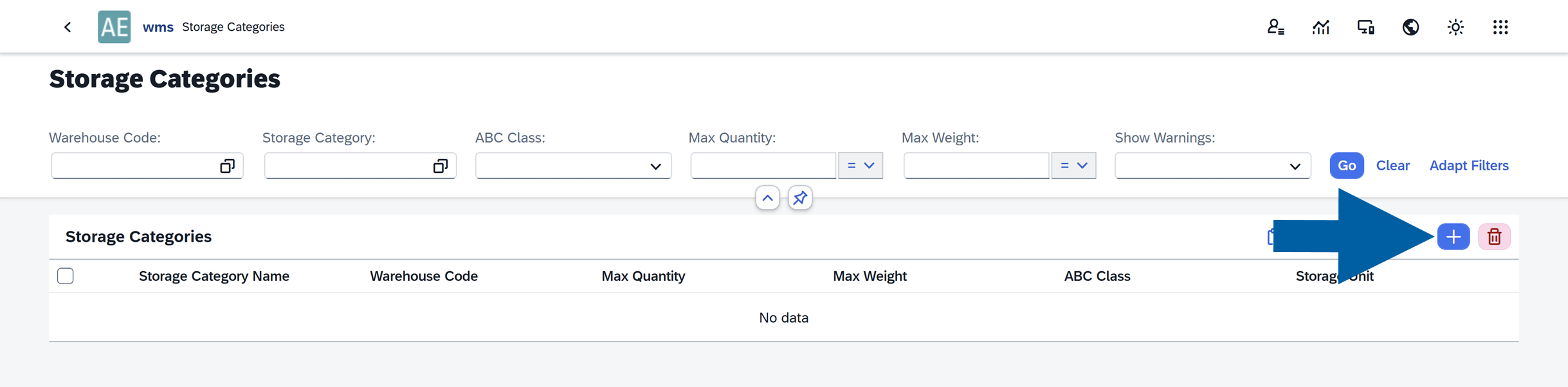
Click the + (Add) icon.
-
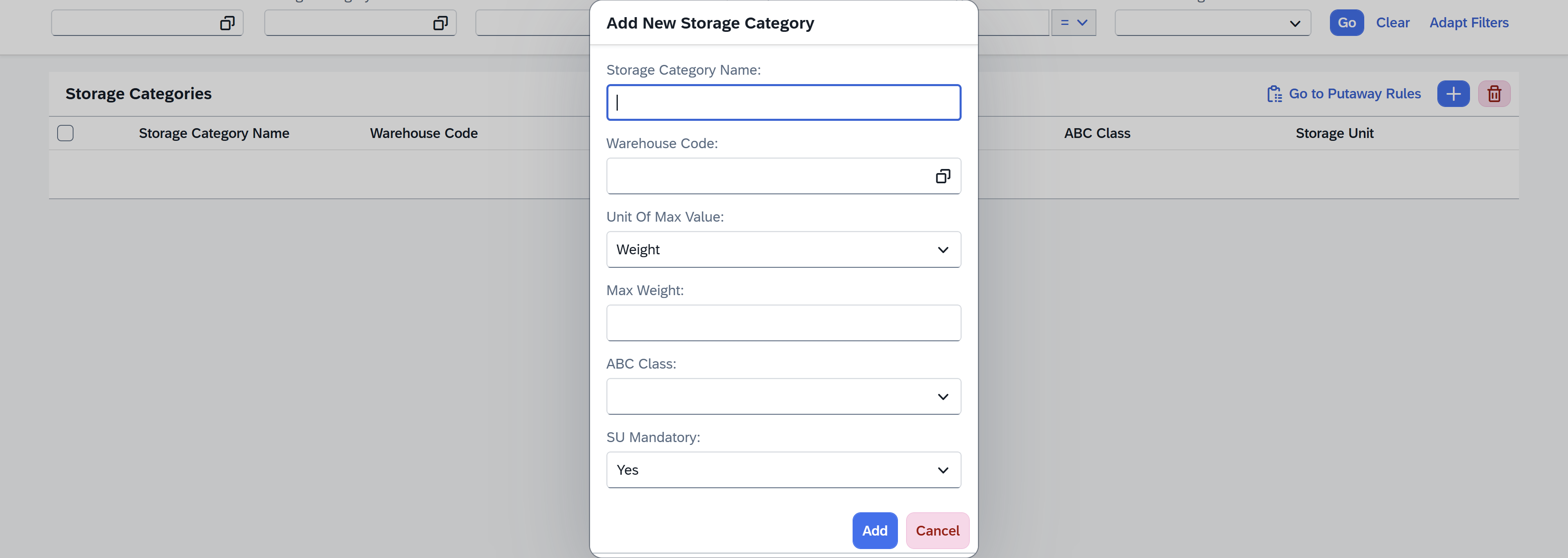
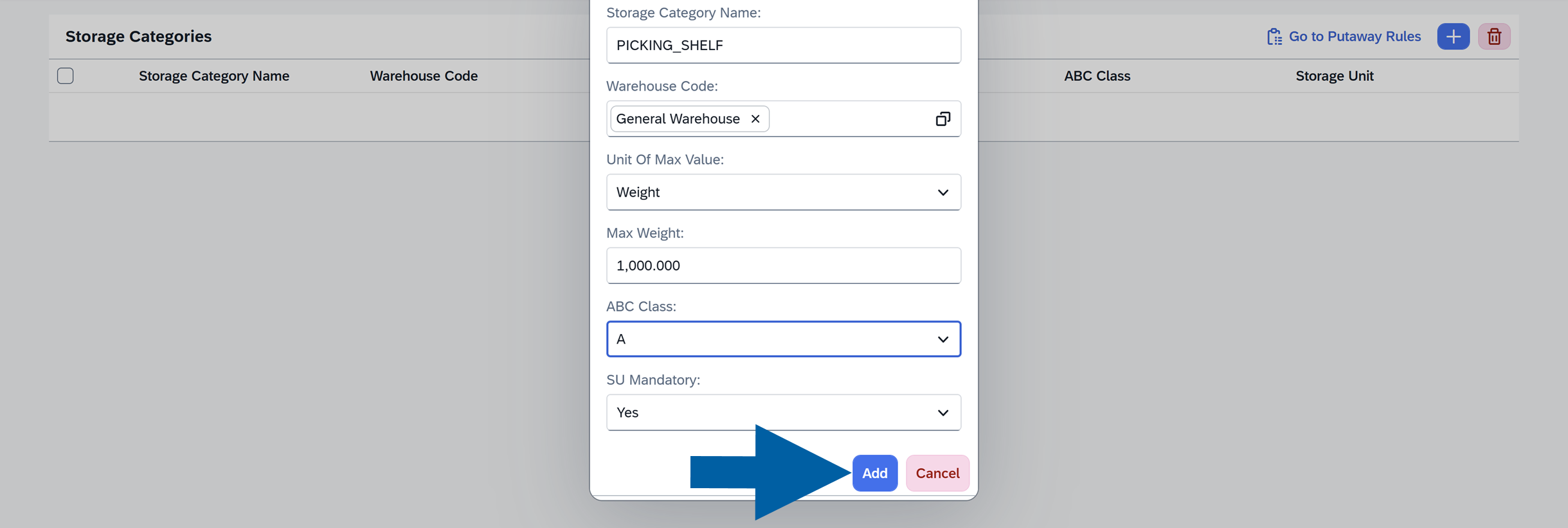
Enter the required details:
-
Storage Category Name: Unique identifier of the Storage Category.
-
Warehouse Code: Specifies the warehouse where this Storage Category will be used. Only locations within this warehouse can be assigned to this category.
-
Unit of Max Value: Defines how the system calculates the capacity limit of a location. This setting determines how the system validates storage capacity during Put Away. Available options typically include:
- Quantity – maximum number of items allowed in the location
- Weight – maximum weight allowed in the location
-
Max Quantity / Max Weight: Defines the maximum capacity allowed for locations assigned to this category.
It determines whether the limit is calculated by weight or quantity, and what the maximum allowed value is (Max Weight or Max Quantity). It prevents storing goods if the capacity limit is exceeded, and automatically selects suitable locations during the Put Away process. -
ABC Class: Defines how often items in a location are used. This helps organize the warehouse based on demand:
- A Class: fast-moving items that are picked or moved frequently. These locations are usually closest to picking or shipping areas.
- B Class: medium-moving items. These are stored in locations with moderate accessibility.
- C Class: low-moving items that are rarely accessed. These are typically stored in more distant locations or on higher shelves.
The WMS can use this information when selecting locations during the Put Away process.
-
SU Mandatory: Specifies whether goods stored in locations assigned to this category must be handled using Storage Units (SU). This option is commonly enabled for pallet storage areas.
Values:- Yes: Goods must be stored within a Storage Unit (for example pallet or container).
- No: Items can be stored without a Storage Unit.
-
-
Click Add to save.
-
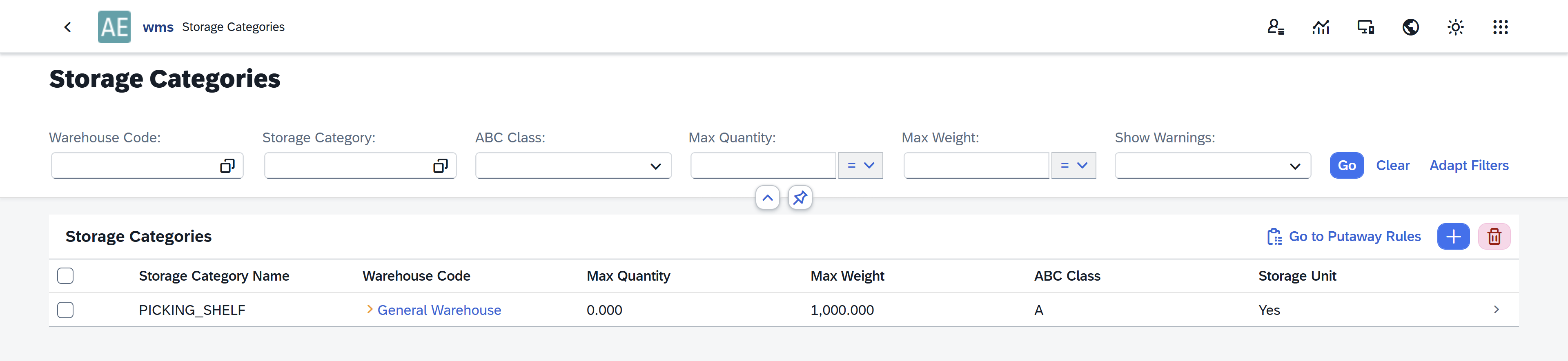
Done! You've added a new Storage Category.
Use case
Imagine your warehouse has two types of storage areas:
-
Pallet racks designed for heavy goods
- Capacity: up to 1000 kg
- Stored by weight
- Requires a Storage Unit (for example, a pallet)
- ABC Class: B
-
Picking shelves used for smaller, fast-moving items
- Capacity: up to 50 items
- Stored by quantity
- No Storage Unit required
- ABC Class: A
To reflect this setup, you create two Storage Categories - one for each type of storage.
When goods arrive, the system automatically chooses the right location during the Put Away process, based on these rules.
Best Practices
- Use separate Storage Categories for different storage zones (pallets, shelves, bulk storage).
- Align ABC classification with your warehouse workflow.
- Use SU Mandatory for palletized storage areas.
- Define realistic capacity limits to prevent overloading locations.
- Keep category naming consistent to simplify warehouse configuration.