You are currently viewing documentation for CompuTec ProcessForce 3.0, which is a plugin installed and managed through CompuTec AppEngine 3.0, built on .NET 8. If you are working with older environments, you may need the documentation for CompuTec ProcessForce 2.0: https://learn.computec.one/docs/processforce/2.0/.
Please note that CompuTec ProcessForce 2.0 will be supported only until December 31, 2026. After this date, the product will no longer receive regular support or maintenance updates. Read more
CompuTec AppEngine 3.0 introduces a new architecture, and all CompuTec components, including the CompuTec ProcessForce 3.0 plugin, must be updated together to ensure full compatibility.
Before starting your installation or upgrade process, we strongly recommend reviewing the CompuTec AppEngine 3.0 and CompuTec ProcessForce 3.0 documentation.
Complaint
The Complaint form enables users to record, track, and resolve complaints efficiently - whether they originate from customers, suppliers, or internal teams. It centralizes all complaint-related data, helping maintain traceability and streamline corrective actions.
To access Complaint, navigate to:
Complaints → Complaint
For a detailed overview, watch the video Complaint Management.
When to Use
Use the Complaint form when:
- You need to log and manage a customer, supplier, or internal complaint.
- You want to track corrective actions, sample returns, or quality control tests linked to a complaint.
- You require an integrated record for audits and reporting.
Complaint Header
The Header section captures the key complaint details for identification, responsibility and tracking.
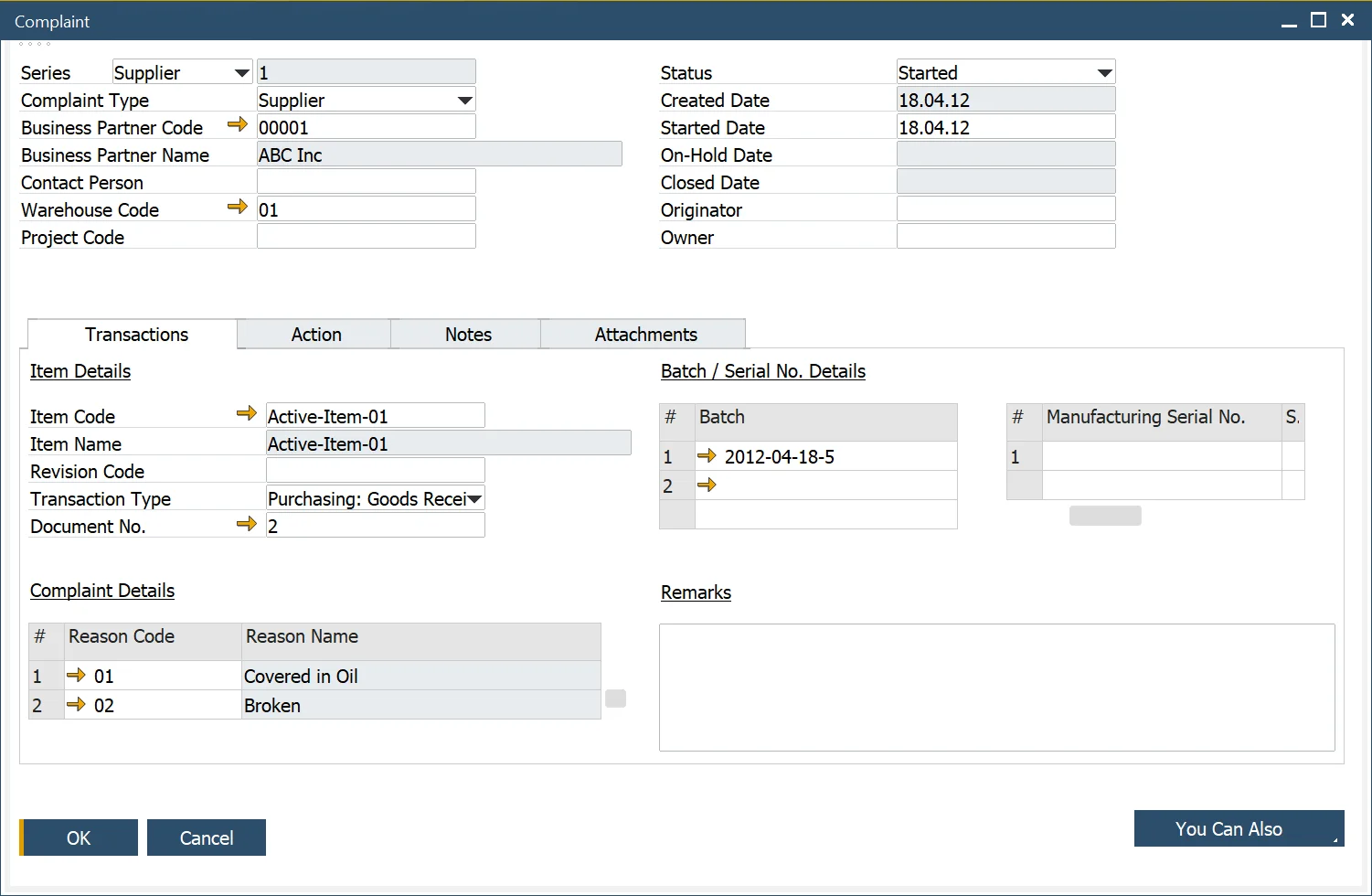
- Complaint Number: Select and enter a complaint number using the defined Document Series Number.
- Source of the Complaint: Enter the source of the complaint: Customer, Supplier, or Internal.
- Business Partner Details:
- Select the Business Partner Code (filtered based on the selected Complaint Type).
- If the Complaint Type is Internal, the Business Partner and Contact Person fields are disabled.
- Contact Person: Enter the Contact Person, filtered based on the selected Business Partner Code.
- Additional Information: Specify Warehouse and Project Code if applicable.
- Complaint Status: Track progress using statuses (Created, Started, On-Hold, Closed), with corresponding dates.
- originator and Owner:
- Enter an Originator, who started the Complaint.
- Enter an Owner, responsible for managing the Complaint.
- Alerts: Alerts can be generated to notify the Complaint Manager to assign or update an Owner.
Transaction tab
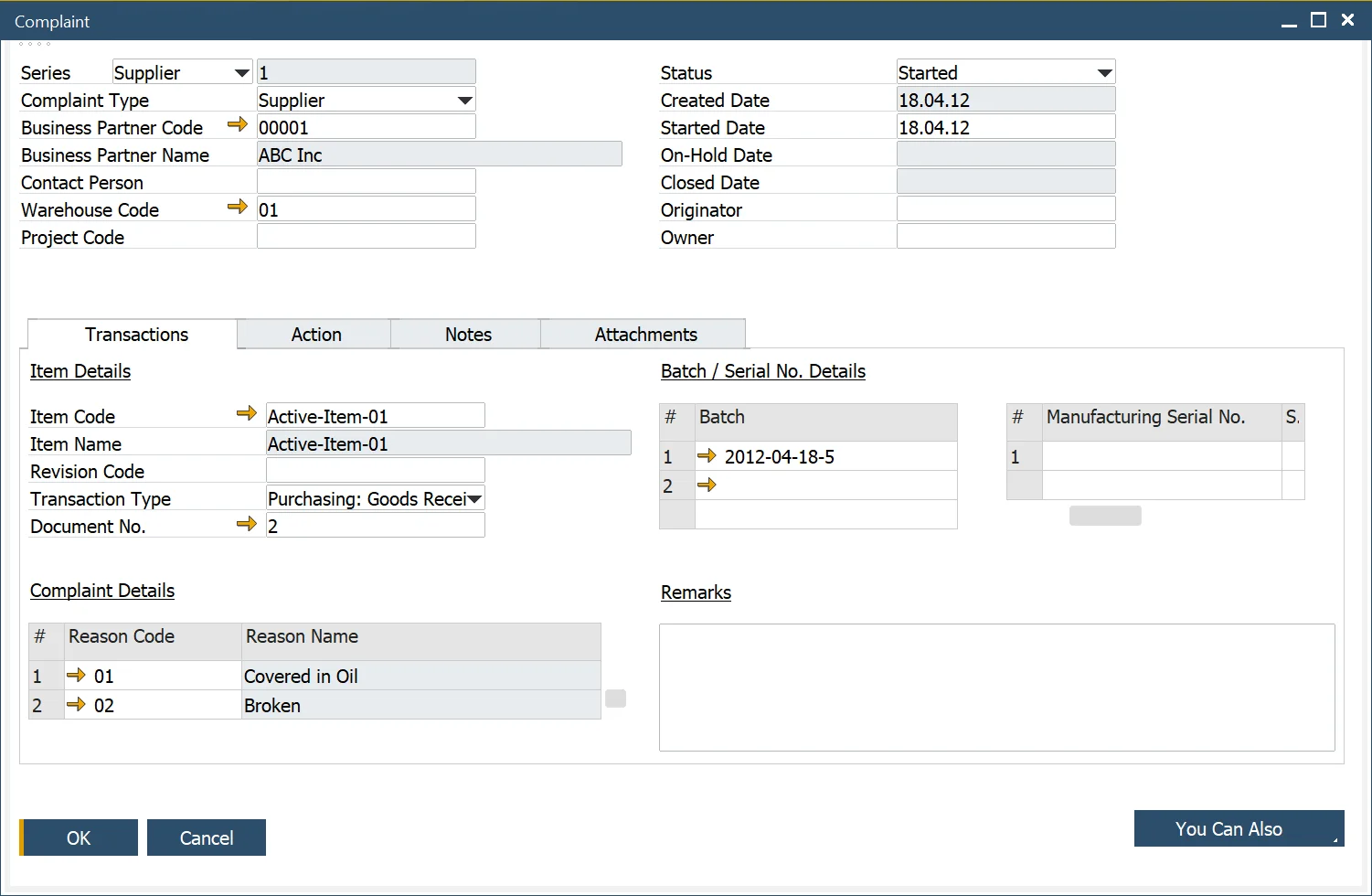
The Transaction tab records detailed information about item-related and non-item-related complaints.

Item-Related Complaints
- Enter the Item Code, Reason Code, and Transaction Type (e.g., Delivery, Purchase Order).
- Link the complaint to a Document Number, Batch or Serial Number.
- When a Transaction Type is selected, the system filters data relevant to the selected Business Partner.
- Batches, serial numbers, and multiple reason codes can be added or removed as required.
- Add Remarks for contextual details or clarifications.
Non-Item-Related Complaints
- Record general service, process or communication issues not linked to specific items.
Action tab
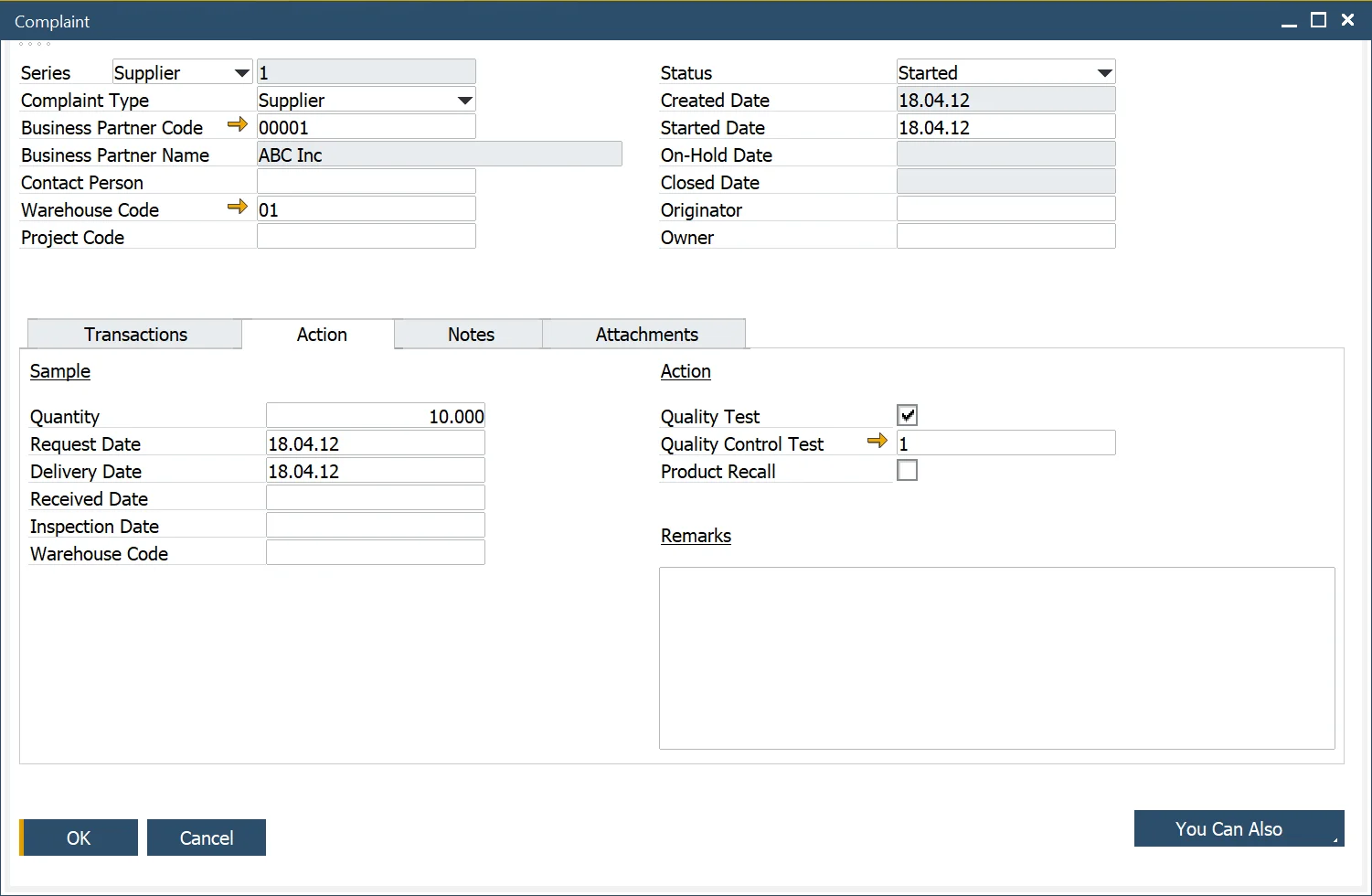
The Action tab helps manage any follow-up activity such as sample returns or warehouse inspections.
Key Features
- Specify Sample Quantity and whether it is returned from the Customer or sent to the Supplier.
- Define the storage location and date for received samples.
- Automatic alerts notify Warehouse Managers about incoming samples.
- The alert is based on the following query, Status = Started, Business Partner Code and Name, Item Number, Batch/Serial Number, Delivery Date, Warehouse Code, and Warehouse manager.
- When the sample is received at the warehouse, based on a Return document, an alert is sent to the Complaint Owner.
➡️ Learn more about Alerts.
Notes
Use the Notes tab to record any text-based comments or contextual details about the complaint.
Attachments tab
The Attachments tab allows users to upload supporting documents such as photographs, test results, delivery documents or inspection reports.
Creating a Quality Control Test
From the Action tab, users can create a linked Quality Control Test when the complaint requires product evaluation.
- Use the “You Can Also” button to generate a new test.
- The system automatically links the complaint to the created QC Test.
- You can also track if the complaint triggered a Product Recall.
➡️ Watch the video: How to Create a Quality Control Test from a Complaint
Creating an Activity for a complaint
SAP Business One’s standard Activity Management is integrated into the Complaint form. You can create, assign, and monitor activities related to a specific complaint.
➡️ Learn more: Activities for CompuTec ProcessForce Documents.
Complaint Status
Each complaint follows a defined status flow for better tracking:
| Status | Description |
|---|---|
| Created | The complaint record is created but not yet started. |
| Started | Work on the complaint has begun. |
| On-Hold | No further action is currently taken; the issue is paused. |
| Closed | Complaint resolution is complete; no further editing is allowed. |