You are currently viewing documentation for CompuTec ProcessForce 3.0, which is a plugin installed and managed through CompuTec AppEngine 3.0, built on .NET 8. If you are working with older environments, you may need the documentation for CompuTec ProcessForce 2.0: https://learn.computec.one/docs/processforce/2.0/.
Please note that CompuTec ProcessForce 2.0 will be supported only until December 31, 2026. After this date, the product will no longer receive regular support or maintenance updates. Read more
CompuTec AppEngine 3.0 introduces a new architecture, and all CompuTec components, including the CompuTec ProcessForce 3.0 plugin, must be updated together to ensure full compatibility.
Before starting your installation or upgrade process, we strongly recommend reviewing the CompuTec AppEngine 3.0 and CompuTec ProcessForce 3.0 documentation.
Configure Backflushing
Backflushing automatically issues component materials from inventory during production. Instead of manually creating a Goods Issue for each component, CompuTec ProcessForce deducts the required quantities when a production receipt is created.
Use backflushing to simplify inventory transactions and reduce manual data entry during manufacturing.
Before you start
Use Backflush only when it matches your production process.
Backflush automatically calculates and issues component quantities based on the Bill of Materials, the production quantity being received, and any previously issued or residual quantities. Because the issued quantity is calculated automatically, it is best suited for production processes where the actual material consumption closely matches the planned quantity.
Backflush is not recommended for production processes that require manual quantity adjustments or rounding—for example, when raw materials must always be issued in full boxes, bags, or packages. In these cases, use the Manual issue method instead.
For technical details about the backflush calculation algorithm and the underlying formula, see the Developer Guide.
Before enabling backflushing, verify that:
- the Bill of Materials is complete and accurate,
- the correct issue type is configured,
- the production quantities are reported correctly.
Best practices for using Backflush
Use Backflush when:
- Material consumption follows the Bill of Materials.
- The issued quantity should be calculated automatically.
- No manual selection of quantities or batches is required.
Use Manual Issue instead when:
- Materials must always be issued in fixed quantities (for example, full boxes, bags, or pallets).
- The issued quantity needs to be rounded up or down.
- Operators must manually decide which quantity or batch to issue.
Example
If a raw material is supplied only in full boxes and a box cannot be partially issued, configure the component with the Manual issue method instead of Backflush.
Backflushing methods
CompuTec ProcessForce supports the following backflushing methods:
| Method | Description |
|---|---|
| Coproduct | Issues components based on the parent Receipt transaction. |
| Byproduct and Scrap | Issues components based on the parent Receipt transaction. |
| Bill of Material / Item / Warehouse | Backflushes components defined for a specific Bill of Materials, Item, and Warehouse combination. |
| Manufacturing Order / Item / Warehouse | Backflushes components defined for a specific Manufacturing Order, Item, and Warehouse combination. |
| Batch Trace | Issues batch-managed components using the FIFO (First In, First Out) method. |
| Time | Reserved for future support of Production Time and Labor backflushing. |
Configure Backflushing
You can configure Backflushing at several levels.
Item Master Data
The default backflushing method is defined in the Item Master Data.
To configure backflushing in Item Master Data, follow these steps:
-
In SAP Business One, go to: Inventory > Item Master Data.
-
Navigate to Production Data tab.
-
In Issue Method field, choose
Backflush.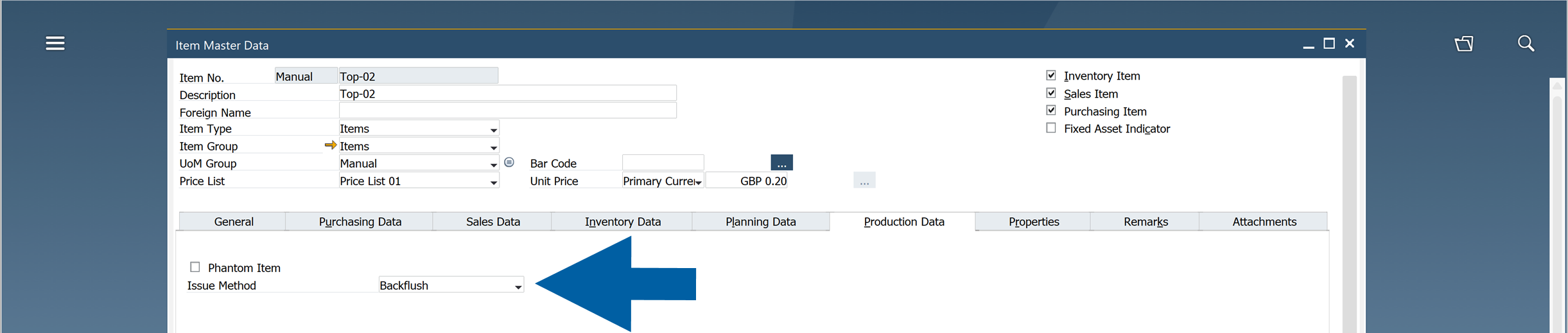
-
Save your changes.
Bill of Materials
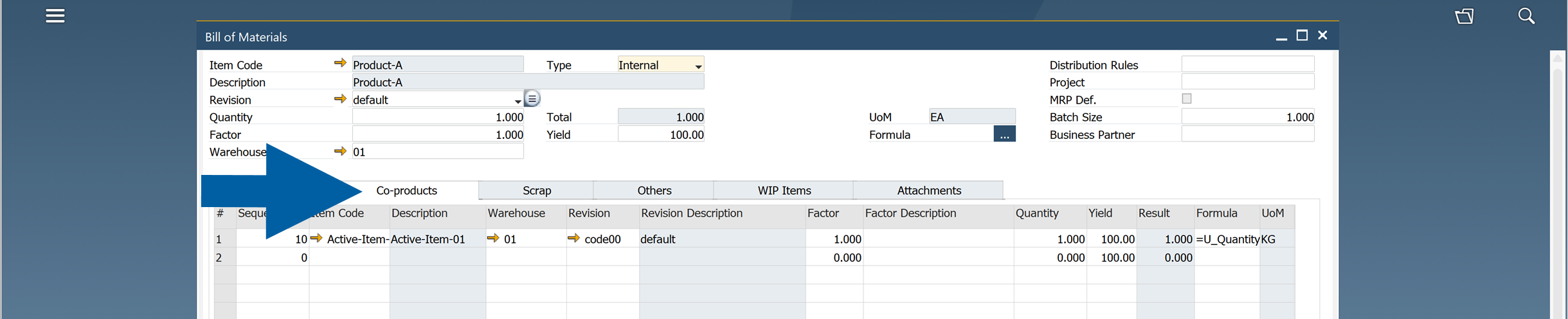
When you create a Bill of Materials, the Issue Type is automatically copied from the Item Master Data.
You can change the default value for a specific:
- Bill of Materials
- Item
- Warehouse
The selected Warehouse determines where components are issued during backflushing.
Manufacturing Order
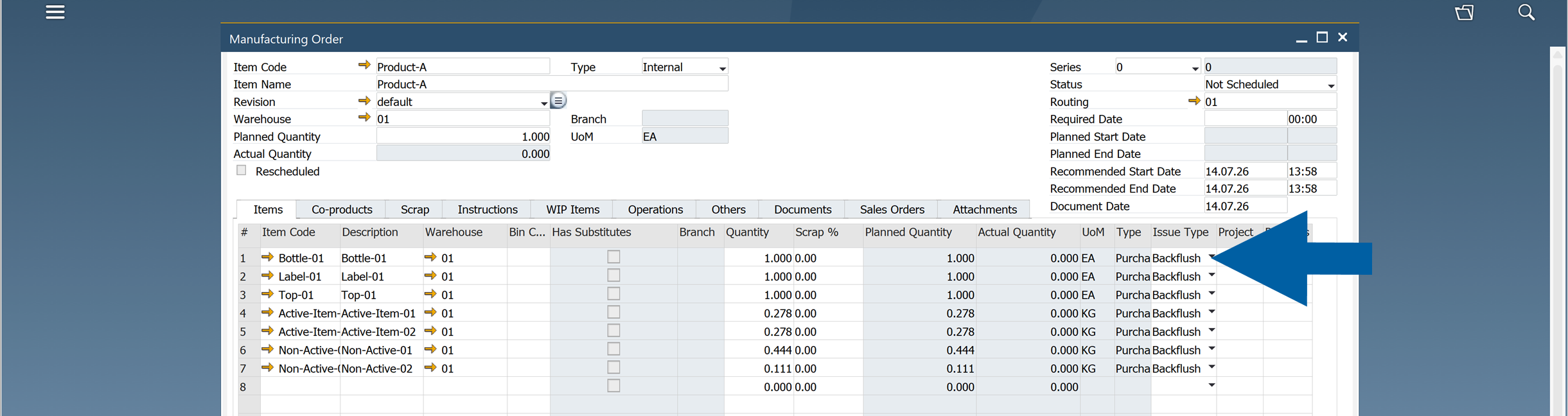
The same configuration is available on the Manufacturing Order > Items tab, allowing you to override the default settings for a specific production order.
Accept Lower Quantity
The Accept Lower Quantity option allows production to continue even when there is not enough inventory to fully backflush all required components.
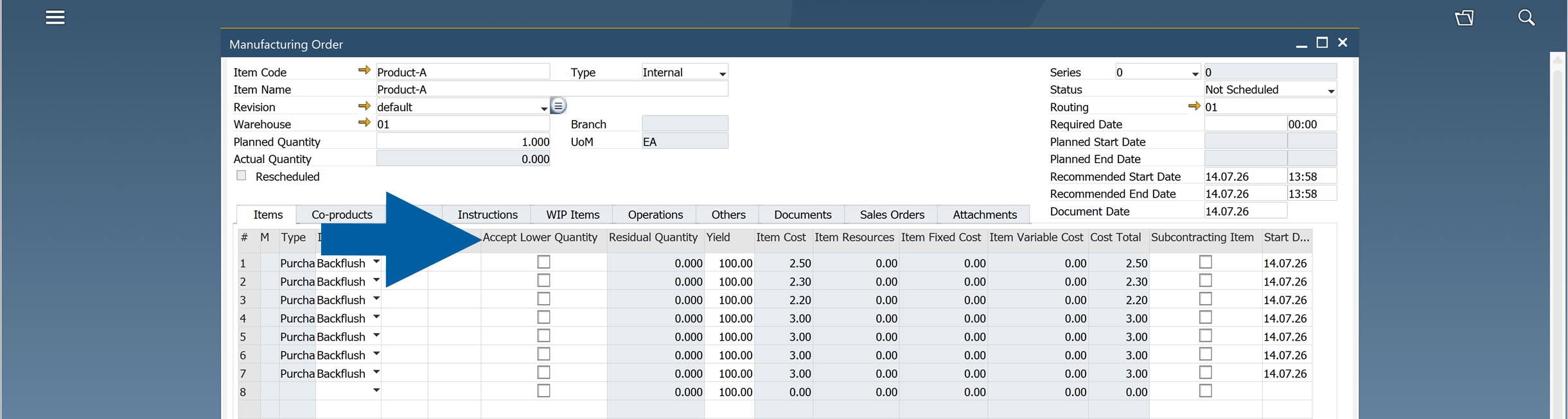
When this option is enabled:
- If the available inventory is lower than the required quantity, CompuTec ProcessForce issues the available quantity.
- The remaining quantity is recorded in the Residual Quantity field.
- During the next backflush, the residual quantity is issued automatically when sufficient inventory becomes available.
This helps keep production moving while ensuring that missing material is issued later.
Result
After you configure backflushing:
- Component materials are issued automatically during production.
- Manual Goods Issue transactions are reduced.
- Any missing quantities can be tracked using the Residual Quantity field when Accept Lower Quantity is enabled.