You are viewing documentation for CompuTec WMS 3.0, which runs on CompuTec AppEngine 3.0 (.NET 8).
If you use CompuTec WMS 2.0, see the CompuTec WMS 2.0 documentation.
When upgrading to CompuTec WMS 3.0, update all required CompuTec components together to ensure compatibility.
Before installing or upgrading, review the CompuTec WMS Installation Guide and the system requirements.
SU Settings
SU Pick and Pack Settings
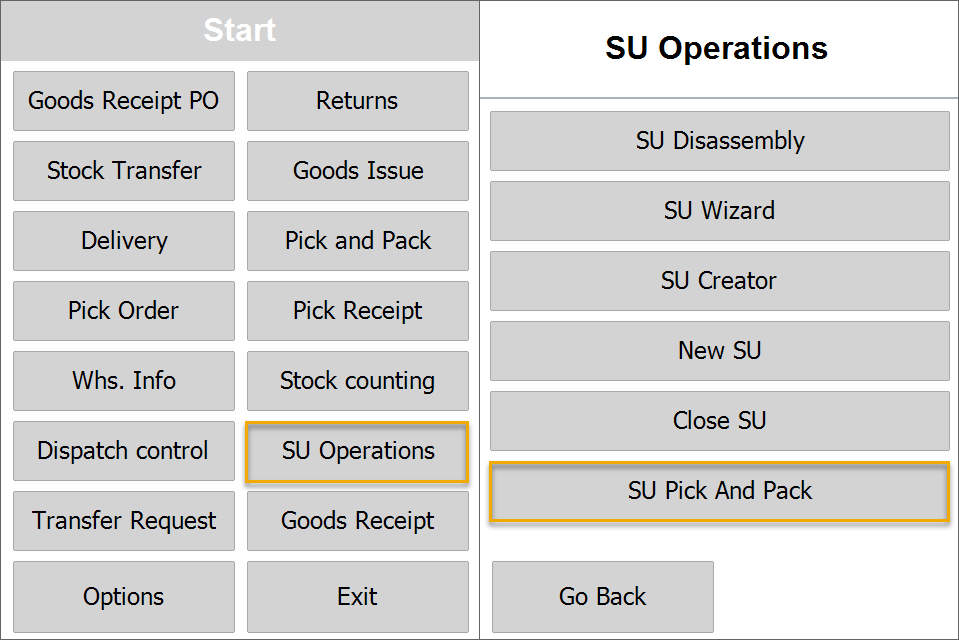

-
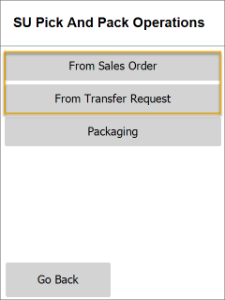
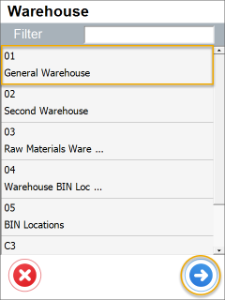
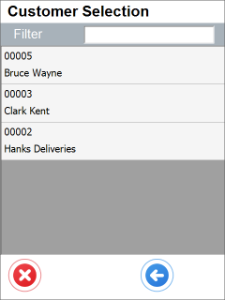
Show Warehouse on SU Pick and Pack and no default SU Pick and Pack Warehouse is chosen
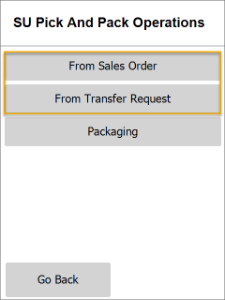
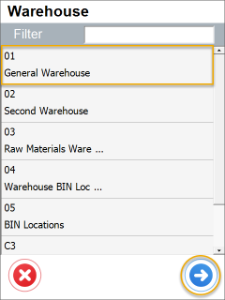
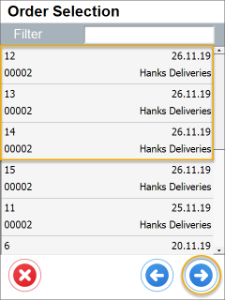
It is possible to choose or skip Warehouse selection during creation of SU Pick and Pack based on Sales Order or Transfer Request. If a Warehouse is not chosen, transactions for all Warehouse will be displayed.
Click here to expand
-
Show Warehouse on SU Pick and Pack and default SU Pick and Pack Warehouse is chosen
If a different Warehouse is chosen in the first step, only transaction for this Warehouse will be displayed. If choosing a Warehouse step is skipped in the first step, only transactions for a Warehouse chosen in the settings are displayed.
Click here to expand
-
Do not show Warehouse on SU Pick and Pack and no default SU Pick and Pack Warehouse is chosen
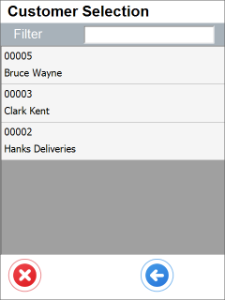
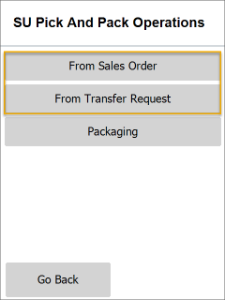
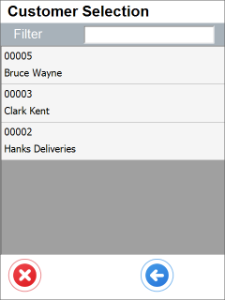
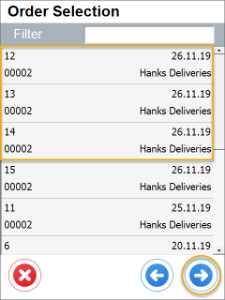
Choosing a transaction (From Sales Order or From Transfer Request) leads directly to Customer Selection from.
Click here to expand
-
Do not show Warehouse selection on SU Pick and Pack and default SU Pick and Pack Warehouse is chosen
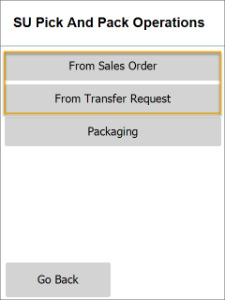
No Warehouse selection at all. A Warehouse is chosen automatically from the settings.
Click here to expand
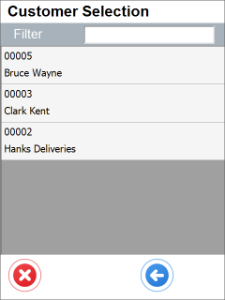
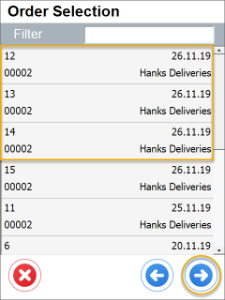
SU Creation - Default Warehouse Settings
When a default warehouse or bin location is configured in the WMS Options menu, the system automatically applies this setting during SU Operations. As a result, the Warehouse Selection screen is skipped, and users can proceed directly with SU creation.
How it Works:
-
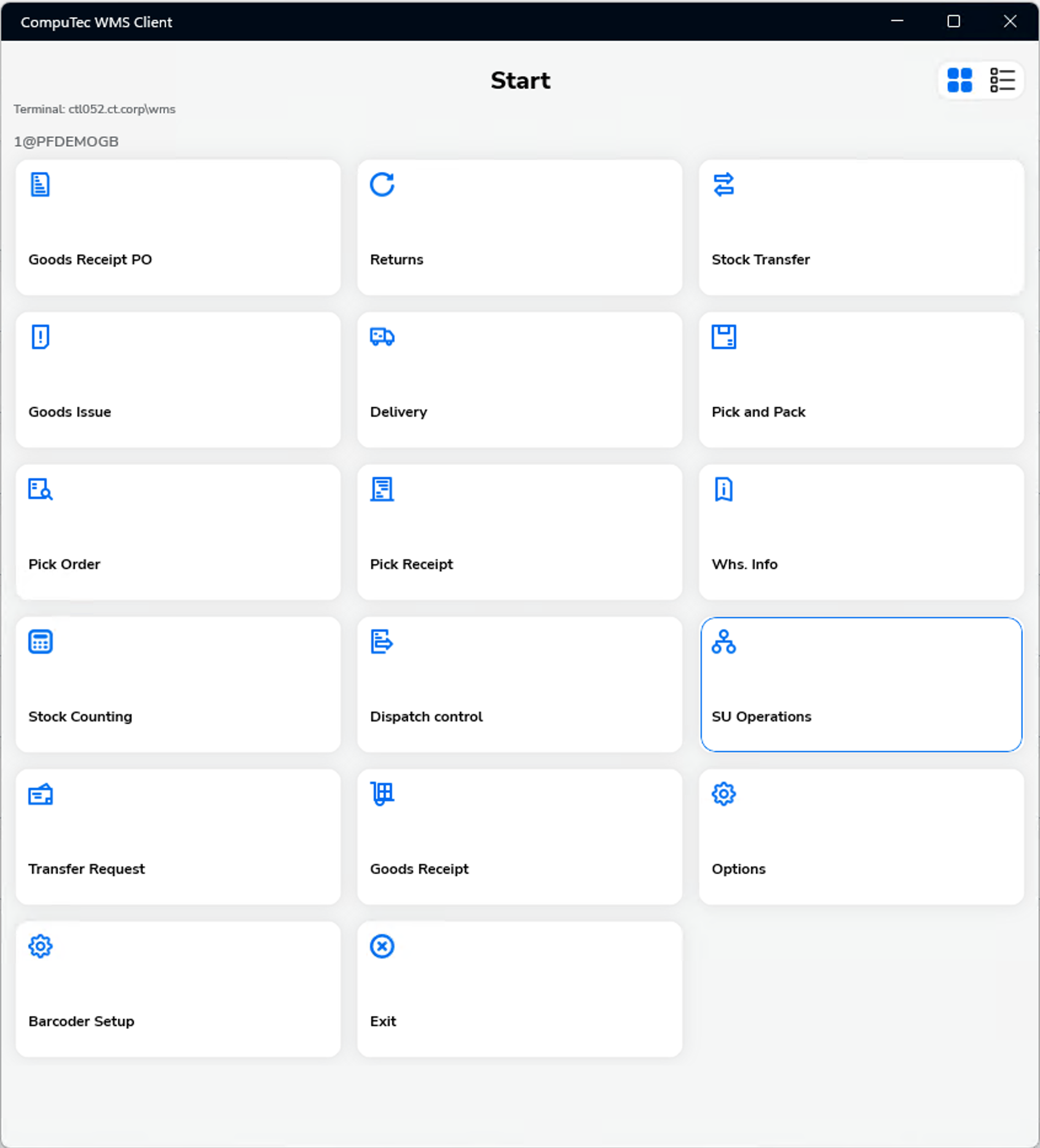
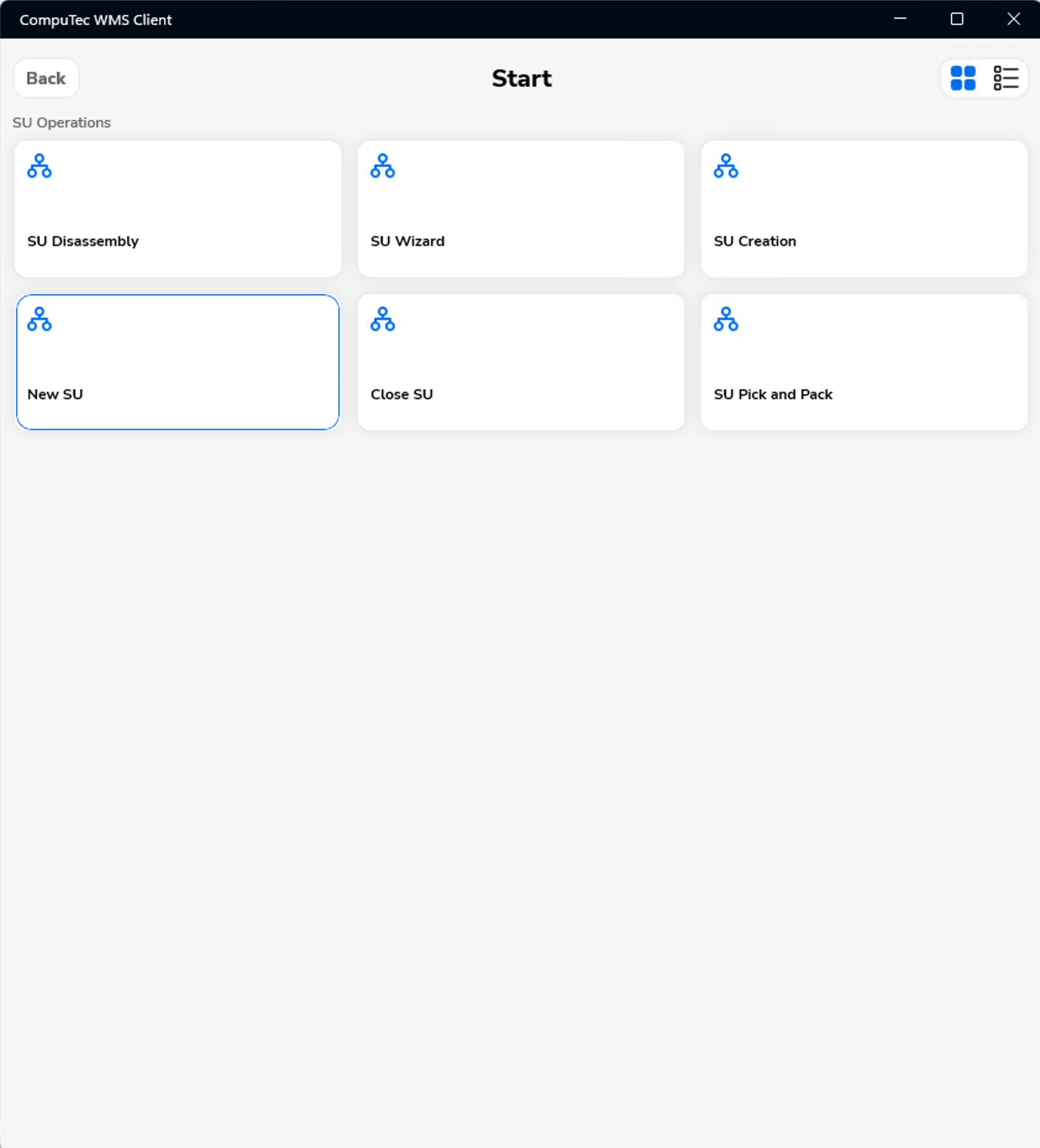
Open the CompuTec WMS Client. Navigate to SU Operations and select New SU, or SU Wizard or SU Creation. The system starts the SU process.
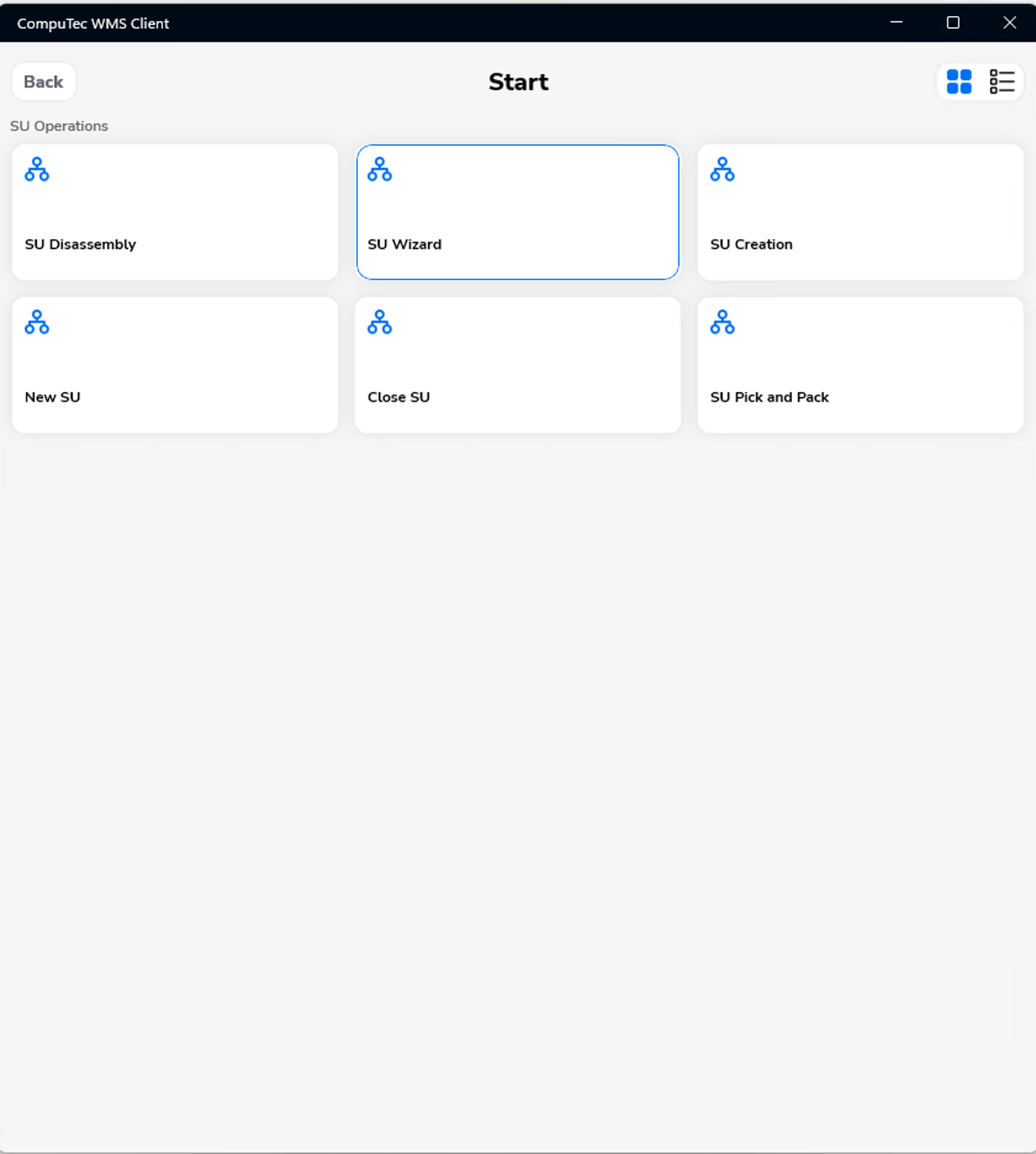
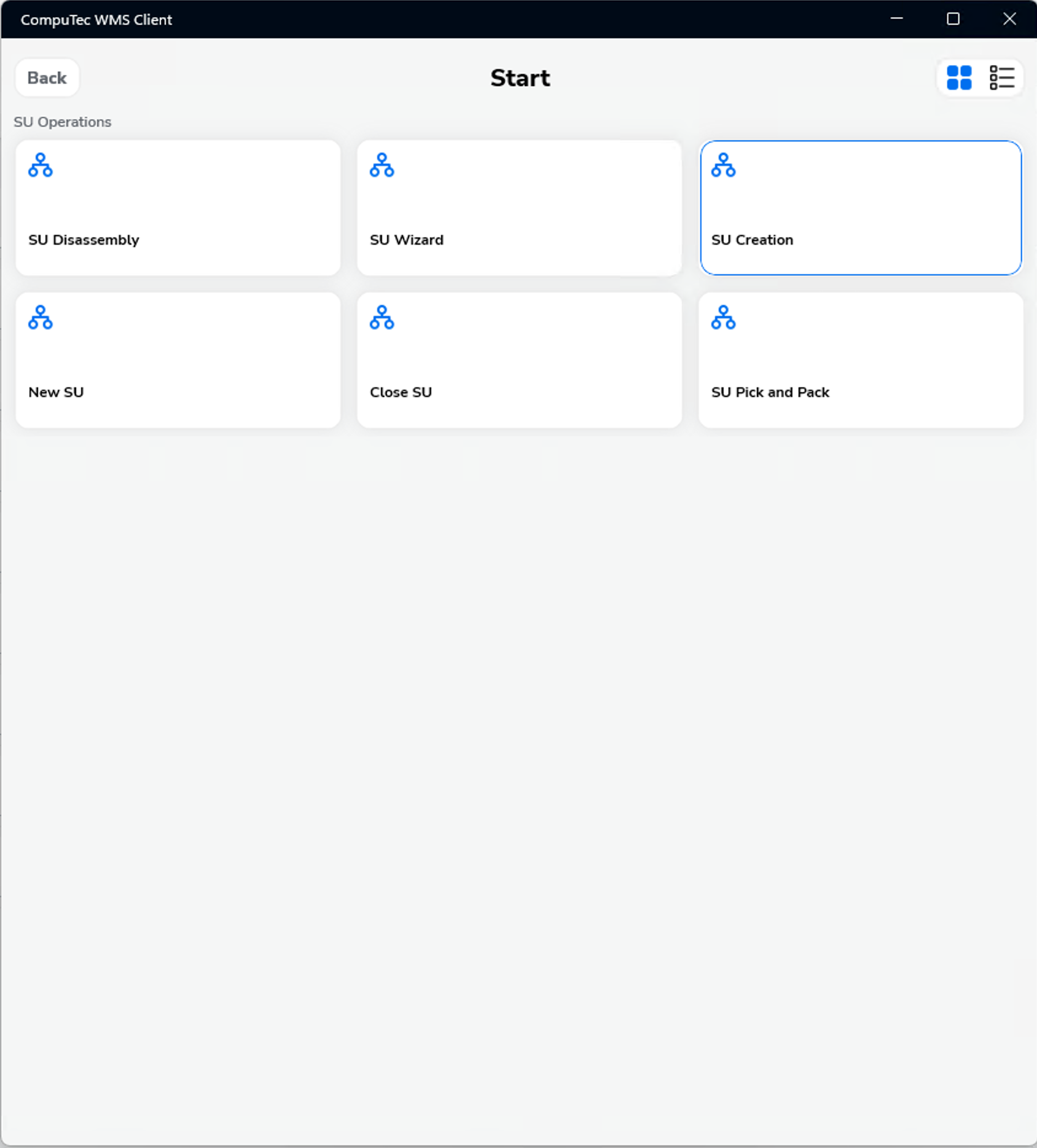
-
Enter the preferred warehouse/bin value and Save.
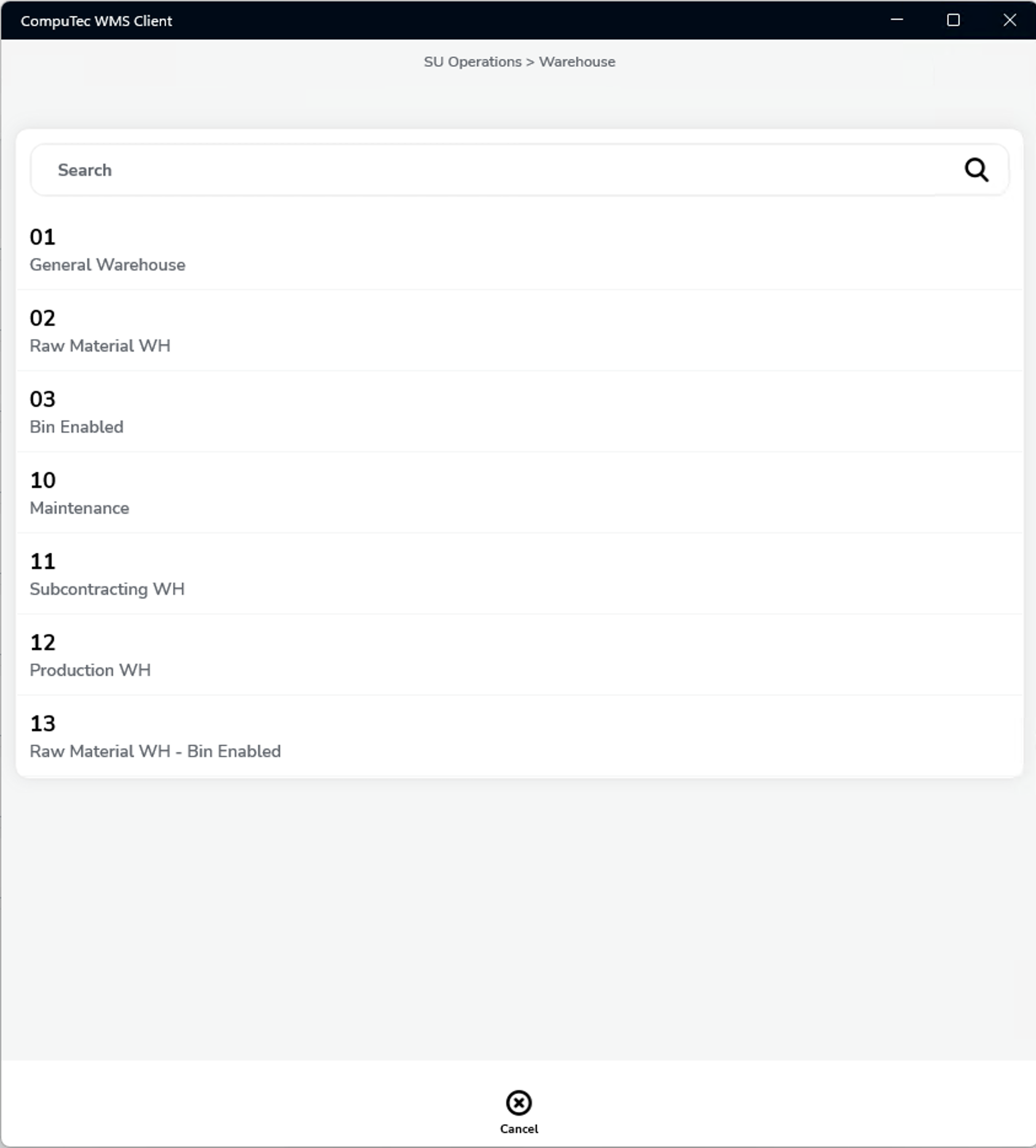
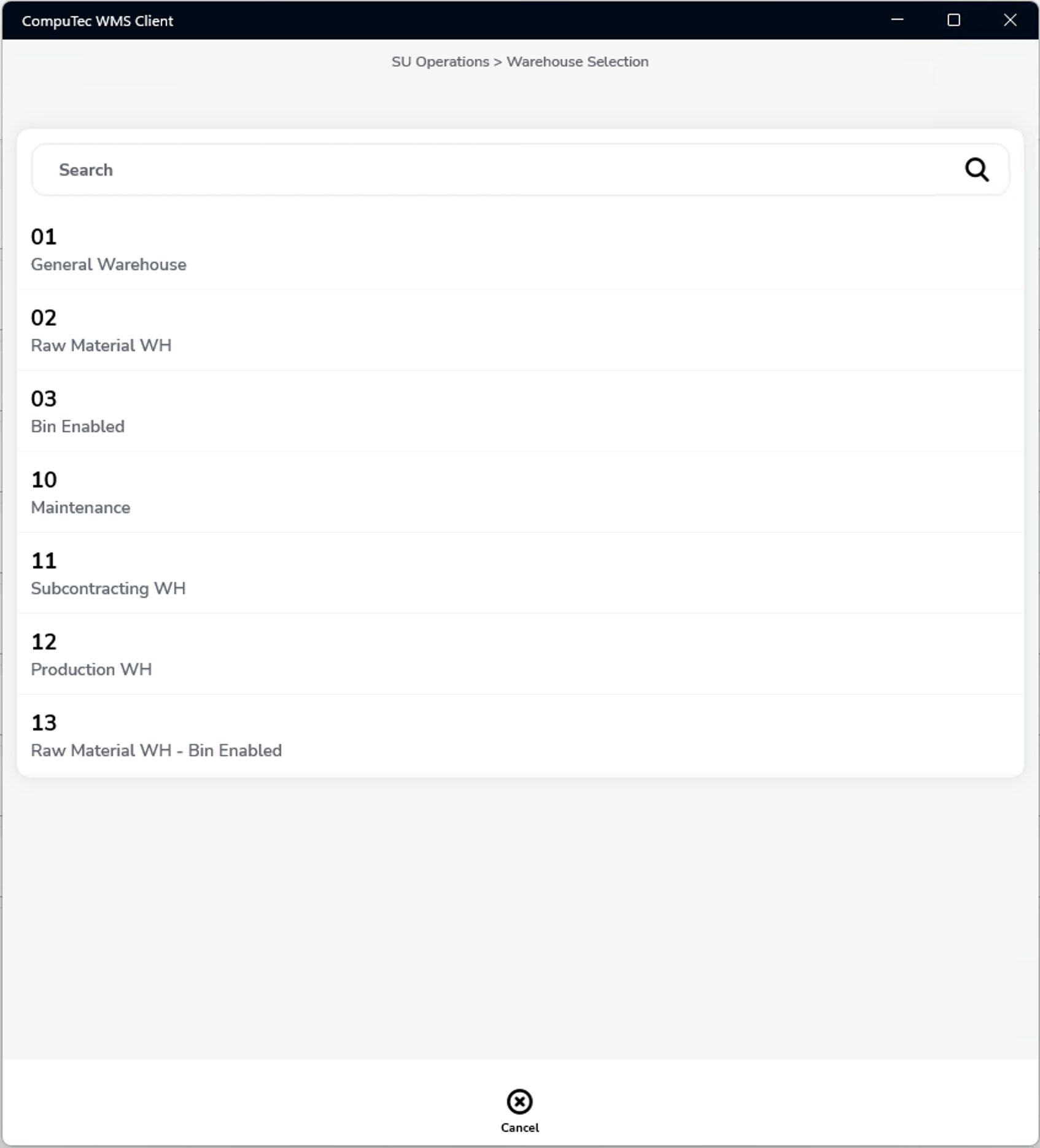
-
Once set, performing any SU Operation - such as New SU, SU Creation, or SU Wizard will:
-
Automatically use the configured warehouse/bin.
-
Skip the manual Warehouse Selection screen.
-
Take you straight into the SU creation process.

-