Review the Requests
The Requests section in CompuTec Labels provides information about label requests and their processing.
Use this section to find a request and review the information associated with it.
Before you start
A request must have been submitted to CompuTec Labels before you can review it in Requests.
Review label requests
To review the requests, follow these steps:
-
Open CompuTec Labels Printer Manager.
-
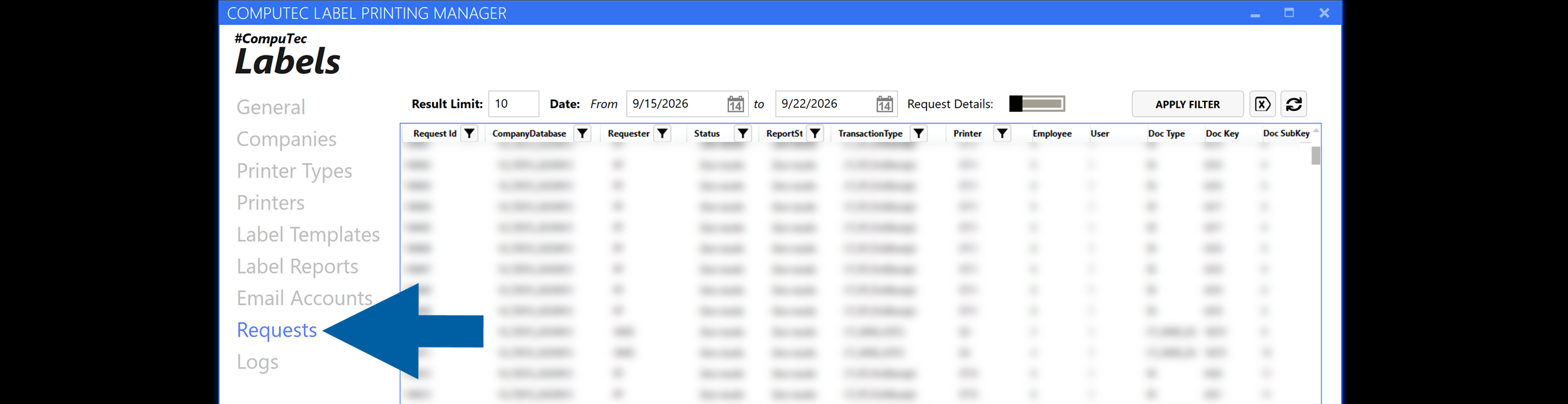
Go to Requests.
-
Find the request that you want to review.
To narrow down the displayed requests, you can:
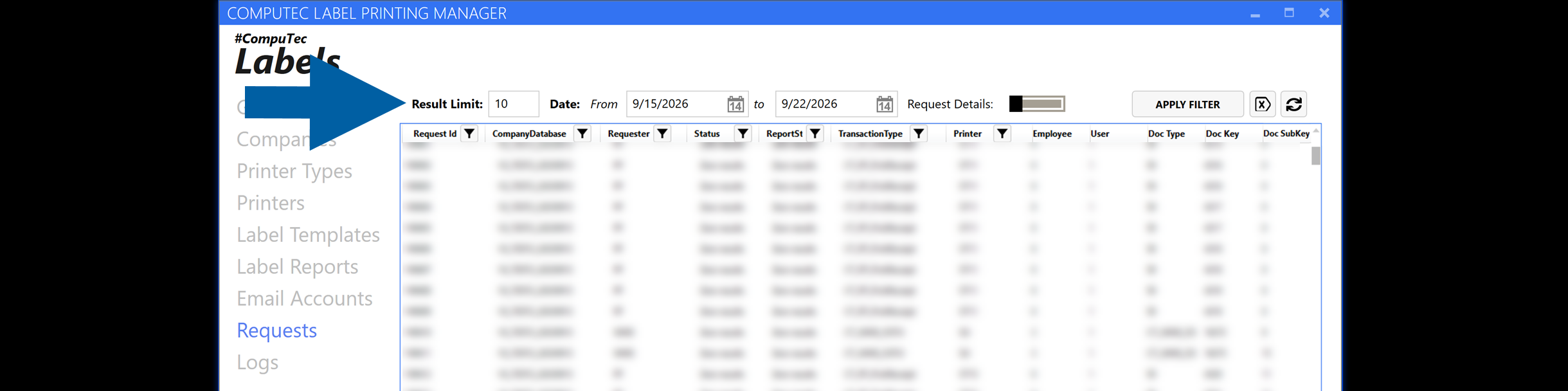
- Set the maximum number of displayed requests in Result Limit.
- Select a date range in Date.
- Use the filter icons in the column headers to filter individual columns.
-
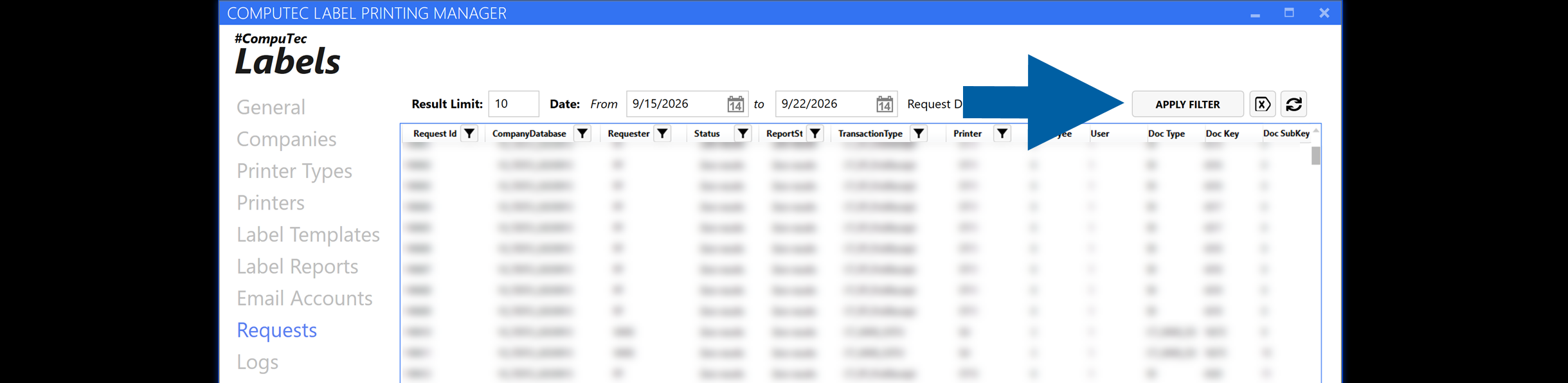
Click Apply Filter to apply the selected filters.
 info
infoTo remove the applied filters, click Clear all filters.
-
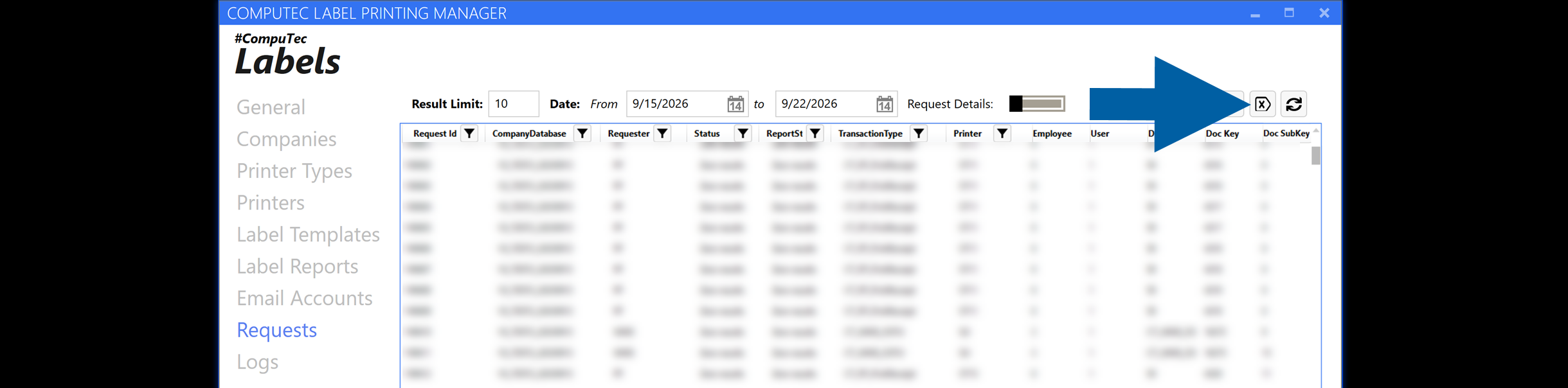
To display additional information about a request, enable Request Details and select a request.
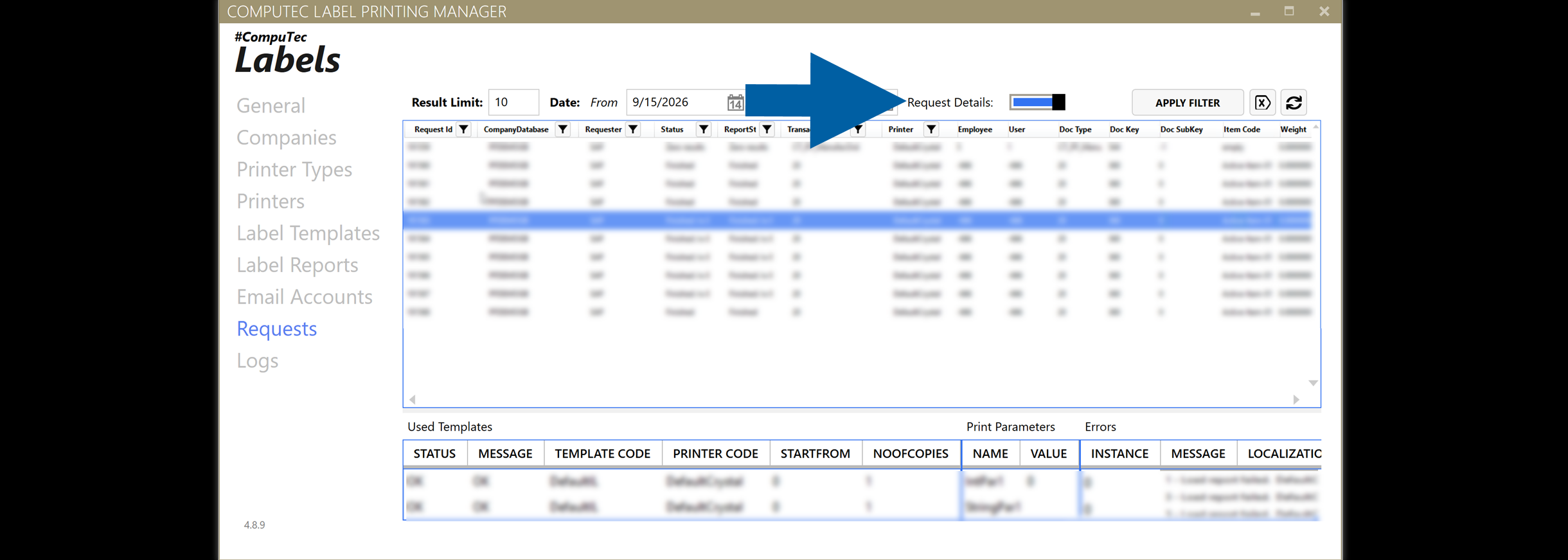
The details pane is displayed at the bottom of the Requests screen and contains information about used templates, print parameters, and errors.
infoSAP Business One company credentials are not required to display request details.
Result
You can review the request and the information recorded for it in CompuTec Labels.
If you need more information about request processing, review the related logs.
Additional information
If you need to investigate how a request was processed, see Troubleshoot request processing with logs.
To permanently remove old requests and their related data from the CTLABEL database, use the Request Cleanup Wizard. For more information, see Clean up old requests in CompuTec Labels.