You are currently viewing documentation for CompuTec ProcessForce 3.0, which is a plugin installed and managed through CompuTec AppEngine 3.0, built on .NET 8. If you are working with older environments, you may need the documentation for CompuTec ProcessForce 2.0: https://learn.computec.one/docs/processforce/2.0/.
Please note that CompuTec ProcessForce 2.0 will be supported only until December 31, 2026. After this date, the product will no longer receive regular support or maintenance updates. Read more
CompuTec AppEngine 3.0 introduces a new architecture, and all CompuTec components, including the CompuTec ProcessForce 3.0 plugin, must be updated together to ensure full compatibility.
Before starting your installation or upgrade process, we strongly recommend reviewing the CompuTec AppEngine 3.0 and CompuTec ProcessForce 3.0 documentation.
Time Bookings
Time Bookings in SAP Business One enable users to record, manage, and analyze the time and cost of resources engaged in manufacturing processes. This function supports accurate production cost tracking, operational efficiency monitoring, and compliance with scheduling and resource utilization goals.
Key Benefits
- Monitors actual versus planned time and cost.
- Enables granular tracking of work by resource or team.
- Supports corrections and adjustments through integrated reports.
- Ensures accurate financial and production reporting.
Time Bookings can be created independently or directly from a Manufacturing Order.
To access Time Booking function, navigate to:
Production → Time Bookings → Time Bookings
Creating Time Booking
To create a new Time Booking, follow these steps:
-
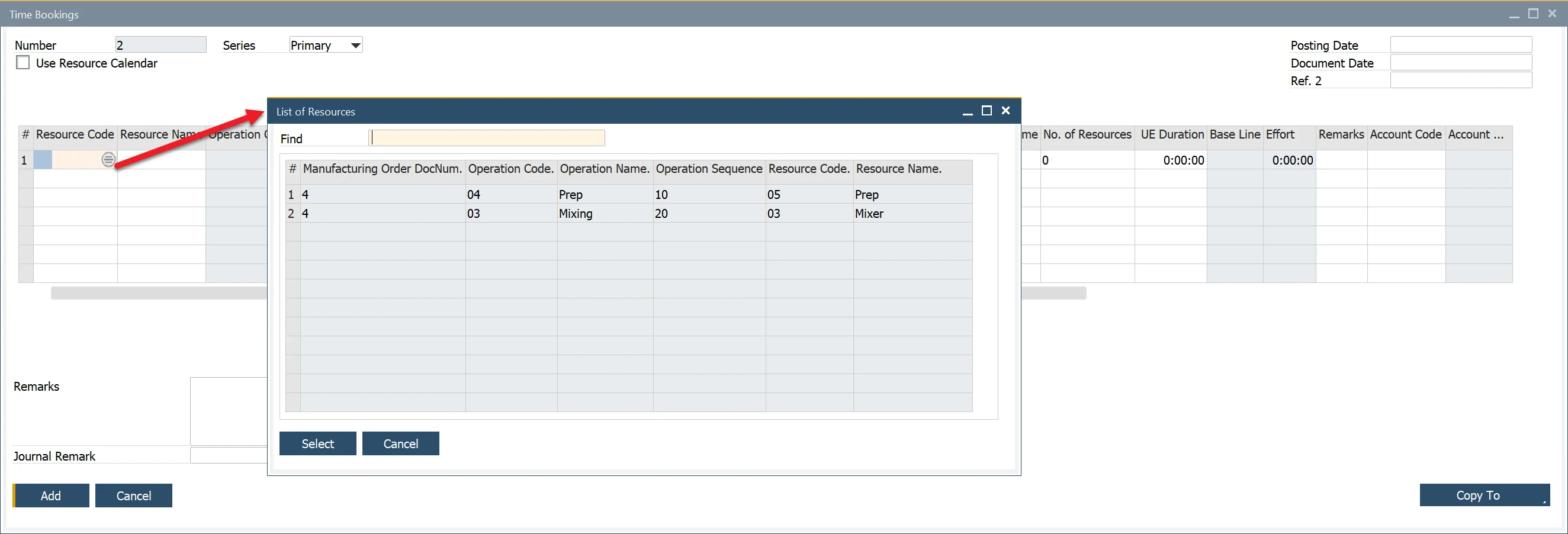
In the Time Bookings form, click the selection circle in the Resource Code or Resource Name field.
-
A Data Selection window appears, listing all resources assigned to Manufacturing Orders with statuses: Scheduled, Released, or Finished.
-
Select the desired records by clicking the first column in the respective rows.
-
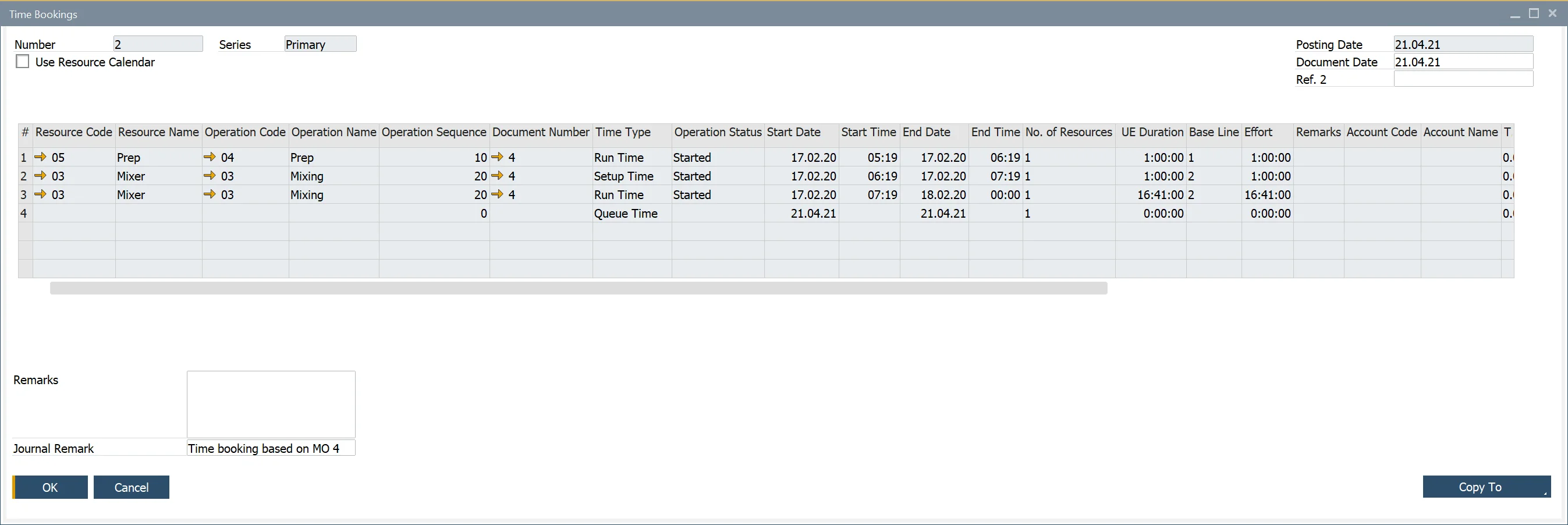
Set the document dates in the header and fill in the Time Booking details in the table.
-
The system automatically calculates time and cost values.
- You may manually adjust cost values.
- Manual cost edits do not affect the time fields.
-
Click "Add" to finalize the Time Booking entry.
Creating from a Manufacturing Order
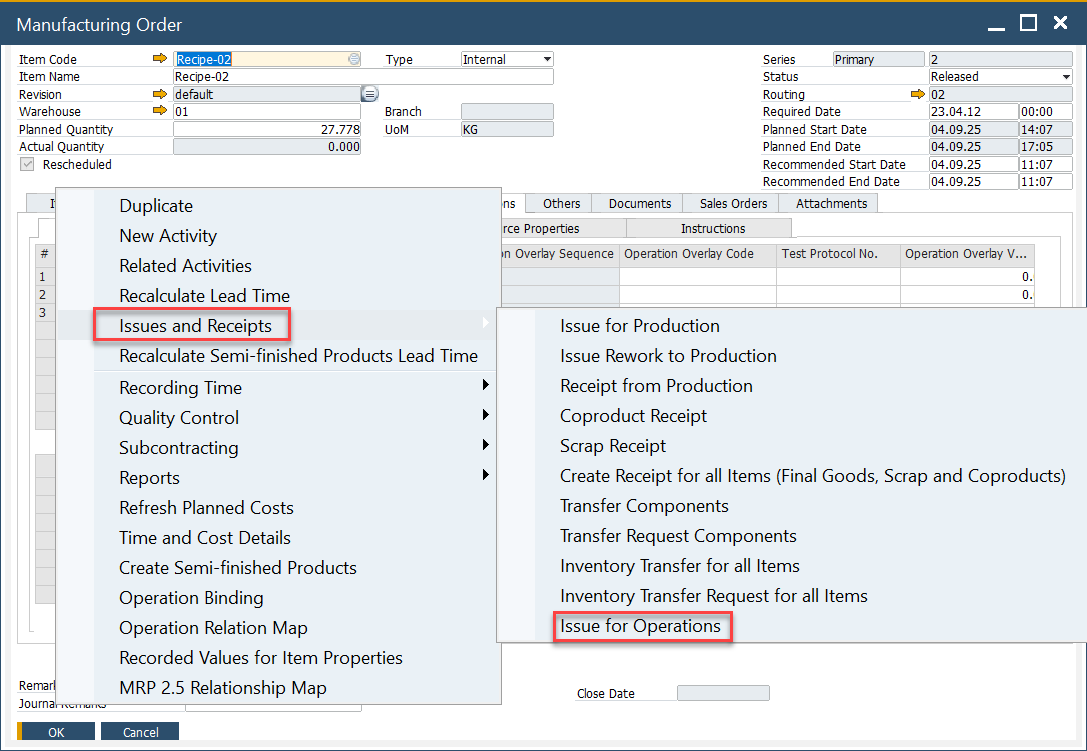
You can also access Time Booking from the context menu of a Manufacturing Order:
-
Header Level: Copies all related resources and their times into the new Time Booking.
-
Resource Line Level: Copies only the selected resource’s time entry.
Working with Multiple Resources
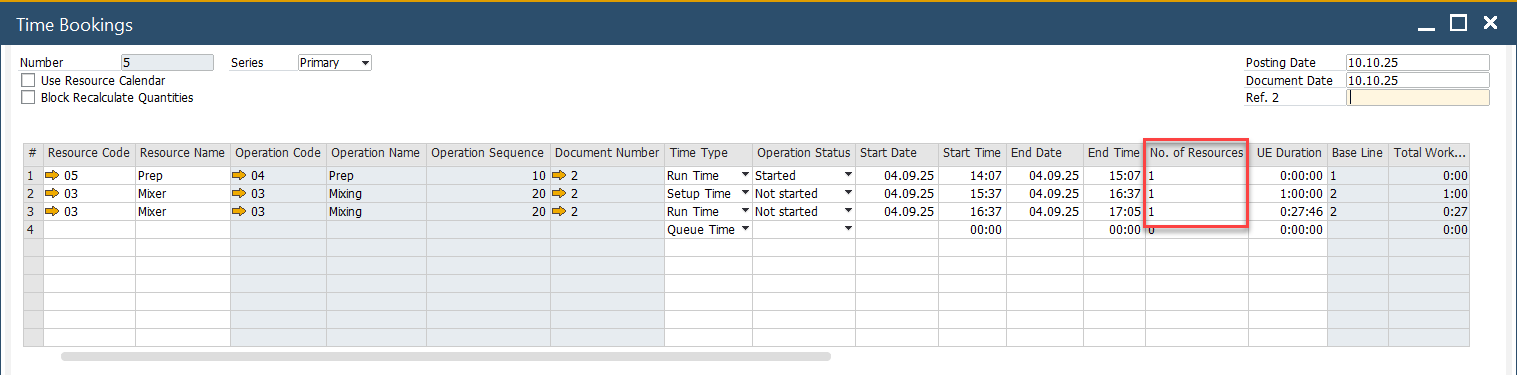
When multiple resources of the same type (for example, two identical machines) are used for an operation, define the number of resources in the No. of Resources column.
| Scenario | Description | Example |
|---|---|---|
| Single Resource | Run time remains unchanged. | Run Time = 10 hours → 1 Resource → Planned Run Time = 10 hours |
| Multiple Resources | Run time is divided by the number of resources. | Run Time = 10 hours → 2 Resources → Planned Run Time = 5 hours |
During cost calculation, the system aggregates total work time:
If 2 resources each work 5 hours, total cost is calculated for 10 resource-hours.
The Use Resource Calendar Checkbox
The Use Resource Calendar Option
When the Use Resource Calendar checkbox is enabled, time is calculated based on the resource’s predefined working schedule defined in the Resource Calendar.
| Mode | Description |
|---|---|
| Disabled (Default) | Time is calculated from Start/End Date and Time fields, excluding non-working hours, holidays, and exceptions. |
| Enabled | Time is calculated based on the Resource Calendar settings for precise alignment with actual working hours. |
Time Recording Report
All recorded time entries, including any modifications, can be reviewed in the Time Recording Report.
This report provides a consolidated view of production time data for audit and validation purposes.