You are viewing documentation for CompuTec WMS 3.0, which runs on CompuTec AppEngine 3.0 (.NET 8).
If you use CompuTec WMS 2.0, see the CompuTec WMS 2.0 documentation.
When upgrading to CompuTec WMS 3.0, update all required CompuTec components together to ensure compatibility.
Before installing or upgrading, review the CompuTec WMS Installation Guide and the system requirements.
Upgrade to CompuTec WMS 3.0
This guide describes how to upgrade from CompuTec WMS 2.0 to CompuTec WMS 3.0 Plugin.
Before you start
Before you begin, review the CompuTec WMS 3.0 System Requirements and make sure that:
- SAP Business One 10.0 FP 2502 or later is installed.
- SAP Business One Web Client is installed and configured.
- CompuTec AppEngine is installed and configured. Read more
- The devices used to access the plugin can reach SAP Business One Web Client and CompuTec AppEngine.
- You have administrator access to the server where CompuTec WMS Server is installed.
If you use CompuTec ProcessForce, also check that:
- CompuTec ProcessForce API is installed and its version exactly matches the version of CompuTec ProcessForce in the company database. Read more
- Each SAP Business One user has a matching CompuTec ProcessForce license type.
Schedule the upgrade for a time when users are not performing warehouse transactions. CompuTec WMS will be unavailable while you replace the existing installation.
Step 1: Back up the existing environment and test the upgrade
We recommend backing up the SAP Business One company database and the existing CompuTec WMS configuration before upgrading.
To verify the upgrade before applying it to production:
- Create a test copy of the production company database.
- Set up a test environment with CompuTec AppEngine 3.0 and the other required components.
- Install CompuTec WMS 3.0 in the test environment using the test company database.
- Test your warehouse workflows, custom settings, and integrations.
- After confirming that everything works correctly, upgrade the production environment.
Step 2: Uninstall the previous CompuTec WMS Server
Manually uninstall the previous CompuTec WMS Server before installing CompuTec WMS 3.0.
- Ask all users to stop working in CompuTec WMS.
- On the computer hosting CompuTec WMS Server, open Control Panel.
- Open Programs and Features.
- Select the existing CompuTec WMS Server installation.
- Click Uninstall.
- Follow the uninstallation instructions.
Step 3: Install the plugins, server, and client
- In CompuTec AppEngine, install CompuTec WMS Plugin and CompuTec WMS Business Logic Plugin.
- Open CompuTec WMS Plugin and download the CompuTec WMS Server installer.
- Run the installer and follow the installation instructions.
- Download the CompuTec WMS Client for your device from either:
- The CompuTec WMS Server address, opened in a browser.
- The
C:\Program Files\CompuTec\WMS Server\wwwroot\Buildsfolder on the server.
- Install the CompuTec WMS Client on the device.
Follow the CompuTec WMS 3.0 Installation Guide to install CompuTec WMS 3.0 Plugin and its required components.
When configuring the environment:
- Allow inbound connections on
TCP port 31002on the computer hosting CompuTec WMS Server. - Make sure that CompuTec AppEngine is accessible over
HTTPS. - If CompuTec ProcessForce is installed, install the CompuTec ProcessForce API Plugin. Read more
Step 4: Sign in to CompuTec WMS
- Open the CompuTec WMS client.
- Enter your Username and Password.
- Click Company.
- Select the company database.
- Click Login.
The client remembers the selected company database the next time you open it.
To sign in to a different company database:
- Enter your Username and Password again.
- Click Company.
- Select the company database.
- Click Login.
CompuTec WMS 3.0 Plugin uses the active SAP Business One Web Client session for authentication and authorization.
Step 5: Verify warehouse workflows
Before users resume work, test the workflows used in your warehouse.
Check that:
- Users can sign in from their warehouse devices.
- Users can access the expected warehouses and transactions.
- Barcode scanning works on the devices used in your warehouse.
- A representative warehouse transaction can be completed and produces the expected document in SAP Business One.
- Any custom settings or integrations work as expected.
Important Changes in CompuTec WMS 3.0
If you are upgrading from CompuTec WMS 2.0 to 3.0, be aware of several changes to the installation and configuration process:
-
CompuTec WMS 3.0 uses CompuTec AppEngine for plugin installation and management.
-
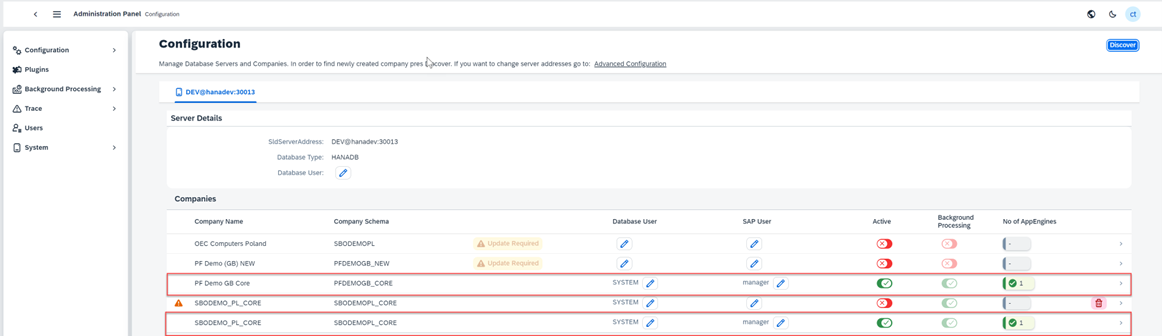
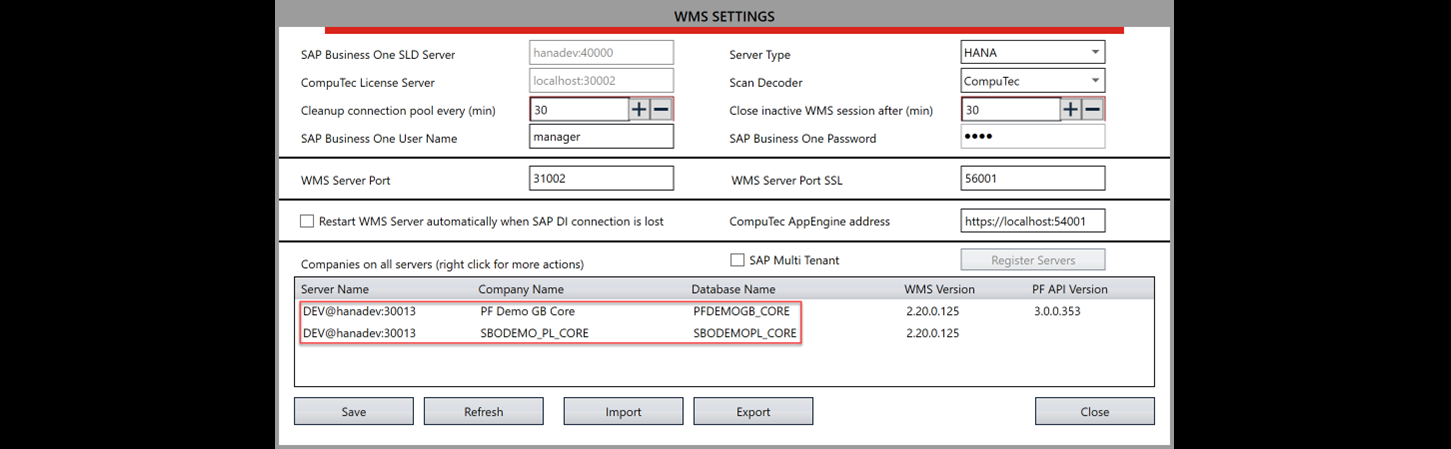
Only databases configured in CompuTec AppEngine are available to CompuTec WMS Server.
-
WMS plugin components and their dependencies are managed through CompuTec AppEngine.
-
WMS background processing jobs must be activated in CompuTec AppEngine.
-
The WMS Server installer is available from the installed WMS Plugin in the CompuTec AppEngine Administration Panel.
-
In CompuTec WMS Client, database selection requires entering a username and password first.

-
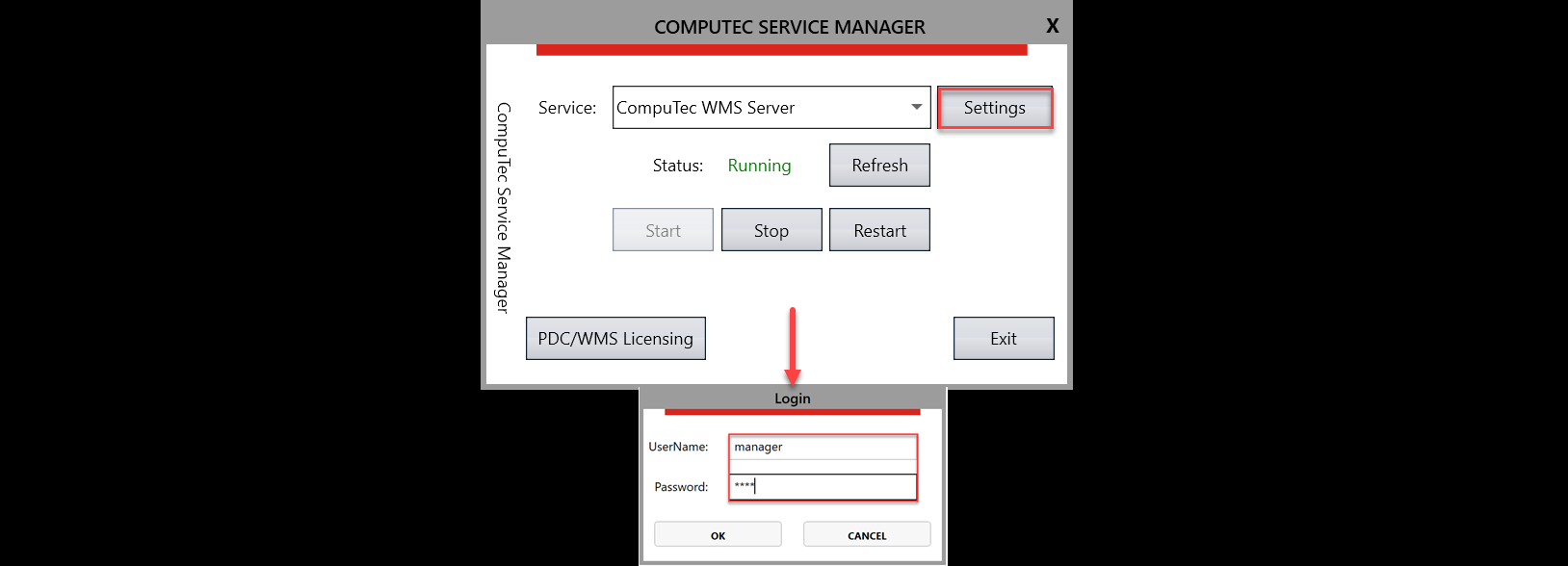
In CompuTec WMS Server, after selecting CompuTec WMS Server in the CompuTec Service Manager, provide a username and password.
-
Installation of CompuTec WMS objects has now been moved to CompuTec AppEngine under CompuTec WMS.BusinessLogic.
Troubleshooting
The CompuTec WMS Client does not open
This can occur if the new CompuTec WMS Client was installed before the previous client was uninstalled.
- Uninstall the CompuTec WMS Client from the device.
- Install the new client again.
- Open the client and sign in.
CompuTec WMS cannot connect to CompuTec WMS Server
- Verify that CompuTec WMS Server is running.
- Check that Windows Firewall allows inbound connections on TCP port
31002orTSL port 56001.
CompuTec WMS does not work correctly with CompuTec ProcessForce
Check that CompuTec ProcessForce API is installed in both required locations:
- In CompuTec AppEngine.
- Locally on the computer hosting CompuTec WMS Server. Download the installer from CompuTec AppEngine and run it on that computer.
The CompuTec ProcessForce API version must exactly match the version of CompuTec ProcessForce installed in the company database.
For instructions, see Install CompuTec ProcessForce API.
Also verify that the user has a CompuTec ProcessForce license matching their SAP Business One license type.